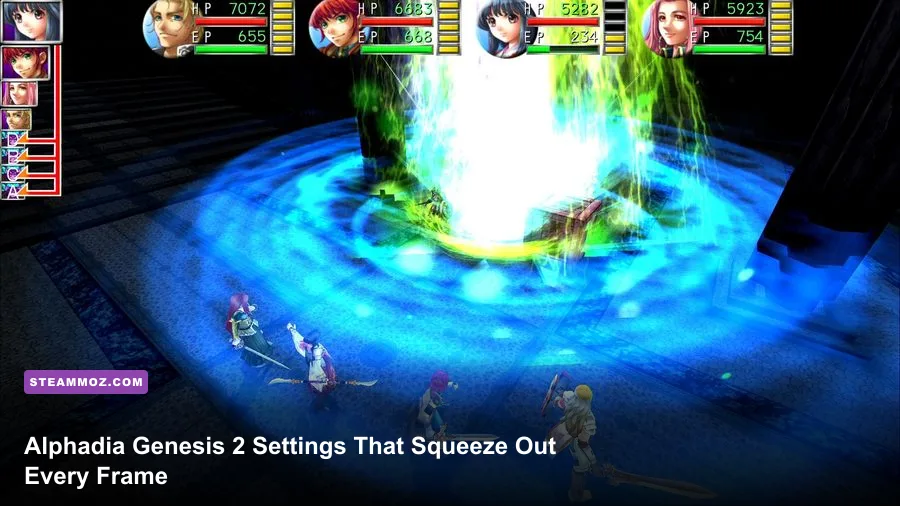
The best Alphadia Genesis 2 graphics settings for max FPS are surprisingly simple: use your monitor's native resolution, disable V-Sync if you want the highest possible frame rate, enable it if tearing bothers you, and leave the game's low-impact visual options at their highest setting. This is a lightweight 2D-focused JRPG, so most PCs should already run it comfortably. The real performance gains come from fixing frame pacing, avoiding needless upscaling, and using a sensible cap rather than blindly dropping image quality.
That distinction matters. Alphadia Genesis 2 isn't a modern 3D game with ray tracing, volumetric fog, or texture streaming hammering your graphics card. Its towns, overworld maps, menus, character sprites, and turn-based battles place a tiny load on contemporary hardware. If performance feels poor, the problem is more likely to be display synchronization, an odd fullscreen mode, background software, or a handheld power profile than an underpowered GPU.
This guide focuses on the PC version sold through Steam's official store search. Before changing anything, check the current build and notes on the official KEMCO website. The game does not offer the giant graphics menu found in a big-budget action RPG, and that is good news: there are fewer settings to fight and fewer ways to make the image look worse.
Best Alphadia Genesis 2 PC settings for maximum FPS
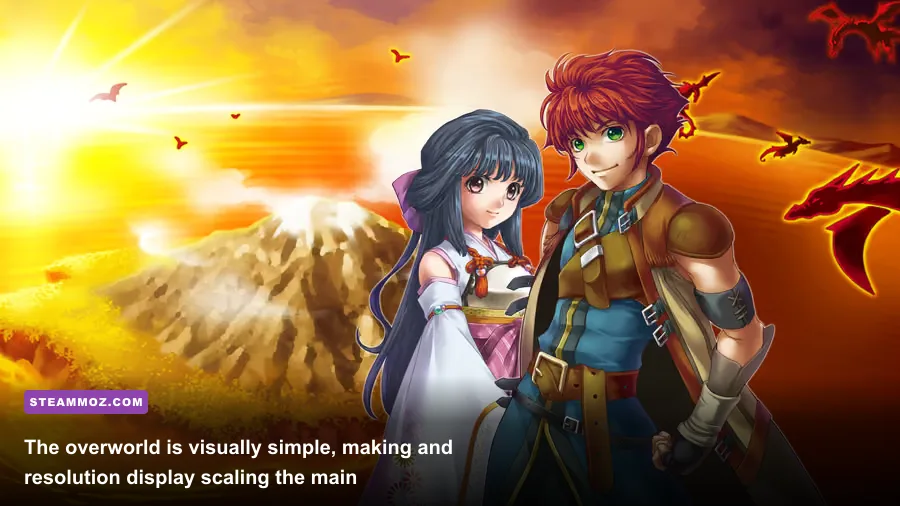
Start with the profile below. It is the strongest all-purpose setup for a desktop or laptop that simply wants the highest stable frame rate without making the interface blurry. Because Alphadia Genesis 2 is primarily a 2D presentation, lowering resolution often produces a much bigger hit to text clarity than it does a meaningful gain in performance.
| Setting | Max-FPS recommendation | Performance impact | Visual result |
|---|---|---|---|
| Display mode | Fullscreen | Low | Usually gives the cleanest exclusive presentation and avoids desktop scaling conflicts. |
| Resolution | Native monitor resolution | Low to medium | Sharpest sprites, menus, dialogue text, and battle effects. |
| V-Sync | Off for peak FPS; On for tear-free output | Low | Off reduces synchronization latency; On improves visual stability. |
| Frame limit | Monitor refresh rate or 60 FPS | Low | A cap prevents wasted rendering and keeps frame pacing steadier. |
| Anti-aliasing | Highest available option | Very low | Useful around sprite edges and interface borders, with little GPU cost. |
| Effects or quality | High | Very low | Keeps skill flashes and battle effects intact. |
| Window scaling | 100% or native integer scale where available | Low | Prevents soft, uneven sprite edges and fuzzy text. |
There is an important caveat: the exact labels can vary depending on the PC build and launcher configuration. If a setting is missing, don't try to recreate it with random third-party injectors. Set the options the game actually exposes, then use your GPU control panel only for a frame cap or synchronization mode.
For a 60 Hz monitor, a locked 60 FPS is the sensible target. On a 120 Hz or 144 Hz display, Alphadia Genesis 2 can still benefit from a higher cap if the build and display path support it, but the game itself does not become dramatically smoother in the way a competitive shooter does. Turn-based combat, menu navigation, and map movement are perfectly comfortable at a stable 60.

🎮 Alphadia Genesis 2
Looking to experience this game? Grab your digital key directly on our store for $7.49.
View on Steammoz Store →Why lowering resolution can make the game look worse
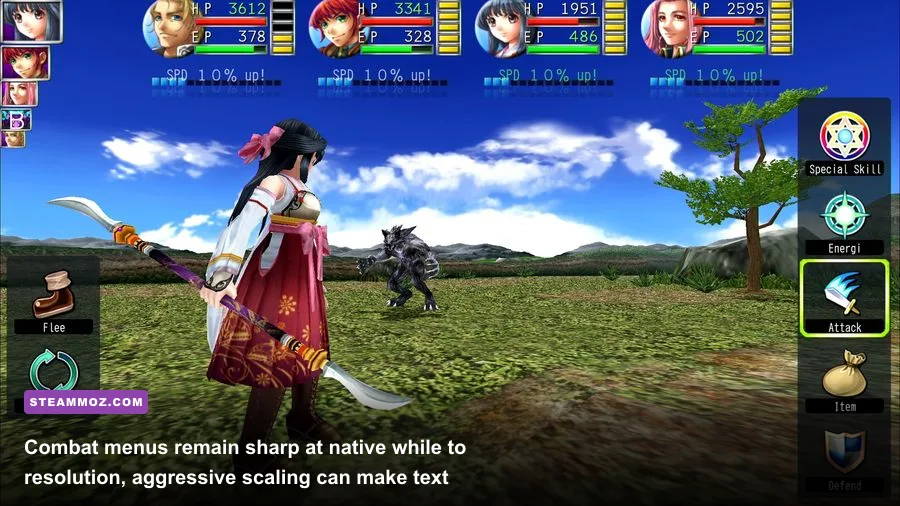
In a demanding 3D game, dropping from 1440p to 1080p can rescue a struggling GPU. Alphadia Genesis 2 is different. Its visual identity depends on crisp 2D sprites, small UI elements, dialogue boxes, and carefully drawn attack animations. Running below native resolution forces the display or game scaler to reconstruct those pixels. The result is often blurry lettering, uneven sprite outlines, and a muddy battle interface, even when the frame-rate increase is barely measurable.
Use native resolution first, then test. If your monitor is 2560x1440, begin at 2560x1440. If the image is too small at that resolution, change the game's window size or Windows display scaling rather than immediately dropping to 1280x720. At 1080p, a 100-percent scale remains preferable to a stretched low-resolution window because the game retains more detail in menus and dialogue.
Integer scaling is worth trying on a high-resolution monitor or Steam Deck. When the source image scales by a whole number, pixel edges remain consistent. Non-integer scaling can introduce shimmering during map scrolling, particularly against repeating tiles and thin UI borders. If your driver offers integer scaling, test it only after confirming that the game is not already applying its own scaling; stacking two scalers can create the exact softness you're trying to remove.
Don't confuse display scaling with anti-aliasing. Anti-aliasing smooths edges, while scaling changes how the entire rendered image maps to your panel. For Alphadia Genesis 2, the best-looking combination is normally native resolution, a clean fullscreen or borderless presentation, and the highest available smoothing option.
V-Sync, frame caps, and the smoothest frame pacing
V-Sync is the setting most likely to change how performance feels, even when the FPS counter looks healthy. With V-Sync enabled, the game waits for the monitor's refresh cycle before presenting a frame. That removes horizontal tearing, but it can add a small amount of input delay and may create noticeable jumps if the system misses its refresh target.
For a 60 Hz display, V-Sync On with a stable 60 FPS is the safest profile. It is ideal for players who notice tearing while scrolling across the overworld or moving through towns. If the game falls below 60 on a weak machine, the synchronized presentation can feel less consistent, so test a 30 FPS cap rather than letting the frame rate bounce between values.
For the lowest latency, disable in-game V-Sync and use a driver-level cap. NVIDIA users can set a per-game Max Frame Rate in NVIDIA Control Panel; AMD users can use Radeon Chill or a frame-rate target in Adrenalin. Keep the cap close to the display refresh rate instead of setting an absurd number. A cap at 58 or 59 FPS on a 60 Hz display can leave a little synchronization headroom, while a cap at 117 or 118 FPS works well for a 120 Hz screen.
| Hardware and display | Recommended cap | Sync choice | Reason |
|---|---|---|---|
| 60 Hz desktop monitor | 60 FPS | V-Sync On | Simple, tear-free, and entirely sufficient for turn-based combat. |
| 60 Hz monitor with tearing | 58-60 FPS | V-Sync On | Prioritizes consistent presentation over minimum latency. |
| 120 Hz or 144 Hz monitor | 60 or 120 FPS | V-Sync Off with driver cap | Offers low latency without letting the game render needlessly. |
| Steam Deck or low-power laptop | 30 or 60 FPS | Use the more stable option | Battery life and even frame times matter more than peak numbers. |
Use an overlay such as Steam's performance display for testing, but don't judge the game from one battle animation. Walk through a town, scroll across the overworld, open several menus, and trigger a large skill effect. A stable frame-time graph is more useful than a brief 200 FPS reading in a quiet menu.
The best profile for weak laptops and integrated graphics
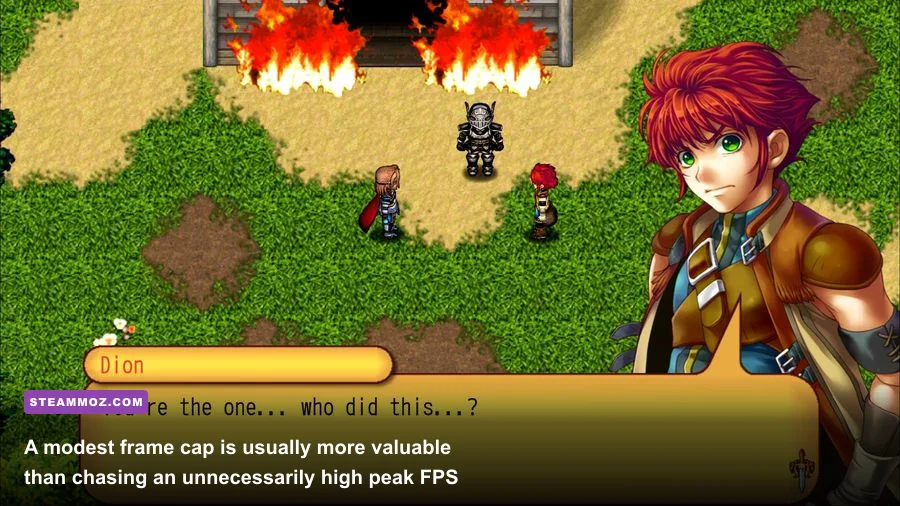
Alphadia Genesis 2 should be comfortable on integrated graphics, but older laptops can still struggle when Windows is busy or the system is stuck in a battery-saving mode. Before cutting image quality, plug the laptop in, select Best Performance in Windows power settings, and close browser tabs with video, overlays, and hardware-accelerated applications.
Use fullscreen at native resolution first. Then lower the resolution one step only if the game has genuine stutter during map scrolling or battle effects. Leave effects and anti-aliasing enabled unless you can demonstrate a repeatable improvement. In a lightweight JRPG, the difference between high and low effects is usually much smaller than the difference caused by a background process waking the CPU.
Windows graphics settings can also assign the game to the wrong adapter. On systems with both integrated and discrete graphics, open Settings, System, Display, Graphics, add the game's executable, and choose High performance. On an older machine with only integrated graphics, this option won't create extra horsepower, but it can stop Windows from switching power states at an inconvenient moment.
Keep an eye on storage and antivirus activity during installation or the first launch. A slow hard drive can make any game appear to hitch when another process is reading or writing heavily. That is not the same as a GPU bottleneck. The official Steam listing is the right place to confirm the current system requirements rather than relying on outdated forum posts.
If you enjoy tuning older RPGs, the same principle applies to our real-world PC requirements guide for Drawful 2: identify the actual bottleneck before sacrificing clarity. For Alphadia Genesis 2, that bottleneck is rarely the GPU.
Steam Deck settings for stable battery-friendly play
Steam Deck players should resist the temptation to run an unlimited frame rate. Alphadia Genesis 2 doesn't need it, and the extra rendering work can cost battery life without improving the experience. Start at 60 FPS with a 60 Hz refresh rate. If battery endurance matters more than ultra-smooth scrolling, use 40 FPS at 40 Hz or 30 FPS at 60 Hz.
A 40 FPS cap can feel noticeably smoother than 30 while drawing less power than 60, but it only makes sense if the refresh-rate option and frame limiter remain consistent. Avoid stacking the game's limiter, SteamOS's limiter, and a third-party tool unless you're testing deliberately. Multiple caps can create uneven frame delivery.
| Steam Deck profile | Resolution | Frame target | Best use |
|---|---|---|---|
| Quality | 1280x800 native panel output | 60 FPS | At-home play when battery life is not a concern. |
| Balanced | 1280x800 | 40 FPS at 40 Hz | Excellent compromise for scrolling, menus, and combat. |
| Battery saver | 1280x800 | 30 FPS | Long sessions away from a charger. |
| Docked | Display's native resolution | 60 FPS | Use native output before experimenting with upscaling. |
The Deck's 1280x800 panel is already a sensible target for this game. If a docked monitor makes the image soft, check whether SteamOS or the display is scaling a non-native output. Integer scaling can help, but text readability should be your final test: open the dialogue box, examine the battle command menu, and scroll through an inventory rather than judging only the title screen.
Our guide to Dragonkin performance settings covers a much heavier game, but the lesson carries over: a stable cap often beats an unstable maximum. That is especially true on a handheld where wasted frames become wasted battery.
How to test performance without fooling yourself
Make changes one at a time. Start from the recommended profile, record average FPS and frame-time behavior, then alter one setting. If you change resolution, V-Sync, fullscreen mode, and the frame cap simultaneously, you won't know which adjustment helped or caused a new problem.
1. Check a town scene
Town areas are useful because they combine scrolling, NPC sprites, layered backgrounds, and dialogue interfaces. Walk in a repeated route for 30 seconds. Watch for uneven movement rather than staring only at the counter. If the image tears while the FPS remains high, synchronization is the issue. If it pauses briefly when the camera scrolls, investigate background activity and display mode.
2. Cross the overworld
The overworld puts more repeated tiles and scrolling layers on screen. Walk diagonally and horizontally, open the menu, return to the map, and repeat. This catches frame pacing problems that don't appear in a static battle. It also exposes non-integer scaling, which can make tile edges shimmer as the camera moves.
3. Trigger battle effects
Use a party skill or spell with a prominent visual effect and watch for a brief hitch. A single small spike isn't automatically a serious problem; some effects are presented as timed animations rather than continuous rendering. What matters is whether the pause repeats, causes audio desynchronization, or persists after the animation ends.
4. Test after restarting
Some display changes don't fully apply until the game restarts. Close Alphadia Genesis 2, relaunch it, and repeat the same route. If your settings keep resetting, check Steam Cloud behavior and the game's configuration files only after confirming the installation is healthy through Steam's file-verification tool.
For broader troubleshooting, our PC crash and FPS fixes guide explains how to separate driver problems from game-specific issues. Don't install a new driver as your first move if the game is already rendering correctly; document the symptom, then test the least invasive fix.
Recommended final profiles and common mistakes
For most players, the final answer is straightforward: native resolution, fullscreen or a clean borderless mode, high visual quality, and a 60 FPS cap. Enable V-Sync if you see tearing; disable it and use a driver cap if responsiveness matters more. Lower resolution only when you have measured a real performance problem, and never sacrifice readable text for a frame-rate number you cannot feel.
| Profile | Resolution | V-Sync | Cap | Verdict |
|---|---|---|---|---|
| Best image quality | Native | On | 60 FPS | Best for nearly every desktop and laptop. |
| Lowest latency | Native | Off | Monitor refresh rate via driver | Use when tearing is not distracting. |
| Older laptop | Native, then one step lower if needed | On | 30 or 60 FPS | Prioritizes stable frame pacing. |
| Steam Deck balanced | 1280x800 | SteamOS-managed | 40 FPS at 40 Hz | Strong battery and smoothness compromise. |
The most common mistake is treating Alphadia Genesis 2 like a modern 3D release. There is no reason to chase texture quality sliders that don't exist, and no reason to run a 2D RPG at an unstable 300 FPS. The second mistake is blaming the game for a display-scaling problem: fuzzy menus usually point to non-native output, not weak hardware. The third is stacking limiters until frame delivery becomes worse than the original issue.
If you want a broader RPG performance comparison, take a look at our Dungeon Siege classic RPG review and Far Cry 2 PC requirements breakdown. Those games demand very different tuning strategies, which is exactly the point: good optimization starts with understanding the engine and presentation rather than applying the same low-settings preset everywhere.
Alphadia Genesis 2 is already an easy game to run. With native resolution, sensible synchronization, and a stable cap, you get the sharpest sprites, cleanest menus, and smoothest map movement without wasting hardware power. Measure once in towns, overworld travel, and effect-heavy battles, then lock in the profile that stays consistent. For this JRPG, consistency is the performance upgrade you'll actually notice.