If Aliens: Fireteam Elite - Into the Hive Edition keeps crashing or dropping frames on PC, start with a clean driver install, Steam’s file verification, and a capped 60 FPS profile at 1080p. The edition itself doesn’t require different hardware from the standard game: Into the Hive bundles the base game with the Pathogen expansion and cosmetic content, so the real trouble usually comes from damaged files, overlays, shader compilation, unstable overclocks, or settings that let Unreal Engine 4 push too many enemies and effects at once.
This guide separates hard crashes from ordinary performance dips, then gives you a reliable settings baseline for both older GTX 1060-class machines and newer RTX cards. Don’t throw every option to Low immediately. Fireteam Elite’s biggest wins come from controlling resolution scale, shadows, effects, view distance, and frame pacing in the right order.

Check the PC baseline before changing settings
First, confirm that your hardware is close to the game’s published target. The minimum specification lists an Intel Core i3-6100, 6GB of RAM, a GeForce GTX 660 with 2GB of VRAM or Radeon HD 7870 with 2GB, and Windows 10 64-bit. The recommended target rises to an Intel Core i5-7400, 8GB of RAM, and a GeForce GTX 1060 6GB or Radeon RX 580 8GB.
Those figures are starting points, not a promise of locked 60 FPS during a Prowler rush. The game can run on the minimum GPU, but 2GB cards are vulnerable to texture streaming hitching and sudden drops when acid pools, particle effects, and a full swarm overlap. Eight gigabytes of system memory is also workable, while 16GB gives Windows and the game much more breathing room.
| Component | Minimum Target | Recommended Target | Practical 60 FPS Advice |
|---|---|---|---|
| CPU | Core i3-6100 | Core i5-7400 | Four modern cores or better helps during swarm events |
| Memory | 6GB RAM | 8GB RAM | 16GB is preferable with browsers, Discord, or recording tools open |
| GPU | GTX 660 2GB / HD 7870 2GB | GTX 1060 6GB / RX 580 8GB | 6GB VRAM avoids many texture-streaming compromises at 1080p |
| Operating system | Windows 10 64-bit | Windows 10 64-bit | Keep Windows and the GPU driver current, but avoid optional beta drivers |
| Storage | Available game drive space | SSD preferred | An SSD reduces loading pauses and texture-streaming stalls |
Install the game on an SSD if possible. An SSD won’t magically raise average FPS, but it can shorten loading and reduce the ugly pause that happens when the game pulls new rooms, textures, and enemy assets into memory. If you’re comparing hardware, our Gearshifters PC settings guide covers the same useful distinction between average FPS and frame-time stability.

🎮 Aliens: Fireteam Elite - Into the Hive Edition
Looking to experience this game? Grab your digital key directly on our store for $11.99.
View on Steammoz Store →Fix crashes before chasing frame rate
A crash to desktop, a frozen image with looping audio, and a simple FPS collapse need different treatment. Start with the fixes that restore the game’s files and remove software sitting between Fireteam Elite and the GPU.
1. Verify the installation through Steam
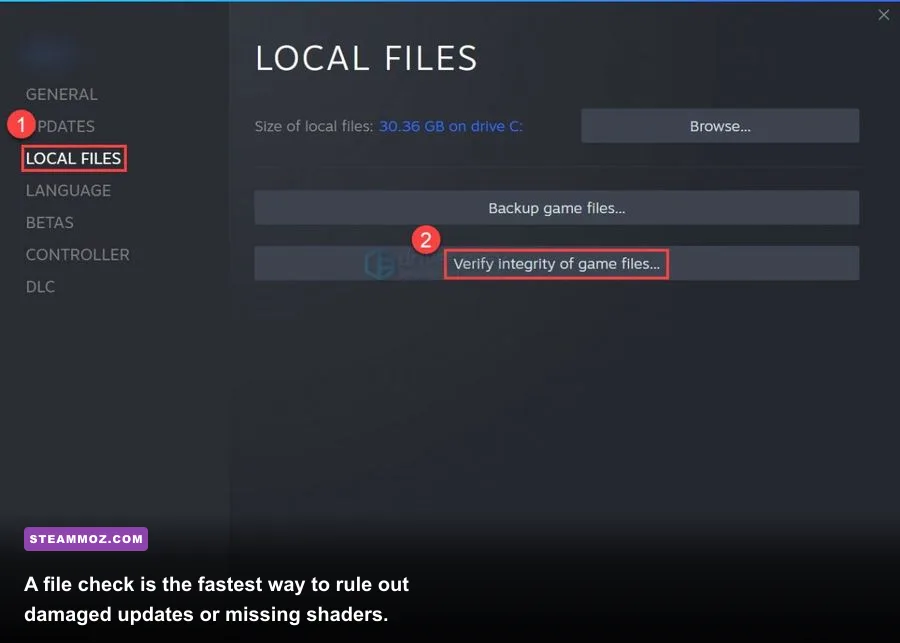
Open Steam, right-click Aliens: Fireteam Elite, choose Properties, select Installed Files, and click Verify integrity of game files. Let the process finish, then restart Steam before launching. This is particularly important after installing the Pathogen content, moving the game between drives, or interrupting a patch.
Verification may redownload only a few files, and that’s normal. Don’t delete the entire installation first. If verification repeatedly finds replacements, check the drive’s health and make sure antivirus software isn’t quarantining the executable or Unreal Engine files.
2. Perform a clean GPU-driver installation
Download the current stable driver directly from NVIDIA or AMD Support. During installation, use the clean-install or factory-reset option when available. Don’t stack a new driver on top of several hotfix versions if the crashing began immediately after a driver update.
For a reproducible crash that started after updating, testing the previous stable driver is reasonable. Avoid third-party “driver booster” utilities; they often create more variables than they remove.
3. Disable overlays and injectors temporarily
Turn off Steam Overlay, Discord Overlay, Xbox Game Bar, GeForce Experience or AMD recording overlays, MSI Afterburner’s RivaTuner overlay, ReShade, and RGB monitoring tools for the first test. These programs hook into the rendering pipeline, and a game that is stable alone may fail when several overlays compete for the same frame.
Also remove any overclock from the GPU, CPU, or RAM. Fireteam Elite may expose instability that other games never touch, especially during long missions with dense enemy waves. Return to stock clocks, launch a mission, and only restore tuning after several crash-free sessions.
4. Clear the shader and configuration trouble spots
Shader compilation can cause stutter after a driver change, but repeated crashes are more suspicious. Close the game and Steam, restart Windows, then launch again so the title can rebuild what it needs. If the game crashes as soon as it reaches the menu, rename the game’s local configuration folder rather than deleting it immediately; this forces fresh settings while preserving a backup you can restore.
Before doing that, note your keybinds and display mode. A damaged config can keep loading an invalid resolution or fullscreen state. If the crash disappears after the reset, reapply settings manually instead of copying the old configuration back wholesale.
5. Check Windows security and runtime files
Install pending Windows updates, then repair or reinstall the Microsoft Visual C++ 2015–2022 x64 runtime from Microsoft’s official download page. Add the game folder as an antivirus exclusion only if you trust the installation and only for testing. Never disable security permanently to fix a game crash.
Finally, use sfc /scannow in an elevated Command Prompt if multiple games are failing. If only Fireteam Elite crashes, the problem is more likely local files, drivers, overlays, or configuration than Windows itself.
Use this FPS profile at 1080p
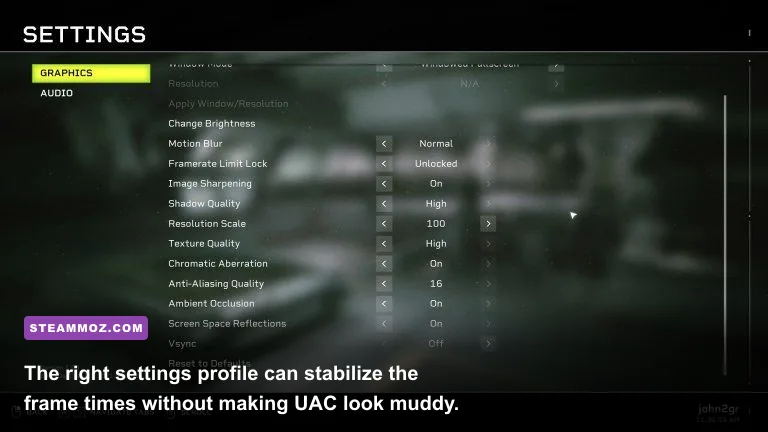
Set a sensible baseline before experimenting. Use Fullscreen if it behaves well on your system; borderless is convenient, but it can add compositor overhead on some Windows setups. Select your monitor’s native resolution, turn V-Sync off while testing, and cap the frame rate to a number your PC can hold consistently. A locked 60 FPS feels much better than bouncing between 47 and 90.
| Setting | Recommended Value | FPS Impact | Visual Trade-off |
|---|---|---|---|
| Resolution | Native 1920x1080 | Very high if reduced | Use 1600x900 or 1280x720 only on weak GPUs |
| Resolution scale | 100%; test 90% if needed | Very high | Lower values soften the image but rescue GPU-limited scenes |
| Textures | High with 6GB+ VRAM; Medium with 2–4GB | Low to medium | Mostly affects surface detail and VRAM use |
| Shadows | Medium | High | Lowering removes depth in corridors but improves busy fights |
| Effects | Medium | High | Reduces smoke, muzzle flash, acid, and explosive clutter |
| View distance | Medium or High | Medium | Medium is a strong CPU/GPU compromise |
| Anti-aliasing | High, then Medium if GPU-limited | Medium | Medium can produce more jagged railings and vents |
| Ambient occlusion | Medium | Medium | Lowering it makes corners flatter but usually keeps the image clean |
| Motion blur | Off | Negligible | Sharper target tracking and less visual smearing |
| V-Sync | Off for testing; On if tearing bothers you | Low to medium | Can add latency and lock behavior depending on display mode |
Textures are the setting people blame for FPS drops when VRAM is often the real issue. High textures usually have a small average-FPS cost, but on a 2GB card they can trigger streaming stutters and hitching. Drop textures to Medium before sacrificing resolution if your frame rate is broadly stable but pauses whenever you enter a new room.
Shadows and effects are the first serious cuts for horde battles. Every Warrior, Burster, Prowler, muzzle flash, and acid effect adds work, and the screen can become a fireworks display during a holdout. If your GPU usage sits near 95–99%, lower resolution scale, shadows, and effects. If GPU usage is low while FPS collapses in large waves, you’re probably CPU-limited; lower view distance, close background apps, and use an FPS cap.
For 1440p, begin with the same profile but set resolution scale to 90% and textures to High only if your card has at least 8GB VRAM. For 4K, a 60 FPS target requires a considerably stronger GPU; lowering effects alone won’t make a mid-range card behave like an RTX 4070.
Stabilize frame times during swarm missions
Don’t judge performance from the Endeavor menus. Load a real mission and test the moments that stress the engine: opening a door into a new room, defending a console, fighting a Crusher or Praetorian, and surviving a scripted swarm. The first run after a driver change may stutter while shaders are rebuilt, so repeat the same section before deciding that a setting failed.
Match the fix to the bottleneck
Use an overlay such as the Steam FPS counter for a basic reading, or a trusted monitoring tool after you’ve disabled its on-screen display during crash testing. GPU usage near full capacity means the graphics card is the wall. Reduce resolution scale, shadows, effects, or anti-aliasing. GPU usage that falls sharply while one CPU core is saturated points toward a processor or background-task limit.
That CPU behavior matters in Fireteam Elite because the game is not rendering four quiet marines in an empty room. It is tracking AI, pathing, hit reactions, projectiles, and spawn activity. A lower graphics preset cannot completely solve a CPU bottleneck. Cap the game at 60 or 72 FPS, close browser tabs and launchers, and avoid recording at an unnecessarily high bitrate.
Use the three-class test to find stutter
The Gunner, Demolisher, and Technician are useful test classes because their missions quickly produce different effects. Gunner’s Overclock and heavy weapon fire can expose particle-related dips. Demolisher’s Micro Rockets and heavy ordnance stress effects during dense groups. Technician’s turret adds another active combat object and makes repeated corridor tests easy to reproduce.
That doesn’t mean the class changes the game’s minimum requirements. It simply gives you a repeatable way to compare frame pacing. Run the same mission segment, use the same ability at the same swarm, and change one graphics setting at a time. If you change six options together, you won’t know which one actually helped.
Use a cap instead of chasing a peak
A cap of 60 FPS is the safest target for a recommended-spec machine. On a 120Hz or 144Hz display, try 72 or 90 only if the game holds that number through swarm events. The goal is consistent frame delivery, not a lobby number that collapses when a Praetorian enters a corridor.
If you still see uneven motion, test V-Sync on and off, then compare a driver-level frame cap with an in-game cap. Keep only one cap active. Multiple limiters can create an odd tug-of-war that feels worse than either setting alone.
For more practical PC tuning, Steamoz’s Freshly Frosted FPS settings guide explains the same frame-time approach, while our Just Cause 4 crash-fix guide covers overlay and driver troubleshooting that applies here too.
A clean launch checklist for Into the Hive
Use this order after installing or updating the Into the Hive Edition:
- Restart Windows and let Steam finish every download before launching.
- Verify game files from Steam’s Installed Files menu.
- Update or clean-install the GPU driver from NVIDIA or AMD.
- Disable every overlay and hardware overclock for the first test.
- Launch at 1080p, 100% scale, Medium shadows, Medium effects, and Medium view distance.
- Test a real mission, not just the main menu, and repeat the same swarm section.
- Raise one setting at a time until FPS or stability breaks.
If the game crashes only in multiplayer, test a private session and then check whether the issue follows a particular mission, host, or matchmaking transition. Network trouble normally causes disconnects rather than a full desktop crash, but a repeatable crash during one operation still warrants file verification and a report to the developer.
Keep your crash details useful: record the mission, difficulty, class, weapon, location, whether an overlay was active, and whether the crash happened during a loading transition or combat. Include your CPU, GPU, RAM amount, driver version, Windows build, and the game’s log files when contacting Focus Entertainment Support. The official Aliens: Fireteam Elite site is also worth checking for known issues and patch information.
The short version is simple: verify first, remove overlays, reset unstable tuning, then build a capped 60 FPS profile around Medium shadows and effects. Into the Hive adds more content, not a secret performance mode, so the best fix is a controlled PC setup that stays predictable when the hive opens and the screen fills with xenomorphs.