
For the best After Us performance, start with 1080p, disable V-Sync, use the High preset as a base, then lower shadows, effects, foliage, and post-processing first. On a PC around the recommended specification—an RTX 2060 or RX 5600 XT with 16GB of RAM—that profile is the sweet spot for a mostly smooth 60 FPS experience. Use a 60 FPS cap if your system cannot hold 60 consistently; a locked frame rate feels far better during Gaia's fast traversal than a counter bouncing between 45 and 80.
After Us is not a competitive game, so chasing every last frame at the cost of muddy foliage is unnecessary. Its strongest visual moments come from dense vegetation, ruined structures, colored fog, water, and the animal spirits Gaia restores. The goal here is to remove expensive effects that are difficult to notice while preserving texture detail and geometry. Before changing anything, check the official Steam listing for After Us and update your GPU driver.
Use this After Us baseline before fine-tuning

Launch the game, select the High preset, and change settings in a fixed order. Do not start by dropping everything to Low. That often removes foliage and shadow quality while leaving the biggest frame-time offenders untouched. Test the same route for at least 60 seconds after each change, ideally in a busy area with vegetation, particles, and distant geometry.
For a clean baseline, use exclusive fullscreen if your build offers it. If fullscreen introduces odd alt-tab behavior, borderless is fine, but Windows may add a little compositor overhead. Set your desktop and game to the monitor's native resolution first. Scaling 1440p down to 1080p can create softness and does not always behave like a true 1080p output.
Disable motion blur if you want a clearer image while moving. Gaia's movement is deliberately fluid, and blur can make traversal feel less responsive even when the frame rate is stable. Keep anti-aliasing enabled unless you are desperate for performance; turning it off makes foliage and fine edges shimmer badly. If your version exposes a resolution-scale slider, leave it at 100% for the initial test, then reduce it gradually rather than jumping straight to a low value.
| Target PC | Resolution | Starting Preset | Recommended Goal |
|---|---|---|---|
| GTX 1060 / RX 580 class | 1920×1080 | Medium | 30–60 FPS with reduced shadows |
| GTX 1660 Ti / RX 5600 class | 1920×1080 | High | Near-60 FPS with selective cuts |
| RTX 2060 / RX 5600 XT class | 1920×1080 | High | Stable 60 FPS target |
| RTX 3060 / RX 6700 XT class | 2560×1440 | High | 60 FPS with shadow and effects tuning |
| RTX 4070 / RX 7800 XT class | 2560×1440 or 3840×2160 | High or Ultra | 60 FPS, depending on resolution scaling |
The published PC requirements are a useful warning rather than a guarantee. The minimum GTX 970 or Radeon RX 580 class hardware is aimed at getting the game running, while the recommended RTX 2060 or RX 5600 XT class is a more realistic starting point for high-quality 1080p. You can compare that approach with Steamoz's Deadfall Adventures settings guide, but After Us needs more attention to frame-time consistency because its open areas stream lots of scenery as you move.

🎮 After Us
Looking to experience this game? Grab your digital key directly on our store for $5.99.
View on Steammoz Store →Which graphics settings cost the most FPS?
Shadow quality is usually the first setting to reduce. Higher shadows increase the detail and distance of shadow maps, and After Us frequently places Gaia in scenes with foliage, ruins, and multiple light sources. Moving from Ultra to High often keeps the scene convincing; moving from High to Medium can produce a meaningful gain in crowded spaces.
Effects quality is next. This controls the cost of particles, atmospheric effects, glows, and some environmental activity. Ocean sections and damaged landscapes can combine fog, light shafts, debris, and water effects, so Effects may hurt the GPU more than it does in a quiet grassy area. If your GPU usage sits near 99% and frame rate dips during visual bursts, lower Effects before Texture Quality.
Foliage quality affects both GPU rendering and CPU scene management. The lower setting can make the world look noticeably barer, but it is one of the better fixes for dips while sprinting through dense vegetation. View distance has a similar trade-off: lower it if distant geometry causes drops, but avoid the minimum value because pop-in is especially distracting in After Us's carefully staged landscapes.
| Setting | Recommended Value | FPS Impact | Visual Trade-Off |
|---|---|---|---|
| Resolution | Native 1080p or 1440p | Very high | Lowering improves FPS but softens every scene |
| Resolution Scale | 100%; test 90–95% if needed | Very high | Small reductions add softness but preserve composition |
| Textures | High | Low to medium | Mostly affects VRAM; Low makes surfaces visibly muddy |
| Shadows | Medium or High | High | Lower settings reduce contact-shadow detail |
| Effects | Medium or High | High | Less fog, glow, particles, and environmental spectacle |
| Foliage | High on 8GB GPUs, Medium on weaker cards | Medium to high | Less grass and vegetation density |
| View Distance | High | Medium | Lower values create distant pop-in |
| Anti-Aliasing | High or default | Medium | Lower values produce shimmering edges |
| Post-Processing | Medium | Medium | Less depth, bloom, and atmospheric polish |
| Motion Blur | Off | Small | Cleaner movement and sharper traversal |
| V-Sync | Off, unless tearing bothers you | Small | Off can introduce tearing but reduces latency |
Textures deserve special treatment. They consume video memory more than raw shader power, so keep them High if your card has 8GB of VRAM and you are not seeing texture pop-in or hitching. On a 4GB card, Medium is safer. If the game stutters after entering a new region rather than during a single effect-heavy moment, texture streaming and VRAM pressure may be involved.
Best 1080p, 1440p, and low-end profiles
Best balanced 1080p profile
Use High preset, 1920×1080, 100% resolution scale, Textures High, Shadows Medium, Effects Medium, Foliage High, View Distance High, Anti-Aliasing High, Post-Processing Medium, Motion Blur Off, and V-Sync Off. Cap the game at 60 FPS if your monitor supports a 60Hz refresh rate. This is the profile I would use on an RTX 2060, RTX 3060, RX 5600 XT, or RX 6600.
Why Medium shadows instead of High? The difference is easiest to spot when you stop and inspect a wall or a patch of ground, not while Gaia is moving through the world. The saved GPU time is much more valuable during busy traversal. Keep Foliage High because it preserves the visual identity of the forest and grass-heavy spaces.
Sharper 1440p profile
At 2560×1440, start with High preset, Textures High, Shadows Medium, Effects High, Foliage High, View Distance High, and Post-Processing Medium. Native 1440p is expensive, so if the frame rate sits in the 40s, reduce resolution scale to 90–95% before turning textures down. A modest internal-resolution cut usually looks better than Low textures and Low foliage.
If your monitor has adaptive sync, keep V-Sync off in-game and use a frame cap a few frames below the panel's maximum refresh rate. For a 144Hz display, try 138 or 140 FPS only if your PC can actually approach that number. Otherwise, a 60 or 72 FPS cap produces more consistent frame pacing than an unstable high target.
Low-end 1080p profile
Use Medium preset, 1920×1080, 90–100% resolution scale, Textures Medium, Shadows Low, Effects Low, Foliage Medium, View Distance Medium, Anti-Aliasing Medium, Post-Processing Low, Motion Blur Off, and V-Sync Off. If the GPU still struggles, use 1600×900 rather than destroying every quality setting. That resolution remains much cleaner than an aggressively reduced internal scale on some displays.
| Profile | GPU Target | Key Settings | Best Use |
|---|---|---|---|
| Balanced 1080p | RTX 2060 / RX 6600 | High textures, Medium shadows, High foliage | Best overall image-to-FPS balance |
| 1440p Quality | RTX 3060 Ti / RX 6700 XT | High effects, Medium shadows, 90–100% scale | Sharper displays and cinematic play |
| Low-End Smooth | GTX 1060 / RX 580 | Medium textures, Low effects and shadows | Prioritizes stable traversal |
| Visual Showcase | RTX 4070 / RX 7800 XT | High or Ultra, native resolution | Screenshots and slow exploration |
For broader PC troubleshooting, Steamoz's stutter and low-FPS fixes cover useful Windows-side checks. The key difference here is that you should tune After Us by scene, not by the first quiet area you see.
How to tell whether your GPU or CPU is limiting FPS
Use an overlay such as MSI Afterburner with RivaTuner, AMD Adrenalin metrics, or the Xbox Game Bar Performance widget. Watch GPU utilization, VRAM use, system RAM, and frame-time graphs—not just the headline FPS number.
A GPU-bound system usually shows GPU usage in the mid-to-high 90s while the CPU has spare headroom. Lower resolution scale, Effects, Shadows, or Anti-Aliasing in that order. If FPS rises immediately, you found the problem. If GPU usage falls well below 90% during a dip and one or two CPU cores spike, the limitation is more likely streaming, scene management, or background software. Lowering resolution will not solve that kind of hitch.
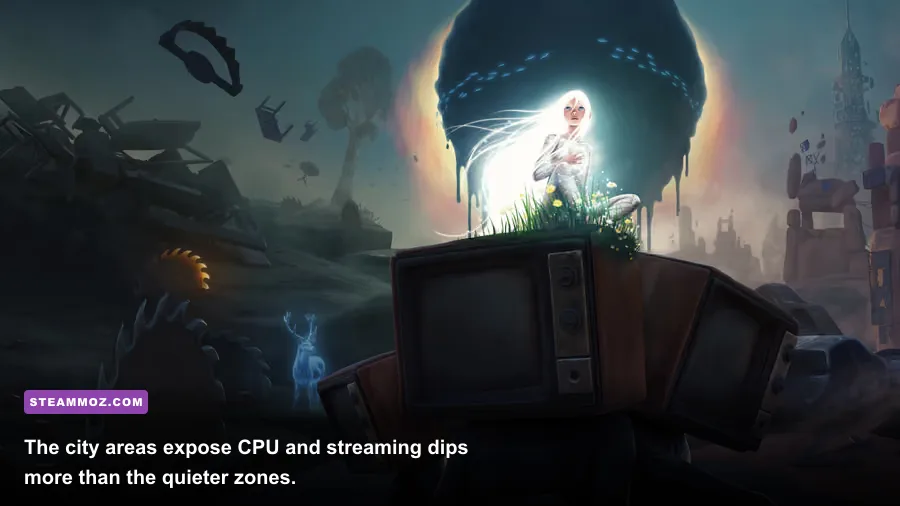
After Us has large, atmospheric spaces where the camera can reveal a lot of geometry at once. City ruins and areas with dense environmental dressing can expose CPU-side frame-time spikes. Close browser tabs, recording tools, RGB utilities, and launchers you do not need. Install the game on an SSD if possible; the minimum and recommended specifications list substantial storage, but drive speed still affects how quickly assets arrive during movement.
Do not expect more system RAM to magically increase average FPS. The game lists 8GB as a minimum, but 16GB is the more comfortable target with Windows and background applications open. If memory usage approaches the limit, you may see hitching and delayed asset loading. That is a capacity issue, not a setting that Ultra textures alone can fix.
Use the official After Us developer page for game information, and check Steam Community discussions for build-specific reports. Driver behavior can change after updates, so repeat a short benchmark whenever you install a major GPU driver or game patch.
Fix stutter, tearing, and inconsistent frame pacing

Start with a clean restart after changing several settings. Some graphics options do not fully settle until the next launch, and testing immediately after a long session can confuse shader compilation stutter with a permanent performance problem.
For tearing, enable adaptive sync on your monitor and leave V-Sync off in After Us. If you do not have adaptive sync, use V-Sync when tearing is more distracting than the small latency increase. A frame cap is still useful either way. Capping at 60 on a system that repeatedly swings between 52 and 75 can make the experience feel dramatically steadier.
If stutter appears when turning quickly, lower View Distance and Foliage one step, then test again. If it happens only when effects fill the screen, lower Effects. If textures briefly look blurry or objects pop in after entering a new space, reduce Textures one step and close memory-heavy applications. Do not lower every option at once, because you will lose track of what actually helped.
Verify the game files through Steam, update Windows, and use a current GPU driver. If a driver update makes performance worse, a clean driver installation or rollback can be worth trying. Laptop players should force the dedicated GPU in Windows Graphics settings, connect the charger, select a high-performance power mode, and check that the machine is not throttling from heat.
One more practical warning: benchmark after loading a level or region, not only from the main menu. After Us's reflective surfaces, fog, vegetation, and animal-spirit effects vary heavily by location. A setting that looks perfect in an empty ruin may collapse in a foliage-heavy section. Your frame-time graph should remain reasonably flat while Gaia runs, jumps, and turns the camera—not merely while she stands still.
My final After Us performance setup
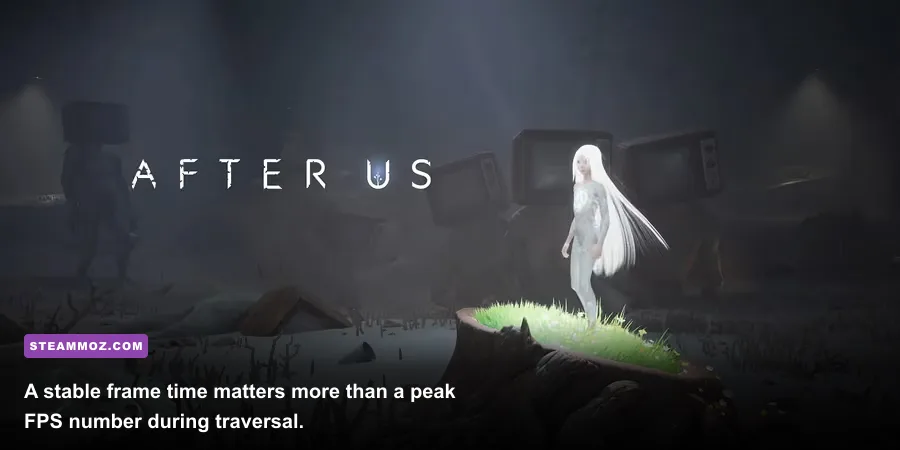
For most players with a mid-range gaming PC, my final recommendation is 1080p High with Textures High, Foliage High, View Distance High, Shadows Medium, Effects Medium, Post-Processing Medium, Anti-Aliasing High, Motion Blur Off, V-Sync Off, and a 60 FPS cap. It keeps the rich environmental detail that makes After Us memorable while cutting the settings most likely to create GPU spikes.
If you own a stronger 1440p machine, preserve native resolution and lower shadows before reducing image scale. If you are on a GTX 1060, RX 580, or similar card, use the Low-End Smooth profile and accept Medium foliage rather than forcing Ultra textures. The game benefits more from stable movement and clean frame pacing than from a few extra details in distant shadows.
| Priority | Change | Expected Result | When to Stop |
|---|---|---|---|
| 1 | Set a realistic FPS cap | More consistent frame pacing | When traversal feels stable |
| 2 | Lower Shadows to Medium | Strong GPU improvement in busy scenes | When shadow detail becomes distracting |
| 3 | Lower Effects to Medium | Fewer drops around fog, water, and particles | When atmospheric detail starts disappearing |
| 4 | Lower Foliage or View Distance | Fewer traversal and streaming dips | When pop-in becomes obvious |
| 5 | Reduce resolution scale by 5–10% | Large FPS gain without changing settings individually | When the image looks visibly soft |
After Us is at its best when the world can breathe without the camera hitching every time you enter a new space. Tune for a stable target, keep textures and foliage as high as your VRAM allows, and spend your performance budget on native resolution rather than ultra shadows. If you enjoy methodical PC tuning, Steamoz's PC performance testing guide for Hunt: Showdown 1896 offers another useful frame-time mindset. With these settings, Gaia's journey stays sharp, fluid, and far less frustrating.