For the best Marvel's Spider-Man Remastered PC performance, start with High textures, Medium shadows, Medium traffic and crowd density, High level of detail, no ray-traced reflections, and DLSS or FSR 2.0 on Quality. That profile usually delivers a far steadier 60 FPS than the Ultra preset while keeping Manhattan sharp and detailed. If your GPU has headroom, raise textures and anisotropic filtering first; cut ray tracing, hair quality, shadows, and population density before sacrificing resolution.
This matters because Spider-Man Remastered is unusually demanding during traversal. A quiet rooftop can look perfectly smooth at 80 FPS, then web-swinging through Midtown can hammer the CPU, stream new geometry, and expose frame-time spikes. The goal isn't a pretty benchmark number. It's a stable frame rate when Peter Parker is moving at full speed, fighting a dozen enemies, and loading the next block.
Best Spider-Man Remastered PC settings for maximum FPS

Use the table below as the practical starting point for a 1080p or 1440p gaming PC. These recommendations target image quality that still feels premium, without paying for settings whose benefits disappear during combat or traversal. The exact FPS gain depends on your GPU, CPU, resolution, and whether dynamic resolution is active.
| Setting | Recommended value | FPS impact | Visual trade-off |
|---|---|---|---|
| Texture Quality | High | Low, but uses VRAM | Sharp suits, buildings, and surfaces remain detailed |
| Texture Filtering | 16x | Very low | Roads and rooftops stay clear at oblique angles |
| Shadow Quality | Medium or High | Medium | Lower settings soften building and character shadows |
| Ambient Occlusion | SSAO or HBAO+ | Low to medium | HBAO+ adds contact depth around streets and interiors |
| Screen Space Reflections | High | Medium in wet areas | Lower values reduce reflections on puddles and glass |
| Level of Detail | High | Medium CPU/GPU impact | Lower values make distant geometry pop in sooner |
| Traffic Density | Medium | Medium CPU impact | Fewer cars, especially during dense city traversal |
| Crowd Density | Medium | Medium CPU impact | Fewer pedestrians around busy districts |
| Hair Quality | Medium | Medium to high | Hair loses some strand detail in close-ups |
| Weather Particle Quality | Medium | Low to medium | Less dense rain, snow, and atmospheric debris |
| Ray-Traced Reflections | Off | Very high when enabled | Reflections use screen-space or standard cubemap methods |
| Upscaling | DLSS Quality or FSR 2.0 Quality | Large positive gain | Quality mode keeps a near-native presentation |
Start by selecting the High preset, then make the changes above manually. The preset system can quietly push several CPU-heavy options higher than your machine can comfortably handle. Turn motion blur down to 0 if you want a cleaner image while swinging, and disable chromatic aberration if colored edges bother you. Film grain is purely a preference and has almost no meaningful performance value.

🎮 FORM
Looking to experience this game? Grab your digital key directly on our store for $14.99.
View on Steammoz Store →Which settings cost the most FPS?
Ray-traced reflections are the first setting to cut. They improve windows, puddles, and reflective interiors, but Spider-Man spends much of the game moving rapidly through a city full of reflective surfaces. On an RTX 3060-class card, enabling ray tracing can turn a comfortable 60 FPS experience into the mid-40s or worse at 1440p, especially with crowds and traffic present. It also increases frame-time spikes during traversal.
Ray-traced reflections
Keep Ray-Traced Reflections off for a max-FPS profile. If you want the effect, use the lowest ray-tracing quality, set the ray-traced object range to Low, and use DLSS Quality. Avoid combining high ray-traced object range with Ultra reflections; the extra reflections are difficult to appreciate while you are zipping between buildings, but the GPU cost is immediate.
Shadows, hair, and ambient occlusion
Shadow Quality is a strong second target. High shadows look good in Fisk Construction Site fights and indoor sequences, but Medium retains convincing depth and usually frees both GPU time and VRAM. Hair Quality is more noticeable in close-ups of Peter, Miles, and Mary Jane than during open-world play. Medium is the sensible compromise.
Ambient Occlusion is worth keeping enabled because it gives sidewalks, fire escapes, and character contact points believable depth. If your frame rate dips in interiors, move from HBAO+ to SSAO before disabling ambient occlusion completely. Screen Space Reflections are also cheaper than ray tracing and should remain High unless wet-weather scenes cause problems.
Traffic, crowds, and level of detail
Traffic Density and Crowd Density are frequently misunderstood. They aren't just visual sliders; they increase the number of objects the CPU must manage. A powerful graphics card paired with an older six-core processor can still stutter in Times Square with both options at Very High. Medium density is generally the sweet spot. Low can improve CPU-limited performance, but the city begins to feel noticeably empty.
Level of Detail affects how far geometry, props, and city details are maintained. Keep it High on a desktop. Drop it to Medium only when your GPU has enough power but traversal remains inconsistent. If your average FPS looks healthy yet the game feels jerky, reducing traffic and crowd density is often more effective than lowering texture quality.
DLSS, FSR 2.0, XeSS, and dynamic resolution explained

Spider-Man Remastered supports modern reconstruction options, and they are the cleanest way to gain performance without making Manhattan look like a blurry postcard. On an Nvidia RTX card, use DLSS Quality first. On an AMD or older Nvidia GPU, try FSR 2.0 Quality. Intel XeSS can also work well, though the best-looking option varies by scene and driver version.
| Upscaling mode | Best use | Image quality | Recommended resolution target |
|---|---|---|---|
| Native resolution | High-end GPU with spare headroom | Best static clarity | 4K at 60 FPS on RTX 4080-class hardware |
| DLSS Quality | RTX cards at 1440p or 4K | Excellent, stable fine detail | 1440p at 60-100 FPS depending on GPU |
| FSR 2.0 Quality | AMD and non-RTX GPUs | Very good, occasional shimmer | 1080p or 1440p at 60 FPS |
| XeSS Quality | Intel Arc and experimentation | Good, scene-dependent | 1440p when GPU headroom is limited |
| DLSS or FSR Balanced | 4K performance recovery | Softer, but still playable | 4K when native or Quality misses 60 FPS |
| Dynamic Resolution Scaling | Locked target on weaker hardware | Variable sharpness during heavy scenes | 60 FPS target at 1080p or 1440p |
Use dynamic resolution when you value consistency over a perfectly fixed pixel count. Set the target to 60 FPS rather than 120 unless your system is genuinely capable of sustaining 120 during traversal. A fluctuating 50-80 FPS range feels worse than a locked 60 because Spider-Man's camera moves quickly and exposes every frame-time inconsistency.
At 4K, DLSS Quality is usually the first choice. If you still miss your target, move to Balanced before slashing textures. At 1080p, avoid aggressive upscaling unless necessary: the lower internal resolution makes fine web lines, distant signs, and foliage shimmer more visibly. Quality mode is normally the lowest sensible setting for a sharp desktop image.
1080p, 1440p, and 4K performance profiles
There isn't one perfect preset because Spider-Man Remastered scales differently with resolution, VRAM, and CPU speed. The following profiles are built around realistic targets rather than inflated benchmark numbers. Expect lower results in rainy Manhattan, during large enemy encounters, and while rapidly crossing districts.
| Target | Core settings | Upscaling | Practical expectation |
|---|---|---|---|
| 1080p / 60 FPS | High textures, Medium shadows, Medium crowds and traffic, RT off | Native or FSR 2.0 Quality | Best balance for GTX 1660, RTX 2060, RX 5600 XT-class systems |
| 1080p / 120 FPS | Medium preset, High textures, Low crowds, RT off | DLSS or FSR 2.0 Performance only if needed | Requires a strong CPU and GPU; traversal may still dip |
| 1440p / 60 FPS | High preset, Medium shadows, High SSR, RT off | DLSS or FSR 2.0 Quality | Strong fit for RTX 3060 Ti, RTX 3070, RX 6700 XT-class systems |
| 1440p / 90 FPS | High textures, Medium shadows, Medium LOD, RT off | DLSS Quality | Needs an upper-midrange GPU and fast modern CPU |
| 4K / 60 FPS | High textures, Medium shadows, reduced LOD, RT off | DLSS Quality or Balanced | Best suited to RTX 4070 Ti, RX 7900 XT-class hardware |
| 4K / RT showcase | High preset, RT Low, reduced crowds and shadows | DLSS Quality or Balanced | Beautiful, but not the max-FPS choice |
Textures deserve special attention because they are primarily a VRAM decision. High textures are comfortable on a card with 8GB or more, while Very High can create hitching on 6GB cards even when the average FPS looks acceptable. If you see sudden pauses when turning the camera or entering a new district, lower textures one step and restart the game so the memory allocation is rebuilt.
For broader troubleshooting, Steamoz's guide to PC crashes and FPS fixes covers the same useful basics: driver updates, overlays, background applications, and clean configuration testing. Those steps apply here too, especially after a GPU driver change.
Fix stutter during web swinging and traversal
Traversal stutter is the issue that makes a good Spider-Man Remastered setup feel broken. The game streams Manhattan while you travel at extreme speed, so average FPS alone doesn't tell the full story. Use an FPS overlay with frame-time monitoring and test the same route repeatedly, such as swinging from the Empire State Building toward Times Square. Compare the one-percent lows, not only the headline average.
CPU-limited stutter
If lowering resolution barely changes performance, your processor is probably the bottleneck. Reduce Crowd Density and Traffic Density to Medium or Low, lower Level of Detail to Medium, and close browser tabs, recording tools, and hardware-monitoring utilities you don't need. Disable Steam, Discord, and GeForce Experience overlays one at a time; overlays are rarely the main culprit, but isolating them is quick.
GPU and VRAM pressure
If GPU usage sits near 99 percent and frame time rises during rain, lower Screen Space Reflections, Weather Particle Quality, shadows, and hair quality. Keep Texture Filtering at 16x because it is nearly free on modern GPUs. Lower Texture Quality only when VRAM usage is close to the card's limit or you notice streaming hitches.
Install the game on an SSD. The PC port's city streaming is much happier on solid-state storage than a mechanical hard drive, and an SSD can reduce asset-loading pauses even when it can't raise average FPS. Keep at least 15-20 percent free space on the drive, and avoid running a large file transfer while playing.
For more general low-FPS diagnosis, compare the approach in Steamoz's crashing and low-FPS troubleshooting guide. The useful principle is simple: change one variable, reproduce the same scene, and record the result. Randomly dropping every setting makes it impossible to know what helped.
Controller, display, and PC setup tweaks
Graphics settings are only half the smoothness equation. Set your monitor to its actual refresh rate in Windows, enable G-Sync or FreeSync if supported, and cap the game a few frames below the panel's maximum. A 141 FPS cap on a 144Hz display or retir?
Use a 60 FPS cap for a locked cinematic setup, or cap around 90/117 FPS for high-refresh displays depending on your refresh rate. A consistent cap prevents the GPU from constantly hitting 100 percent and can reduce heat-related clock fluctuations. V-Sync behavior varies by display setup, so test it with your adaptive-sync configuration rather than assuming one universal setting is best.
Keep Field of View at the default unless you specifically want a wider view. A wider FOV shows more city geometry and can increase the CPU and GPU workload during swinging. Motion Blur is personal, but disabling it makes camera movement and combat easier to read. Depth of Field can remain enabled for cinematic scenes; turn it off if you dislike background blur, not because it is a major FPS lever.
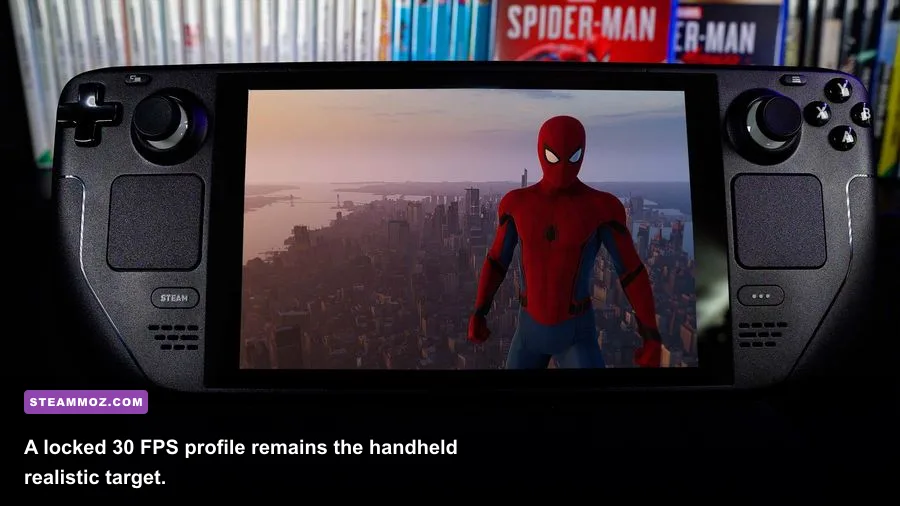
On Steam Deck and similar handhelds, target 30 FPS first. Use 1280x800, a 30 FPS cap, Low or Medium shadows, Low crowds and traffic, Medium textures, and FSR 2.0 Balanced or Performance if necessary. The Deck's 15W APU cannot deliver a consistently smooth 60 FPS across Manhattan, and chasing that number creates unstable frame times. A locked 30 with sensible motion blur feels far better.
Check the official Steam page for updated system requirements and feature notes, and use Nixxes Support when a patch-specific problem survives normal testing. The official PlayStation page also lists the PC edition's visual features, including ray-traced reflections and ultrawide support.
Finally, don't treat Ultra as a badge of honor. Spider-Man Remastered looks excellent with High textures, Medium shadows, High filtering, sensible population density, and reconstruction set to Quality. Turn ray tracing on only after your baseline is stable, then test the same swing route and a busy combat encounter. If both hold your target frame rate, you've found a genuinely smooth setup rather than a screenshot preset.