
If Riders Republic is stuttering, dropping below 60 FPS, or crashing on Steam, start with a clean Ubisoft Connect launch, verify the game files, update your GPU driver, and use a locked 60 FPS profile rather than chasing an unstable maximum. The biggest wins usually come from lowering resolution scale, volumetric effects, shadows, and crowd quality while leaving textures high enough for your video memory.
Riders Republic is demanding for a reason. You are racing through a large seamless world at extreme speed, with terrain streaming, crowds, weather, particle effects, online players, and several sports systems running at once. That combination creates a different problem from ordinary low FPS: the average frame rate can look acceptable while frame times suddenly spike during a race, a mass event, or a rapid camera turn.
This guide targets the Steam version on Windows PC, including systems that meet Ubisoft's published requirements. For broader PC crash troubleshooting, the steps in our PC crash and FPS repair guide are also useful, especially for driver and overlay conflicts.

Use This Stable Riders Republic FPS Profile First

Before changing random settings, establish a predictable baseline. Set the game to exclusive fullscreen if that option is available on your build, choose your monitor's native resolution, and cap the frame rate below the point where your PC regularly dips. A 60 FPS cap is often smoother than an unlocked 75- or 100-FPS target that repeatedly collapses during streaming.
Start with the High preset, then make the targeted changes below. Texture quality is not usually the first setting to reduce unless your GPU has limited VRAM. Lowering textures can make the image muddy without fixing CPU-side hitching. Shadows, volumetric effects, reflections, and crowd detail are much more likely to affect demanding scenes.
| Setting | Recommended Starting Value | Typical Performance Effect | Visual Trade-Off |
|---|---|---|---|
| Resolution | Native 1080p or 1440p | Very high if reduced | Native resolution keeps the image sharp |
| Resolution Scale | 90% at 1440p, 100% at 1080p | High GPU relief | Slightly softer distant terrain |
| Temporal Upsampling | Enabled, Quality or Balanced | High GPU relief | Can introduce mild ghosting |
| Shadows | Medium | Medium to high | Less detailed contact shadowing |
| Volumetric Effects | Medium | High in snow and fog | Less dense atmospheric lighting |
| Reflections | Medium | Medium | Less accurate water and surface reflections |
| Crowd Quality | Medium | CPU-heavy in events | Fewer detailed spectators |
| Textures | High if VRAM allows | Low average FPS impact | Keep high for terrain and clothing detail |
| Motion Blur | Off | Small performance gain | Cleaner high-speed movement |
For a 60-Hz display, cap the game at 60 FPS. If you use a 120- or 144-Hz monitor but your system cannot hold 90 FPS through a Mass Race, cap at 72 or 60 instead. Stable frame pacing is especially valuable in Riders Republic because steering, tricks, landings, and camera movement all expose tiny timing inconsistencies.
If your GPU usage sits near 95-99% and the frame rate is low, reduce resolution scale or enable a lower upsampling mode. If GPU usage falls sharply while the game hitches, the limit is more likely CPU scheduling, world streaming, shader compilation, background software, or an online-service interruption.
🎮 Riders Republic
Looking to experience this game? Grab your digital key directly on our store for $39.99.
View on Steammoz Store →Fix Stuttering and Frame-Time Spikes on Steam

First, close the game and restart both Steam and Ubisoft Connect. Riders Republic uses Steam as the storefront but hands authentication and launch duties to Ubisoft Connect. A half-finished launcher update, stuck cloud synchronization, or broken overlay can create pauses before gameplay even begins.
1. Verify both the Steam install and Ubisoft Connect cache
In Steam, open Library, right-click Riders Republic, choose Properties, select Installed Files, and run Verify integrity of game files. Let the process finish rather than launching while it is still checking. Then open Ubisoft Connect, go to Settings, Downloads, and use the launcher repair or cache-cleaning option if your version exposes it. Do not delete the entire game folder unless verification fails repeatedly.
A corrupted file can cause crashing at a specific activity, but a damaged shader cache more often causes repeated hitching after a driver update. Windows and your graphics driver rebuild shaders as needed, so the first run after clearing a cache may stutter. Give the game one full ride through the affected region before deciding whether the fix worked.
2. Disable overlays one at a time
Turn off the Steam Overlay, Ubisoft Connect Overlay, Discord overlay, Xbox Game Bar, NVIDIA App or GeForce Experience overlay, and AMD Adrenalin overlay for testing. You do not need to permanently abandon all of them; isolate the offender. Ubisoft Connect's overlay is the most important one to test because it is tied directly to the PC version's account and social features.
Also disable recording tools such as OBS replay buffer, NVIDIA Instant Replay, AMD Record and Stream, MSI Afterburner OSD, and RivaTuner temporarily. These tools are normally safe, but multiple hooks can collide with a game that is already streaming a large world.
3. Stop background CPU and disk pressure
Open Task Manager and watch CPU, memory, disk, and GPU graphs while riding. Close browser tabs playing video, game launchers downloading updates, RGB utilities, motherboard monitoring suites, and cloud-sync clients. Install Riders Republic on an SSD when possible. An HDD can run the game, but rapid movement across the map forces asset reads that make hitching more obvious.
Keep at least 15 percent free space on the installation drive and Windows drive. A nearly full SSD has less room for temporary files and shader data. If stutter begins only after several minutes, check whether memory usage is approaching your physical RAM limit and leave the Windows page file set to System managed.
Stop Riders Republic From Crashing at Launch or Mid-Race

Crashes need a slightly different approach from low FPS. Do not begin by overclocking or installing third-party “FPS booster” software. Restore GPU and CPU settings to stock, including undervolts and aggressive memory profiles, then work through the launch chain.
Repair the basics in the right order
- Restart Windows and launch Steam as normal, not through a shortcut that points to an old executable.
- Run Steam file verification, then launch Ubisoft Connect and complete any pending update.
- Update the NVIDIA or AMD driver. If crashing started immediately after an update, test the previous stable driver using a clean installation.
- Install or repair the Microsoft Visual C++ Redistributable packages and DirectX components supplied through the game or Ubisoft support instructions.
- Whitelist Steam, Ubisoft Connect, and Riders Republic in Windows Security or your third-party antivirus for a controlled test.
- Remove custom launch arguments, ReShade files, DLL injectors, and old mod or benchmark tools from the installation folder.
Never disable antivirus protection permanently. If a security tool is the cause, create narrow exclusions for the game executable and launcher, then turn real-time protection back on. Windows Controlled Folder Access can also block configuration or shader files; allow the game through that feature instead of disabling all ransomware protection.
Use the game configuration carefully
If the game crashes after changing graphics options, reset its configuration rather than repeatedly launching into the same bad state. Back up your save data and settings first, then use Ubisoft Connect's support guidance for resetting local configuration files. Cloud synchronization can restore a problematic file, so temporarily test with cloud sync disabled if the crash returns immediately after a reset.
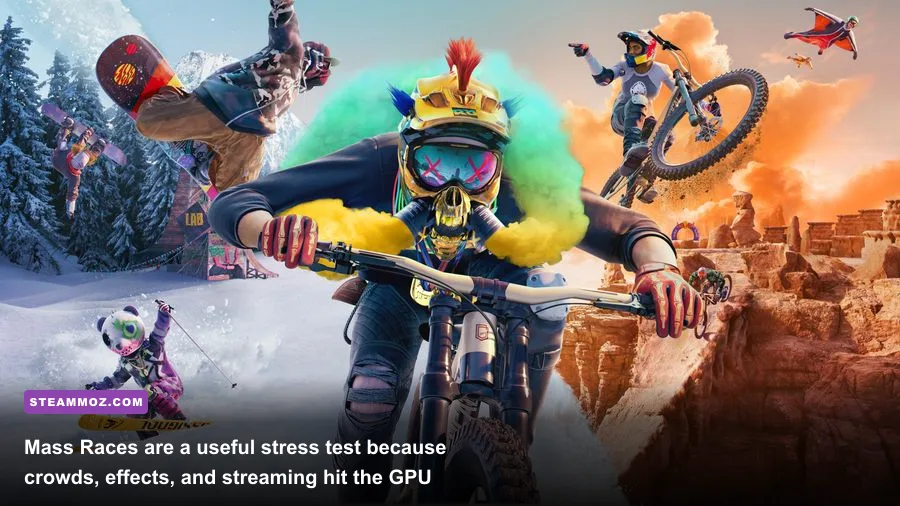
Watch for patterns. A crash only during Mass Races suggests a load, network, crowd, or VRAM spike. A crash at the same splash screen points more strongly to launcher authentication, overlays, permissions, or corrupted files. A crash after ten minutes under heavy load can indicate unstable GPU memory, overheating, or a power-delivery problem rather than Riders Republic itself.
Match Your Hardware to the Right Performance Target
Ubisoft's published PC requirements list an Intel Core i5-4460 or AMD Ryzen 5 1400-class processor, 8 GB of RAM, and a GeForce GTX 970 or Radeon R9 290X-class GPU for minimum play. The recommended tier moves toward an Intel Core i7-4790 or AMD Ryzen 5 1600, 8 GB of RAM, and a GeForce GTX 1070 or Radeon Vega 56-class graphics card. Those specifications describe compatibility, not a guaranteed 1440p or high-refresh experience.
Modern Windows systems should ideally have 16 GB of RAM, an SSD, and current six-core hardware for smoother streaming. Older quad-core CPUs may deliver a reasonable average frame rate but still hitch when the game updates the open world, simulates crowds, and processes online activity. Laptop owners should confirm that Riders Republic is using the dedicated GPU and that the system is plugged into AC power.
| Hardware Situation | Practical Target | Profile | What to Watch |
|---|---|---|---|
| Minimum-class GPU and older quad-core CPU | 1080p, 30-60 FPS | Low/Medium, 80-90% scale | CPU spikes and streaming hitching |
| GTX 1060/1660 or RX 5600-class system | 1080p, locked 60 FPS | Medium/High mix | Volumetrics and reflections |
| GTX 1070/RTX 2060 or RX Vega 56/6600-class system | 1080p 60 or 1440p near 60 | High with medium shadows | VRAM use and Mass Race dips |
| RTX 3060/4070 or RX 6700 XT and newer | 1440p, 60-120 FPS | High, upsampling as needed | Frame cap and CPU limits |
Use Windows Settings, System, Display, Graphics to browse for the Riders Republic executable and select High performance. On laptops, also choose the dedicated GPU in NVIDIA Control Panel or AMD Software, set the power profile to performance while plugged in, and avoid testing on battery power.
Temperature matters. If the GPU or CPU reaches its thermal limit, clocks fall and the game appears to “randomly” lose FPS. Monitor temperatures and clock speeds, clean dust filters, and check that laptop fans are not blocked. A steady 60 FPS at lower settings beats a brief 100 FPS burst followed by throttling.
Fine-Tune Drivers, Windows, and Network Services
After the in-game profile is stable, tune the system around it. Use the latest WHQL driver unless your issue clearly began with that release. During installation, choose a clean installation when available, but do not repeatedly wipe drivers without a reason. Excessive driver cleanup can create its own missing-component problems.
In NVIDIA Control Panel or AMD Software, leave application-controlled settings alone at first. Forced sharpening, frame generation, enhanced sync, Radeon Chill, and third-party frame limiters can complicate diagnosis. Use one limiter only: the game’s own cap, your display software, or RTSS. Mixing several caps commonly produces uneven frame pacing.
Windows Game Mode can remain enabled. Test Hardware-accelerated GPU scheduling rather than assuming it helps; results vary by GPU, driver, and Windows build. Disable fullscreen optimizations on the game executable only if you see repeated alt-tab crashes or strange presentation behavior. Also test with HDR and variable refresh rate disabled, then re-enable each feature after the game is stable.
Online interruptions can look like performance problems. If the game freezes while loading an activity, check the official Riders Republic support page and Ubisoft connectivity support for service notices. Prefer Ethernet for testing, restart your router, and avoid VPNs. A network stall should not permanently lower FPS, but it can pause menus, matchmaking, and world events long enough to resemble a crash.
For official system information, compare your PC with the Riders Republic Steam page and Ubisoft's official game page. If another game shows similar hitching, use our crashing and low-FPS checklist to test the broader Windows setup rather than blaming Riders Republic alone.
The winning approach is controlled testing: change one setting, ride the same route, and compare frame-time behavior instead of judging only the FPS counter. Start with a locked 60 FPS, medium shadows and volumetrics, disabled overlays, verified files, and a clean driver state. Once Mass Races and fast downhill transitions stay smooth, raise textures and resolution before restoring expensive effects. That order preserves the crisp look of Riders Republic without bringing the stutter back.