If Satisfactory keeps crashing on your PC, first verify the Steam files, remove or update every mod, launch with -dx11 or -vulkan, update your GPU driver, and lower Lumen, shadows, and foliage settings. Most repeat crashes in Satisfactory 1.0 come from corrupted files, outdated mods, unstable DirectX 12 drivers, or a factory that pushes system memory and video memory too hard.
Before deleting a save, make a backup from %LOCALAPPDATA%\FactoryGame\Saved\SaveGames. Satisfactory uses Unreal Engine 5, so a crash can happen during startup, while loading a save, or when entering a dense area with conveyors, trains, and hundreds of machines. The steps below isolate each cause without risking your factory.
Check Satisfactory’s PC requirements first
Confirm that your hardware meets the game’s practical baseline. Satisfactory lists Windows 10 64-bit, an Intel Core i5-3570 3.4 GHz or AMD Ryzen 3 1200, 8 GB of RAM, and a GTX 1650 4 GB or Radeon RX 570 4 GB-class graphics card as minimum targets. The recommended target is closer to an Intel Core i5-12400 or Ryzen 5 5600X, 16 GB of RAM, and an RTX 2070 or Radeon RX 5700.
Those minimum figures are not a guarantee for a large save. A starter factory may run correctly on 8 GB of RAM, while a late-game build with several train stations, fluid networks, and multiple nuclear setups can hit memory limits. Close Chrome, Discord overlays, MSI Afterburner monitoring, and other GPU-heavy software before testing. Keep at least 20 GB of free space on the drive containing Windows and the game so shader caches and crash dumps can be created.
For a second reference, compare your hardware with our PC system requirements guide. The hardware principle is the same: minimum specifications describe launchability, not guaranteed stability in the busiest gameplay scenes.
Verify files and reset damaged settings
Verify the Steam installation
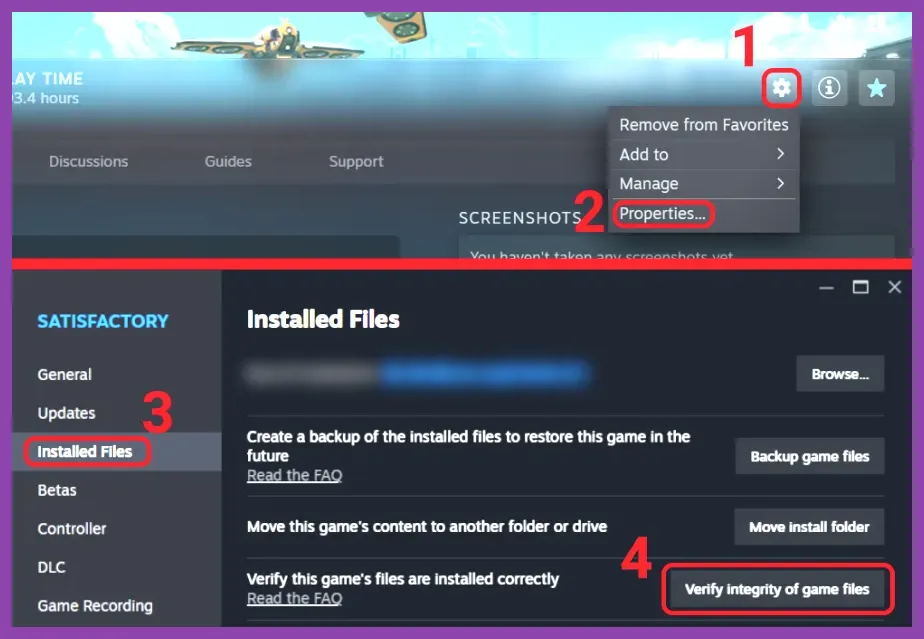
- Open Steam and right-click Satisfactory in your Library.
- Select Properties, then Installed Files.
- Choose Verify integrity of game files and wait for Steam to reacquire damaged files.
- Restart Steam and test a new game before loading your main save.
Do this after an interrupted update, a power loss, or an Unreal Engine crash during saving. Steam’s official Satisfactory page is also the safest place to check the current branch and update notes.
Reset local configuration
If a new game works but your normal profile crashes at the menu, close Satisfactory and rename %LOCALAPPDATA%\FactoryGame\Saved\Config\WindowsNoEditor to WindowsNoEditor_backup. On the next launch, the game creates clean settings. This resets graphics, keybinds, and local preferences but does not remove saves stored in SaveGames.
Do not immediately delete the entire Saved folder. Copy it to another drive first, then restore only the files you need. A damaged autosave can crash during loading, while an older manual save may still work normally.
Change the renderer and graphics settings
DirectX 12 is the default path for modern Satisfactory builds, but it is not equally stable on every GPU driver. In Steam, open Properties > General > Launch Options and test one option at a time:
-dx11or-d3d11: use DirectX 11 to bypass a DX12-specific driver crash.-vulkan: test Vulkan if DX11 still fails and your driver supports it reliably.- Remove all launch options after testing if none improves stability.
Do not combine renderer arguments during diagnosis. Start with DX11, load a new world, then load your backed-up factory. If DX11 fixes the crash, reinstall the latest NVIDIA or AMD driver with a clean installation and retest DX12 later.
Use a safe performance profile
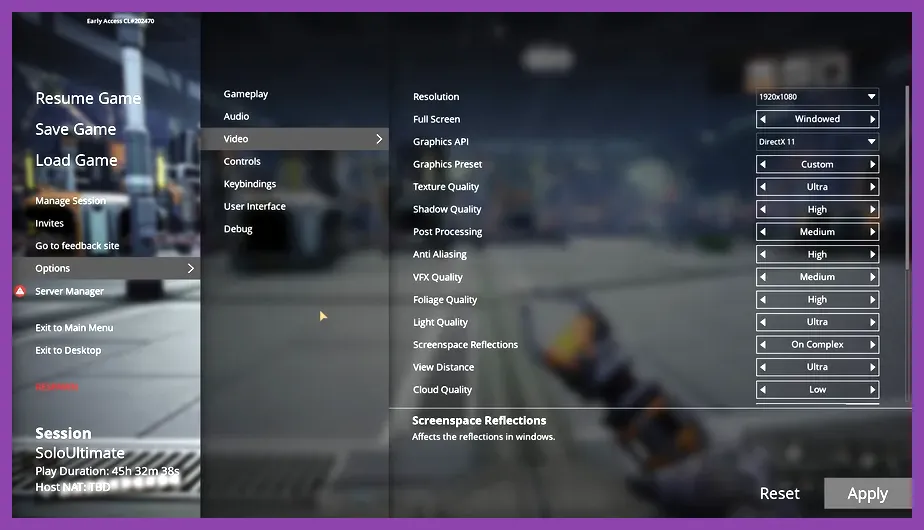
For an RTX 2060, RTX 3060, RX 6600, or similar card, start with 1080p, Textures: High, Shadows: Medium, Foliage: Medium, View Distance: High, Post Processing: Medium, and Effects: Medium. Set Global Illumination to Low or disable Lumen, turn off screen-space reflections, and use TSR or FSR at Quality.
Textures usually consume VRAM without heavily increasing CPU load, so lower shadows, foliage, Lumen, and view distance first. Cap the frame rate to 60 FPS while testing. If crashes happen only near a mega factory, reducing view distance and global illumination can prevent a sudden VRAM spike.
Remove mods and test the save safely

Outdated mods are one of the most common reasons Satisfactory crashes after a major update. Open Satisfactory Mod Manager, disable every mod, and launch the game unmodified. This includes cosmetic tools, map utilities, building packs, and dependency mods; one old dependency can crash the game even when its main mod appears harmless.
Never overwrite your only save while testing. Make a copy of the complete SaveGames folder, then load the backup. If the save opens without mods, update each mod individually through FICSIT.app and test after every change. If it fails only with a particular mod, remove that mod and report the crash with your log.
For a clean comparison, start a new world using the same renderer and graphics profile. A new world that runs correctly points toward a mod, corrupted save, or overloaded factory rather than a basic installation problem. Our Satisfactory solo-player guide covers normal progression without requiring unstable third-party content.
Update drivers and disable conflict software
Install the current Game Ready NVIDIA driver or AMD Adrenalin driver for your GPU. Choose the clean-install option when available, then reboot. Windows Update can leave an older display driver active, so check Device Manager or the NVIDIA App/AMD Software after restarting.
Temporarily disable overlays from Steam, Discord, Xbox Game Bar, NVIDIA, AMD, and RivaTuner Statistics Server. Also turn off GPU overclocks, undervolts, XMP memory profiles, and CPU tuning for one test session. Satisfactory can expose instability that other games never trigger, especially during shader compilation and long factory simulations.
Check Windows Event Viewer under Windows Logs > Application. An nvlddmkm or amdwddmg entry suggests a graphics-driver timeout; an OutOfMemory message points toward RAM or VRAM pressure. The official Satisfactory website and Coffee Stain bug-report site are useful when a reproducible crash survives a clean test.
Recover a crashing factory or save
If only one save crashes, load the newest older autosave or manual save from the in-game load menu. Satisfactory normally keeps several autosave points, so test them in reverse order rather than repeatedly opening the newest file. Once inside, move away from the factory, save under a new name, and reduce the busiest area before returning.
Crashes tied to one location often involve a high object count, extensive conveyor crossings, train intersections, fluid calculations, or a sudden change in view. Lower graphics settings first, then dismantle duplicated belts, unused foundations, and redundant power infrastructure in a copy of the save. Do not dismantle nuclear production or fuel systems blindly: deleting connected machines can create a more serious recovery problem.
If every save crashes but a new world works, preserve the logs and saves before reinstalling. Satisfactory’s support guidance can identify whether the issue is a corrupted world, mod conflict, or driver fault. Reinstalling is worthwhile only after verification, configuration reset, renderer testing, and mod removal have failed.
For most players, the reliable order is: back up saves, verify Steam files, disable mods, reset configuration, test -dx11, update the GPU driver, and use the safe 1080p profile. That sequence fixes the common Satisfactory PC crash causes without sacrificing a factory that took dozens of hours to build.