If Zenless Zone Zero feels delayed, stutters during Chain Attacks, or shows sudden ping spikes, first separate network lag from frame-rate lag: check your in-game latency, cap FPS to a stable value, lower Shadows and Volumetric Fog, use a wired connection or 5 GHz Wi-Fi, and stop downloads before restarting the game. The most reliable PC profile is 60 FPS, V-Sync Off, Shadows Medium, Anti-Aliasing SMAA, Volumetric Fog Low, and Rendering Quality at 1.0.
That distinction matters because Zenless Zone Zero has two very different problems that look similar. High ping causes delayed agent swaps, late dodges, slow menu responses, and disconnects. Low FPS or shader stutter makes Anby, Billy, Nicole, Ellen Joe, or Miyabi appear to teleport even when your connection is healthy. Work through the checks below in order so you do not waste time changing router settings to solve a graphics problem.
Check Whether ZZZ Lag Is Network or FPS Related
Start a short training test in Random Play or enter a low-risk Hollow activity with a familiar team. Watch what happens when you perform a Basic Attack, dodge, Assist Follow-Up, and Chain Attack. If the animation remains smooth but the input activates late, the issue is probably ping. If the input responds immediately but the image pauses, turns into a slideshow, or hitches when effects appear, the issue is frame time.
Signs of network lag
- Agent swaps or Assist Points trigger noticeably after you press the button.
- The game pauses while the connection catches up, then rapidly completes an action.
- Menus, event pages, or the Inter-Knot screen take unusually long to load.
- Your Wi-Fi signal is weak, other devices are streaming, or a VPN is active.
Signs of performance lag
- The frame rate drops when multiple Ethereals, Ultimate effects, or Bangboo attacks fill the screen.
- Camera movement feels uneven even though attacks activate instantly.
- GPU usage is near 100%, the laptop becomes hot, or the game stutters after entering a new area.
- Lowering resolution or Effects Quality immediately improves combat smoothness.
On PC, enable an FPS counter through your graphics driver or Windows Game Bar and test the same encounter twice. A steady 45 FPS is usually more playable than a fluctuating 60 FPS that repeatedly falls to 20. For broader PC performance context, compare your hardware with Steamoz's system requirements guide; the troubleshooting principles for GPU headroom and thermal throttling are similar.
Best Zenless Zone Zero Graphics Settings for Stable FPS
Use this balanced profile before changing advanced Windows settings. It is designed to remove the largest sources of frame-time spikes while keeping New Eridu and Hollow environments sharp.
| Setting | Recommended value | Why it helps |
|---|---|---|
| Resolution | Native resolution | Dropping resolution should be a later step. |
| FPS | 60 | A consistent cap prevents unnecessary GPU load. |
| Rendering Quality | 1.0 | Preserves image clarity without oversampling. |
| Anti-Aliasing | SMAA | Good edge quality with moderate cost. |
| Shadows | Medium | Reduces expensive scene-wide shadow calculations. |
| Reflection Quality | Low or Medium | Helps in reflective city and combat scenes. |
| Volumetric Fog | Low | Often improves Hollow frame pacing substantially. |
| Global Illumination | Low or Medium | Reduces lighting spikes during camera transitions. |
| Character Quality | High | Keeps agents such as Zhu Yuan and Ellen Joe detailed. |
| Effects Quality | Medium | Controls heavy attack and Chain Attack effects. |
| V-Sync | Off initially | Avoids adding input latency while testing. |
If the game still drops below 50 FPS, lower Effects Quality to Low, then Global Illumination to Low. Laptop users should test while plugged in and select the high-performance power mode. Nvidia users can set Power management mode to Prefer maximum performance for the ZZZ executable, while AMD users should disable aggressive battery-saving profiles. Do not use frame generation to mask severe stutter; a clean, stable base frame rate is more important for dodge timing.
For a weaker PC, use 1080p, Rendering Quality 0.8, Shadows Low, Effects Low, Volumetric Fog Low, and a 30 FPS cap. For a stronger PC, keep native resolution and Character Quality High, but cap the game at 60 FPS unless your display and hardware can sustain a higher target without repeated frame-time spikes. The official Zenless Zone Zero website is also the safest place to check current client information and platform announcements.
How to Reduce Ping Spikes in Zenless Zone Zero
Zenless Zone Zero combat is not a competitive PvP mode, but unstable latency can still affect account authentication, loading, co-op-style matchmaking features, and the timing of online services. You cannot force a distant game server to become local, but you can remove the common causes of packet loss and route instability.
- Stop background traffic. Pause Steam, Epic Games Store, Windows Update, OneDrive, browser downloads, Twitch streams, and phone backups. A 4K stream on the same connection can create bufferbloat even when your speed test reports fast download speeds.
- Use Ethernet where possible. Connect the PC directly to the router, restart the router, and test again. If Ethernet is impossible, use 5 GHz Wi-Fi near the router instead of congested 2.4 GHz. Avoid playing through a phone hotspot unless it is only a temporary test.
- Disable VPN and proxy routing. VPNs can send traffic through a longer route. Turn them off for one complete session; if ping improves, the VPN server or protocol is the problem.
- Change DNS only as a test. Try Cloudflare DNS at 1.1.1.1 or Google DNS at 8.8.8.8. DNS usually improves login and address lookup, not the physical route to the game server, so do not expect it to magically lower in-game latency.
- Allow the launcher and game through security software. Add the HoYoPlay launcher and Zenless Zone Zero to Windows Firewall exceptions if they are being blocked. Never download unofficial “ping booster” tools that request your account credentials.
Run ping 1.1.1.1 -t in Windows Command Prompt for several minutes while the problem occurs. Stable replies with no timeouts suggest the local connection is healthy, while repeated timeouts or large jumps indicate Wi-Fi, router, ISP, or route trouble. This test does not measure ZZZ's game server directly, so use it to identify local instability rather than to claim an exact game ping.
Check the official HoYoLAB community and HoYoverse support center for maintenance notices or regional reports. If every device on your network loses packets, contact your ISP with the test times, your region, and whether Ethernet produced the same result.
Fix Stuttering, Shader Hitches, and Loading Delays
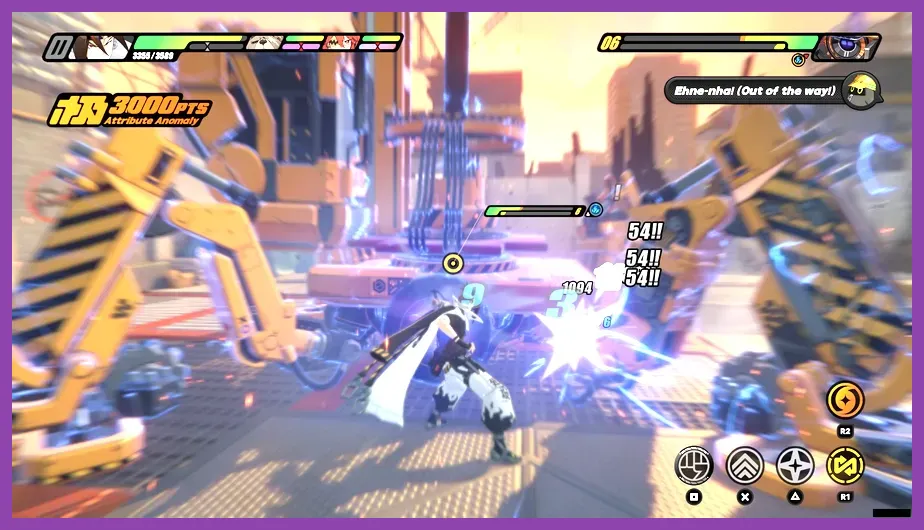
Not every hitch is caused by ping. Zenless Zone Zero can stutter when the client compiles or loads assets, especially after an update, a graphics-driver change, or a move to a slower hard drive. Install the game on an SSD with substantial free space, update the GPU driver from Nvidia, AMD, or Intel, and restart the PC after the installation rather than launching immediately.
PC cleanup sequence
- Close overlays from Discord, Steam, GeForce Experience, Xbox Game Bar, and recording software for one test session.
- Verify or repair the game files through the launcher if textures, models, or loading screens behave incorrectly.
- Keep at least 15–20% free space on the installation drive so Windows and the launcher can create temporary files.
- Disable browser hardware acceleration and unnecessary startup applications if system memory is limited.
- Monitor CPU and GPU temperatures. If clock speeds fall during a fight, clean vents and use a cooling stand instead of lowering every setting.
Use exclusive fullscreen if windowed mode produces inconsistent frame pacing, or test borderless if alt-tabbing causes repeated freezes. Avoid stacking multiple frame limiters: choose the in-game 60 FPS cap first, then test a driver-level limiter only if the game remains unstable. Steamoz's battery and performance troubleshooting advice also applies to laptops and mobile devices that throttle under sustained heat.
If the game becomes smooth after lowering Effects Quality but not after changing network settings, keep the lower effects profile. Agent-specific visuals matter less than reliable dodge timing against attacks from enemies such as the Thanatos or Notorious Hunt bosses.
Mobile Fixes for Zenless Zone Zero Lag
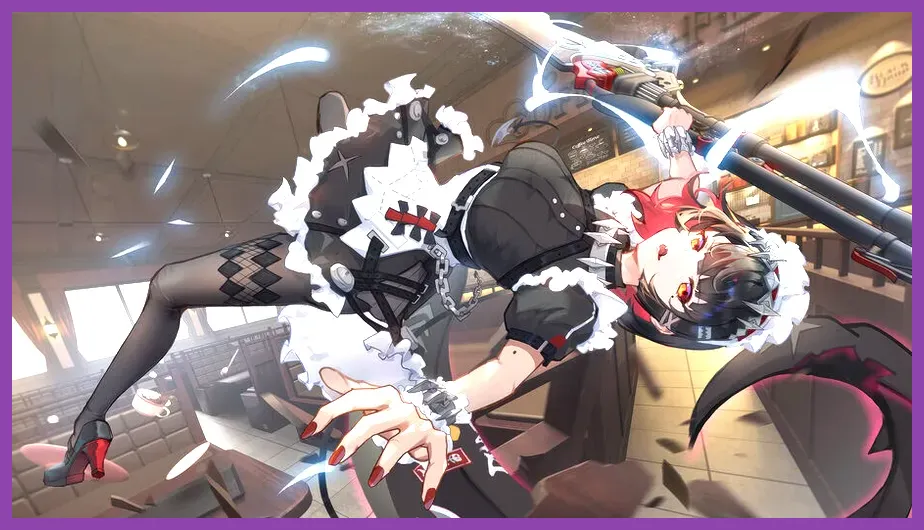
On Android and iOS, heat is the most common cause of a good first ten minutes followed by severe drops. Remove the phone case, avoid direct sunlight, close background apps, and do not charge while playing if charging makes the device hot. Use Wi-Fi 5 GHz when available, but test mobile data once to determine whether the router is responsible.
Set the mobile client to 30 FPS first, then use Low or Medium Graphics Quality, Low Effects Quality, and reduced Rendering Quality. Disable or reduce Shadows, Reflections, and Volumetric Fog. A modern phone may hold 60 FPS in New Eridu but throttle during long Hollow sessions, so test a full 15-minute run rather than judging performance from the opening menu.
Keep significant storage space free, update the operating system, and update ZZZ through the official store. Force-closing the game before relaunching can clear a temporary memory problem, but reinstalling should be the final step after confirming your HoYoverse account login details. Players who regularly game on phones can also review Steamoz's mobile RPG optimization coverage for practical device-management habits.
Final Test: Confirm the Fix Before Returning to Combat
After each change, run the same five-minute test: enter a Hollow area, fight a group with several Ethereals, perform repeated dodges, trigger an Assist Follow-Up, and use a Chain Attack. Record whether the issue is delayed input, visual stutter, disconnects, or long loading. Change one variable at a time so you know which fix worked.
A successful result is not necessarily the lowest possible ping. The goal is consistent input response, no packet-loss spikes, and a frame rate that remains stable when Nicole's field effects, Billy's gunfire, and multiple enemy animations overlap. If wired Ethernet, a 60 FPS cap, Low Volumetric Fog, Medium Shadows, and closed overlays solve the issue, keep that profile rather than chasing higher visual settings.
When problems persist across multiple networks and devices, collect your platform, region, client version, crash or disconnect time, graphics settings, and connection test results before contacting official HoYoverse support. That information helps distinguish a local PC fault, an ISP routing problem, and a temporary service outage far faster than simply reporting that Zenless Zone Zero is lagging.