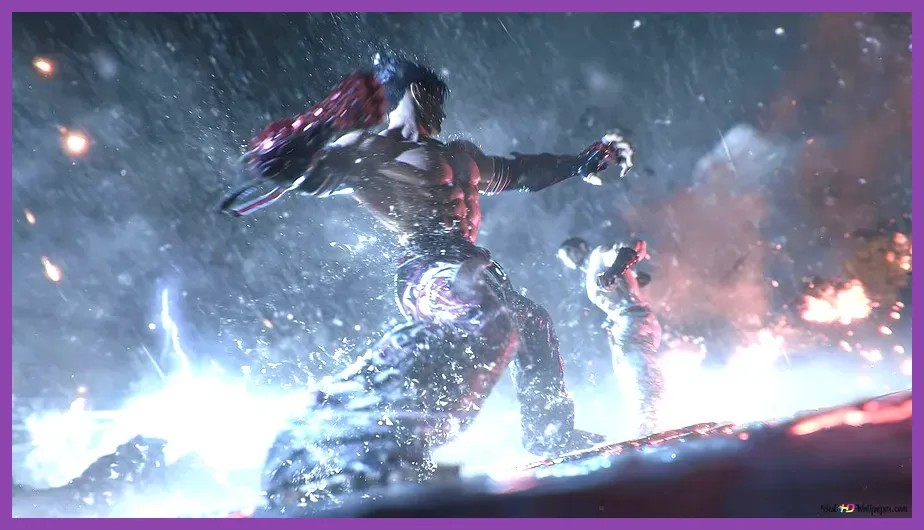
To fix lag and low FPS in Tekken 8 on PC, target a locked 60 FPS first: lower Shadows, Effects, Post-Processing, and Background Quality, enable DLSS or FSR 2 when available, disable V-Sync if it adds delay, update your GPU driver, and test with a wired connection. Tekken 8 gameplay is designed around 60 frames per second, so unstable performance can feel like input lag even when your internet is perfect.
Before changing everything, separate three problems: low FPS, display latency, and online connection delay. If the entire match visibly slows down or animations become uneven, your PC is missing the frame-rate target. If offline Practice feels responsive but ranked matches stutter, investigate network quality. If the game is smooth but commands feel late, check V-Sync, fullscreen mode, controller polling, and your monitor’s latency.
Use This Tekken 8 60 FPS Graphics Profile
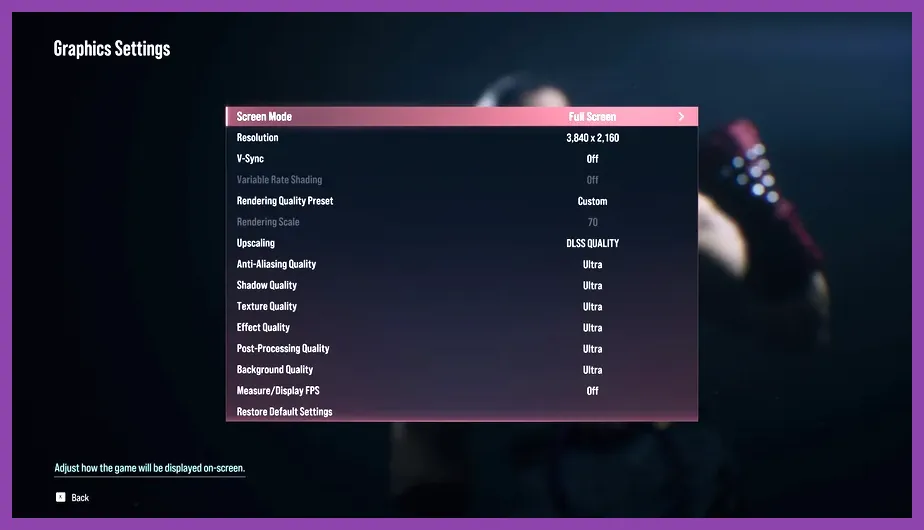
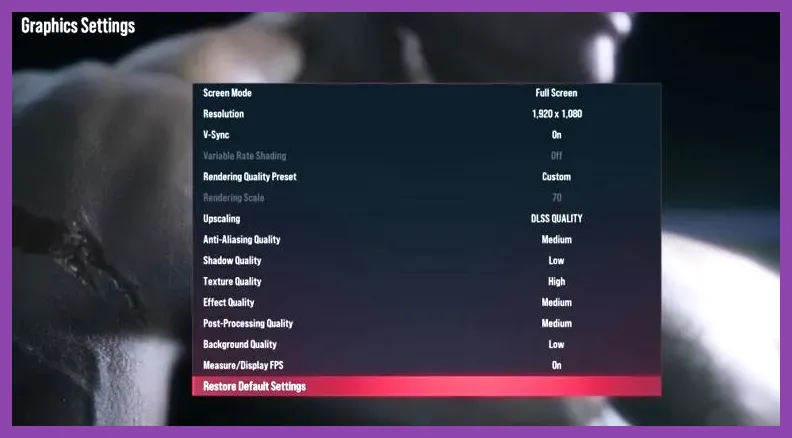
Open Options > Settings > Graphics Settings and apply a repeatable baseline rather than randomly lowering every option. Set Display Mode to Fullscreen, use your monitor’s native resolution, and select a 60 Hz or higher refresh rate. Tekken 8 does not benefit from rendering at 120 FPS during normal fights; it benefits from holding its required 60 FPS without dips.
- Screen Mode: Fullscreen.
- V-Sync: Off for the lowest latency; enable it only if tearing is distracting.
- Variable Rate Shading: On, if your GPU supports it.
- Upscaling: DLSS Quality on NVIDIA RTX cards, XeSS Quality on compatible Intel hardware, or FSR 2 Quality on AMD and other GPUs.
- Anti-Aliasing Quality: High or Medium. Lower this only after heavier settings.
- Texture Quality: High if your GPU has enough VRAM; Medium for 4 GB cards.
- Shadow Quality: Medium. Shadows are one of the safest high-impact reductions.
- Effects Quality: Medium. This helps during flashy Rage Arts, Heat Engagers, and particle-heavy stages.
- Post-Processing Quality: Low or Medium.
- Background Quality: Low or Medium. Dynamic arenas can cause sudden drops here.
- Motion Blur: Off.
Start with DLSS or FSR 2 at Quality rather than Performance. Performance mode can make character outlines and stage details noticeably soft, while Quality usually provides enough GPU relief. If your average frame rate is close to 60 but drops below it during Heat effects or cinematic attacks, lower Effects and Background Quality before reducing resolution.
Find the Setting Causing Frame Drops
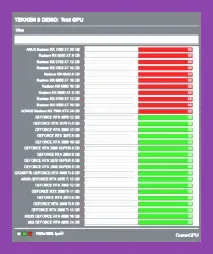
Test performance in Practice Mode with a demanding matchup instead of relying on the main menu. Pick Devil Jin or Kazuya Mishima, select a visually busy stage such as Urban Square (Evening), and perform repeated Heat Bursts, Rage Arts, and large airborne combos. This creates a consistent load while you watch for dips.
Run the game’s benchmark if it is available in your installation, then repeat the same test after every major change. A stable 60 FPS is more important than a high average. A result that jumps between 48 and 60 FPS will produce uneven input timing, especially during fast exchanges involving Jin’s Heat Smash, King’s Chain Throw, or Law’s Dragon Tail.
Match the Fix to Your Hardware
If GPU usage stays near 95–100 percent, lower resolution, upscaling quality, shadows, and effects. If GPU usage is low but FPS still falls, close background applications and check CPU temperatures, power settings, and thermal throttling. An older six-core processor can become the limit during online matches, replays, and background shader compilation.
Use the official Tekken 8 Steam page to compare your CPU, GPU, RAM, and storage against the current system requirements. Installing the game on an SSD also reduces asset-streaming pauses when entering stages or loading character effects. For broader PC hardware checks, our system requirements guide explains how to interpret minimum and recommended specifications.
Remove Input Delay on PC
Low FPS and input delay often overlap, but they are not identical. First, set Windows to your monitor’s maximum refresh rate under Settings > System > Display > Advanced display. Turn on your monitor’s Game Mode, disable unnecessary image processing, and use a DisplayPort or HDMI connection appropriate for your display.
V-Sync can add a frame of latency, particularly when the game misses its 60 FPS target. Keep it off while testing. If tearing is severe, use your GPU control panel’s low-latency synchronization option and cap the game at a stable 60 FPS. Do not stack several limiters from Windows, the driver, and third-party software until you know which one is active.
For NVIDIA users, open the Tekken 8 profile in NVIDIA Control Panel and set Power management mode to Prefer maximum performance. Set Low Latency Mode to On, not Ultra, while troubleshooting. AMD users should use the Tekken 8 profile in Adrenalin, enable Radeon Anti-Lag if stable on their system, and avoid aggressive sharpening that can make compression artifacts more visible.
Update the controller firmware, connect the pad directly to the motherboard instead of a passive USB hub, and close overlays from Discord, Xbox Game Bar, GeForce Experience, AMD Adrenalin, and MSI Afterburner one at a time. Overlays are useful for measuring performance, but they can introduce conflicts or inconsistent frametimes.
Fix Online Lag and Rollback Problems
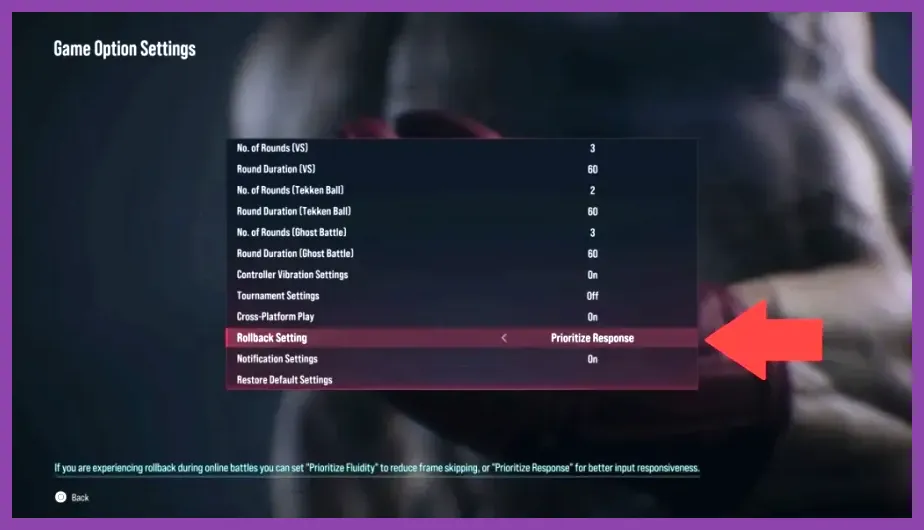
Tekken 8 uses rollback netcode, which predicts remote inputs and corrects the game state when packets arrive late. Rollback is not the same as low FPS. If the game’s performance graph shows stable rendering but the connection indicator fluctuates, the problem is your route to the opponent, Wi-Fi interference, packet loss, or another device consuming bandwidth.
Use Ethernet whenever possible. If Wi-Fi is unavoidable, connect to the 5 GHz or 6 GHz band, move closer to the router, and stop downloads, cloud backups, streaming, and VPN traffic. Restart the router, enable UPnP if your network requires it, and avoid playing while another device uploads large files. A fast speed-test result does not rule out packet loss or jitter.
Test several opponents and regions before blaming your PC. If only one match feels poor, decline the connection or rematch later. If every opponent produces delay, verify that Steam is not downloading an update in the background and check the official Tekken 8 support information. Bandai Namco’s Tekken 8 official website is also useful for current notices and patch information.
Update Drivers, Files, and Windows Power Settings
Install the latest WHQL graphics driver for your NVIDIA, AMD, or Intel GPU, then restart the PC. If lag began immediately after a driver update, perform a clean installation or roll back to the previous stable driver. Avoid running GPU driver downloads, Windows Update, or Steam shader processing while testing ranked matches.
In Steam, right-click Tekken 8, choose Properties > Installed Files > Verify integrity of game files. This repairs damaged assets that can cause crashes, stutters, or unusually long loading. Keep at least 15–20 percent free space on the SSD, because a nearly full drive can worsen caching and Windows virtual-memory behavior.
Set Windows power mode to Best performance when plugged in. Laptop players should connect the charger, select the dedicated GPU in Windows Graphics settings, and disable battery-saving modes. Monitor CPU and GPU temperatures with an overlay: sustained temperatures near the manufacturer’s thermal limit can reduce clock speeds mid-match. Clean blocked laptop vents, but never place the machine on a bed or soft surface.
For laptops, our battery and heat troubleshooting guide covers the same power-management issues that can affect gaming performance. You can also compare practical optimization habits in our Rust PC performance guide.
Final Tekken 8 Performance Checklist
Use this order so you do not mistake one problem for another:
- Confirm the game holds 60 FPS in Practice Mode on a demanding stage.
- Set Fullscreen, V-Sync Off, Motion Blur Off, and a suitable Quality upscaler.
- Lower Shadows, Effects, Post-Processing, and Background Quality first.
- Update the GPU driver, verify Steam files, and close overlays.
- Set Windows and your laptop to maximum performance while plugged in.
- Use Ethernet and test several opponents before diagnosing online rollback.
- Only lower textures or resolution after checking GPU memory and utilization.
Once Tekken 8 stays at a locked 60 FPS offline, make one online change at a time. This method preserves the visual clarity needed to read moves such as Paul Phoenix’s Death Fist, King’s Giant Swing, and Jun Kazama’s Heat transitions while removing the stutter and delay that can ruin an otherwise clean match.