
To fix lag and low FPS in Hogwarts Legacy, disable ray tracing, install the game on an SSD, update your GPU driver, enable DLSS or FSR 2, lower Shadows and View Distance first, and cap FPS to a stable target. The settings below target smoother frame pacing rather than a higher but unstable peak FPS.
Check Your PC Before Changing Settings
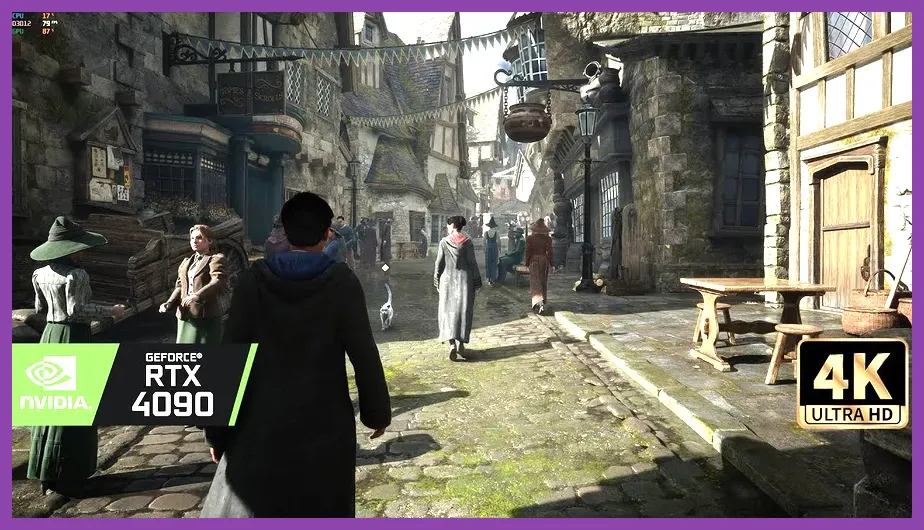
Start by comparing your system with the official Hogwarts Legacy Steam page. The game is particularly sensitive to GPU memory, CPU overhead and storage speed. A 16 GB RAM system can run it, but 32 GB reduces hitching when Hogwarts, Hogsmeade and the surrounding open world stream assets simultaneously.
Install Hogwarts Legacy on an NVMe or SATA SSD, not a mechanical hard drive. An HDD can cause texture pop-in, delayed geometry and short freezes while entering the castle or flying across the map. Keep at least 15 to 20 percent free space on the drive so Windows and the game can manage temporary files properly.
Use Task Manager while playing. If GPU usage sits near 95-100 percent, reduce resolution, ray tracing, Shadows and Effects. If GPU usage repeatedly falls below 90 percent while one CPU core is heavily loaded, lower Population Quality and View Distance, close background programs, and use a frame cap. Hogwarts Legacy can become CPU-limited in Hogsmeade even when the graphics card is not fully occupied.
For troubleshooting, record FPS in three repeatable locations: the Great Hall entrance, Hogsmeade's main street and an outdoor broom flight near Hogwarts. This makes it easier to distinguish a real improvement from a random variation in performance.
Use This Hogwarts Legacy Graphics Profile
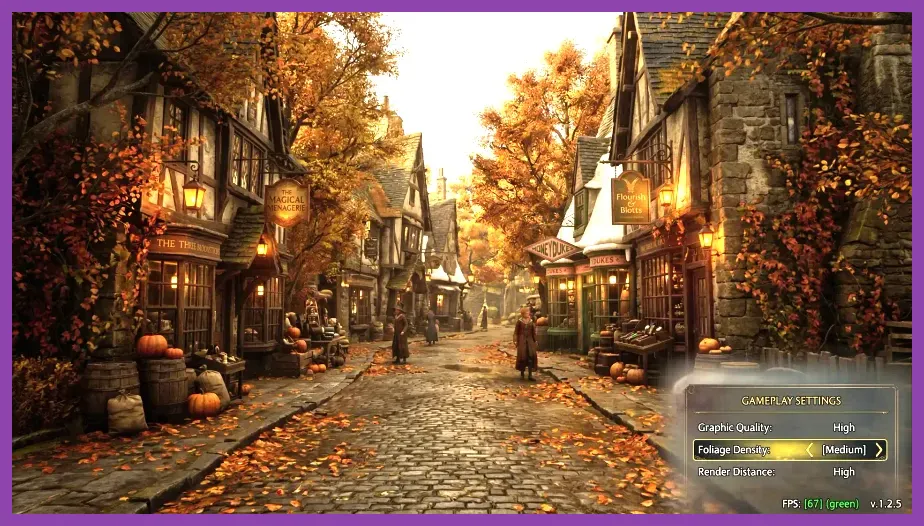
Open Settings, select Display Options and Graphics Options, then apply this balanced 1080p or 1440p profile:
- Window Mode: Borderless Windowed; use Fullscreen if Borderless causes desktop stutter.
- Upscale Type: DLSS for NVIDIA RTX cards, FSR 2 for AMD and older NVIDIA cards.
- Upscale Mode: Quality at 1080p; Quality or Balanced at 1440p; Performance only at 4K.
- VSync: Off when using G-Sync or FreeSync; On if you see tearing on a standard monitor.
- Motion Blur, Depth of Field, Chromatic Aberration and Film Grain: Off.
- Effects Quality: Medium.
- Material Quality: High on cards with 8 GB or more VRAM, Medium below that.
- Fog Quality: Medium.
- Sky Quality: Medium.
- Foliage Quality: Medium.
- Post Process Quality: Medium.
- Shadow Quality: Medium; use Low on a CPU-limited system.
- Texture Quality: High with 8 GB or more VRAM, Medium with 4-6 GB.
- View Distance Quality: Medium.
- Population Quality: Medium or Low in Hogsmeade.
Shadows, Fog, Effects, View Distance and Population are usually better first cuts than Textures. Lowering textures often makes the game look noticeably worse without solving a CPU bottleneck. If you still see severe dips, change View Distance, Population and Shadows to Low, then retest Hogsmeade.
Turn Off Ray Tracing and Configure Upscaling
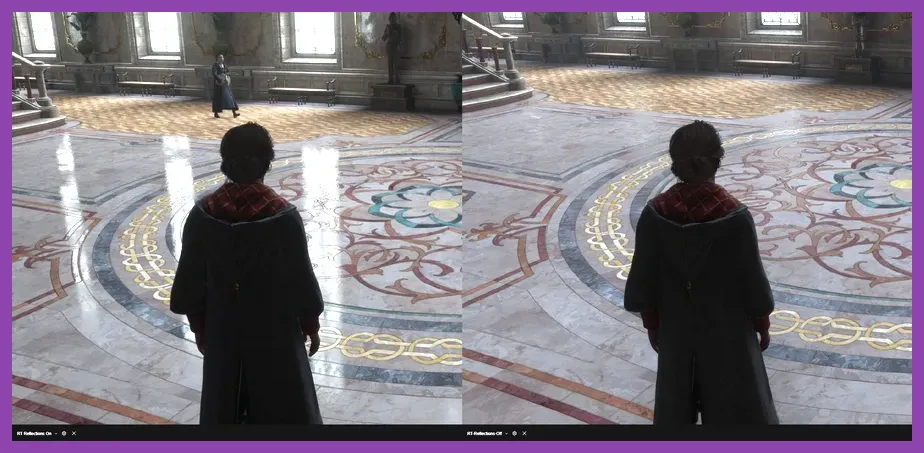
Ray tracing is one of the biggest causes of low FPS in Hogwarts Legacy. Set Ray Tracing Reflections, Ray Tracing Shadows and Ray Tracing Ambient Occlusion to Off. Ray-traced reflections add visual detail to water and polished surfaces, but the performance cost is large in the castle and during spell-heavy combat. Re-enable only Ray Tracing Reflections if your GPU has substantial headroom and your frame rate remains stable.
DLSS Quality is the best starting point for RTX 20-series, 30-series and 40-series cards. If DLSS Quality cannot hold your target, use Balanced at 1440p rather than immediately lowering every quality setting. AMD FSR 2 Quality is a strong alternative, while FSR 2 Balanced helps older GPUs at 1440p. Avoid aggressive sharpening; a moderate value around 0.2 to 0.4 usually limits halos around text and foliage.
Do not stack multiple frame-generation or overlay tools without testing. On supported RTX 40-series cards, DLSS Frame Generation can raise displayed FPS, but it does not remove the underlying CPU bottleneck in Hogsmeade. It may also add latency if your base frame rate is too low. Aim for at least 45-60 real rendered FPS before enabling it, and use NVIDIA Reflex On if the option is available.
Fix Drivers, Windows Settings and Shader Stutter
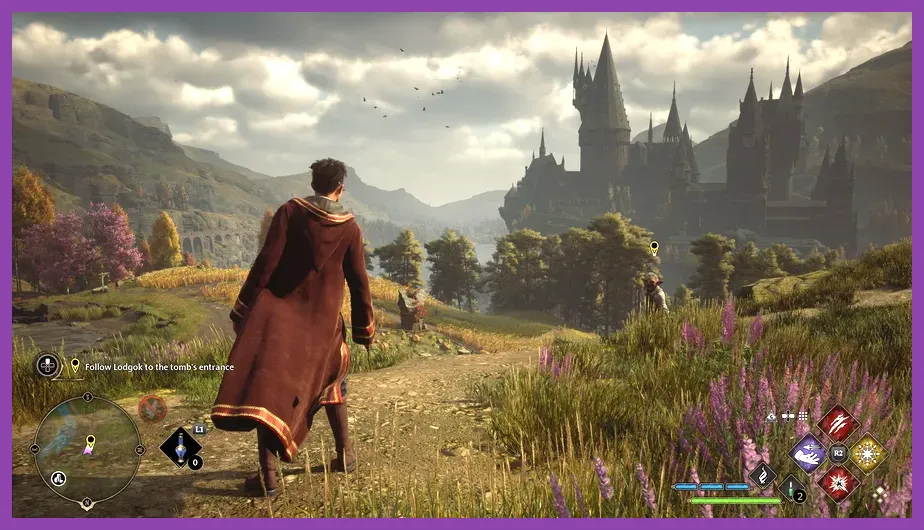
Download the latest Hogwarts Legacy-compatible driver from the NVIDIA driver page or the AMD support page. Choose a clean installation when updating. If stutter began immediately after a driver update, testing the previous stable driver can identify a regression.
In Windows, set the game's executable to use the high-performance GPU under Settings > System > Display > Graphics. On laptops, connect the charger, select Best Performance power mode and disable battery-saving GPU modes. Close browsers with video playback, RGB utilities, recording software and unnecessary launchers before testing.
Verify the installation through Steam: right-click Hogwarts Legacy, choose Properties, Installed Files and Verify integrity of game files. Corrupt or incomplete files can cause crashes, missing textures and abnormal hitching. Also leave the game running for several minutes after a driver update or major graphics change. Unreal Engine may rebuild or refresh shader data, and the first pass through a location can stutter more than later visits.
Keep the Windows page file enabled on an SSD. A system-managed page file is safer than disabling virtual memory, especially on machines with 16 GB RAM. Do not use unofficial “FPS booster” mods or random engine configuration downloads until the standard fixes are tested; they can create texture streaming problems and make support harder.
Reduce Traversal Stutter in Hogwarts and Hogsmeade
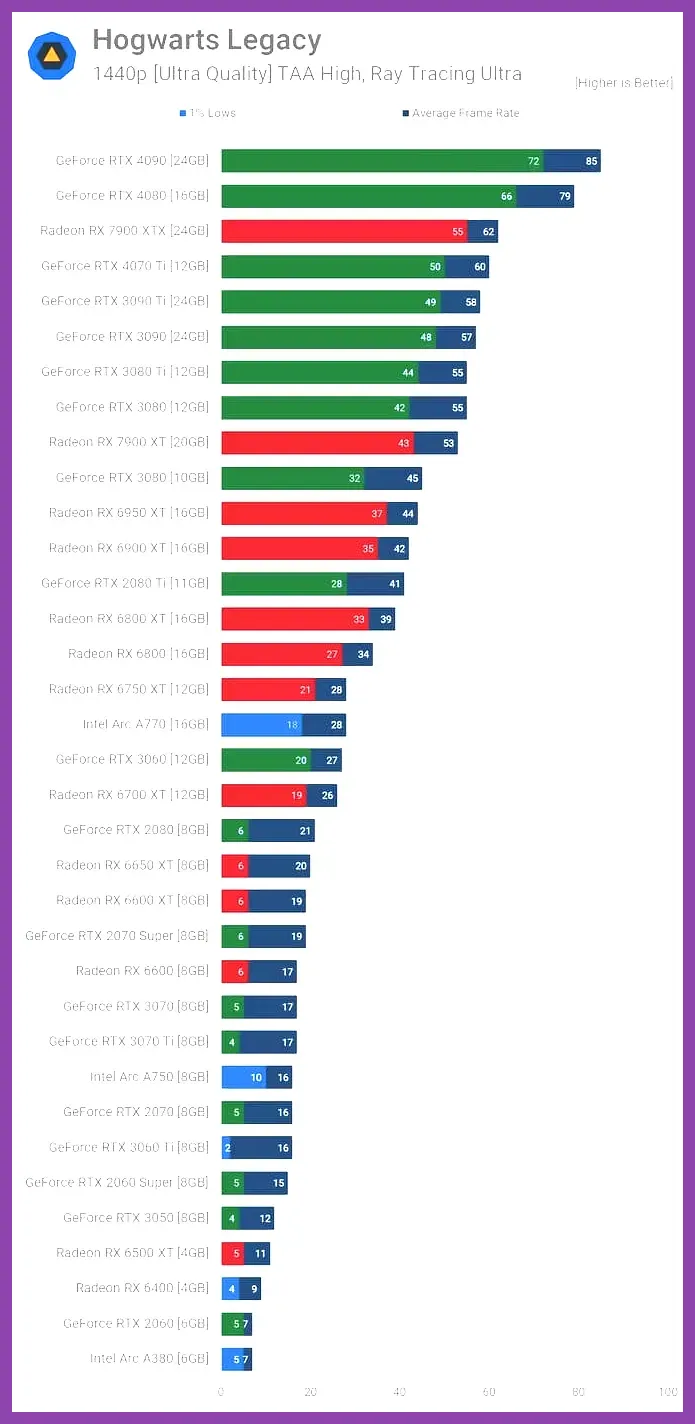
Traversal stutter happens when the game streams new buildings, NPCs and interior assets as you move. It is not always solved by lowering resolution because the limiting factor can be CPU or storage speed. An SSD, 32 GB RAM and Medium Population Quality provide the most consistent improvement.
Use a 60 FPS cap on a 60 Hz monitor, 72 or 90 FPS on a matching high-refresh display, or a cap several frames below your VRR ceiling. A stable 60 FPS feels better than a fluctuating 80 FPS that falls to 35 while entering Hogsmeade. Apply the cap through the in-game menu first; if frame pacing remains uneven, test a driver-level cap through NVIDIA Control Panel or AMD Adrenalin.
Turn down View Distance and Population before lowering Texture Quality. View Distance controls how much distant geometry remains active, while Population affects NPC simulation in crowded streets. If Hogwarts corridors are smooth but outdoor areas hitch during broom travel, lower Foliage, View Distance and Effects together and retest the same route.
Choose the Right Fix for Your Hardware
Entry-level GPU or 4-6 GB VRAM
Use 1080p, FSR 2 Balanced, Textures Medium, all ray tracing Off, Shadows Low, View Distance Low, Population Low and Effects Medium. Target 30 or 40 FPS instead of forcing an unstable 60. If textures flicker or surfaces load late, lower Texture Quality and close other GPU-heavy applications.
Mid-range 8 GB GPU
Use 1080p or 1440p, DLSS or FSR 2 Quality, Textures High, Shadows Medium, View Distance Medium, Population Medium and ray tracing Off. This is the most reliable profile for a stable 60 FPS on many modern gaming PCs, although Hogsmeade may still produce brief CPU-related dips.
High-end GPU and CPU
Use 1440p, DLSS Quality, Textures High or Ultra, Shadows High, View Distance High and Population High. Keep ray tracing Off initially, then enable only Reflections if the three benchmark locations stay above your target. For additional PC troubleshooting context, compare storage and system-load practices with Steamoz's Sea of Thieves system requirements guide and battery-performance advice in the PUBG Mobile battery drain fixes guide.
Finally, restart the game after changing several major settings, test the Great Hall, Hogsmeade and a broom route, and change one option at a time. That process identifies whether your real problem is GPU load, CPU simulation, VRAM pressure, storage streaming or shader compilation instead of masking it with an unnecessarily low preset.
For official troubleshooting updates, check WB Games Support and the Hogwarts Legacy official FAQ. If you also play demanding survival games, Steamoz's Project Zomboid guide offers more PC-focused gameplay reading without changing the performance steps above.