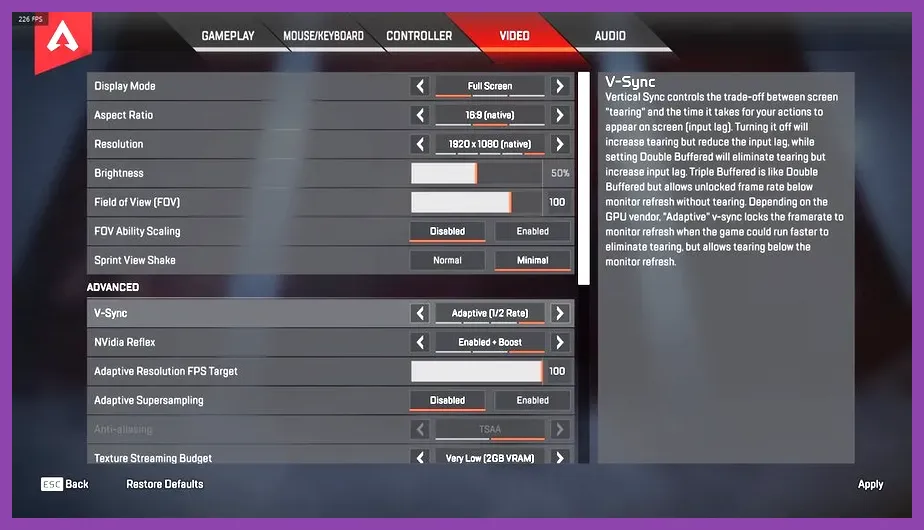
To fix lag and low FPS in Apex Legends, first separate connection problems from rendering problems: enable Performance Display, lower GPU-heavy settings, cap the game at a frame rate your PC can hold, update or clean-install your graphics driver, and use Ethernet or a nearer data center. The most reliable competitive baseline is 1080p, V-Sync disabled, NVIDIA Reflex enabled when available, Adaptive Resolution FPS Target set to 0, shadows and volumetric lighting on Low or Disabled, and a stable FPS cap rather than an unstable unlimited frame rate.
Identify Whether Apex Has Lag or Low FPS
Apex Legends uses “lag” to describe several different problems, and each requires a different fix. Low FPS is a rendering issue: your frame rate drops, the image becomes uneven, and mouse input feels heavy even when your ping is normal. Network lag appears as high latency, packet loss, prediction errors, rubber-banding, or delayed hit registration. Stutter can be caused by either side, particularly when shader compilation or background CPU activity interrupts frame delivery.
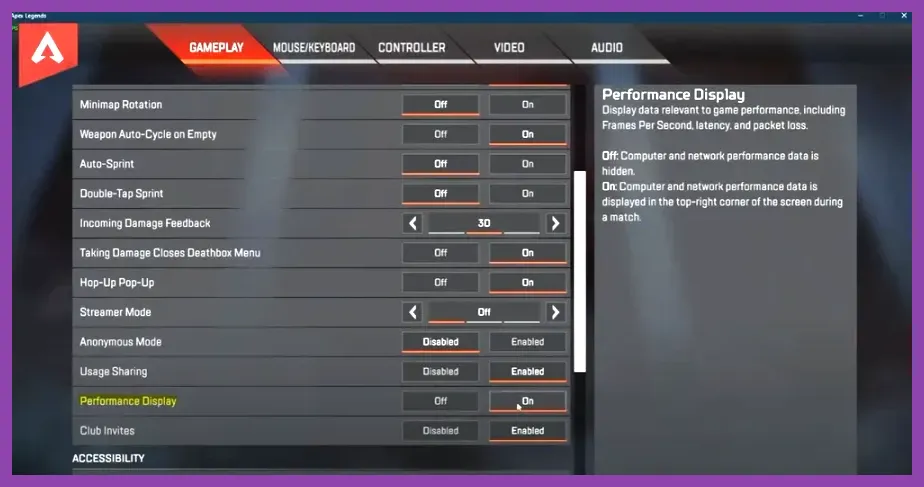
Open Settings > Gameplay and set Performance Display to On. During a match, watch FPS, latency, and packet loss in the top-right corner. A 60 FPS reading with 25 ms latency but visible hitching points toward frame-time spikes, drivers, shaders, or CPU load. A steady 144 FPS paired with 90 ms latency or 2% packet loss is a network problem, not a graphics problem. For a deeper system check, compare your machine with the requirements listed on the official Apex Legends PC requirements.
Also check the indicator icons. The red connection symbol, latency warning, and packet-loss icon are more useful than judging the animation alone. If the issue occurs only in one match or one evening, server routing may be responsible. If every game feels slow, continue with the steps below.
Use the Best Apex Legends FPS Settings
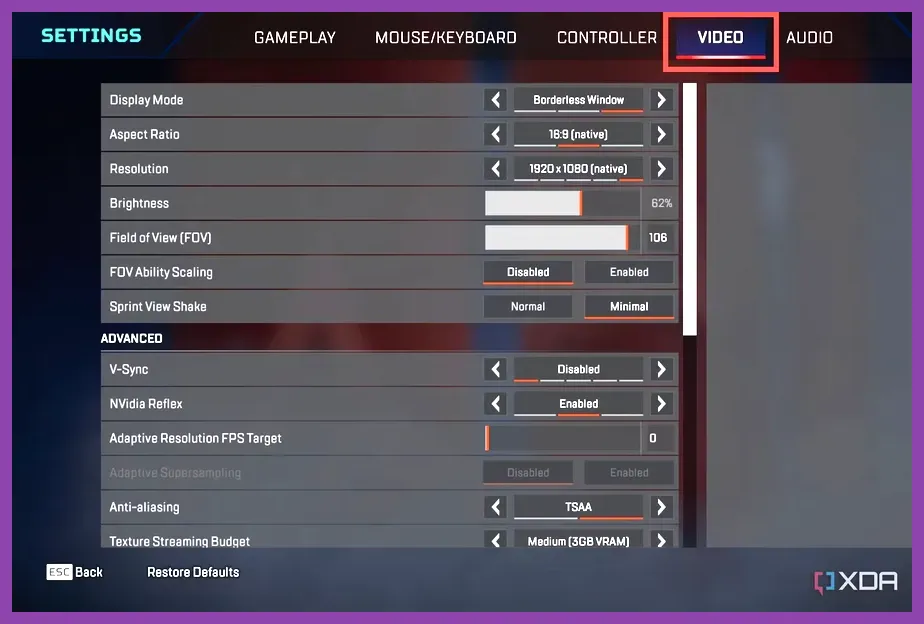
For a competitive 1080p setup, begin with this exact profile:
- Display Mode: Fullscreen.
- Aspect Ratio: Native.
- Resolution: Your monitor’s native resolution; use 1920x1080 for a 1080p display.
- Field of View: 104 to 110. Lower FOV can improve FPS slightly, but 104 is a practical visibility compromise.
- V-Sync: Disabled.
- NVIDIA Reflex: Enabled, or Enabled + Boost if GPU clocks frequently drop.
- Adaptive Resolution FPS Target: 0.
- Anti-aliasing: None for maximum FPS, or TSAA if shimmering is distracting.
- Texture Streaming Budget: 2-3 GB on a graphics card with 6-8 GB VRAM; use None or 1 GB on cards with 4 GB or less.
- Texture Filtering: Bilinear.
- Ambient Occlusion Quality: Disabled.
- Sun Shadow Coverage: Low.
- Sun Shadow Detail: Low.
- Spot Shadow Detail: Disabled.
- Volumetric Lighting: Disabled.
- Dynamic Spot Shadows: Disabled.
- Model Detail: Low or Medium.
- Effects Detail: Low.
- Impact Marks: Low.
- Ragdolls: Low.
Textures usually have a smaller performance cost than shadows and effects, so do not automatically set every option to its lowest value. If you have 8 GB or more of VRAM, a 3 GB texture budget can keep weapons and Legends sharp without causing a major FPS loss. On a 4 GB card, exceeding the available VRAM often produces hitching when entering areas such as Fragment East, Storm Point’s Barometer, or dense POIs on E-District.
Do not use Adaptive Resolution FPS Target as a first fix. It dynamically lowers resolution to chase a target and can make the image look soft during fights. If your system cannot hold a stable target, lower resolution or Model Detail manually, then test again. Our max-FPS settings guide explains the same frame-time principle in another competitive shooter.
Cap FPS for Smoother Frame Times
Unlimited FPS is not always the fastest-feeling option. If your PC swings between 95 and 170 FPS, the inconsistent frame times can feel worse than a locked 100 or 120 FPS. Choose a cap your system can sustain during heavy fights, not the number it reaches while staring at the floor in the Firing Range.
For a 60 Hz monitor, cap at 60 FPS or 59 FPS through your preferred limiter. For 120 Hz, test 100 or 117 FPS. For 144 Hz, use 120 or 138 FPS. For 165 Hz, 144 or 160 FPS is sensible. For 240 Hz, use 200, 220, or 237 FPS depending on your hardware. A stable cap slightly below refresh rate reduces sudden GPU saturation and can improve frame pacing.
You can set a cap with the in-game launch option +fps_max 144, replacing 144 with your target. Steam users can open Apex Legends’ Properties and enter it under Launch Options. Avoid stacking several limiters at once; use one in-game, driver, or RTSS cap and compare frame-time behavior. If you use G-SYNC or FreeSync, enable the monitor’s variable refresh mode, disable V-Sync inside Apex, and cap a few frames below maximum refresh. NVIDIA users should also try Reflex Enabled, which reduces the render queue without requiring a third-party latency tweak.
Close overlays before testing. Discord, Steam, GeForce Experience, Xbox Game Bar, recording software, RGB utilities, and browser hardware acceleration can all add CPU or GPU spikes. Disable recording temporarily rather than guessing. If frame time improves, re-enable programs one at a time to identify the offender.
Update Drivers and Eliminate Stuttering
Install the current Game Ready driver from NVIDIA’s official driver page or the latest Adrenalin package from AMD Support. Choose a clean installation when the driver installer offers it, particularly after switching from an NVIDIA card to AMD or vice versa. A broken shader cache can cause repeated stutters when Apex loads new effects, weapons, or map areas.
After a driver change, expect the first few matches to feel less consistent while shaders rebuild. Do not judge performance from the first drop alone. Play several minutes in the Firing Range, then complete a full match involving movement through multiple POIs. Apex can stutter when new assets are first encountered, and repeatedly clearing the shader cache may make that process start over.
Keep Windows, chipset drivers, and motherboard BIOS reasonably current, but avoid installing unnecessary “FPS booster” utilities. Set Windows Power Mode to Best performance on a desktop or plugged-in laptop. In Windows Graphics settings, add r5apex.exe and select High performance if your system has integrated and dedicated graphics. Laptop players should connect the charger, disable battery saver, and ensure the game uses the discrete GPU.
Monitor temperatures with a trusted tool. A CPU or GPU that reaches its thermal limit can reduce clock speed during a late-game fight. Dust filters, blocked laptop vents, and a weak cooling profile are common causes of sudden drops rather than permanently low FPS. Keep at least 15-20% free space on the drive containing Apex and Windows; a nearly full SSD can worsen updates and cache behavior.
Repair Apex Files and Fix CPU Bottlenecks
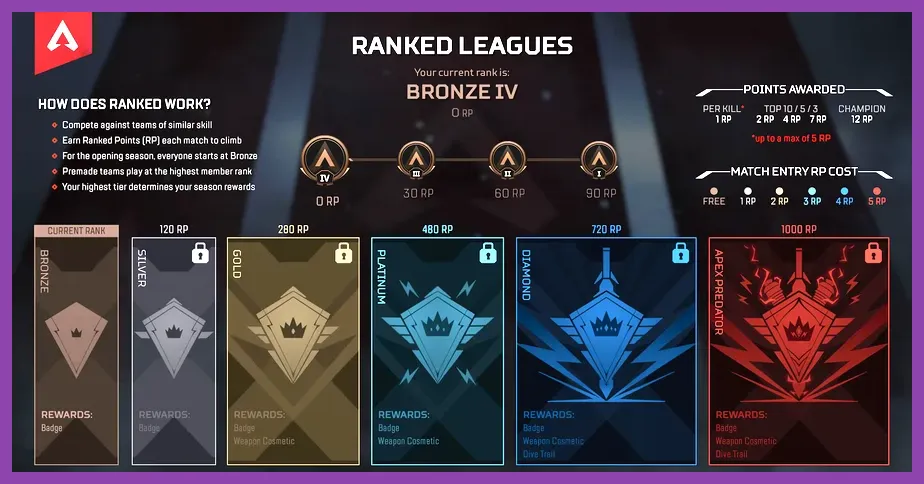
Repair the installation before reinstalling the entire game. In Steam, right-click Apex Legends, choose Properties > Installed Files > Verify integrity of game files. On the EA app, open the game’s menu and select Repair. The official EA cache-clearing instructions are useful if the launcher behaves incorrectly or updates appear stuck.
Apex is sensitive to CPU scheduling, especially at high refresh rates. A six-core processor should generally handle competitive settings well, but background downloads, browser tabs, game capture, and antivirus scans can consume the same CPU time needed for simulation and draw calls. Open Task Manager while Apex is running and sort by CPU usage. Pause Steam, EA app, OneDrive, Windows Update, and cloud-sync activity during testing.
Set Apex’s process priority to Normal or Above normal only if you understand the trade-off; High priority can make the rest of Windows unstable and is rarely a real fix. Disable motherboard “game booster” software that aggressively changes clock speeds. If GPU usage is consistently 95-99% and FPS is low, reduce resolution, effects, and shadows. If GPU usage sits around 50-70% while one or more CPU threads are saturated, lowering visual quality may do little; use a sensible FPS cap and close CPU-heavy background tasks instead.
Do not delete the game’s anti-cheat files or use unofficial config packs. They can trigger launch errors, reset settings, or create inconsistent results after updates. Keep custom autoexec files minimal, and remove old launch commands if a seasonal update changes how the engine handles them.
Fix Ping, Packet Loss, and Server Routing
For network lag, start at the Apex title screen rather than matchmaking. Open Data Center in the lower-left corner and choose the location with the lowest ping and 0% packet loss. Do not select a distant server simply because its name sounds familiar. A nearby data center with 30 ms and no packet loss will feel better than one showing 15 ms but intermittent loss.
Use Ethernet for the most reliable test. If Wi-Fi is unavoidable, use 5 GHz or 6 GHz, move closer to the router, and stop large downloads or 4K streaming on the same connection. Restart the router and modem, then test again. A speed test showing high download speed does not guarantee a clean route to Apex servers; packet loss and jitter matter more for gunfights.
On PC, open Command Prompt and run ping -n 50 1.1.1.1 to check whether your local connection is dropping packets. This does not test an Apex server, but repeated timeouts indicate a broader network problem. If only Apex is affected, check EA’s Apex Legends help hub and the official Apex server status tracker before changing DNS or reinstalling.
QoS can help when someone else saturates the connection with downloads or streaming. Prioritize the gaming PC or console in your router, stop upload-heavy cloud backups, and avoid VPNs unless your ISP is clearly routing Apex badly. A VPN can increase latency and should be treated as a controlled test, not a universal solution. For broader competitive performance advice, see Steamoz’s system requirements guide, which also covers the difference between hardware limits and connection symptoms.
Use This Final Apex Troubleshooting Order
Apply changes in this order so you know what actually worked. First, enable Performance Display and record FPS, latency, and packet loss in the Firing Range and a real match. Second, select the nearest 0%-loss data center and test Ethernet or a clean 5 GHz connection. Third, apply the competitive settings profile, especially disabled ambient occlusion, low shadows, disabled volumetric lighting, and a 2-3 GB texture budget matched to your VRAM.
Fourth, cap FPS at a stable value below your monitor’s refresh rate and test Reflex Enabled. Fifth, close overlays and background programs, update the GPU driver, and allow shaders to rebuild. Sixth, verify Apex files through Steam or the EA app. Finally, monitor temperatures and GPU/CPU utilization while fighting in demanding areas such as Fragment, Barometer, or E-District’s urban zones.
If FPS is stable but latency remains high, stop changing graphics settings and focus on routing, Wi-Fi, packet loss, and server status. If latency is normal but FPS falls during Bangalore’s smoke, Catalyst’s Dark Veil, or large multi-team fights, lower Effects Detail, Model Detail, and resolution before touching network settings. This diagnostic approach fixes the actual cause instead of applying random launch commands or “optimizer” software.