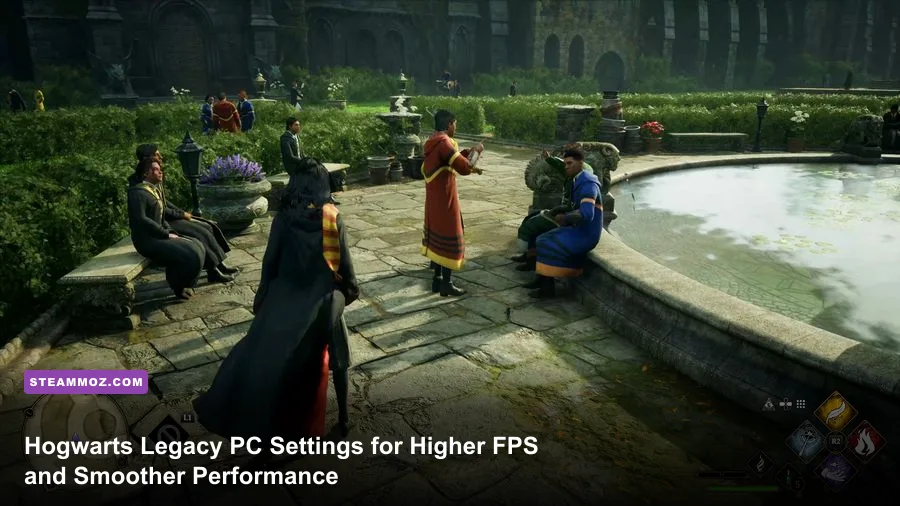
For most gaming PCs, the best Hogwarts Legacy setup is High textures, Medium shadows, Low population quality, ray tracing off, and DLSS Quality or FSR 2 Quality. Cap the frame rate to a number your system can hold consistently—60, 90, or 120 FPS—rather than chasing unstable peaks. That profile keeps Hogwarts castle sharp while cutting the stutter-heavy settings that hurt performance in Hogsmeade and during fast broom travel.
Hogwarts Legacy is unusually demanding because it combines Unreal Engine 4 lighting, dense foliage, streaming-heavy open areas, and a huge interior space packed with moving students and objects. A PC that reports 100 FPS in a quiet classroom can dip badly in Hogsmeade. The goal here isn't a pretty benchmark screenshot; it's a frame-time graph that stays calm while you sprint through the castle, duel a Troll, or load into a crowded hamlet.

Start With This Best FPS Profile
Open Settings > Display Options first. Set the display mode to Fullscreen, choose your monitor's native resolution, and disable V-Sync if you use G-SYNC or FreeSync. If your display doesn't support variable refresh, V-Sync can remove tearing, but it may add input latency and make dips feel harsher.
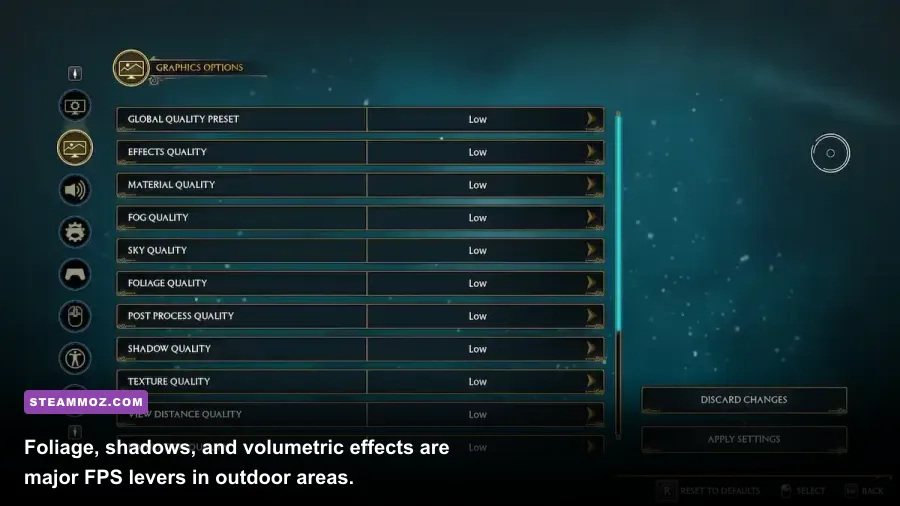
For a 1080p or 1440p gaming PC with an RTX 3060, RTX 4060, RX 6700 XT, or similar GPU, use the profile below. It deliberately avoids Ultra because Hogwarts Legacy's Ultra preset spends performance on subtle shadow and foliage changes you won't notice while exploring.
| Setting | Recommended Value | FPS Impact | Visual Note |
|---|---|---|---|
| Global Quality Preset | High, then customize | Medium | Better balance than Ultra |
| Effects Quality | High | Low to medium | Preserves spell particles and combat effects |
| Material Quality | High | Low | Keeps stone, wood, and robes detailed |
| Fog Quality | Medium | Medium | Reduces expensive atmospheric depth |
| Sky Quality | Medium | Low | Small visual compromise during daytime |
| Foliage Quality | Medium | Medium | Helps forests and outdoor traversal |
| Shadow Quality | Medium | High | One of the safest settings to lower |
| Texture Quality | High | VRAM-dependent | Use Medium below 8 GB VRAM |
| View Distance Quality | High | Medium | Protects distant castle and terrain detail |
| Population Quality | Low or Medium | High in Hogsmeade | Reduces NPC and CPU streaming pressure |
| Motion Blur | Off | None | Cleaner camera movement |
| Depth of Field | Optional | Low | Off gives a sharper gameplay image |
| Chromatic Aberration | Off | None | Removes colored edge fringing |
| Film Grain | Off | None | Cleaner image, especially with upscaling |
Keep Texture Quality high if your GPU has at least 8 GB of VRAM, but watch for texture pop-in and hitching. Dropping textures won't always raise average FPS; it mainly reduces VRAM pressure. If the game pauses when turning quickly, textures and streaming—not raw GPU horsepower—may be the culprit.

🎮 FORM
Looking to experience this game? Grab your digital key directly on our store for $14.99.
View on Steammoz Store →DLSS, FSR 2, XeSS, and the Best Resolution Choice
Upscaling is the biggest FPS lever in Hogwarts Legacy, but each option behaves differently. NVIDIA RTX owners should start with DLSS Quality. At 1440p, it renders internally at a lower resolution and reconstructs the image convincingly, while retaining better fine detail than Balanced or Performance modes. RTX 40-series cards can also use DLSS Frame Generation, but that feature improves displayed smoothness rather than true input response.
| GPU Situation | Upscaler | Mode | Practical Target |
|---|---|---|---|
| RTX 3060/4060 at 1080p | DLSS | Quality | 60–90 FPS |
| RTX 3070/4070 at 1440p | DLSS | Quality or Balanced | 60–120 FPS |
| RTX 4080/4090 at 1440p | DLSS | Quality plus Frame Generation | 100 FPS or higher |
| Radeon RX 6600/6700 | FSR 2 | Quality | 50–75 FPS |
| Radeon RX 6800/7800 XT | FSR 2 | Quality | 75–120 FPS |
| Older GTX or Radeon GPU | FSR 2 | Balanced at 1080p | 30–60 FPS |
AMD users should choose FSR 2 Quality before trying Balanced. FSR can look softer around Hogwarts' railings, tree branches, and thin spell effects, so Balanced is best treated as an emergency performance mode. Intel Arc owners can test XeSS Quality; results vary by driver and GPU, but it can preserve edge detail better than FSR in some scenes.
Don't stack aggressive upscaling with a low render resolution unless you absolutely need it. At 1080p, Performance mode makes hair, stair rails, and distant foliage shimmer. If you have an RTX 40-series card, enable Frame Generation only after the base game is already near 60 FPS. Generating frames on top of a 35 FPS render rate can look fluid while still feeling sluggish when aiming spells or steering a broom.
For more general Windows and game-side troubleshooting, Steamoz's PC crash and FPS fixes are also useful when the problem isn't purely graphical.
The Settings That Actually Cause Stutter

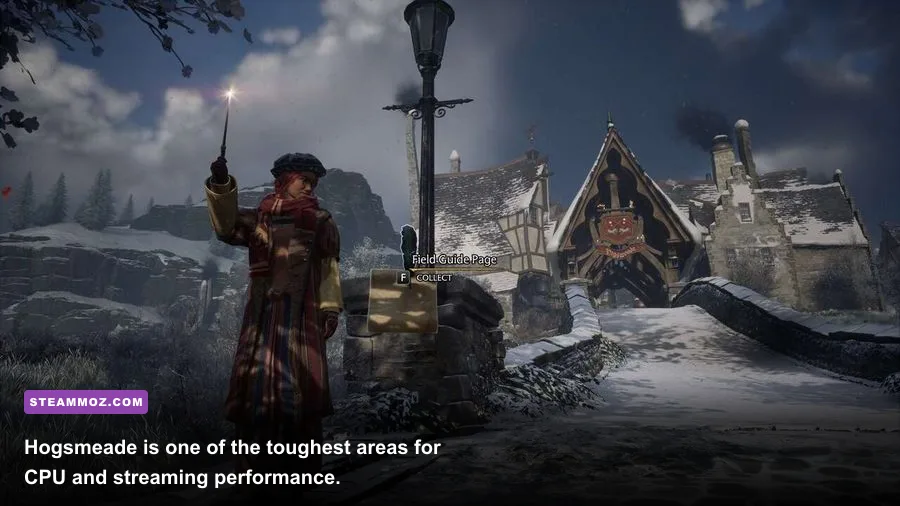
Average FPS doesn't tell the whole Hogwarts Legacy story. The game can deliver a respectable average while producing ugly one-percent lows when it streams new sections. Hogsmeade, the Lower Hogsfield road, and broom flights near the Forbidden Forest are particularly good stress tests because they combine NPCs, geometry, foliage, and rapid asset loading.
Population Quality is often misunderstood. It changes how many NPCs and background details the game maintains, so lowering it helps the CPU more than the GPU. If your GPU usage sits below 90 percent while FPS falls in Hogsmeade, set Population to Low. The town will feel less busy, but your frame pacing should improve.
Shadow Quality is another major hit. Medium still gives Hogwarts convincing directional shadows, while Ultra increases the number and resolution of shadow maps. Lower it before touching textures. Fog Quality and Foliage Quality matter most outdoors; Medium is the sweet spot for the misty Forbidden Forest and the hills around Marunweem Lake.
Ray tracing deserves its own warning. Ray-Traced Reflections, Ray-Traced Shadows, and Ray-Traced Ambient Occlusion can collectively slash performance, particularly inside Hogwarts where reflective floors and layered lighting are everywhere. Unless you own a high-end RTX card and value the cinematic look over frame rate, turn all three off. Traditional lighting remains attractive, and the FPS gain is immediate.
| Problem Scene | Likely Bottleneck | First Setting to Change | Expected Benefit |
|---|---|---|---|
| Hogsmeade stutters | CPU and NPC streaming | Population Quality: Low | Better one-percent lows |
| Broom travel hitches | World asset streaming | View Distance: Medium | Less streaming pressure |
| Forest FPS drops | Foliage, fog, and shadows | Foliage and Fog: Medium | Higher outdoor stability |
| Castle interiors crawl | Ray-traced lighting | Disable all RT | Large GPU headroom increase |
| Textures turn blurry | VRAM or upscaling | Texture High, upscaler Quality | Sharper surfaces and signage |
Use Hogwarts itself as your repeatable test area: fast-travel to the Bell Tower Courtyard, walk through the Transfiguration Courtyard, then enter the castle. That route catches both outdoor traversal and indoor lighting changes. Don't judge a setting from the opening cutscene; it isn't representative of normal play.
Recommended Profiles for Different Gaming PCs
Your ideal settings depend on resolution, VRAM, and whether the CPU can keep up with NPC simulation. Hogwarts Legacy's official Steam listing recommends 16 GB of RAM and a GTX 1080 Ti, RX 5700 XT, or equivalent for higher presets. The minimum target is a GTX 960 4 GB or RX 470 4 GB, but that specification is aimed at 720p and Low settings around 30 FPS—not a locked 60.
| Hardware Class | Resolution | Graphics Profile | Frame-Rate Target |
|---|---|---|---|
| GTX 960/RX 470, 16 GB RAM | 720p or 900p | Low, FSR 2 Balanced, RT Off | 30–45 FPS |
| GTX 1660/RX 5600 XT | 1080p | Medium, FSR 2 Quality, RT Off | 45–60 FPS |
| RTX 3060/RX 6700 XT | 1080p or 1440p | High custom, DLSS/FSR Quality | 60–90 FPS |
| RTX 4070/RX 7800 XT | 1440p | High, RT Off or selective RT | 80–120 FPS |
| RTX 4080/4090 | 1440p or 4K | High/Ultra, DLSS Quality, FG optional | 90–144 FPS |
At 4K, even powerful GPUs benefit from DLSS Quality. Native 4K with ray tracing is a showcase mode, not the sensible default for exploring the whole map. If your PC has only 8 GB of system RAM, upgrade before obsessing over individual settings; the game's recommended configuration is 16 GB, and background applications can make streaming hitching much worse.
Storage also matters. Install the game on an SSD, preferably an NVMe drive with free space available. An SSD won't magically raise average FPS, but it can reduce the length and frequency of asset-loading stalls. Close browser tabs, overlays, RGB utilities, and recording tools while testing. For more examples of diagnosing low-FPS and crash behavior, see Steamoz's low-FPS troubleshooting guide.
Final Tuning for Stable Frame Times
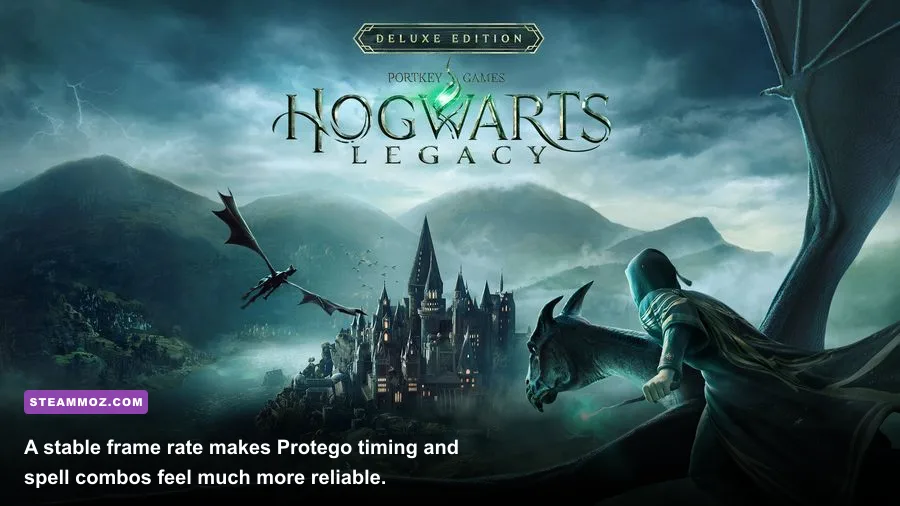
Once the profile is applied, don't keep changing five options at once. Set a frame-rate cap in the game's display menu or through your GPU driver. A locked 60 FPS is better than bouncing between 48 and 90, especially during spell-heavy fights against multiple Dark Wizards. If your monitor is 144 Hz but your PC fluctuates between 70 and 100 FPS, cap at 72 or 90—whichever your worst traversal route can actually sustain.
Turn off overlays if you see unexplained hitching. Steam, GeForce Experience, Radeon Software, Discord, and Xbox Game Bar can all add another variable. Keep GPU drivers current, but if a new driver introduces shader compilation problems, a clean installation or a return to the last stable driver can help. The first run through a new area may still stutter as shaders and assets settle; judge performance after revisiting the same route.
For NVIDIA cards, use the latest Game Ready driver and leave the NVIDIA Control Panel's shader cache at its default or driver-allowed size. For Radeon cards, let the shader cache rebuild after driver changes instead of repeatedly clearing it. Disable third-party “FPS booster” tools—they often interfere with the same shader and streaming systems they claim to fix.
Finally, test combat rather than just walking. Fight a group of Ashwinders near Keenbridge, cast area spells such as Confringo and Glacius, then use Protego against incoming attacks. A stable 60 FPS makes the yellow and red attack indicators easier to read and keeps camera input predictable. If that sequence remains smooth, your settings are ready for the story's larger encounters.
For official requirements and supported features, check the Hogwarts Legacy Steam page, the official Hogwarts Legacy website, and WB Games support. When in doubt, prioritize frame-time consistency: High textures, Medium shadows, Low population, Quality upscaling, and no ray tracing remain the strongest all-purpose combination for smooth Hogwarts Legacy PC performance.