For the best Forza Horizon 5 PC experience, start with a 1440p target, use TAA or DLSS/FSR at Quality, keep textures high, and cut shadows, reflections, and world car level of detail before touching texture quality. That combination delivers a sharp cockpit view and far steadier frame times than the game's Ultra preset on most mid-range systems. For 60 FPS, use the High profile below; for 120 FPS, drop reflections, shadows, MSAA, and environment detail first.
These recommendations apply to the Windows and Steam versions of Forza Horizon 5, including the current PC build rather than the original launch performance profile. Driver updates, seasonal patches, Windows graphics settings, and your CPU can all change the result. If you're searching for “Forza 5 Pc PC” settings, this is the important distinction: the game is officially Forza Horizon 5, and its demanding open-world streaming is usually the real performance limit.
Best Forza Horizon 5 PC settings at a glance
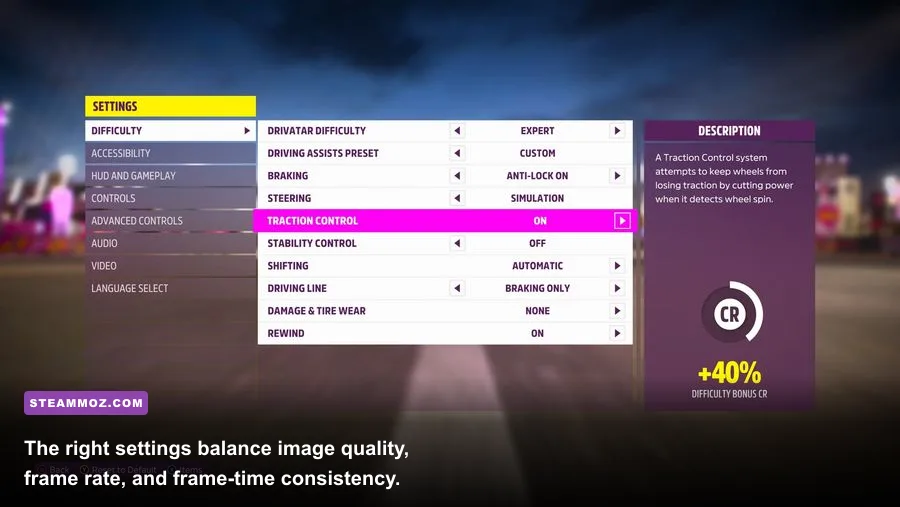
Forza Horizon 5 gives you a huge number of individual graphics controls, but they don't all cost the same amount. Texture quality mostly consumes VRAM, while shadows, reflections, MSAA, environment geometry, and world car level of detail can hit GPU load or CPU streaming hard. The table below is the profile I recommend before you start making one-setting-at-a-time tweaks.
| Setting | Recommended value | FPS impact | Visual note |
|---|---|---|---|
| Resolution | Native 1440p | Very high | Use 1080p for entry-level GPUs and 4K only for powerful cards. |
| Resolution scaling | 100%; 80–90% for 4K | Very high | Lower values improve FPS quickly but soften road detail. |
| Preset | High, then customize | High | Ultra often spends performance on scenery you barely notice at speed. |
| Anti-aliasing | TAA or DLSS/FSR Quality | Medium | Quality upscaling is cleaner than aggressive resolution reduction. |
| Texture quality | High or Ultra if VRAM allows | Low to medium | High textures preserve car and landscape detail. |
| Shadow quality | High | Medium to high | Ultra shadows are expensive, especially at dusk and night. |
| Reflection quality | Medium or High | High | Lower it if wet roads or city races cause drops. |
| Environment texture quality | High | Medium | Ultra adds detail, but costs memory and streaming bandwidth. |
| World car level of detail | Medium or High | Medium | One of the best CPU-saving options in crowded events. |
| MSAA | 2x or Off with upscaling | Medium to high | 4x and 8x MSAA are poor value at high resolutions. |
| Motion blur | Off | Negligible | Improves clarity when judging braking points and apexes. |
| Ray tracing | Off during races | Very high | Reserve it for ForzaVista and garage photography. |
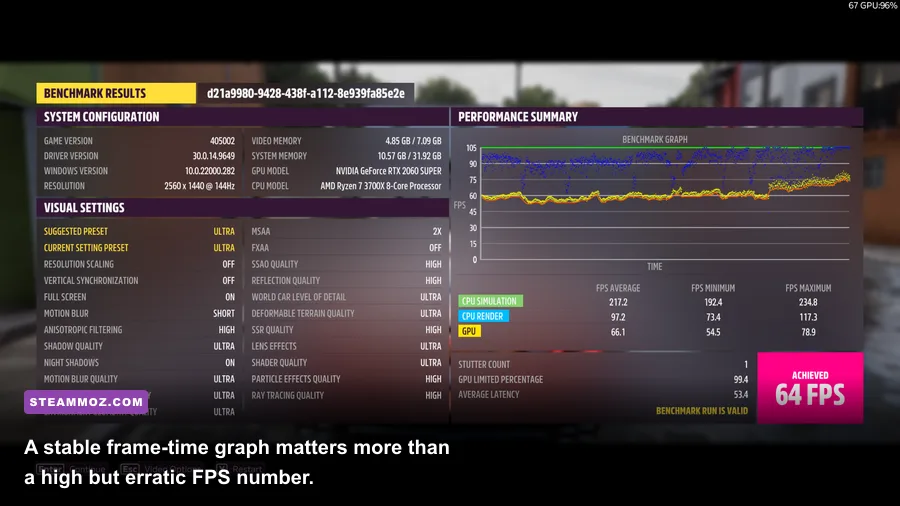
Choose your refresh-rate target before tuning anything else. A locked 60 FPS feels better than a graph that jumps between 58 and 90, while a 120-Hz display benefits from a locked 100 or 120 FPS only if your GPU and CPU can hold that number in Guanajuato, the jungle, and large Festival events. Use the in-game benchmark, then verify the result during a real race.

🎮 FORM
Looking to experience this game? Grab your digital key directly on our store for $14.99.
View on Steammoz Store →Three graphics profiles for different gaming PCs
Don't blindly select Low, Medium, High, or Ultra. Forza Horizon 5's presets can leave useful performance on the table, especially by pushing MSAA, shadows, and reflections together. Start with the closest profile below, restart the benchmark, and then adjust based on your GPU usage and frame-time behavior.
60 FPS High profile for mainstream PCs
At 1080p, this is a strong starting point for hardware around a GeForce RTX 2060, RTX 3060, Radeon RX 6600, or better, paired with a modern six-core CPU. Select the High preset, set texture quality to Ultra if you have at least 8GB of VRAM, and reduce shadows to High, reflections to Medium, MSAA to 2x, and world car level of detail to High. Keep anisotropic filtering at 16x; it makes road surfaces look cleaner at a tiny performance cost.
90–120 FPS competitive profile
For high-refresh racing, use 1080p or 1440p with resolution scaling at 90–100 percent. Set shadows and reflections to Medium, environment texture quality to High, particle effects to Medium, deformable terrain to High, and world car level of detail to Medium. Disable motion blur and depth of field. If you use DLSS or FSR, choose Quality first; Balanced is a fallback for crowded scenes, not the default.
4K image-quality profile
At 4K, prioritize a clean reconstructed image over native resolution at an unstable frame rate. Use DLSS Quality on a compatible GeForce card or FSR Quality on supported Radeon and GeForce hardware, then keep textures High or Ultra. Set MSAA to Off or 2x, shadows to High, reflections to Medium, and ray tracing off. A locked 60 FPS profile normally looks better in motion than native 4K with constant dips into the 40s.
| Target | Resolution and upscaling | Key settings | Practical hardware class |
|---|---|---|---|
| 60 FPS | 1080p native or 1440p Quality | High preset, High shadows, Medium reflections | RTX 2060/RX 6600 and modern six-core CPU |
| 90–120 FPS | 1080p native or 1440p at 90–100% | Medium shadows, Medium reflections, 2x MSAA | RTX 3060 Ti/RX 6700 XT or faster |
| 60 FPS at 4K | DLSS/FSR Quality | High textures, Medium reflections, RT off | RTX 3070/RX 6800-class GPU or better |
| 30–60 FPS entry profile | 1080p at 80–100% | Medium preset, Low reflections, Low shadows | GTX 1650/RX 570-class hardware |
Which settings actually improve FPS
The biggest mistake in Forza Horizon 5 is lowering every option equally. Some settings barely affect frame rate but make the game look dramatically worse, while others provide a major gain with almost invisible changes during a 200-mph race.
Lower reflections before textures
Reflection quality affects water, glossy paint, windows, wet roads, and buildings. Ultra reflections can be costly in cities and rain, and the difference from High is difficult to see while cornering. Medium is the sweet spot for a high-refresh profile. Keep car texture quality high because the paint, decals, tire walls, and cockpit materials remain visible constantly.
Shadow quality is a frame-time setting
Shadows become expensive at sunset, at night, and in heavily populated areas. Ultra shadows improve contact detail beneath cars and sharpen distant tree shadows, but High retains most of the benefit. If your FPS counter looks healthy but the game feels uneven, shadows are one of the first settings to test because their workload can spike as the sun angle and scenery change.
MSAA versus TAA and upscaling
MSAA cleans geometry edges but scales poorly at 1440p and 4K. At 4x or 8x, it can consume performance that would be better spent on a higher internal resolution. Try 2x MSAA with TAA at 1080p. At 1440p and above, use TAA or Quality-mode DLSS/FSR and disable MSAA if the image remains stable. Watch thin fences, power lines, and distant guardrails: shimmering there means you should raise the upscaler quality rather than simply lowering resolution.
Environment and geometry detail
Environment texture quality controls how much detail the world displays, while geometry quality and environment geometry affect rocks, vegetation, buildings, and terrain complexity. These settings are more noticeable in photo mode than during racing. High is usually the right compromise. If you see stutter while entering a new region, lowering environment texture quality can reduce VRAM pressure, but it won't fix every hitch; storage speed, background applications, and CPU streaming can be involved.
World car level of detail matters in traffic
This setting controls the complexity and draw distance of other vehicles. It has a larger effect on CPU-limited systems during Horizon Convoy events, Festival races, and busy city routes than on an empty cross-country run. Medium gives a surprisingly small visual sacrifice. Keep player car detail at Ultra if that separate option is available, since your own vehicle occupies the center of the screen throughout every race.
| Setting to reduce | Best starting value | Typical benefit | What you give up |
|---|---|---|---|
| Reflections | Medium | Large GPU gain in rain and cities | Less accurate glass and wet-road detail |
| Shadows | High or Medium | Better minimum FPS and frame times | softer distant shadows |
| MSAA | Off or 2x | Large gain at 1440p/4K | More edge shimmer if upscaling is poor |
| World car LOD | Medium | CPU relief in traffic-heavy races | Less detailed distant opponents |
| Particle effects | Medium | Helps dust, smoke, and weather scenes | Less dramatic tire smoke and debris |
| Texture quality | High before Low | Usually modest FPS gain | Blurrier surfaces and possible pop-in |
DLSS, FSR, TAA, and resolution scaling explained
Upscaling is often the cleanest way to gain performance in Forza Horizon 5, but each option behaves differently. DLSS is generally the best choice on supported Nvidia RTX hardware, especially at 1440p and 4K. FSR is useful across a wider range of GPUs. TAA at native resolution avoids reconstruction artifacts but may cost too much at 4K.
Start with Quality mode. If Quality gives you 55 FPS in the benchmark and your target is 60, try Balanced only after lowering reflections or shadows. Aggressive upscaling can make distant road markings, vegetation, and fencing shimmer. That matters in a racing game because your eyes constantly scan the horizon for braking boards and corner direction.
Resolution scaling at 80 percent is a practical emergency lever for older GPUs. It lowers the internal render resolution while preserving the display output, but it won't solve a CPU limit. Check GPU utilization during a slow section: 95–99 percent GPU usage means graphics settings can help; 70–85 percent with low FPS points toward CPU load, background software, or a frame cap conflict.
Disable dynamic optimization while troubleshooting. It can be useful for quickly finding a playable baseline, but it changes settings behind the scenes and makes repeatable testing harder. Once you have a stable profile, use an FPS cap through the game, your driver, or RTSS. For a 144-Hz monitor, a 120 FPS cap can produce smoother frame pacing than allowing the game to bounce between 100 and 144.
CPU, VRAM, storage, and Windows fixes

Forza Horizon 5 is not purely a GPU benchmark. Open-world streaming, traffic, opponent logic, and large events can expose a CPU bottleneck even when your graphics card has room left. The official Forza Horizon 5 PC requirements are a floor, not a guarantee of Ultra settings at high refresh rates.
Install the game on an SSD, preferably an NVMe drive with plenty of free space. A hard drive can increase texture pop-in and traversal stutter as the game streams Mexico. Close browser tabs, recording tools, RGB utilities, and overlays while testing. Xbox Game Bar, Steam Overlay, Discord, and GPU overlays are usually harmless, but stacking several capture and monitoring layers can complicate frame-time spikes.
Keep your graphics driver current, but don't assume the newest driver automatically fixes every issue. If a problem begins immediately after an update, a clean driver installation or rollback is worth testing. Windows Game Mode should generally remain enabled. On laptops, set the game to use the discrete GPU and connect the charger; battery power plans can slash clock speeds and create severe stutter.
VRAM is another quiet performance killer. At 1080p, 6GB can be workable with High textures. At 1440p, 8GB is more comfortable, while 4K Ultra textures and high-quality shadows demand considerably more headroom. If FPS looks fine for several minutes and then collapses during a long drive, texture memory pressure or streaming may be involved. Lower textures one step, restart the game, and retest instead of repeatedly changing unrelated settings.
| Component | Playable baseline | Recommended for 1440p/60 | Performance warning |
|---|---|---|---|
| CPU | Modern four-core/eight-thread chip | Modern six-core or eight-core CPU | Busy races can expose CPU limits before GPU limits. |
| GPU | GTX 1650/RX 570 class | RTX 3060/RX 6700 XT class | 4K needs a substantially faster card. |
| Memory | 8GB RAM | 16GB dual-channel RAM | Single-channel memory can hurt streaming and minimum FPS. |
| VRAM | 4–6GB at reduced settings | 8GB or more | Texture quality and resolution increase memory use. |
| Storage | SSD strongly preferred | NVMe SSD | Hard drives can worsen streaming stutter and loading. |
If you're troubleshooting broader PC instability, Steamoz's ELEX PC crash and FPS fixes and EscapeVR low-FPS troubleshooting guide cover useful driver, overlay, and background-process checks that also apply here.
How to benchmark Forza Horizon 5 properly
The built-in benchmark is useful, but it should be treated as a starting point rather than the final verdict. Run it three times after changing a profile and ignore the first result if shader compilation or background caching causes an outlier. Record average FPS, minimum behavior, and whether the frame-time graph has sharp spikes.
Then test a repeatable real-world route. Drive from the Horizon Festival site toward Mulegé, run through Guanajuato, and repeat a race containing weather or dirt. Dense foliage, city buildings, rain, and multiple opponents stress different parts of the engine. A profile that passes the benchmark can still stutter in the jungle or during a large convoy.
- Set your monitor's native resolution and refresh rate in Windows.
- Disable frame generation, dynamic optimization, and overlays while establishing a baseline.
- Run the benchmark at the target resolution and note average FPS and GPU usage.
- Lower reflections, shadows, and MSAA before reducing textures.
- Repeat the same benchmark three times and compare the lowest result.
- Drive a consistent route through a city, jungle, and open desert area.
- Apply a cap slightly below your sustainable minimum, such as 60, 72, 90, or 120 FPS.
Forza's racing model rewards consistency. A stable 72 FPS on a 144-Hz monitor gives you an even 2.0 refresh intervals per frame and can feel excellent with proper synchronization. If you use variable refresh rate, enable FreeSync or G-Sync, keep V-Sync configured consistently, and avoid running above the display's maximum refresh rate.
Final tuning recommendations
For most players, the winning setup is simple: High preset, High textures, High shadows, Medium reflections, 2x MSAA, 16x anisotropic filtering, Medium world car level of detail, motion blur off, ray tracing off, and DLSS or FSR Quality where available. This profile protects the details you actually look at—the road, your car, braking markers, and nearby opponents—while cutting expensive effects that disappear in motion.
If you're still below target, lower shadows and reflections one step at a time. If FPS refuses to rise despite lowering resolution, investigate a CPU limit, thermal throttling, power mode, or background software. If the game looks blurry, restore Quality upscaling or native resolution before raising Ultra scenery settings. If it stutters after long drives, check VRAM use, install location, and overlays.
Use the official Forza Horizon 5 Steam page for installation and platform details, and consult Forza Support if crashes, launch errors, or account problems continue after performance tuning. The official Forza Horizon site also tracks current game information and updates.
One last tip: change one setting, benchmark, and drive. That slower method reveals what your particular PC is doing and avoids the usual trap of turning everything down until Mexico looks flat and lifeless. Forza Horizon 5 is at its best when the frame rate stays locked, the image remains sharp, and your attention stays on the next corner instead of the performance graph.