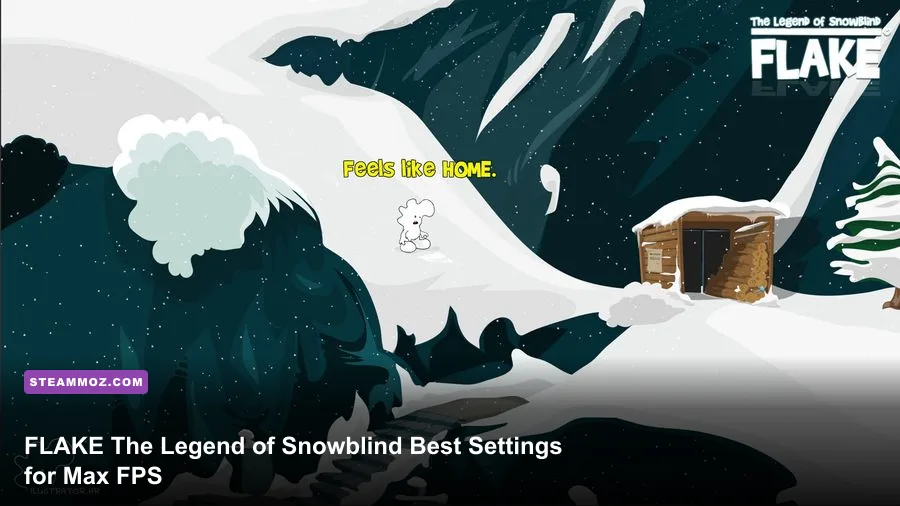
If you want the best FLAKE The Legend of Snowblind graphics settings for max FPS, start with 1080p, exclusive fullscreen, V-Sync off, a 60 FPS cap, medium shadows, high textures, and low-to-medium effects. Shadows, volumetric snow, ambient occlusion, reflections, and post-processing usually cost far more frames than texture quality, so cut those first rather than turning the whole game into a blurry mess.
This guide focuses on the settings that actually change frame time during exploration, storms, and combat. The exact options can vary between PC builds and driver versions, so treat the names below as the practical targets to look for in your graphics menu. Before changing anything, update your GPU driver, let the game finish shader compilation, and test the same snowy area after every major adjustment. Randomly flipping twenty options at once makes it impossible to find the real culprit.
For broader PC optimization habits, Steamoz's Dragonkin performance settings guide covers the same frame-time-first approach, while the ELEX PC fixes guide is useful if FLAKE is stuttering, crashing, or refusing to save video options.
Best FLAKE settings for a fast, clean image

Use the following as the recommended starting profile for a gaming PC with a discrete GPU. It prioritizes stable frame pacing instead of chasing a flashy but inconsistent peak number. A locked 60 FPS feels much better than a counter bouncing between 48 and 82 FPS, especially when camera movement, snow particles, and enemy effects arrive together.
| Setting | Recommended value | FPS impact | Visual note |
|---|---|---|---|
| Display mode | Exclusive fullscreen | Low | Usually gives the cleanest presentation and lowest desktop overhead. |
| Resolution | 1920×1080 | Very high | Use native resolution first; lower only when GPU-limited. |
| Resolution scale | 100% | Very high | Drop to 90% before sacrificing textures. |
| V-Sync | Off | None to low | Reduces latency, but may reveal tearing. |
| Frame limit | 60 FPS or monitor refresh rate | None | Cap to the lowest stable target for steadier frame times. |
| Textures | High | Low on a capable GPU | Needs VRAM, but usually costs fewer frames than shadows. |
| Shadows | Medium | High | The first major quality setting to lower. |
| Effects | Medium | Medium to high | Controls combat flashes, particles, and heavy weather scenes. |
| Volumetrics or snow quality | Low or medium | High | Most important during storms and whiteout conditions. |
| Ambient occlusion | Low or medium | Medium | Low keeps contact shading without a large frame-time hit. |
| Reflections | Low | Medium to high | Snow, ice, and wet surfaces can make this surprisingly expensive. |
| Anti-aliasing | Medium or TAA | Low to medium | Keep it enabled to prevent shimmering in snowfields. |
| View distance | Medium | Medium | Protects CPU performance in open areas and villages. |
| Motion blur | Off | Small | Sharper camera movement and slightly lower post-processing load. |
| Depth of field | Off | Small to medium | Removes cinematic blur during exploration and aiming. |
Textures are the setting most players lower too early. If your GPU has enough VRAM, high textures preserve the definition in fur, ice, weapons, and environment surfaces without hammering the GPU every frame. Lower them only if you see texture pop-in, delayed loading, hitching when entering new zones, or VRAM usage sitting at the limit.
Resolution scale is the cleanest emergency performance lever. Moving from 100% to 90% renders roughly 19% fewer pixels, although the final gain depends on the rest of the scene. It will soften fine snow detail, but the result is generally less distracting than dropping textures, anti-aliasing, or every quality preset to low.

🎮 Blind
Looking to experience this game? Grab your digital key directly on our store for $24.95.
View on Steammoz Store →Which options give the biggest FPS gains?

FLAKE's heaviest moments are likely to come from layered weather, long sightlines, shadow cascades, and several effects overlapping in combat. That means your average FPS can look healthy while the one-percent lows collapse. The goal is not simply a large number in an empty hallway; it's keeping the worst snowy encounter from turning into a slideshow.
Shadows are the first serious cut
High shadows often increase draw distance, cascade resolution, and the number of objects receiving dynamic shadows. In a snowy game, that can include trees, rocks, buildings, characters, particle systems, and moving environmental elements. Medium shadows usually retain the shape and direction of the scene while cutting a substantial amount of GPU work. Low shadows are worth using on entry-level hardware, but they can make characters appear disconnected from the ground.
Snow and volumetric effects punish weak GPUs
Volumetric snow, fog, blizzard density, and lighting quality overlap across the entire screen. Unlike a single texture, these effects can touch every pixel. If FLAKE dips badly only during storms, leave textures at high and lower volumetrics, effects, and post-processing. You want fewer transparent layers, not muddy surfaces.
Reflections are a quiet frame-time killer
Ice and wet surfaces can trigger repeated reflection work, especially when the camera sees a large frozen lake or glossy interior. Low reflections generally preserves enough environmental shine to keep the world from looking flat. If the game offers screen-space reflections separately, disable them before lowering the resolution scale.
| Problem | Change first | Expected benefit | What you give up |
|---|---|---|---|
| GPU usage stays near 99% | Resolution scale to 90% | Large FPS increase | Slightly softer image |
| Storms cause severe dips | Volumetrics and effects to low | Better one-percent lows | Less dense snow and fog |
| Villages hitch while turning | View distance and shadows to medium | Lower CPU and streaming pressure | Shorter draw distance |
| VRAM is full | Textures from high to medium | Fewer asset-streaming hitches | Less surface detail |
| Image shimmers in snow | Keep anti-aliasing medium | Cleaner movement | Small GPU cost |
| Input feels delayed | V-Sync off and cap FPS | Lower latency | Possible screen tearing |
Use an overlay such as MSI Afterburner with RivaTuner Statistics Server to watch GPU utilization, VRAM, system RAM, and one-percent lows. If GPU usage sits above 95% and lowering shadows immediately raises FPS, you are GPU-bound. If the GPU falls below roughly 85% while the frame rate drops in populated areas, lower view distance, foliage, shadows, or background application load instead. That is usually a CPU or streaming limit, and dropping resolution won't solve it.
Best 60 FPS and 120 FPS profiles
Not every PC should use the same target. A sensible 60 FPS profile is the sweet spot for most systems, while a 120 FPS profile needs aggressive cuts because doubling the refresh target nearly halves the time available to render each frame. At 60 FPS, the engine has 16.67 milliseconds per frame. At 120 FPS, it has only 8.33 milliseconds.
Stable 60 FPS profile
Choose 1080p native resolution, 100% scale, high textures, medium shadows, medium effects, low or medium volumetrics, low reflections, medium anti-aliasing, medium view distance, and disabled motion blur and depth of field. Cap the game at 60 FPS with an external limiter if the built-in cap produces uneven pacing. This profile keeps the world crisp while targeting the settings with the worst frame-time cost.
High-refresh 120 FPS profile
Use 1080p, 90% to 100% resolution scale, high textures if VRAM allows, low shadows, low effects, low volumetrics, disabled reflections, low ambient occlusion, medium anti-aliasing, and medium view distance. Cap at 117 or 118 FPS on a 120 Hz adaptive-sync display, or at 141 to así 142 FPS on a 144 Hz monitor. The small gap below maximum refresh gives the display's variable-refresh system room to work.
If you use G-SYNC or FreeSync, enable adaptive sync in the monitor and driver, then keep in-game V-Sync off while testing. Some players prefer driver-level V-Sync with a frame cap a few frames below refresh; others prioritize the lowest possible latency. The important part is avoiding an uncapped GPU that runs hot while frame pacing becomes erratic.
For a second opinion on balancing image quality against frame rate, compare these profiles with Steamoz's real-world PC requirements breakdown. The hardware advice is different, but the testing method—change one bottleneck at a time—is exactly the same.
Low-end PC settings that still look good

On an older laptop or integrated-graphics system, don't begin with the lowest preset and accept whatever it gives you. Start at 1600×900 or 1280×720 only if native 1080p cannot hold the target, use 80% to 90% resolution scale, and keep anti-aliasing enabled at its lowest useful level. Jagged snow-covered branches and shimmering ice are more tiring than a moderate resolution reduction.
Set textures to medium first, then lower shadows, volumetrics, effects, reflections, ambient occlusion, foliage, and view distance. Disable motion blur, depth of field, film grain, chromatic aberration, and lens effects if those toggles exist. These options rarely make the game more readable, and removing them can improve clarity even when the FPS gain is modest.
Cap at 30 FPS if the machine cannot maintain 45 or 60. A stable 30 FPS is perfectly playable for exploration and is preferable to a wildly fluctuating 30-to-55 range. If frame pacing remains uneven, close browser tabs, recording software, RGB utilities, and launchers. Windows power mode should be set to Best Performance while plugged in, and laptops should use the dedicated GPU rather than an integrated graphics processor.
Storage also matters. Install FLAKE on an SSD when possible, keep several gigabytes free, and avoid testing immediately after a driver update if the game is still compiling shaders. Short freezes during the first traversal of a zone may be shader or asset caching rather than a permanent graphics-setting problem.
How to test FLAKE without fooling yourself
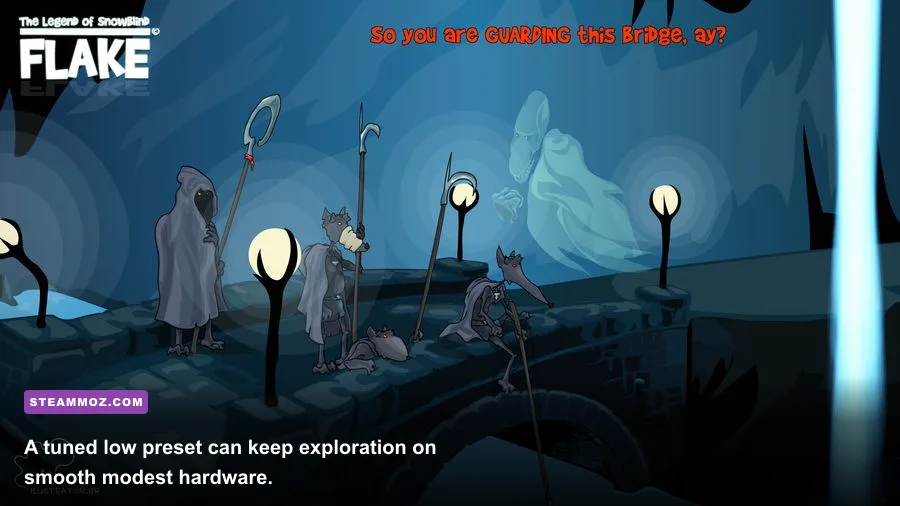
Use a repeatable route instead of judging performance from the opening menu. Pick a demanding snowy area with long sightlines, walk the same route for two minutes, rotate the camera through a storm, and trigger a representative combat encounter. Record average FPS, one-percent lows, GPU temperature, VRAM use, and frametime. Repeat after each change, using the same resolution and frame cap.
A practical five-pass tuning order
- Confirm the target. Decide whether the priority is a locked 30, 60, or high-refresh frame rate. Don't tune for 144 FPS if your monitor is 60 Hz and your GPU is struggling.
- Find the renderer limit. Check GPU utilization and VRAM during the most demanding scene. High GPU use means resolution, volumetrics, effects, and shadows matter most.
- Lower expensive settings individually. Test shadows, snow or volumetrics, reflections, and effects in that order. Give each change a full repeatable run.
- Fix CPU and streaming dips. If GPU usage is low during village traversal, reduce view distance, foliage, background processes, and overlays before lowering resolution.
- Lock the result. Apply a cap a few frames below your stable ceiling. A consistent 58-60 FPS is preferable to an uncapped counter that constantly oscillates.
Don't rely on the game's average FPS alone. A 70 FPS average can still feel rough if the one-percent low drops into the 30s whenever a blizzard begins. Frametime should form a mostly flat line, with only brief spikes when a new region streams in. If every camera turn creates a spike, investigate shader compilation, storage speed, VRAM pressure, and overlays before destroying visual quality.
Finally, save screenshots of your working settings. Some games reset resolution scale, fullscreen mode, or frame caps after a driver update or display change. If FLAKE forgets your profile, verify its files through the official Steam search listing, check the game's news and community updates, and consult Steam Support before repeatedly reinstalling.
The short version is simple: protect textures, cut shadows and volumetric snow first, keep reflections low, disable cosmetic blur, and use a frame cap that your PC can actually hold. That combination gives FLAKE The Legend of Snowblind a sharper image and steadier combat without making every frozen environment look like a stripped-down tech demo.