If Sea of Thieves is stuttering, dropping below a playable frame rate, or crashing through Steam, start with a stable DirectX 11 test, cap your FPS, lower Water Detail and Shadow Quality, verify the Steam installation, and rebuild the game's local settings if necessary. Most PC problems come from shader compilation, unstable frame pacing, damaged files, overlays, or a CPU/GPU profile that is too ambitious for busy islands and naval battles.
This order matters. Don't throw every setting to Low and assume the problem is solved. Sea of Thieves can feel worse at an uncapped 144 FPS than it does at a locked 60 FPS if your frame times jump wildly between 6 ms and 25 ms. The goal is consistent delivery, not a flattering number in the corner. Before changing anything, note your resolution, GPU, CPU, RAM, driver version, and whether the issue happens while sailing, entering an outpost, fighting a Skeleton Fort, or loading into a session.
Build a stable Sea of Thieves graphics profile first
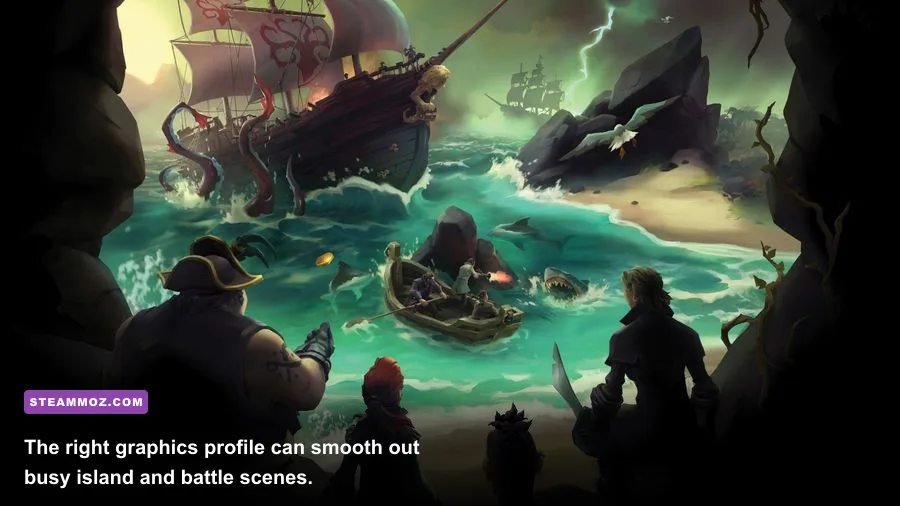
Launch the game, open Settings, then check the video and graphics options before touching Windows. Set the display mode to Fullscreen or the mode that gives your monitor the most consistent frametimes. Borderless can be convenient for multitasking, but exclusive fullscreen may reduce interference from desktop composition on some systems. Turn on an FPS limit that your machine can hold during combat rather than the maximum it reaches while staring at the ocean.
A sensible starting point is 60 FPS for mainstream gaming PCs, 90 or 120 FPS for a strong modern system, and 30 FPS only when a laptop or older GPU cannot maintain 60. If your monitor supports VRR, enable FreeSync or G-SYNC and cap the game a few frames below the display's refresh rate. For a 144 Hz monitor, try 138 or 140 FPS; for 60 Hz, try 58 or 60 depending on how your sync setup behaves.
| Setting | Recommended value | FPS impact | Visual trade-off |
|---|---|---|---|
| Resolution | Native, or 90% resolution scale | High when reduced | Lower scale softens distant islands and text |
| Water Detail | Common or Rare | Medium to high | Reduces ocean reflections and wave detail |
| Shadow Quality | Common | Medium | Less defined shadows around ships and rocks |
| Model Detail | Rare or Common | Medium | Changes distant geometry and object clarity |
| Texture Quality | Mythical if VRAM allows | Low to medium | Higher settings mainly affect texture sharpness |
| Particle Effects | Common | Medium during fires and storms | Less smoke, sparks, and visual clutter |
| Water Simulation | Common | Medium to high | Less detailed waves during storms and battles |
| Anti-Aliasing | Use the lower stable option | Low to medium | Fine edges may shimmer at distance |
Don't automatically lower Texture Quality first. Textures often consume VRAM but don't dominate GPU time in the same way as water, shadows, resolution scale, and particles. If the game hitches when you turn the camera, however, test a lower texture setting. A GPU that is close to its VRAM limit can spill data through system memory and produce ugly pauses even when the average FPS looks acceptable.
Use DirectX 11 as a diagnostic, not a permanent rule
Sea of Thieves supports DirectX 11 and DirectX 12 rendering paths on compatible hardware. DX12 can deliver strong performance after shaders settle, but a new driver, game update, or shader cache rebuild may cause hitching during the first trip across an island. If DX12 stutters immediately, switch to DX11 and test the exact same route. If DX11 is smooth but DX12 crashes or hitches, the renderer, driver, overlay, or shader cache is the likely suspect rather than your internet connection.
For more PC tuning context, the workflow in our Far Cry 6 FPS settings guide also applies here: change one major variable at a time, reproduce the same scene, and record frame-time behavior instead of guessing.
Stop stuttering caused by shaders, overlays, and frame pacing
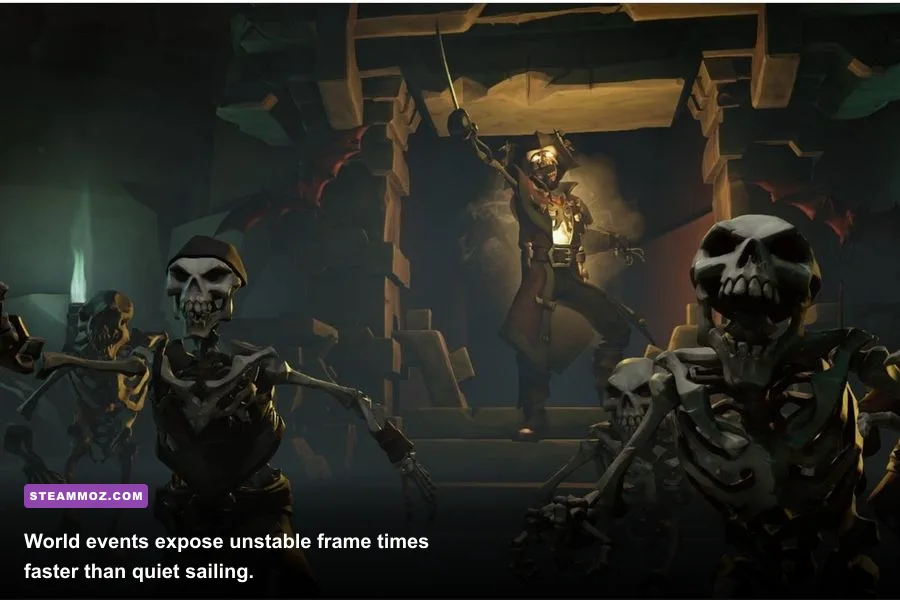
Stutter isn't always low FPS. Average FPS can sit at 100 while a brief shader or asset-loading pause ruins aiming, steering, or cannon timing. Sea of Thieves streams a large world as you approach islands, forts, outposts, and other ships. A first visit after a driver update may be rougher than later visits because shader and asset caches are being rebuilt.
After changing renderer or updating your graphics driver, give the game a controlled warm-up run. Sail between an outpost and a nearby island, enter a cave or fort, fire the cannons, swim underwater, and trigger a few effects such as fire or a storm. If the hitching gradually fades, cache compilation was probably involved. If every session produces identical pauses, look for overlays, background recording, storage problems, or a CPU limit.
Disable the usual interference sources
- Turn off the Steam Overlay for Sea of Thieves temporarily through the game's Steam Properties.
- Disable Xbox Game Bar, background capture, Discord overlay, GeForce Experience or AMD recording, and MSI Afterburner overlays for one test session.
- Close browser tabs with video, hardware monitoring tools, RGB utilities, and motherboard control software that constantly polls sensors.
- Use Task Manager to check whether CPU, RAM, disk activity, or GPU memory reaches 95–100 percent during a hitch.
- Install Sea of Thieves on an SSD. A hard drive can turn world streaming into visible pauses, especially when several crew members and ships load nearby.
Windows power behavior matters too. On a desktop, use the Balanced or High performance plan and make sure the CPU is not being held at an unusually low clock. On a laptop, test while plugged in with the manufacturer's performance mode enabled. Don't blindly select an aggressive overclock profile: unstable RAM, undervolting, or a marginal GPU overclock often appears as a game crash or a single-frame freeze rather than a clean error.
Cap frame rate with one tool only. A driver-level cap, RTSS cap, in-game cap, and V-SYNC combination can create confusing queue behavior. Start with the in-game limiter and VRR. If frametimes still wobble, try a driver cap or RTSS, but remove the other cap while testing. A locked 60 with a stable 16.7 ms frame time is a win, even if your GPU could briefly render 110 FPS.
Fix Sea of Thieves Steam crashes and failed launches

Crashes that happen before the main menu need a different approach from crashes during a storm. First, restart Steam and Windows, then let Steam finish any pending update. Open the official Sea of Thieves Steam page and compare your installed version with the current requirements. Remove launch options you added for old guides, especially experimental DirectX flags or unsupported commands.
Repair the installation without deleting your progress
- Right-click Sea of Thieves in Steam, choose Properties, then open Installed Files.
- Select Verify integrity of game files and wait for the process to complete. Steam may redownload damaged or missing files.
- Restart Steam after verification, then launch without overlays or third-party injectors.
- If the game still fails, update Windows and install the current NVIDIA, AMD, or Intel graphics driver using a clean installation option when available.
- Restart again and test a fresh graphics profile rather than immediately restoring an old configuration.
Verification is especially useful after an interrupted update, a disk error, or moving the installation between drives. It won't fix every crash, because configuration files and runtime components live outside the normal game package. If verification passes but the game closes at startup, check Windows Security or antivirus quarantine history and allow the game through controlled-folder protection where appropriate. Never download replacement DLL files from random websites.
Sea of Thieves also relies on Microsoft gaming services and account authentication. If the game reaches a sign-in error rather than silently closing, confirm that Steam and the linked Microsoft account are online, Windows time is set automatically, and Xbox-related services are not disabled by a “debloat” script. The official Sea of Thieves Support site is the right place to check current service incidents, known errors, and account-specific guidance.
For a broader crash-isolation method, compare these steps with our ELEX PC crash and FPS fixes. The principle is the same: strip the system back to a clean baseline before blaming the game itself.
Reset corrupted settings and eliminate driver conflicts
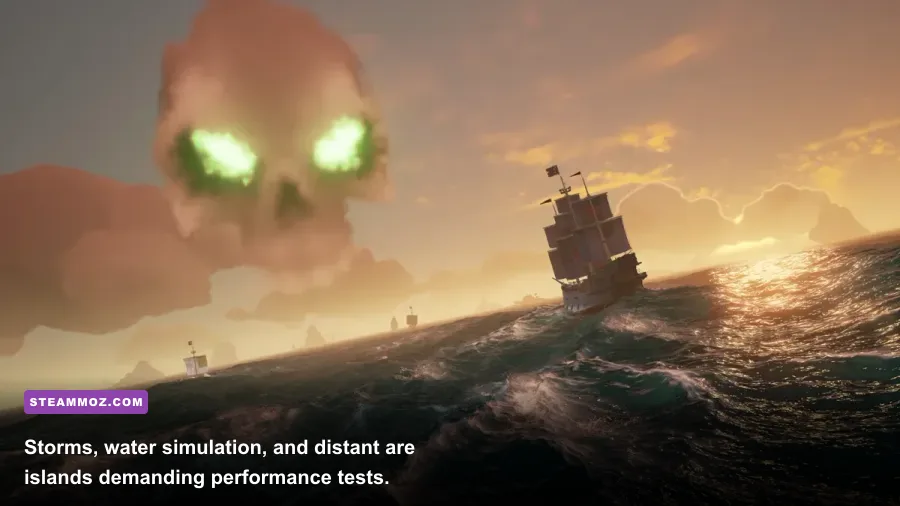
A broken graphics configuration can survive reinstalls. If Sea of Thieves crashes after changing resolution, HDR, renderer, or quality settings, reset its local configuration rather than repeating the same launch. Close the game and Steam first. Then use Windows search to locate the Sea of Thieves settings folder under your user profile's local application data. The exact path can vary with Windows and the current build, so back up the folder instead of deleting it permanently. Rename the relevant settings folder to something like SeaOfThievesSettings.old, relaunch, and allow the game to generate a clean profile.
This resets preferences, not your pirate's online progression. You may need to configure resolution, sensitivity, accessibility options, and keybinds again. Screenshot your controls first, particularly if you use custom cannon, bucket, or weapon bindings. If the crash disappears, restore settings one group at a time. Don't copy the entire old folder back immediately or you'll reintroduce the problem.
Graphics driver cleanup without unnecessary drama
Driver updates can fix GPU hangs, but installing every optional beta driver is not a performance strategy. If problems began directly after an update, roll back to the previous stable driver or use the manufacturer's clean installation option. A full Display Driver Uninstaller process is useful when you have changed GPU brands, repeatedly see driver timeouts, or a normal reinstall does nothing; it is overkill for a single ordinary stutter.
Reset NVIDIA Control Panel or AMD Adrenalin overrides for the game. Disable forced sharpening, frame generation experiments, enhanced sync, image scaling, and custom anti-aliasing until the baseline works. Sea of Thieves is an online competitive game, so avoid anything that injects a questionable overlay or modifies rendering files. Keep ReShade and other visual injectors disabled during diagnosis.
| Symptom | Most likely cause | First test | Next action |
|---|---|---|---|
| Hitching only on first island visit | Shader or asset compilation | Repeat the same route after warm-up | Keep a stable renderer and check SSD health |
| FPS falls during storms and forts | GPU load from water, shadows, and particles | Lower Water Detail and Particle Effects | Reduce resolution scale or cap FPS |
| Crash at launch | Bad config, overlay, driver, or runtime | Reset settings and disable overlays | Verify files and clean-install the driver |
| Crash after 20–60 minutes | Heat, VRAM, unstable overclock, or memory | Monitor temperatures and memory use | Return clocks to stock and test RAM |
| Freezing when entering an outpost | Storage streaming or system memory pressure | Check disk activity and RAM usage | Use an SSD and close background apps |
Choose the right profile for your hardware
Sea of Thieves scales well, but its busiest scenes punish weak CPUs and GPUs differently. A graphics card determines resolution and visual quality; the processor becomes more important when several ships, crews, AI skeletons, effects, and world objects are active. That is why a quiet solo sail can show 120 FPS while a Skeleton Fleet, Fort of the Damned, or crowded outpost drops dramatically.
| PC target | Resolution and cap | Key settings | Expected behavior |
|---|---|---|---|
| Older gaming laptop or entry GPU | 1080p, 30–60 FPS | DX11, Common water, Common shadows, 80–90% scale | Stable sailing; large events may need a 30 FPS cap |
| Mainstream 1080p PC | 1080p, locked 60–100 FPS | DX11 or DX12, Rare model detail, Common water | Good clarity with controlled battle drops |
| Modern 1440p gaming PC | 1440p, 90–144 FPS | DX12, Rare textures, Common water, medium shadows | High clarity; CPU limits appear in crowded scenes |
| High-end 4K PC | 4K, locked 60–120 FPS | DX12, high textures, lower water if needed | GPU-heavy; use a firm cap for smooth combat |
If GPU usage is near 99 percent and FPS falls, lower resolution scale, Water Detail, shadows, or particles. If GPU usage sits well below that while one or more CPU threads are saturated, lowering visual quality may barely help. Cap the frame rate, close background programs, and avoid streaming or recording at a bitrate your processor can't comfortably handle. Sea of Thieves benefits more from an even frame time than from chasing every last frame during empty ocean.
Keep an eye on temperatures. A GPU or CPU that begins correctly and then loses performance after twenty minutes may be thermal throttling. Clean blocked vents, improve case airflow, and return overclocked components to stock. Crashes accompanied by black screens, driver resets, or full PC reboots point beyond ordinary game settings and may indicate power delivery, overheating, or unstable memory.
Use a repeatable test route before declaring victory
Don't judge a fix from the title screen. Load into Adventure, leave an outpost, sail toward an island, rotate the camera across the horizon, board your ship, fire cannons, and visit a location with heavier geometry. If you have a crew, repeat the test near other ships or during a world event. Record the FPS and, more importantly, whether the frame-time graph has long spikes.
Change only one category at a time. Test DX11 versus DX12, then overlays, then water and shadows, then the FPS cap. Keep a short note of what changed and whether the crash returned. This prevents the classic troubleshooting trap where five tweaks appear to work, but nobody knows which one mattered.
For official performance notices and technical updates, check Rare's Sea of Thieves news feed and the game's support portal. If the fault remains after clean files, a fresh settings profile, stock hardware, current drivers, and disabled overlays, submit a support ticket with your hardware details, crash timing, renderer, and any Windows Event Viewer error. Include reproduction steps; “it crashes sometimes” is far less useful than “it closes when loading an outpost after 25 minutes in DX12.”
The winning setup is usually less dramatic than a secret launch command: a stable renderer, a sensible FPS cap, an SSD, current drivers, and lower water or shadow settings where your hardware needs breathing room. Once the frame-time graph stays flat through storms, forts, and ship fights, Sea of Thieves stops feeling like it is fighting your PC and gets back to the part that matters—sailing, boarding, and stealing treasure without a hitch.