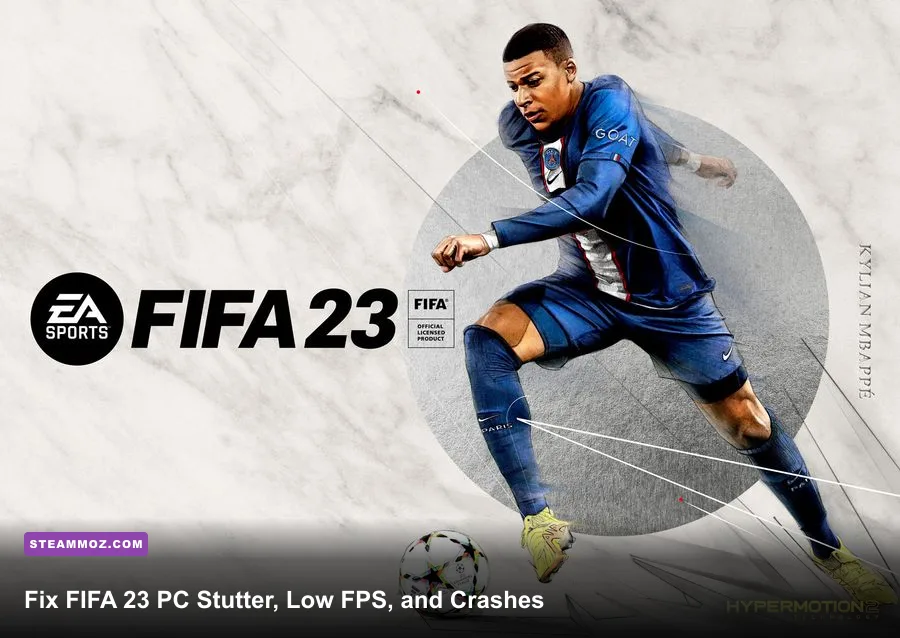
To fix FIFA 23 stuttering, low FPS, and crashes on Steam, start with a 60 FPS cap, disable Dynamic Resolution Scaling, set Strand-Based Hair to Off, repair EA AntiCheat, verify the game files, and perform a clean GPU-driver update. Those changes address the most common problems: unstable frame pacing during cutscenes, sudden drops in crowded stadiums, DirectX crashes, and matches that close before kickoff. Work through the fixes below in order rather than randomly changing every Windows setting at once.
Start With a Stable FIFA 23 Graphics Profile
FIFA 23 is unusually sensitive to frame-time spikes. A system that averages 100 FPS can still feel awful if it jumps between 55 and 120 FPS during replays, corner kicks, or stadium cutscenes. The game also uses CPU-heavy crowd, hair, and presentation effects, so lowering resolution alone rarely solves the problem.
Open Customise > Settings > Game Settings if you need gameplay options, but use the PC launcher or in-game Visual Settings menu for graphics. Start at your monitor’s native resolution. If your PC cannot hold 60 FPS, drop from 1440p to 1080p before destroying texture quality; resolution is the cleanest performance lever.
| Setting | Recommended Value | FPS Impact | Visual Note |
|---|---|---|---|
| Frame Rate | 60 FPS cap | High stability benefit | Best baseline for most 60 Hz and 120 Hz systems |
| Dynamic Resolution Scaling | Off | Removes spikes | Prevents sudden blurry resolution changes |
| Rendering Quality | Medium or High | Medium | Keep High if the GPU has at least 6 GB VRAM |
| Strand-Based Hair | Off | High FPS gain | One of the biggest drops during close-ups |
| Cloth Quality | Medium | Low to medium | Small visual loss, useful on older CPUs |
| Ambient Occlusion | Off or SSAO | Medium | Turning it off improves crowded-scene consistency |
| MSAA | 2x or Off | Medium to high | Use Off first if menus and replays stutter |
| Cutscene Hair Detail | Low | Medium | Targets replay and cinematic hitching |
For a 60 Hz display, 60 FPS is preferable to an unstable 90 FPS. For a 120 Hz or 144 Hz monitor, test a locked 90 or 120 FPS only after the game is consistent. If your GPU sits below 90 percent usage while the frame rate collapses, the CPU, shader compilation, crowd simulation, or background software is probably the limiting factor.
Fix FIFA 23 Stuttering and Bad Frame Pacing
Stutter is often caused by inconsistent frame delivery rather than low average performance. First, close browsers, RGB utilities, motherboard monitoring tools, Discord overlays, Xbox Game Bar, and GeForce Experience or Radeon overlays. FIFA 23’s anti-cheat layer and overlay hooks do not always play nicely together.
In Steam, right-click FIFA 23, choose Properties, open Installed Files, and select Verify integrity of game files. This is especially useful after a failed update or a crash during file writing. You can also find more general Steam troubleshooting in our guide to PC crash and FPS fixes.
Next, reset the local configuration. Close the game, press Windows + R, enter %USERPROFILE%\Documents, and locate the FIFA 23 folder. Back up the folder, then rename it to FIFA 23 Backup. Launch the game again so it creates fresh settings. This removes corrupted configuration data, but it can also reset graphics, controller, and customisation options, so keep the backup until you confirm the fix.
Shader stutter can appear during the first few matches after a driver update. Do not judge performance from the first minute of the first game. Play one full match, including a replay and a set piece, then test again. If hitching returns every session, clear the DirectX shader cache through Windows Settings > System > Storage > Temporary files, select DirectX Shader Cache, and restart Windows.
Stop FIFA 23 From Crashing Before Kickoff

FIFA 23 crashes that happen at launch, in the menus, or immediately before a match often involve EA AntiCheat rather than raw GPU power. Open the official EA AntiCheat information page and use the installer included with FIFA 23 to repair the service. Typically, you’ll find it under the game’s installation directory in an Installer or EA AntiCheat folder.
Run the installer as administrator, select FIFA 23, and choose Repair Service. Restart the PC afterward. If you use third-party antivirus software, add the FIFA 23 executable, Steam, the EA app, and EA AntiCheat to its exclusions rather than disabling protection permanently. Do the same for controlled-folder access in Windows Security if the game cannot save settings.
Also launch Steam and the EA app with matching permissions. Running one as administrator and the other normally can create authentication or handoff errors. Turn off VPN software, aggressive packet filters, and performance injectors such as RivaTuner temporarily while testing. Keep the official EA PC graphics troubleshooting guidance nearby, but test one change at a time so you know what actually worked.
| Crash Timing | Most Likely Cause | Best First Fix | What to Avoid |
|---|---|---|---|
| Immediately on launch | EA AntiCheat or permissions | Repair AntiCheat and restart Windows | Launching through several overlays |
| At the main menu | Corrupt configuration | Rename the Documents FIFA 23 folder | Deleting the backup before testing |
| Before kickoff | Driver, shader, or stadium asset issue | Clean-install GPU driver and verify files | Overclocking during diagnosis |
| During online play | Anti-cheat, network, or overlay conflict | Disable overlays and VPN, then repair service | Blaming connection speed for a desktop crash |
Update Drivers Without Creating New Problems
A normal driver update can leave old shader data behind. For NVIDIA or AMD hardware, download the current driver directly from the NVIDIA driver page or AMD support page. Choose the clean-install option where available. If FIFA 23 began crashing immediately after a driver update, try rolling back to the previous stable driver instead.
Do not combine this test with an overclock. Reset GPU and CPU tuning to stock, including aggressive XMP or EXPO profiles if the entire PC is throwing application errors. FIFA 23 may expose borderline instability that other games never trigger because matches repeatedly load crowds, stadium lighting, player hair, and replay cameras.
On laptops, force FIFA 23 to use the dedicated GPU in Windows Settings > System > Display > Graphics. Select the game executable, choose Options, and set it to High performance. Connect the charger and select a performance power mode. Hybrid graphics systems can otherwise launch the game on integrated graphics, producing low FPS that looks like a broken configuration.
Use Windows Settings That Actually Help
Enable Game Mode in Windows, but disable Xbox Game Bar recording and background capture if you never use them. Turn off unnecessary startup applications in Task Manager. A browser with video tabs, cloud synchronisation, or a large file transfer can create CPU and disk spikes precisely when FIFA 23 streams stadium assets.
Fullscreen optimisations are worth testing. Find the FIFA 23 executable, open Properties > Compatibility, select Disable fullscreen optimisations, and apply. Then compare exclusive fullscreen with borderless mode. Exclusive fullscreen usually gives the cleanest latency, while borderless can behave better with modern Windows desktops and multiple monitors.
Keep at least 15 to 20 GB free on the drive containing Windows and FIFA 23. A nearly full SSD can slow shader-cache writes and patch operations. If the game is installed on a mechanical hard drive, moving it to an SSD may reduce loading hitches, although it will not magically fix CPU-limited FPS. For more storage and settings context, our PC settings performance guide covers the same bottleneck logic in another demanding game.
Choose the Right Performance Target for Your PC
Use FIFA 23’s official Steam system requirements as a floor, not a promise of perfect 60 FPS. Minimum hardware is intended for reduced settings and can struggle with high-resolution displays, dense stadiums, and background tasks. The practical goal is consistent frame time, because a steady 45 FPS often feels better than a wildly fluctuating 70 FPS.
| PC Profile | Resolution and Cap | Core Settings | Expected Use |
|---|---|---|---|
| Older gaming laptop | 1080p, 30 or 45 FPS | Low, Hair Off, MSAA Off | Playable matches with reduced replay quality |
| Entry-level gaming PC | 1080p, locked 60 FPS | Medium, Hair Off, SSAO Off | Best balance for GTX 1650-class hardware |
| Mainstream gaming PC | 1080p or 1440p, locked 60 FPS | High textures, Hair Off, 2x MSAA | Sharp gameplay without crowd-related spikes |
| High-end PC | 1440p, 90 or 120 FPS | High, test Hair On carefully | Requires a strong CPU for stadium consistency |
If you still see crashes after every step, check Windows Event Viewer under Windows Logs > Application and note the failing module. A display-driver module points toward GPU software, while an EA AntiCheat service error points toward repair or security permissions. For persistent system-wide instability, compare temperatures and clocks with a monitoring tool, then test RAM and storage health.
Finally, keep your backup configuration and a short record of every change. FIFA 23 performance fixes are much easier when you can undo a bad tweak. Start with the 60 FPS cap, Hair Off, verified files, repaired AntiCheat, clean drivers, and a fresh configuration folder. Those seven steps solve the majority of FIFA 23 PC Steam stuttering, low-FPS, and crashing cases without sacrificing the visual details that actually make a match look good.