If Far Cry 5 keeps crashing, hitching, or falling into the 20s on PC, start with a clean driver install, verify the game files, disable Ubisoft Connect and third-party overlays, then use a performance profile built around 60 fps rather than blindly choosing Ultra. Far Cry 5 is a CPU-sensitive open-world shooter, so lowering shadows and vegetation usually helps more than cutting texture quality.
The good news is that Hope County is rarely difficult to run once the problem is isolated. The bad news is that several different issues look identical: corrupted files can throw you to the desktop, shader compilation can feel like stutter, and a CPU-limited scene can remain slow even after you lower resolution. This guide separates those problems instead of throwing a random list of tweaks at you.

First, identify the kind of performance problem
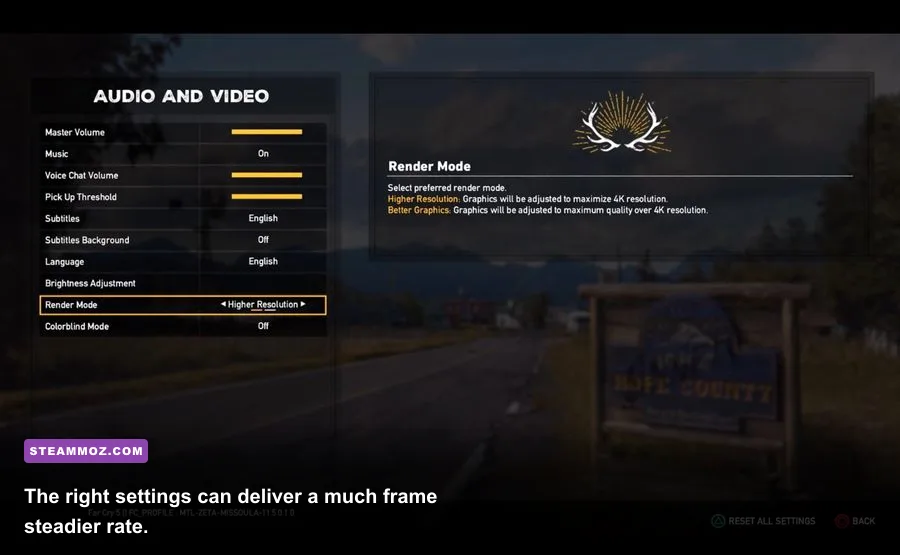
Before changing ten settings at once, reproduce the issue in the same place. Load a save near Fall's End, drive through a busy outpost, or use the game's built-in benchmark. Watch average fps, the one-percent-low reading, GPU utilization, and CPU utilization with MSI Afterburner and RivaTuner Statistics Server.
A crash during startup points toward files, overlays, permissions, drivers, or configuration data. A crash after several minutes can indicate an unstable GPU overclock, overheating, or a driver timeout. Smooth 60 fps in quiet wilderness followed by 35 fps during a firefight usually means the CPU is struggling with AI, physics, streaming, and vegetation. If GPU usage sits below roughly 90 percent while one or two CPU threads are busy, lowering resolution won't fix the real bottleneck.
| Symptom | Likely Cause | First Test | Best Starting Fix |
|---|---|---|---|
| Crash before the menu | Corrupt files, overlay conflict, bad config | Launch with overlays disabled | Verify files and rename the Far Cry 5 configuration folder |
| Crash during loading | Driver issue, permissions, damaged save or cache | Try a new game profile | Clean-install the GPU driver and test cloud-save recovery |
| Short freezes while driving | Asset streaming or CPU spikes | Monitor frametime and disk activity | Use an SSD and lower Shadows and Geometry |
| Low fps everywhere | GPU limit, power mode, thermal throttling | Check GPU usage and clocks | Use the 60 fps profile below and select High Performance power mode |
| Good average fps, ugly stutter | Frame pacing, overlays, background apps | Look at the frametime graph | Cap fps below refresh rate and disable recording overlays |
🎮 Far Cry 5
Looking to experience this game? Grab your digital key directly on our store for $8.99.
View on Steammoz Store →Stop Far Cry 5 from crashing at launch

1. Verify the installation in Steam
In Steam, right-click Far Cry 5, choose Properties, open Installed Files, and select Verify integrity of game files. Steam will replace missing or altered files, but it may not fix every Ubisoft Connect issue. If you own the game through Ubisoft Connect, open the launcher, select the game, choose Properties, and run Verify files there instead.
Do not launch the game repeatedly while the verification process is still working. Once it finishes, restart Windows. That sounds basic, but it clears a surprising number of launcher and driver hooks that remain loaded after a failed boot.
2. Remove overlay conflicts
Temporarily disable Steam Overlay, Ubisoft Connect Overlay, Discord Overlay, Xbox Game Bar, NVIDIA App or GeForce Experience overlay, AMD Adrenalin recording, and MSI Afterburner's on-screen display. These tools inject themselves into the rendering pipeline, and Far Cry 5's older Dunia engine can be picky about which one gets control first.
For a clean test, close Discord and any RGB, monitoring, capture, or motherboard utility before launching. If the crash disappears, re-enable programs one at a time. That gives you the culprit instead of permanently sacrificing every useful tool.
3. Reset the local configuration
Exit both Steam and Ubisoft Connect. Back up the folder at Documents\My Games\Far Cry 5, then rename it to Far Cry 5_backup. Launch the game so it creates a fresh configuration. This resets damaged display settings, custom keybinds, and cached profile data without deleting your backup.
If the game starts after this reset, don't immediately copy the entire old folder back. Restore saves cautiously and leave the newly created configuration files in place. A broken display mode or invalid graphics value can cause a crash before you ever see the options menu.
4. Clean-install your graphics driver
Download the current driver directly from the NVIDIA driver page or the AMD support page. Choose the clean-install or factory-reset option where available. If the issue began immediately after a driver update, test the previous stable driver rather than assuming the newest package is automatically best.
Also remove GPU overclocks, undervolts, and aggressive memory profiles for the first test. Far Cry 5 can expose marginal stability that other games never touch. Return the GPU and CPU to stock settings, confirm temperatures are sensible, and only then tune again.
5. Check Windows permissions and compatibility settings
Right-click FarCry5.exe, open Properties, and inspect the Compatibility tab. Avoid stacking random compatibility modes, but testing Disable fullscreen optimizations can help with odd alt-tab crashes. Under Advanced, confirm the account has permission to read and write the installation and Documents folders.
Keep Windows Game Mode enabled for a normal test, but disable background capture in Xbox Game Bar. Add the game folder to your antivirus exclusions only if your security software is clearly blocking it, and never download replacement DLL files from unofficial sites.
The best Far Cry 5 settings for stable 60 fps

Far Cry 5's official PC requirements list an Intel Core i5-2400 or AMD FX-6300-class processor, 8 GB of RAM, and a GTX 670 or Radeon R9 270 for minimum performance. The recommended target is closer to a Core i7-4770, 8 GB of RAM, and a GTX 970 or Radeon R9 290X. Those specifications are old now, but modern cards still benefit from sensible tuning because the game can become CPU-limited in dense areas.
Start at 1080p with DirectX 11, exclusive fullscreen, V-Sync off, and a frame cap of 60 if your monitor is 60 Hz. If you have a 120 or 144 Hz display, cap at 90 or 120 only after confirming that the CPU can hold the target in outposts and vehicle sections. A locked 60 with clean frametimes feels far better than an uncapped 85 fps that repeatedly plunges to 42.
| Setting | Recommended Value | FPS Impact | Visual Note |
|---|---|---|---|
| Resolution | Native 1080p or 1440p | Very High when reduced | Keep native resolution unless the GPU is fully saturated |
| Resolution Scaling | 100%; test 90% if needed | High | 90% is a useful emergency GPU boost with mild softness |
| Textures | High | Low to medium | Needs enough VRAM; lowering it mostly hurts surface detail |
| Shadows | High or Normal | High | One of the best settings to lower for CPU and GPU relief |
| Geometry and Vegetation | High | High in open areas | Lowering reduces world density and streaming pressure |
| Terrain | High | Medium | Keep High unless your GPU is near its VRAM limit |
| Water | High | Low to medium | Normal is fine if lakes and rivers cause dips |
| Environment | High | Medium | High keeps Hope County from looking flat |
| Anti-aliasing | TAA | Medium | Far Cry 5's TAA is softer but steadier than costly alternatives |
| Motion Blur | Off | Small | Improves clarity and removes a distracting smear during turns |
| Volumetric Fog | Normal | Medium | Lower it if smoke, mist, or sunrise scenes tank the GPU |
Textures are the setting people lower first, but that's often backwards. If your graphics card has adequate VRAM, High textures preserve the game's excellent weapon and rock detail while costing less than shadows or geometry. Lower Shadows to Normal, then Geometry and Vegetation to High or Normal, before touching texture quality.
Use the benchmark after every major change. It isn't a perfect simulation of a chaotic firefight with multiple Peggies, but it makes comparisons repeatable. Record the average and minimum results, then test a real outpost such as the Lamb of God Church or a crowded road near Henbane River.
Fix stutter, frame pacing, and sudden FPS drops

Average fps doesn't tell the whole story. A game reporting 70 fps can still feel awful if every few seconds contains a 100-millisecond hitch. Far Cry 5 streams a large world while processing wildlife, vehicles, civilians, explosions, and AI combat. That workload produces spikes even when the GPU has plenty of unused capacity.
Move the game to an SSD
Installing Far Cry 5 on an SSD won't magically raise every average, but it can reduce streaming stalls while driving, flying, or crossing regions. Keep at least 15 percent free space on the drive, close torrent clients and large downloads, and avoid running a full antivirus scan during play.
Use a sensible frame cap
Cap the game below the refresh rate when using adaptive sync: 58 or 59 fps for a 60 Hz display, 117 or 118 for 120 Hz, and 141 or 142 for 144 Hz. Use the game's limiter first, then test RTSS if its frametime graph is cleaner. V-Sync can eliminate tearing but may add latency or create large drops when the system can't hold the refresh target.
Choose the correct bottleneck fix
If GPU usage is 95–99 percent, reduce resolution scaling, volumetric fog, anti-aliasing, and shadows. If GPU usage is only 60–80 percent during the dip, lower geometry, vegetation, environment, and shadows; close browsers and background applications; and check CPU temperatures and clock speeds. More graphical horsepower cannot solve a processor-side simulation spike.
Don't expect an enormous gain from disabling motion blur or changing texture filtering. Those are clarity and memory choices, not the main frame-rate levers. Likewise, setting every option to Low can make the game look worse while leaving a CPU bottleneck almost untouched.
Advanced fixes for stubborn PC problems
Repair DirectX and Visual C++ components
Run Windows Update, then install the current Microsoft Visual C++ Redistributable packages from Microsoft's official download page. Far Cry 5 may rely on older runtime components that another game or cleanup tool damaged. Avoid third-party “all-in-one DLL” installers; they create more security and compatibility problems than they solve.
Turn off fullscreen and HDR experiments
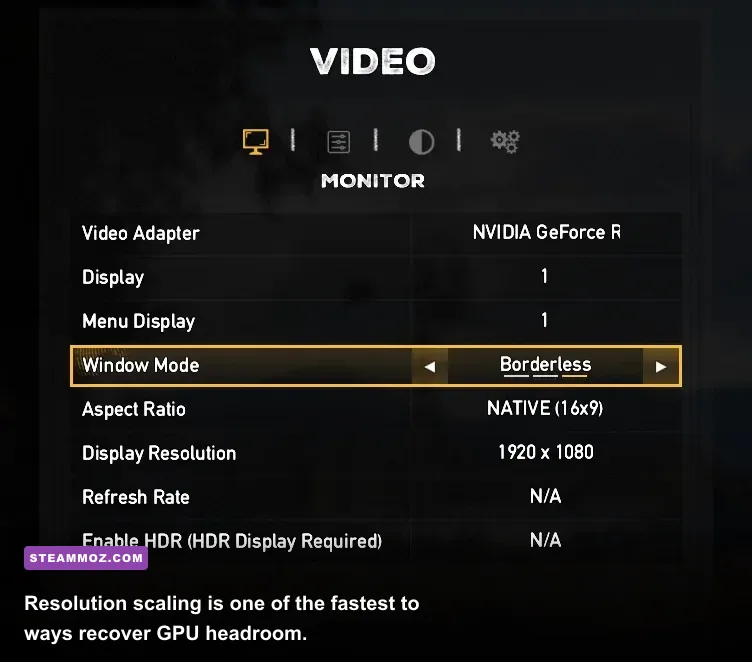
Test exclusive fullscreen and borderless separately. If one mode crashes during alt-tab, stay with the other and avoid rapidly switching displays while the game is loading. For HDR, disable it in both Windows and the game for one session. HDR itself isn't inherently unstable, but display-driver handoffs can complicate troubleshooting.
Check the Windows Event Viewer
After a crash, open Event Viewer, select Windows Logs, then Application, and look at the error timestamp. A faulting module pointing to the GPU driver suggests a driver or stability issue; a game executable points more toward files or configuration; an unrelated DLL may identify an overlay or monitoring tool. Treat the log as a clue, not a diagnosis.
Test cloud saves carefully
If a fresh configuration launches but an existing save crashes during loading, disable cloud synchronization temporarily in Ubisoft Connect, back up your local saves, and test an earlier save or a new game. Don't delete your only copy. Cloud conflicts can restore the problematic file if you immediately turn synchronization back on.
For official patch information and support escalation, check the official Far Cry 5 page, the Steam community discussions, and Ubisoft Help. Compare reports with your exact GPU, driver version, Windows build, and whether the crash happens in single-player or co-op.
A clean troubleshooting order that actually works
Don't apply every tweak in one pass. This order keeps the diagnosis clean and usually gets you back into the game fastest:
- Restart Windows and close overlays, recorders, browsers, RGB utilities, and overclocking tools.
- Verify Far Cry 5's files in Steam or Ubisoft Connect, depending on where you own it.
- Reset the configuration by renaming the Documents\My Games\Far Cry 5 folder after backing it up.
- Clean-install or roll back the GPU driver, then return all hardware settings to stock.
- Test the 60 fps profile: 1080p, High textures, Normal shadows, High geometry, TAA, and reduced volumetric fog.
- Measure the bottleneck with GPU usage, CPU clocks, temperatures, and a frametime graph.
- Move the installation to an SSD and cap fps once the game is stable.
- Re-enable overlays and extras one at a time so the next crash has an obvious suspect.
For most players, the winning combination is surprisingly ordinary: verified files, a fresh configuration, no stacked overlays, a current stable driver, and lower shadows or vegetation. If you still get crashes after that, stop chasing graphics settings and investigate hardware stability, Windows event logs, save files, and the specific launcher involved.
Far Cry 5 remains a demanding open-world shooter in the places that matter most: driving through dense forests, attacking a cult compound, or triggering a chaotic resistance fight. A stable frame cap and balanced High settings make those moments feel dramatically better than an unstable Ultra preset. Once the game is behaving, you can carefully raise textures, terrain, or fog until you find the visual ceiling your PC can hold.
If you're tuning other PC games too, Steamoz's guide to ELEX crash and FPS fixes covers a similar troubleshooting workflow, while Dragonkin settings that make every frame count explains how to separate GPU limits from frame-pacing problems. The principle is the same: measure first, change one variable, and value consistent frametimes over a flashy benchmark number.