Far Cry 3 crashing or running at an ugly, stuttery frame rate on PC usually comes down to four things: old DirectX and overlay conflicts, a damaged configuration file, needlessly expensive graphics settings, or a modern Windows system mishandling this 2012 Ubisoft release. Start by verifying the game files, disabling Ubisoft and Steam overlays, switching to a sensible DirectX 11 profile, and resetting GamerProfile.xml. Then cap the game at a stable 60 FPS instead of chasing an unstable maximum. Those steps fix the majority of crashes and low-FPS problems without sacrificing the look that makes Rook Island special.
Far Cry 3 is not demanding by modern standards, but that doesn't mean it automatically runs perfectly. The Dunia 2 engine streams foliage, wildlife, physics, vehicles, and distant terrain while you move through a surprisingly busy open world. A fast graphics card can still be held back by one CPU thread during an outpost assault, and a powerful modern GPU can expose frame-pacing problems that never appeared on the hardware the game was designed for.

Run These Crash Fixes Before Changing Graphics

Do the boring checks first. They are also the fixes most likely to work. If Far Cry 3 crashes on launch, freezes after the opening logos, or exits whenever you load a save, don't start by downloading random DLL files from a forum. That can turn a manageable compatibility problem into a broken Windows installation.
1. Verify the installation
Open Steam, right-click Far Cry 3, choose Properties, open Installed Files, and select Verify integrity of game files. Steam will replace missing or altered files, including files damaged by an interrupted update. If you own the Ubisoft Connect version, use the game's three-dot menu and select Verify files instead.
Cloud saves can occasionally restore a problematic configuration after a reinstall, so back up your saves before doing anything more aggressive. The single-player save folder is normally under Documents\My Games\Far Cry 3. Keep the save files, but remove only the configuration file during the reset step below.
2. Turn off every overlay
Disable the Steam overlay in the game's Properties window and turn off the Ubisoft Connect overlay in its settings. Also close Discord overlay, Xbox Game Bar, MSI Afterburner overlay, Razer Cortex, Overwolf, and recording tools for your first test. Far Cry 3's older fullscreen handling can collide with injection-based overlays, particularly when a modern driver is also applying an overlay or performance filter.
Don't disable your antivirus permanently. Instead, test with Windows Security's controlled-folder protection temporarily ruled out, or add the legitimate game folder as an exception if your security software is blocking access. Restore protection immediately after testing.
3. Install the correct runtime and drivers
Far Cry 3 may need legacy DirectX components even if Windows 10 or Windows 11 reports that DirectX 12 is installed. Download the official DirectX End-User Runtime from Microsoft. It adds older side-by-side libraries; it does not replace DirectX 12 or downgrade your system.
Use the current stable driver from NVIDIA or AMD Support. If the game started crashing immediately after a driver update, perform a clean installation or roll back to the previous stable driver. Laptop players should also confirm that FarCry3.exe is assigned to the dedicated GPU in Windows Graphics settings.
| Symptom | Most Likely Cause | First Fix to Try |
|---|---|---|
| Crash before the main menu | Overlay, missing runtime, or bad profile | Disable overlays, install legacy DirectX, reset GamerProfile.xml |
| Crash while loading a save | Corrupt file or unstable overclock | Verify files and return CPU/GPU/RAM to stock settings |
| Black screen with sound | Fullscreen or refresh-rate conflict | Use borderless/windowed mode and set a supported refresh rate |
| Random desktop crash after 20–40 minutes | Thermal issue, driver timeout, or overlay hook | Monitor temperatures and test with every overlay disabled |
🎮 Far Cry 3
Looking to experience this game? Grab your digital key directly on our store for $4.99.
View on Steammoz Store →Reset Far Cry 3's Configuration Without Losing Saves
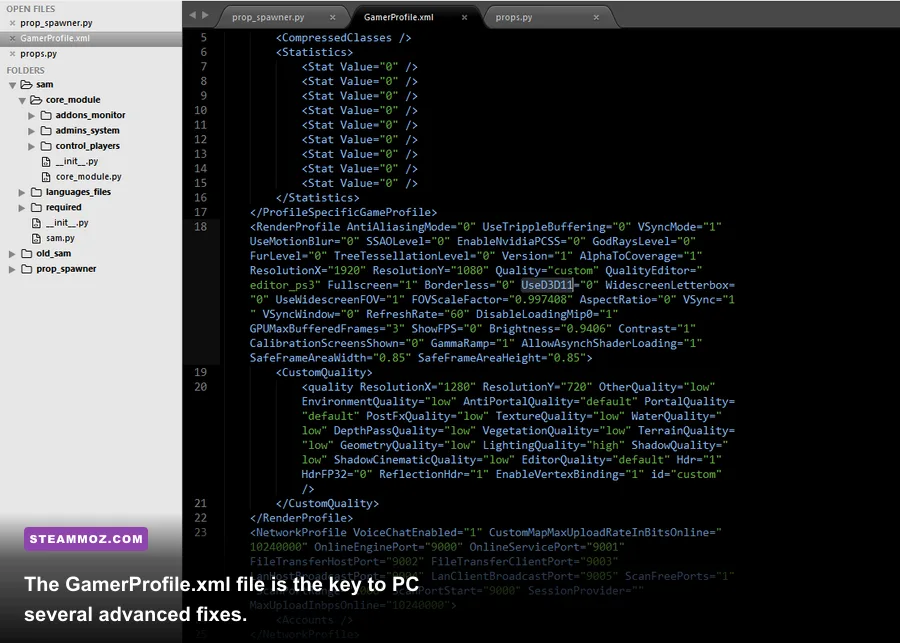
A corrupted profile is one of the most overlooked reasons Far Cry 3 refuses to launch. The file to watch is GamerProfile.xml, usually found at Documents\My Games\Far Cry 3\. The exact folder can vary if your Windows Documents library is redirected to OneDrive, so search File Explorer for the filename if you don't see it immediately.
Safe reset method
- Exit Far Cry 3 and close Steam or Ubisoft Connect.
- Open
Documents\My Games\Far Cry 3. - Copy the entire folder to your desktop as a backup.
- Rename
GamerProfile.xmltoGamerProfile.old.xml. - Launch the game and let it create a fresh profile.
- Set resolution, refresh rate, and graphics options again instead of importing the old file.
This resets graphics and control preferences, not your progress. If the game launches afterward, the old profile was the problem. Avoid immediately maxing every option. Test the clean profile at 1080p with DirectX 11, VSync off, and the balanced settings listed below. Once the game is stable, change one option at a time so you know which setting causes trouble.
Far Cry 3 also behaves better when its executable isn't being forced into an unusual compatibility mode. Right-click FarCry3.exe, open Properties, then Compatibility. Try Disable fullscreen optimizations if you get black screens or repeated alt-tab crashes. Leave compatibility mode itself off initially; Windows 7 mode can help on some machines but can also introduce scaling and permission problems.
Best Far Cry 3 Settings for Stable FPS
For most modern 1080p systems, the sweet spot is not the game's Ultra preset. Ultra pushes shadows, ambient occlusion, post-processing, and vegetation hard while offering surprisingly small visual gains during actual play. The settings with the biggest performance impact are not always the ones that look most dramatic in screenshots.
| Setting | Recommended Value | Approximate FPS Impact | Visual Trade-Off |
|---|---|---|---|
| DirectX | DX11 | Baseline | Best compatibility and lighting; use DX9 only for troubleshooting |
| Resolution | Native 1080p | Very high | Lower only if the GPU is fully saturated |
| Anti-aliasing | 2x or 4x MSAA | High | 4x cleans edges; 2x is the better value on older GPUs |
| Shadows | High | Medium | Ultra costs frames in villages and dense jungle |
| Post FX | High | Medium | Lowering it reduces bloom and some cinematic effects |
| Ambient Occlusion | HDAO or SSAO | Medium to high | Disable first if indoor scenes stutter |
| Vegetation | High | Medium | Ultra adds density but can hammer CPU frame times |
| Terrain | High | Low to medium | Distance detail remains convincing at High |
| Water | High | Low | Ultra reflections are costly near coastlines |
| VSync | Off in game | Variable | Use an external cap if tearing is distracting |
Start with High textures, High shadows, High terrain, High vegetation, and 2x MSAA. If you have a GPU with limited VRAM, lower texture quality before lowering resolution; texture streaming can cause hitching when memory is exhausted. If your GPU usage stays below roughly 90 percent while FPS drops in busy outposts, reduce vegetation, shadows, and ambient occlusion. That's a CPU or frame-time problem, not a lack of graphics horsepower.
For smooth modern play, cap the game at 60 FPS with NVIDIA Control Panel, AMD Adrenalin, or RTSS. A locked 60 is preferable to swinging between 45 and 90 FPS because Dunia's frame pacing can feel uneven when the camera rapidly moves through foliage. If your monitor is 120Hz or higher, test a 72 or 90 FPS cap only after confirming that the game remains stable during the Medusa missions, vehicle sections, and large outpost fights.
Stop Stutter, Freezes, and Sudden FPS Drops
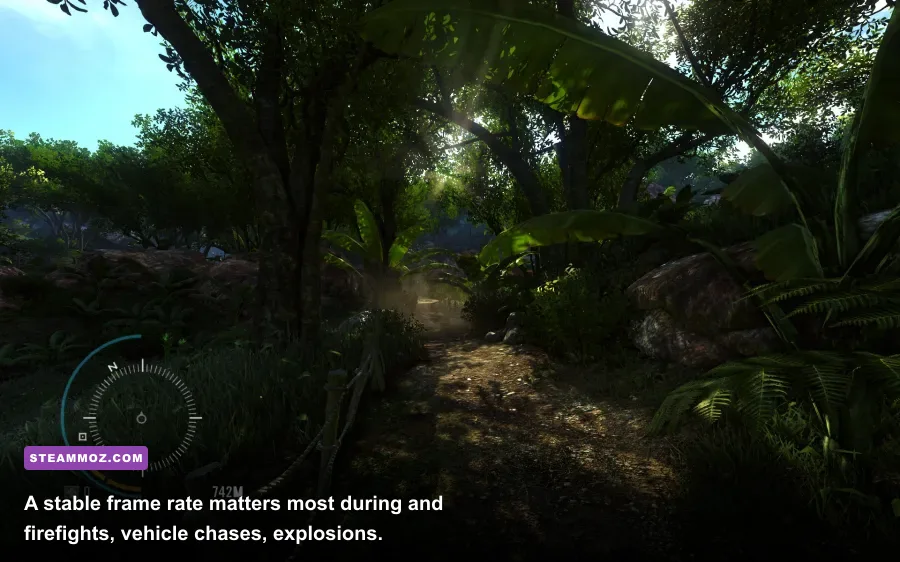
Far Cry 3's worst slowdowns often happen when the engine is streaming a new section of Rook Island. Driving from Amanaki Town toward an outpost loads terrain, plants, animals, and AI in bursts. A brief hitch is normal on some systems; repeated one-second freezes are not. The goal is to separate ordinary streaming behavior from a genuine performance fault.
Check whether the GPU or CPU is responsible
Use an unobtrusive monitoring tool and watch GPU utilization, VRAM, CPU thread load, temperature, and frame time. If the GPU sits at 98–100 percent, lower MSAA, ambient occlusion, resolution, and water first. If GPU usage falls to 60–80 percent while one CPU thread is pegged, lower vegetation and shadows, close browsers and launchers, and remove background recording software.
Don't use a high-priority or real-time process tweak as your first answer. It can make audio, mouse input, or Windows itself less stable. A modest external frame cap gives the CPU breathing room and often eliminates the harsh spikes that feel like stutter even when the average FPS looks fine.
Storage and power checks
Install the game on an SSD if possible. An SSD won't magically raise average FPS, but it can shorten streaming stalls and reduce texture-pop pauses. On laptops, play while plugged in and select the Windows Best performance power mode. Check that the GPU isn't hitting its thermal limit; an older laptop that starts at 60 FPS and falls to 35 FPS after ten minutes is throttling, not suffering from a graphics-setting mystery.
Remove aggressive GPU overclocks, undervolts, and memory overclocks while diagnosing crashes. Older games can expose instability that newer titles hide because their rendering workloads behave differently. Test for ten minutes in the same area, ideally an active outpost such as a scene around Amanaki Town, rather than judging performance from the quiet pause menu.
Advanced Fixes for Windows 10 and Windows 11
Modern Windows can run Far Cry 3 very well, but fullscreen behavior and security permissions sometimes get in the way. These fixes are worth trying only after verification, driver checks, and the profile reset.
Use the executable directly
Find the installation folder through Steam's Browse local files command and locate FarCry3.exe. Add that executable to Windows Graphics settings and select High performance. If Ubisoft Connect launches in the background, keep it open rather than repeatedly killing its process; the game may need the launcher for authentication even when you play offline.
Test fullscreen modes deliberately
Begin with exclusive fullscreen if the game offers it. If you see a black screen, flickering, or a crash after alt-tab, switch to borderless windowed mode. Set the Windows desktop and game resolution to the same value, such as 1920x1080, and use a refresh rate your display actually supports. Avoid forcing ultrawide resolutions through third-party launch arguments until the standard profile works.
For stubborn startup crashes, launch Steam and Ubisoft Connect as administrator only as a diagnostic test, not as a permanent habit. If administrator access fixes the issue, inspect folder permissions or security software instead of leaving every launcher elevated. Far Cry 3 should not require dangerous permissions on a correctly configured Windows installation.
A Reliable 15-Minute Troubleshooting Order
Here is the order I'd use on a fresh installation. It avoids changing five variables at once and gives every fix a fair test.
- Verify files. Repair the Steam or Ubisoft Connect installation first.
- Disable overlays. Turn off Steam, Ubisoft, Discord, Xbox Game Bar, and monitoring overlays.
- Reset the profile. Rename
GamerProfile.xmland let the game generate it again. - Install legacy DirectX. Use Microsoft's official runtime, then restart Windows.
- Update or roll back the GPU driver. Pick the stable driver, not necessarily the newest beta package.
- Use the balanced profile. DX11, High textures, High terrain, High shadows, High vegetation, 2x MSAA, and a 60 FPS cap.
- Test a demanding scene. Drive between settlements, enter an outpost, and trigger combat rather than relying on an empty beach.
- Change one setting at a time. Lower vegetation and ambient occlusion for CPU or frame-time problems; lower MSAA and resolution for GPU problems.
| Hardware Situation | Profile | Expected Focus | Best Adjustment If It Struggles |
|---|---|---|---|
| Older integrated graphics | 720p, DX9, Low/Medium, no MSAA | Playability over image quality | Lower resolution scale and disable ambient occlusion |
| GTX 750 Ti or similar | 1080p, DX11, High, 2x MSAA | Stable 45–60 FPS | Reduce shadows and vegetation before textures |
| GTX 1060/RX 580 class | 1080p, DX11, Very High, 2x–4x MSAA | Consistent 60 FPS | Cap at 60 and lower post FX if frame time spikes |
| Modern mid-range GPU | 1440p, DX11, Very High, 2x MSAA | Sharper image with stable frame pacing | Use 1080p if CPU-limited in large outposts |
Finally, avoid unofficial “performance patches” that replace executables or inject DLLs unless you have a complete backup and understand exactly what they change. The official Far Cry 3 Steam page remains the safest source for the supported PC build, while Ubisoft's official help center is the right place to check account and launcher issues. For broader PC troubleshooting habits, Steamoz's guide to ELEX crash and FPS fixes and the performance-focused Dragonkin settings guide use the same useful principle: measure the bottleneck before lowering everything.
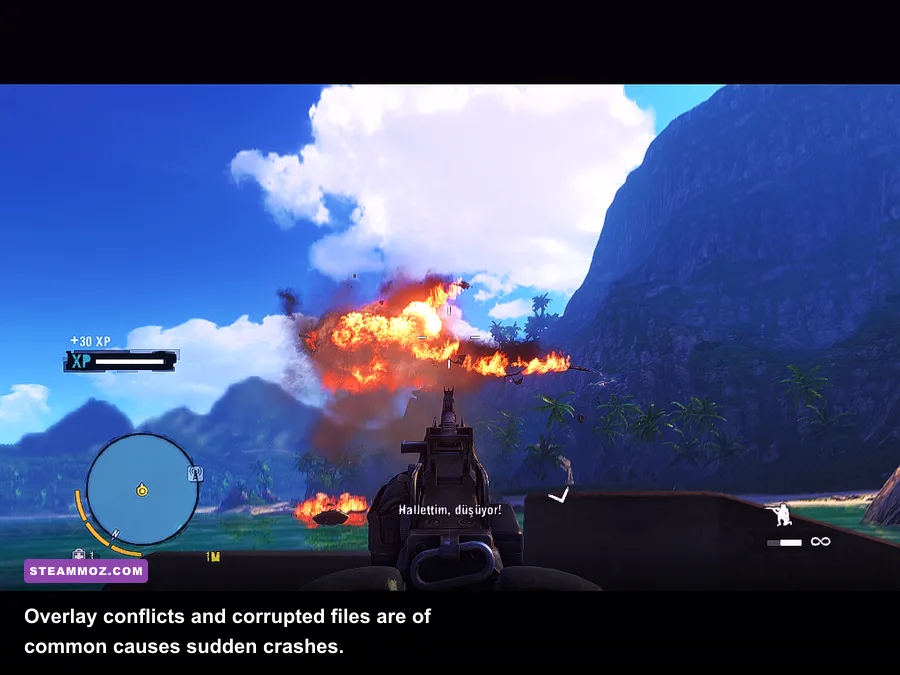
Far Cry 3 doesn't need a complicated mod stack to run well. A clean profile, no overlays, correct legacy components, a stable DX11 setup, and a sensible frame cap are usually enough. Once the game survives a long drive, a busy outpost, and a few explosions without stuttering or crashing, you can raise visual settings gradually. Keep the setting that improves the image, ditch the one that only makes your frame-time graph angry, and get back to hunting Vaas across Rook Island.