
For the best Far Cry 2 Standard Edition performance, start with 1080p, disable anti-aliasing, set shadows and post-processing to Medium, keep geometry and environment on High, and cap the game at a stable 60 fps. That profile preserves the Dunia engine's long sightlines, vegetation, fire, and lighting while cutting the settings that cause the biggest frame-time spikes. If your PC is newer, raise resolution or texture quality first; don't immediately max every slider, because Far Cry 2's open-world effects can punish consistency more than average FPS.
These recommendations apply to the standard PC release sold through Far Cry 2 on Steam. The game is old enough to run on modest hardware, but its 2008 Dunia engine still behaves differently from a modern, neatly scaled PC port. You may see a high average frame rate while driving through the Leboa-Sako countryside, then hit a rough stutter when fire, vehicles, foliage, and enemy AI collide in the same scene. The goal here is a smooth, dependable profile rather than a screenshot-friendly benchmark number.
Best Far Cry 2 graphics settings for maximum FPS
The fastest route to a good-looking, high-FPS setup is to reduce effects that are expensive across the entire scene, not details that only affect a small object. Far Cry 2's vegetation and environmental geometry are part of its identity, so dropping them to Low can make the world look strangely empty without always delivering a huge gain. Shadows, anti-aliasing, post-processing, and fire quality are better first targets.
| Setting | Recommended Value | FPS Impact | Visual Note |
|---|---|---|---|
| Resolution | Native 1080p or your monitor's native resolution | Very High | Lower only if the GPU is the bottleneck |
| Anti-Aliasing | Off | High | Edges become sharper but more jagged |
| Texture Filtering | High | Low | Keeps roads, weapons, and ground textures clearer |
| Shadows | Medium | High | Retains convincing lighting without the heavy cost |
| Geometry | High | Medium | Preserves buildings, rocks, and distant world detail |
| Environment | High | Medium | Keeps vegetation and terrain density intact |
| Post-Processing | Medium | Medium to High | Reduces blur and lighting overhead |
| Fire | Medium | High during burning scenes | Limits the cost of spreading grass fires |
| Physics | High | Medium in combat | Lower only on older CPUs |
| HDR | On if stable | Low to Medium | Improves the game's harsh sunlight and darker interiors |
| Vertical Sync | Off in-game; cap externally if needed | Variable | Reduces input delay and avoids forced refresh pacing |
Start with this profile at 1920x1080. If your GPU still struggles, turn anti-aliasing off before lowering resolution. Far Cry 2's older anti-aliasing options can be disproportionately expensive, and the softer image they produce isn't always worth the hit. If jagged edges bother you, use a higher resolution or mild driver-level sharpening rather than sacrificing shadows and environmental detail.
The best-looking performance preset
For a stronger graphics card, use High for geometry, environment, textures, and texture filtering. Keep shadows at Medium and fire at Medium, then test High post-processing. This gives you most of the visual character of the Very High preset while avoiding the settings most likely to create ugly dips around burning outposts. Far Cry 2's visual spectacle comes from its systemic interactions: wind-driven grass, smoke, lighting, and fire. A stable Medium-High mix often looks better in motion than a maxed profile that falls from 120 fps to 45 fps in a firefight.
🎮 Far Cry 2 – Standard Edition
Looking to experience this game? Grab your digital key directly on our store for $2.99.
View on Steammoz Store →Which settings hurt performance the most?
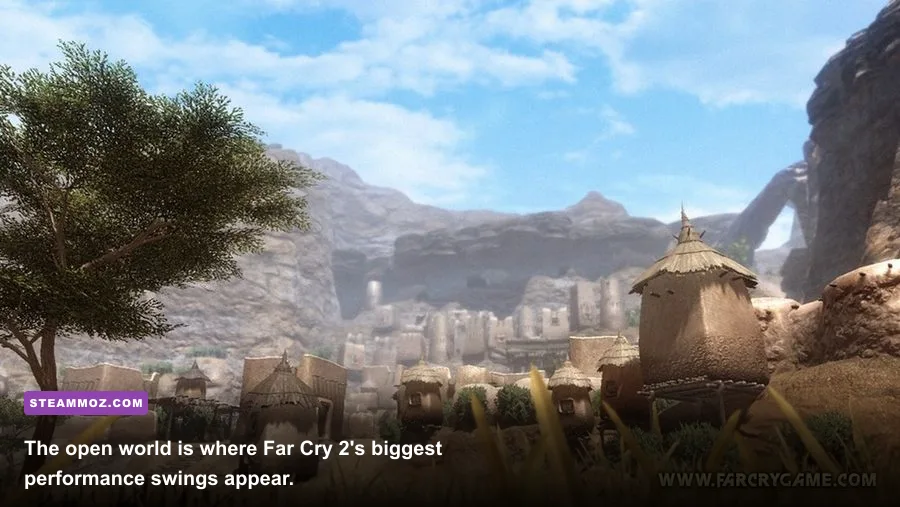
Far Cry 2 doesn't expose a modern GPU usage graph, so you need to identify the type of slowdown you're seeing. A low average frame rate at your monitor's native resolution usually points to GPU load. A hitch while driving, entering a new area, or starting a fire can be CPU-side streaming, physics, or engine behavior. The distinction matters: lowering textures won't fix a CPU bottleneck, and reducing physics won't help a graphics card rendering expensive shadows at 4K.
Resolution and anti-aliasing are the biggest GPU levers. Resolution scales every pixel on screen, so moving from 1440p to 1080p can produce a dramatic improvement. Anti-aliasing adds another full-scene cost and can blur the image at the same time. Use it only after the rest of the profile is stable.
Shadows are the next major target. Far Cry 2 renders shadows across large outdoor spaces, and the cost becomes obvious around guard posts, trees, vehicles, and buildings. Medium shadows still communicate time of day and cover, while Low can look flat. High is worthwhile only if you have plenty of GPU headroom.
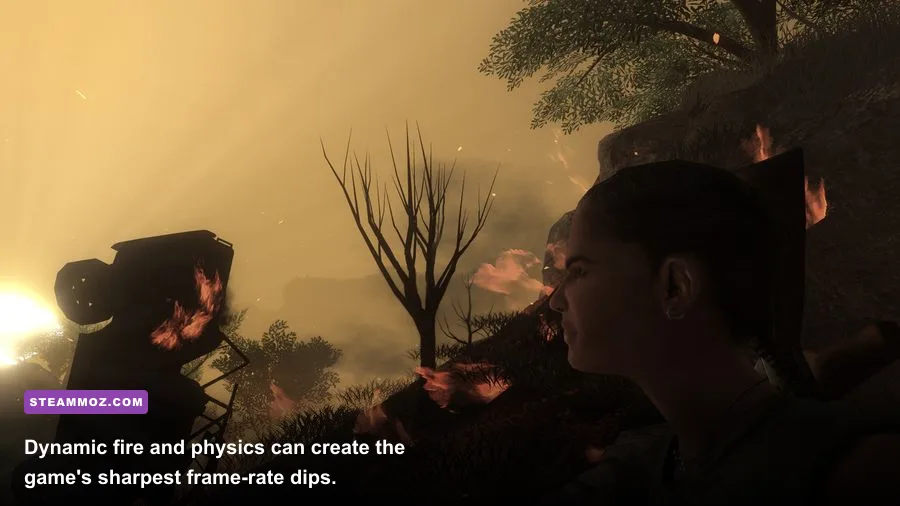
Fire deserves special attention because it is not merely a decorative effect. A Molotov cocktail can ignite grass, brush, wooden structures, and nearby objects, causing the scene to update dynamically as the flames spread. During a quiet walk, Fire may appear harmless; during a mission where you burn an outpost and shoot through smoke, it can become one of the largest frame-time spikes. Medium is the practical setting for most PCs.
Physics behaves differently. It affects destructible objects, vehicles, ragdolls, and environmental reactions. Lowering it can help an older quad-core or dual-core processor when several vehicles and enemies are active, but it won't provide the same benefit on a GPU-limited machine. Keep it High unless your dips happen during explosions and busy convoy attacks.
| Symptom | Likely Bottleneck | First Change | What Not to Lower First |
|---|---|---|---|
| Low FPS everywhere | GPU or resolution load | Disable AA, then lower resolution | Texture filtering |
| Dips near fire and smoke | Fire, shadows, post-processing | Set Fire and Shadows to Medium | Geometry |
| Stutter while driving | CPU, streaming, or frame pacing | Cap FPS and test Physics at Medium | Resolution immediately |
| Choppy combat with vehicles | CPU physics and AI load | Lower Physics one step | Textures |
| Blurry image | AA, post-processing, scaling | Disable AA and verify native resolution | Environment detail |
Run the same repeatable test after every change: drive from a safehouse toward a known guard post, trigger a fight, then ignite a patch of grass. The road between the starting safehouse and the nearest outpost in either Leboa-Sako or Bowa-Seko gives you more useful data than staring at an empty camp. Record the lowest sustained frame rate, not the highest number you see while looking at the ground.
1080p, 1440p, and 4K profiles for modern PCs
Far Cry 2 Standard Edition was designed around much older displays, but modern hardware can push it well beyond its original target. The catch is that the game doesn't gain much from maxing every option at 1080p. Higher resolution improves the clarity of distant watchtowers, road signs, weapons, and foliage, while some Very High effects add cost without looking dramatically different in motion.
| Target | Resolution | Core Settings | Suggested Frame-Rate Goal |
|---|---|---|---|
| Budget gaming PC | 1600x900 or 1920x1080 | AA Off, Shadows Medium, Fire Medium, Geometry Medium | 60 fps cap |
| Mainstream gaming PC | 1920x1080 | AA Off, Shadows Medium, Geometry High, Environment High | 60 or 120 fps cap |
| Modern mid-range PC | 2560x1440 | AA Off, Shadows High, Fire Medium, Post-Processing High | 60-120 fps |
| High-end PC | 3840x2160 | High or Very High, AA tested carefully, Fire High only if stable | 60 fps cap |
At 1440p, leave AA off first. The increased pixel density naturally hides some jagged edges, and you get a cleaner image without spending performance on a legacy anti-aliasing implementation. At 4K, the GPU load is much heavier, so use High rather than Very High if you want a locked 60 fps. Texture filtering should remain High because its cost is generally small compared with its improvement to ground and weapon clarity.
Don't chase a 240 fps reading just because your monitor supports it. Far Cry 2's animation, physics, and input feel best when frame delivery is consistent. A clean 60 fps is a better target than an unstable 144 fps that collapses whenever a convoy, fire, and enemy patrol occupy the same screen. If your monitor supports variable refresh, use it with a sensible cap below the display's maximum refresh rate.
Fix stutter, input lag, and unstable frame pacing
Average FPS is only half the story in Far Cry 2. The game can feel rough even when an overlay reports 100 fps because frame times spike during world streaming, driving, and systemic combat. Start by turning in-game V-Sync off. It can add input latency and may interact poorly with modern display refresh rates. If tearing is distracting, enable driver-level synchronization or use a frame limiter that matches your monitor.
Use a stable cap instead of chasing the ceiling
For a 60 Hz monitor, cap at 60 fps. For a 120 Hz screen, test 60 or 120 depending on whether your PC can hold the latter through fire-heavy combat. On a 144 Hz display, a 72 or 120 fps cap may feel smoother than an uncapped result with large swings. The exact number is less important than consistency. Use an external limiter from your GPU software or a trusted frame-rate tool, and compare frame-time behavior in the same outpost test.
Modern Windows systems can also expose older games to odd compatibility behavior. Install the game on an SSD if possible, disable unnecessary overlays, and avoid stacking Steam, Discord, recording, and GPU overlays while troubleshooting. If the Steam edition refuses to launch, crashes on startup, or behaves oddly at modern resolutions, check Ubisoft's Far Cry 2 support page before downloading random executable replacements.
Keep the game's installation untouched while testing. Far Cry 2 has a long history of community fixes and configuration tweaks, but mixing several patches can create new problems. First establish a clean baseline, then make one change at a time. If you use a widescreen fix, confirm that the field of view and HUD scale are correct; a stretched image can look like a rendering problem even when the frame rate is fine.
For more PC troubleshooting habits, Steamoz's ELEX PC crash and FPS fixes offers a useful comparison. The games use different engines, but the same rule applies: isolate frame pacing, overlays, drivers, and game settings instead of changing everything at once.
Best settings for clear visibility in combat
Performance isn't the only reason to tune Far Cry 2. The wrong combination can make enemies disappear into dark interiors, bright sky glare, or dense vegetation. Keep Geometry and Environment at High when possible. These settings preserve the silhouettes of buildings, guard posts, trees, and rocks that help you read an encounter before the shooting starts.
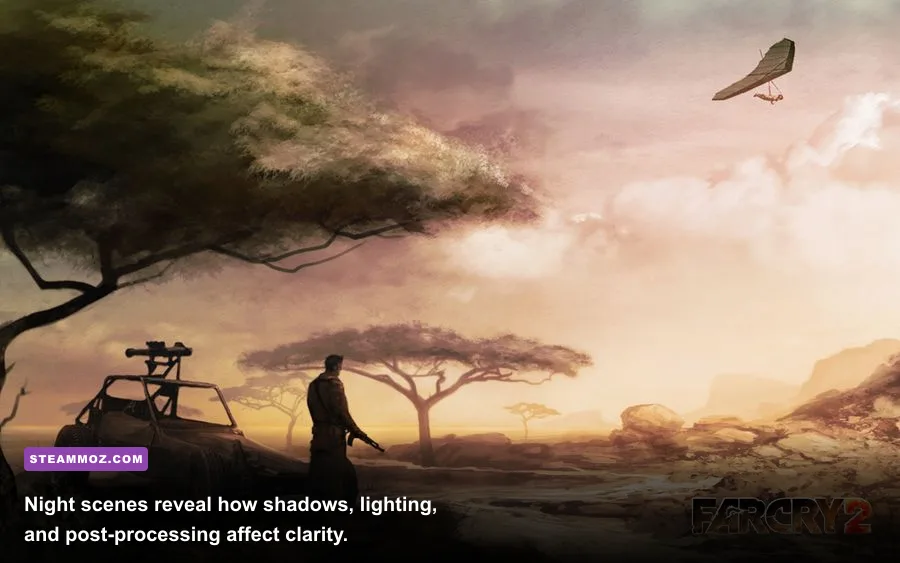
Post-processing is a personal trade-off. Higher values can make sunlight, bloom, and smoke more dramatic, but they can also soften distant targets and make night driving feel murky. Medium is the sweet spot for a sharper combat image. If you prefer the game's cinematic look, raise it after confirming that fire and shadows aren't causing frame-time problems.
HDR is worth testing rather than blindly disabling. Far Cry 2's African landscapes depend on hard sunlight and deep shade, and HDR helps sell that contrast. On some modern displays or compatibility setups, however, it can produce a washed-out image. If the sky looks blown out or interiors are crushed, turn HDR off and compare the same location at noon and at night. Choose the setting that improves target visibility, not the one that sounds more advanced.
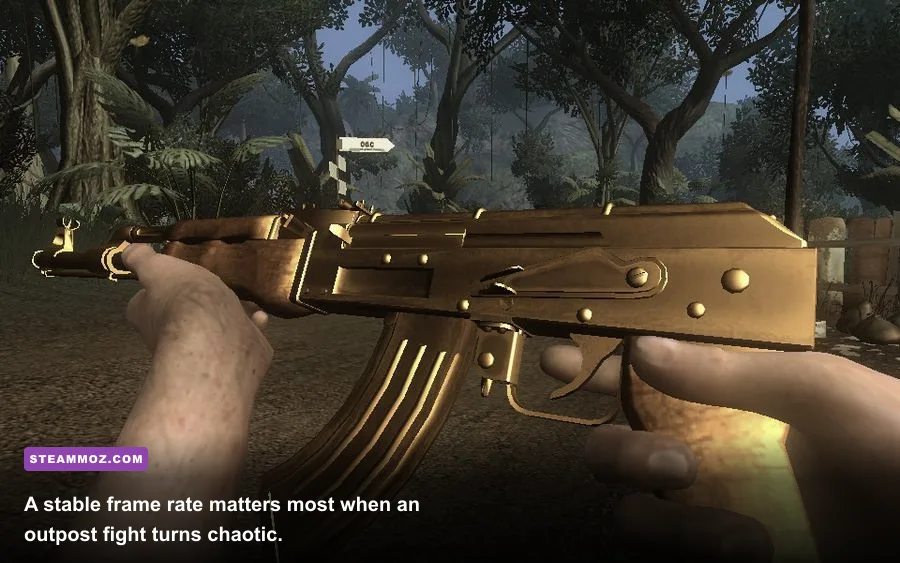
The weapon model can also expose image-quality issues. The AK-47, FAL, G3-KA4, and PKM have prominent sights and metallic surfaces that reveal shimmering from low filtering or jagged edges from disabled AA. Keep texture filtering High, then decide whether the clarity gain from a higher resolution is worth the GPU cost. In most cases, 1080p with AA off and High filtering is easier to read than a lower resolution with heavy anti-aliasing.
Recommended final profile for Far Cry 2 Standard Edition
For most current gaming PCs, this is the profile I'd actually use for a full campaign run. It keeps the signature Far Cry 2 details—the swaying grass, long roads, distant terrain, physical vehicles, and spreading fire—while protecting the frame rate when the game gets chaotic.
| Option | Final Recommendation | Reason |
|---|---|---|
| Resolution | Native 1080p or 1440p | Best balance of sharpness and GPU load |
| Anti-Aliasing | Off | Large performance saving with acceptable edge quality |
| Texture Filtering | High | Improves surfaces for little performance cost |
| Shadows | Medium | Protects outdoor FPS and keeps lighting believable |
| Geometry | High | Preserves world structure and distant detail |
| Environment | High | Maintains vegetation and terrain density |
| Post-Processing | Medium | Sharper visibility with fewer frame-time spikes |
| Fire | Medium | Stops burning terrain from wrecking combat performance |
| Physics | High | Keeps vehicles and destruction convincing |
| HDR | On, unless washed out | Best lighting when display compatibility is good |
| V-Sync | Off, external cap preferred | Lower latency and more predictable pacing |
If the game still dips, lower Fire and Shadows to Low only after testing Medium. If the whole game runs slowly, reduce resolution or use a lower internal display mode rather than gutting Geometry and Environment. If driving causes stutter but firefights are smooth, investigate frame pacing, background applications, and Physics before making the world look barren.
Far Cry 2 remains a demanding little time capsule because its world is constantly doing something: grass burns, vehicles roll, patrols move, weapons jam, and weather and lighting reshape visibility. That systemic ambition is exactly why a balanced profile beats a blunt max-FPS preset. Keep the world detail high, cut the expensive cinematic effects, and lock the result to a frame rate your PC can genuinely hold. For another look at getting an older classic running cleanly, see Steamoz's Dungeon Siege performance coverage, then return to the dusty roads of Bowa-Seko with a smoother, clearer Far Cry 2.
Before launching a new campaign, save the profile, test one busy outpost, and drive through a fire-heavy encounter. If the lowest frame rate stays stable there, it will usually feel excellent across missions, safehouses, and the long stretches between them. That's the real Far Cry 2 Standard Edition optimization win: not the biggest number in an overlay, but a frame rate that doesn't betray you when the whole savanna catches fire.
For the game's original specifications and platform details, consult the official Far Cry 2 page and the game's Steam listing. These settings are a practical starting point for the Standard Edition, but your monitor refresh rate, resolution, graphics driver, and CPU will determine the final cap that feels best.