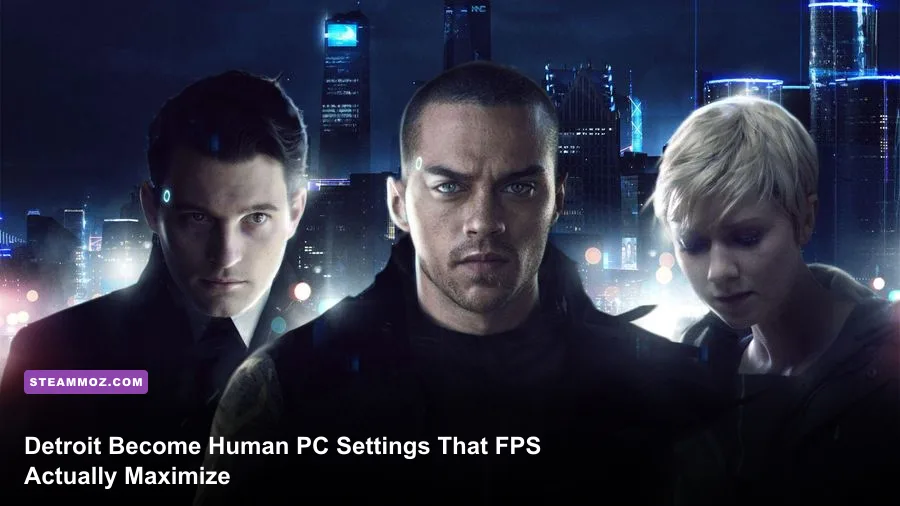
For the best Detroit Become Human PC performance, start at 1080p with High textures, Medium shadows, High models, High post-processing, 8x anisotropic filtering, and VSync enabled; then adjust resolution or shadows before touching texture quality. That profile usually delivers the smoothest image on mainstream hardware without turning Quantic Dream’s detailed characters into blurry mannequins. If your GPU has at least 6GB of VRAM, you can push textures to Ultra, but shadows and resolution remain the biggest performance levers in demanding city scenes.
Detroit: Become Human is a strange PC game to optimize because it behaves more like an interactive film than a conventional action title. You’re not chasing 144 frames per second through competitive gunfights, but sudden stutter still ruins a tense investigation, a Connor chase, or Kara’s escape through a packed street. The game’s dense facial animation, wet surfaces, volumetric lighting, and large cinematic environments can create heavy GPU spikes even when an earlier chapter appears perfectly smooth.
This guide focuses on the PC version available through the official Steam listing. Before changing anything, update your graphics driver, install the game on an SSD, and let the shader cache finish building after the first launch. For broader crash troubleshooting, Steamoz’s PC crash and FPS fixes are also useful because the same Windows-side problems—overlays, stale drivers, and background capture tools—can affect Detroit.
Use This Balanced Detroit Become Human PC Profile First
Don’t begin by dropping every option to Low. Detroit’s best visual details are concentrated in character faces, clothing, hair, environmental materials, and reflections. Texture quality is especially valuable because the story constantly pushes the camera close to Connor, Kara, Markus, Hank, Alice, and other central characters. Lowering textures can free VRAM, but it won’t usually produce a dramatic FPS gain if your GPU has enough memory.
Instead, begin with a clean baseline. Choose fullscreen if the game behaves properly on your monitor; borderless is more convenient for multitasking but can add a small amount of latency or interact badly with Windows desktop composition. Use your monitor’s native resolution whenever possible. At 1080p, the game is far easier to stabilize than at 1440p or 4K, and a locked 60 FPS is generally a better target than an unstable higher number.
| Setting | Balanced Value | FPS Impact | Visual Result |
|---|---|---|---|
| Resolution | Native 1080p | Very High | Sharp image with the most manageable GPU load |
| Texture Quality | High | Low to Medium | Detailed faces, clothing, and surfaces |
| Model Quality | High | Medium | Preserves character and environment geometry |
| Shadow Quality | Medium | High | Large performance gain with softer shadow detail |
| Reflection Quality | Medium or High | Medium to High | Controls wet streets, windows, and glossy materials |
| Post-Processing | High | Medium | Maintains cinematic lighting and image effects |
| Anisotropic Filtering | 8x | Low | Keeps roads and floor textures crisp at angles |
| Anti-Aliasing | High or default | Medium | Reduces jagged edges around hair and silhouettes |
| VSync | On for fixed refresh targets | Minimal to Medium | Prevents tearing, but may increase latency |
That profile is deliberately conservative on shadows and reflections. Those options affect enormous areas of the frame, not just a single object. A shadow setting can touch buildings, foliage, characters, and interior light sources simultaneously. Reflections are similarly expensive in rainy streets and polished interiors, where the game may render extra surface information across much of the scene.

🎮 FORM
Looking to experience this game? Grab your digital key directly on our store for $14.99.
View on Steammoz Store →Which Settings Cost the Most FPS?
Resolution is the bluntest performance switch. Moving from 1080p to 1440p increases the number of rendered pixels by roughly 78 percent, while 4K requires four times as many pixels as 1080p. If your GPU is already sitting near 99 percent usage, lowering resolution or using a driver-level resolution scale is more effective than changing five minor quality options. The trade-off is obvious: the image becomes softer, particularly around subtitles, hair, and fine facial details.
Shadows are usually the first quality setting worth reducing. Detroit’s lighting can look gorgeous at Ultra, but high shadow precision is expensive during outdoor scenes with multiple light sources. Medium shadows retain the cinematic shape and contrast of the scene while reducing the cost of shadow maps and filtering. Low shadows are a last resort; they can make characters look disconnected from the ground and flatten the carefully directed lighting.
Reflections deserve special attention on GPUs with limited memory or older architectures. Rain-slick streets, glass, vehicle surfaces, and indoor furniture can all expose the cost of reflection quality. If you see a stable frame rate inside the Detroit Police Department but a sudden dip during a rainy exterior scene, reflection quality is a better target than texture quality.
Model quality affects geometry complexity. It matters most in scenes packed with characters or detailed architecture, including public demonstrations, crowded streets, and major investigation locations. Keep it on High if possible. Drop it to Medium only after lowering shadows and reflections, because model reductions are more visible in close-up dialogue scenes.
| Performance Problem | First Setting to Change | Second Setting to Change | What You Sacrifice |
|---|---|---|---|
| GPU usage stays near 99% | Resolution | Shadows | Sharpness, then lighting detail |
| Rainy streets cause stutters | Reflections | Post-processing | Wet-surface detail and bloom |
| Crowded scenes drop frames | Model Quality | Shadows | Geometry and distant character detail |
| VRAM is full or textures pop in | Texture Quality | Resolution | Surface detail, then image clarity |
| Image looks jagged | Anti-Aliasing | Resolution | GPU headroom if increased |
| Screen tearing appears | VSync | Frame-rate cap | Some input responsiveness |
Ambient occlusion and post-processing are less obvious because they change depth, contact shadows, glow, and cinematic treatment rather than raw geometry. Keep ambient occlusion enabled on a mid-range or high-end GPU; disabling it can make objects appear to float. Post-processing on High is usually the sensible compromise. Lower it if GPU frametime remains high after shadows and reflections are under control.
Best Profiles for Entry-Level, Mid-Range, and High-End PCs
Detroit: Become Human’s official PC requirements are a useful starting point, but the minimum specification is not a promise of locked 60 FPS. The developer’s Detroit Become Human page and Steam listing identify hardware around the GTX 780 or Radeon R9 290 class as minimum territory, with a GTX 1060 6GB or Radeon Vega 56 listed around the recommended level. Those parts can run the game, but demanding chapters may still need a 30 FPS target.
| PC Tier | Suggested Target | Core Settings | Expected Experience |
|---|---|---|---|
| Entry-level GTX 780 / R9 290 class | 1080p, 30 FPS | Medium preset, High textures if VRAM allows, Low-Medium shadows | Playable cinematic experience with dips in heavy scenes |
| GTX 1060 6GB / Vega 56 class | 1080p, 45-60 FPS | High textures, Medium shadows, Medium reflections | Strong image quality with occasional demanding moments |
| RTX 2060 / RX 5600 XT class | 1080p, 60 FPS | High preset, Medium-High shadows, High reflections | Smooth story play with good cinematic detail |
| RTX 3060 / RX 6700 XT class | 1440p, 60 FPS | High textures, Medium shadows, High models | Sharp image and stable performance after tuning |
| RTX 4070 / RX 7800 XT class | 1440p or 4K, 60 FPS | High-Ultra mix, Ultra textures, tuned reflections | Best visual presentation, though 4K remains demanding |
On an older quad-core CPU, avoid running browser tabs, recording software, RGB utilities, and game overlays while playing. Detroit can become CPU-limited in scenes with many animated characters, even when the GPU is not fully loaded. A modern six-core processor gives the game more breathing room, but CPU upgrades won’t rescue a GPU that is already struggling at 1440p.
For a GTX 1060-class system, I’d choose 1080p, High textures, High models, Medium shadows, Medium reflections, High post-processing, and 8x filtering. For an RTX 3060-class system, 1440p is realistic, but start with the same Medium shadow setting. Ultra shadows offer a smaller visual improvement than the resolution jump, so spend your performance budget on pixels first.
How to Stop Stutter, Tearing, and Frame-Time Spikes
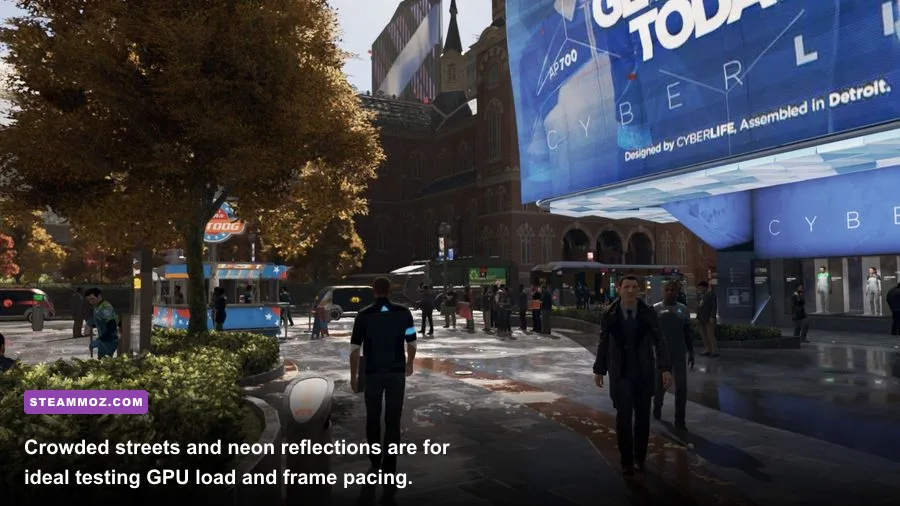
A high average FPS number doesn’t guarantee smooth performance. Detroit’s most distracting problems are often frame-time spikes: the game may report 60 FPS while individual frames arrive unevenly, producing a hitch during camera movement or a dialogue cut. Watch frame time with MSI Afterburner and RivaTuner Statistics Server rather than relying only on the in-game counter. A consistent 33.3ms frame time is smoother than a wildly fluctuating 45-70 FPS result.
If your monitor supports variable refresh rate, enable G-SYNC or FreeSync and use a frame cap slightly below the panel’s maximum refresh rate. For a 60Hz display, a locked 60 FPS with VSync can be perfectly comfortable; for a 144Hz VRR display, cap at 60 or 72 FPS depending on what your hardware can sustain. The goal is not to chase a peak number during quiet interiors and then collapse in the rain.
VSync deserves a practical test. With VSync off, camera pans can show horizontal tearing, especially on a fixed-refresh monitor. With VSync on, some systems introduce a noticeable input delay or hitch when the game falls below the refresh target. Because Detroit is narrative-driven rather than competitive, tear-free consistency is usually more valuable than shaving a few milliseconds from controller response.
Install the game on an SSD whenever possible. An SSD won’t magically add average FPS, but it can reduce asset-streaming pauses and make chapter transitions feel less abrupt. Keep at least 15 percent free space on the drive, close hardware-monitoring overlays that conflict with the game, and disable unnecessary Xbox Game Bar or Discord capture features if you’re diagnosing stutter.
Shader compilation and driver behavior can also explain a rough first session. After a driver update, play through a few areas before deciding the settings are broken. If stutter persists, test a clean driver installation, clear the GPU shader cache, then verify the game files through Steam. Avoid stacking multiple overlays while testing—you want one variable at a time. Steamoz’s guide to crashes and low FPS troubleshooting covers the same clean-testing approach.
Chapter-by-Chapter Testing That Finds Real Problems
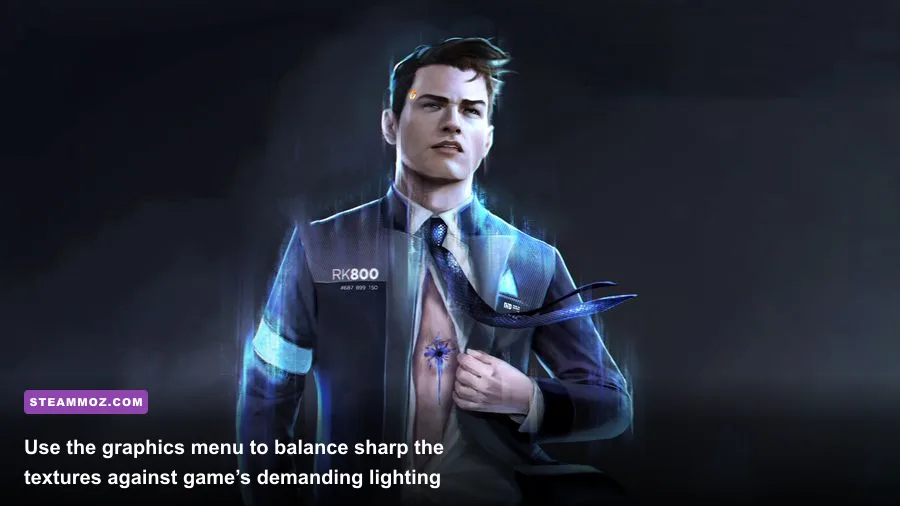
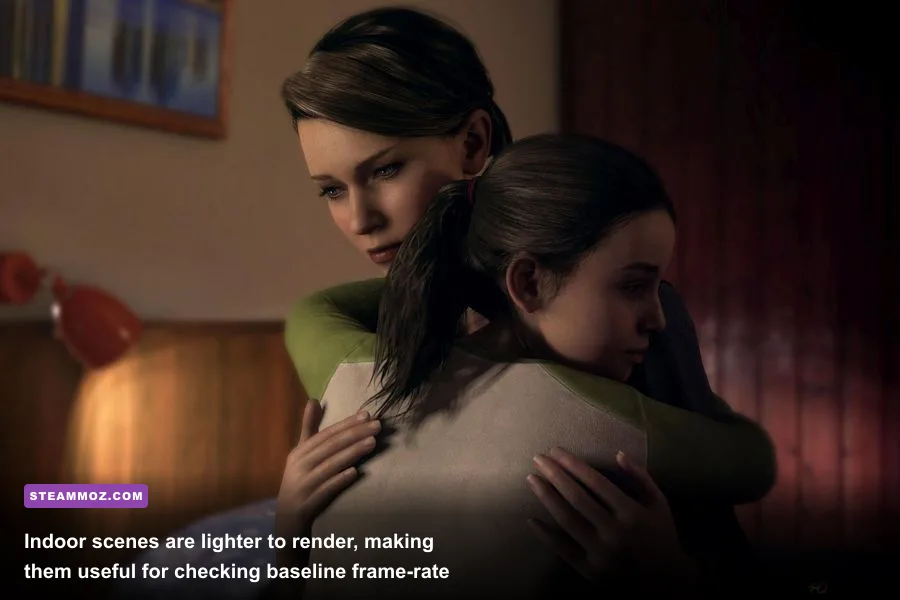
Don’t judge performance from the main menu or Kara’s quiet opening house sequence. Those areas are too light to represent the game’s worst workload. Instead, use repeatable scenes from different character routes and watch the frame-time graph while moving the camera through busy areas. Detroit has no single universal benchmark, because each chapter shifts its balance of characters, lighting, weather, reflections, and streaming.
Connor’s investigation chapters
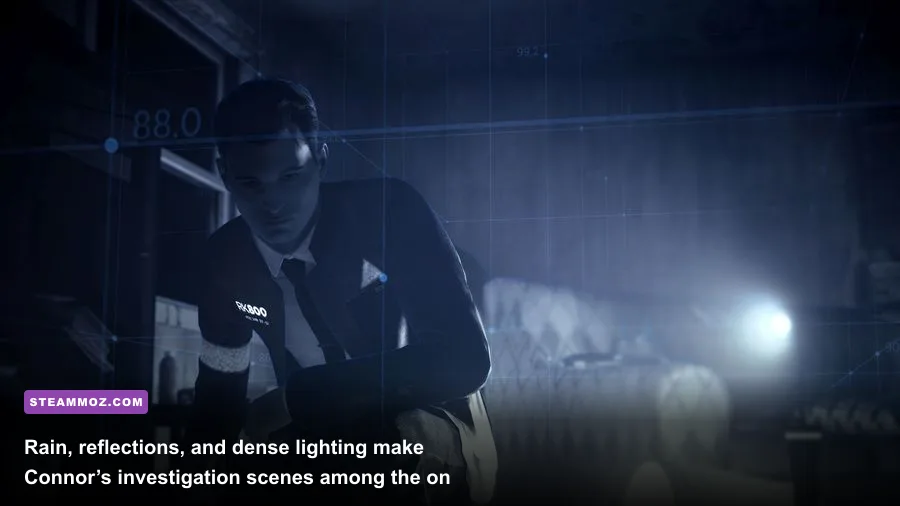
Connor’s opening investigation and later police scenes are useful for testing facial detail, indoor lighting, and character density. Walk slowly around crime scenes and rotate the camera across evidence markers, reflective floors, and groups of NPCs. If the image remains sharp but the GPU hits its limit, reduce shadows or reflections rather than textures. These scenes also expose CPU bottlenecks when several characters are talking or moving simultaneously.
Kara’s outdoor escapes
Kara’s route is excellent for stress-testing streaming and outdoor lighting. Rain, vehicle lights, fences, foliage, and reflective pavement can produce the sort of sudden GPU load that a quiet room won’t reveal. Test the most demanding outdoor sequence you’ve reached, not just the first chapter. If the game dips briefly but recovers, a frame cap may make the experience feel better than lowering the entire preset.
Markus and crowded demonstrations
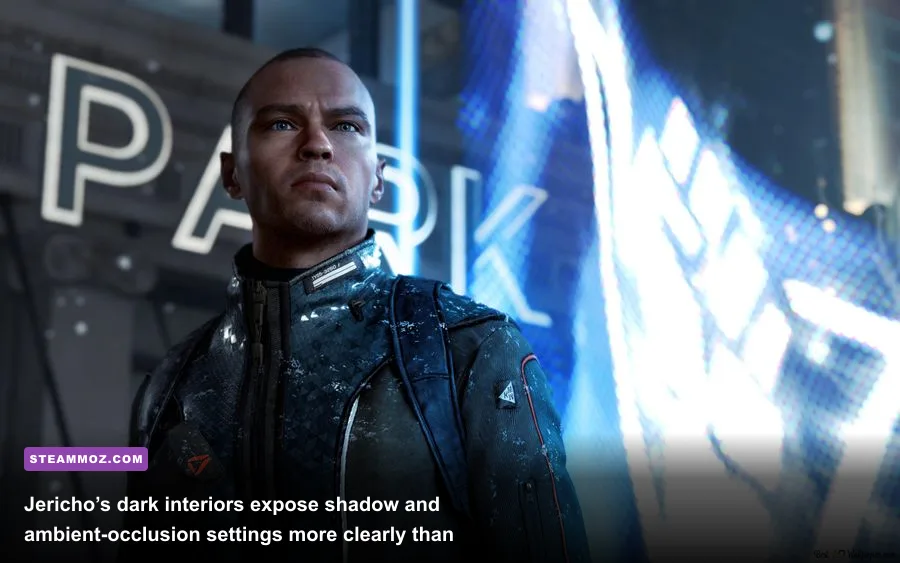
Markus’s later chapters can load the CPU with crowds and the GPU with large environments. These are the scenes where Model Quality and shadows become meaningful. Keep character geometry on High if close-ups matter to you, then reduce shadows before lowering models. If the frame-time graph spikes while GPU usage remains low, close background applications and check CPU temperatures; that pattern usually points away from a graphics-quality problem.
Run each test for at least five minutes and repeat the same camera movement. Compare one change at a time. Dropping shadows from High to Medium, then checking the same scene, tells you far more than switching from Ultra to Low and trying to remember what changed. Screenshot your original settings so you can recover quickly after experimenting.
Final Settings for a Smooth, Cinematic Playthrough
For most players, the winning setup is not the Ultra preset. It’s a controlled High profile with Medium shadows and reflections, native 1080p or 1440p, High textures, High models, High post-processing, and a frame-rate target your hardware can actually hold. The game’s close-up cinematography makes texture and model quality highly visible, while shadow and reflection reductions are comparatively easy to accept once the story pulls you in.
Use 30 FPS if your PC sits near the minimum requirements or cannot keep 60 FPS through heavy outdoor scenes. A stable 30 FPS is entirely reasonable for a cinematic adventure, especially on a 60Hz display. Choose 60 FPS when your system can maintain it without repeated drops into the 40s. A fluctuating target feels worse than a lower locked one because every camera pan changes the rhythm of motion.
Before launching your next chapter, confirm that the game is using the dedicated GPU, Windows power mode is set appropriately, and no laptop battery profile is throttling performance. The official Steam Support pages can help with file verification and launch issues, while Quantic Dream’s official news page is the place to check for developer updates.
Detroit Become Human PC rewards restraint. Keep the details that define its actors and environments, cut the expensive effects that barely register during a tense conversation, and cap the result at a stable frame rate. Once the frame-time graph is flat, the game’s best moments—Connor’s cold investigations, Kara’s desperate escapes, and Markus’s uprising—can finally land without a hitch stealing the scene.