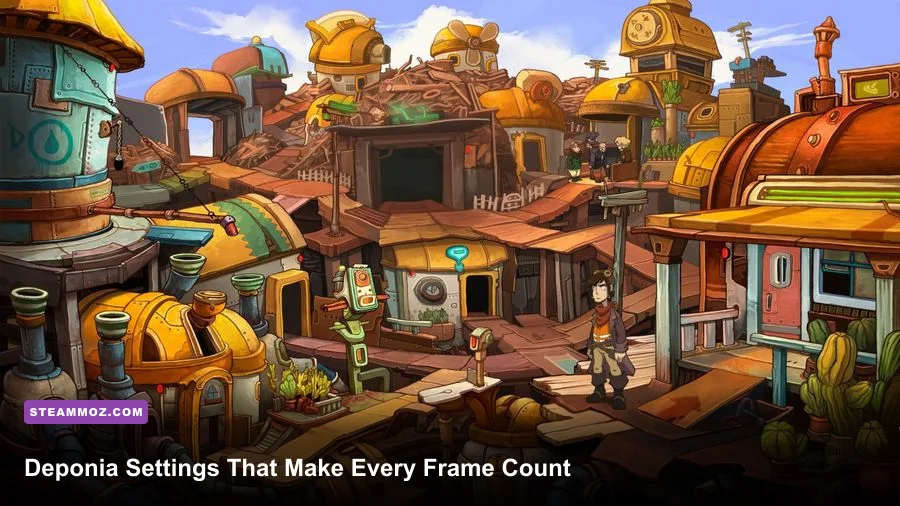
For the best Deponia graphics settings, run the game at your monitor’s native resolution, use fullscreen if exclusive mode behaves correctly, enable VSync when you see tearing, and leave heavy visual effects at their default values. Deponia is a lightweight 2D adventure, so max FPS usually isn’t about lowering textures or shadows; it’s about avoiding bad scaling, compatibility hiccups, and uneven frame pacing on modern displays.
That distinction matters. Rufus isn’t fighting through a demanding 3D world with ray tracing and volumetric fog. He’s clicking through hand-painted scenes, animated characters, inventory screens, and deliberately timed comic set pieces. On a current PC, the game can often run far beyond what the original engine expected. The result should be effortless, but older DirectX behavior, ultrawide monitors, Windows DPI scaling, overlays, and fullscreen handling can create more trouble than the actual graphics workload.
This guide focuses on the original Deponia Steam release, while also covering advice that applies to Chaos on Deponia, Goodbye Deponia, and Deponia Doomsday. If you’re also tuning the game’s progression rather than its visuals, our guide to Deponia’s progression is worth keeping open.
The Best Deponia Settings for Maximum FPS
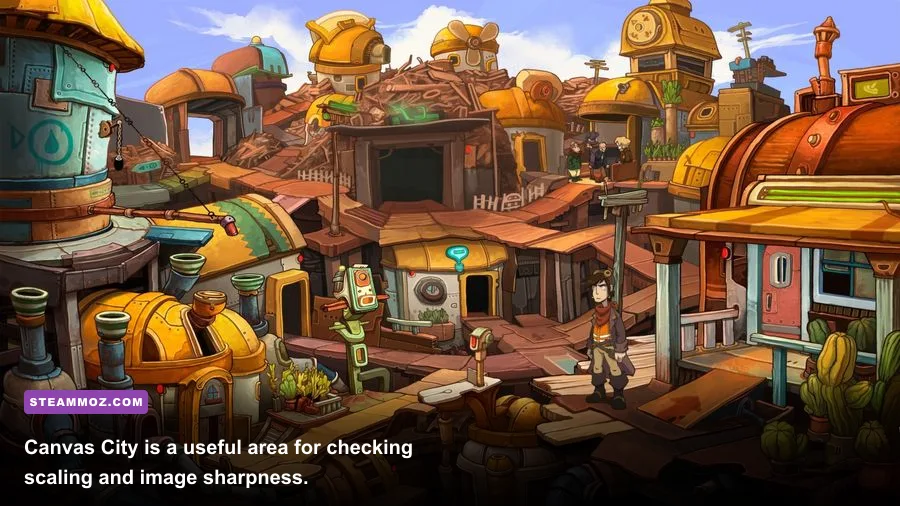
Deponia’s settings menu is compact compared with a modern PC game. You won’t find a large collection of texture-quality sliders, ambient occlusion controls, or post-processing presets. That’s good news for performance: there are fewer settings to misconfigure, and almost every recent desktop or laptop can handle the game comfortably.
The most important choice is resolution. Select the exact native resolution of your display whenever it appears in the game’s video options. For a 1920x1080 panel, choose 1920x1080. For a 2560x1440 monitor, choose 2560x1440. This keeps the artwork from being stretched through a second scaling pass and prevents the fuzzy, slightly soft look that can make Deponia seem older than it is.
Fullscreen is the next setting to test. Exclusive fullscreen can reduce desktop interference and may produce cleaner frame pacing on some systems. Borderless or windowed mode is often more convenient if you switch between the game and a walkthrough, music player, or inventory notes. The catch is that older adventure-game engines don’t always behave consistently with modern Windows compositor settings. If fullscreen introduces black borders, flickering, or a forced resolution change, borderless windowed mode is the better practical choice.
| Setting | Recommended Value | FPS Impact | Visual Note |
|---|---|---|---|
| Resolution | Monitor native resolution | Low on modern PCs | Best image sharpness and UI clarity |
| Display Mode | Fullscreen, then borderless if needed | Low | Choose the mode with the smoothest frame pacing |
| VSync | On for visible tearing; off for lowest latency | Low to moderate | Controls tearing rather than raw rendering quality |
| Texture Quality | Highest available/default | Negligible | Preserves painted background detail |
| Anti-Aliasing | Highest available/default | Negligible to low | Useful around character and object edges |
| Effects | High or default | Negligible | There’s little reason to reduce effects on current hardware |
VSync deserves a little more attention than its tiny performance cost suggests. If you see horizontal tearing as the camera pans across a Deponia scene, enable it. The game’s slower, deliberate presentation makes tearing unusually distracting because backgrounds move in obvious, clean lines. If you have a high-refresh display and VSync causes delayed clicks or inconsistent pacing, disable it and use your GPU driver’s frame-control options instead.
Don’t chase an absurd FPS number just because an overlay reports one. A stable 60 frames per second with clean pacing feels better than a fluctuating 300 FPS counter paired with judder during scene transitions. Deponia’s puzzles don’t demand competitive latency, but stable presentation makes item selection, hotspot hunting, and animated dialogue easier on the eyes.

🎮 Deponia
Looking to experience this game? Grab your digital key directly on our store for $0.99.
View on Steammoz Store →Best Resolution and Display Profile for Modern PCs
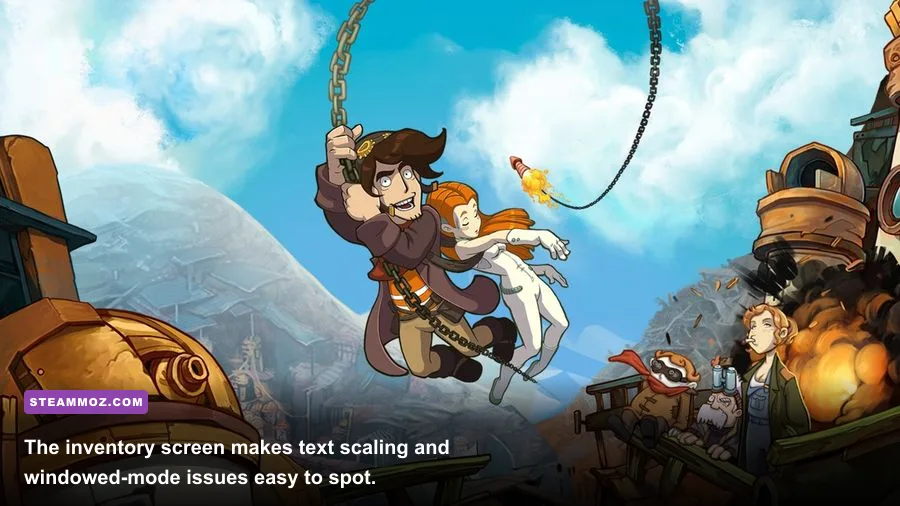
Native resolution is the safest Deponia setting, but the correct profile depends on your display. The game was built around conventional 16:9 and 4:3 presentation, while many current gaming monitors use 21:9 or 32:9 panels. Stretching the game across an ultrawide screen can make characters and backgrounds look distorted, and forcing a non-native resolution can create blurry text in the inventory and conversation interface.
On a 1080p monitor, use 1920x1080 and check that the image reaches the edges without looking horizontally stretched. On a 1440p panel, 2560x1440 is preferable to 1920x1080 if the game provides it. The extra pixels don’t make the hand-painted assets magically higher resolution, but they do improve the clarity of scaled artwork and reduce the roughness around small interface elements.
At 4K, use 3840x2160 if the menu lists it and your display scaling looks correct. If the game renders properly but the interface becomes too small, 2560x1440 is a sensible compromise. You lose some desktop-level sharpness, but you may gain a more comfortable reading size without changing the game’s visual character.
Ultrawide users should start with a centered 16:9 presentation rather than stretching. Some versions and configurations may add side borders, but that is preferable to turning Rufus into a noticeably wider version of himself. If you encounter a community widescreen fix, verify exactly which release it supports before installing it. A patch made for one Deponia sequel or launcher version can cause crashes or broken menus in another.
| Display Type | Preferred Resolution | Display Mode | What to Watch For |
|---|---|---|---|
| 1080p 16:9 | 1920x1080 | Fullscreen or borderless | Check for blur caused by Windows scaling |
| 1440p 16:9 | 2560x1440 | Fullscreen first | Use 1080p only if text appears too small |
| 4K 16:9 | 3840x2160 or 2560x1440 | Fullscreen | Prioritize readable UI over maximum pixel count |
| 21:9 ultrawide | Native 16:9-compatible mode | Borderless or centered fullscreen | Avoid stretched characters and backgrounds |
| Steam Deck display | 1280x800, with correct aspect handling | Fullscreen | Test text size and controller or touch behavior |
Windows DPI scaling can also interfere with older games. If Deponia opens with a tiny window, a blurry interface, or a resolution that changes back after every launch, right-click the game executable, open Properties, choose Compatibility, and inspect the high-DPI settings. Testing the application’s own DPI behavior can fix scaling, but don’t change several compatibility options at once. Make one adjustment, launch the game, and confirm whether the result improved.
Steam’s launch options are not a magic FPS booster here. Avoid random commands copied from unrelated Unity or Unreal games. Deponia uses an older adventure-game technology stack, and unsupported launch parameters can do nothing or make troubleshooting harder. The official Daedalic Entertainment site is a better reference point for the publisher’s catalog and support information than generic launch-option lists.
What Actually Affects Deponia Performance
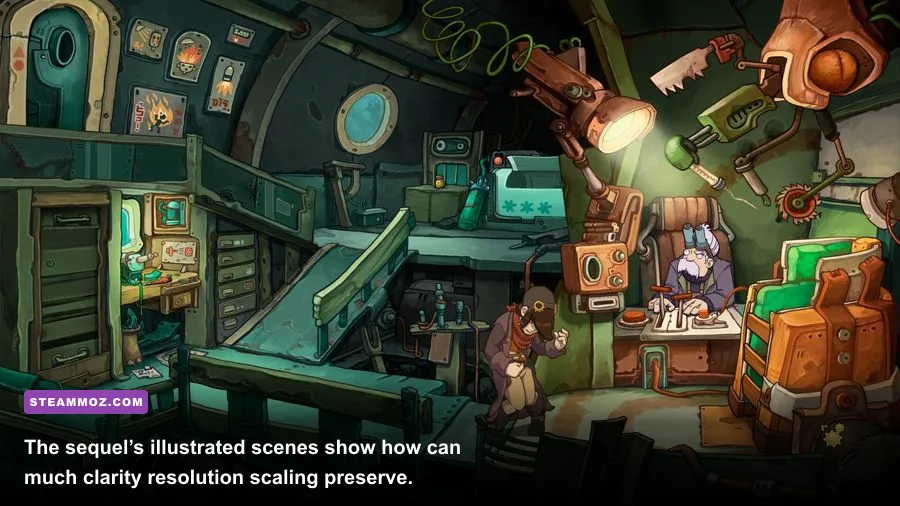
On a modern system, the GPU is rarely the limiting factor. Deponia’s backgrounds are pre-rendered 2D artwork, and the game doesn’t continuously stream a large open world. CPU overhead is modest too. When players report stutter, slowdowns, or strange input behavior, the cause is more often a compatibility layer, an overlay, a display-mode transition, or a frame-rate mismatch than a lack of graphics horsepower.
The backgrounds still matter visually. Areas such as Dump City, the Organon sections, the Floating Black Market, and the various industrial platforms are packed with tiny props and high-contrast edges. Lowering the resolution to gain performance usually sacrifices more image quality than it saves in frame time. If the game already runs smoothly, keep the highest stable resolution and focus on frame pacing.
Textures are not typically a meaningful performance lever in the original Deponia. If your version exposes texture or quality choices, leave them at high or default. Reducing them can make objects and painted scenery look muddy while producing no measurable benefit on a normal dedicated GPU. The same applies to effects and anti-aliasing: the gains from turning them down are usually tiny, while the loss of edge quality is immediate.
The one visual compromise that can make sense is resolution on integrated graphics or an older low-power laptop. If 1440p produces hitching, test 1080p. If 1080p still struggles, use 1280x720 rather than aggressively disabling every effect. You’re preserving the game’s intended artwork while reducing the number of pixels the system must present.
Use the following profiles as starting points rather than rigid rules:
| Hardware Profile | Resolution | VSync | Quality Approach |
|---|---|---|---|
| Modern desktop GPU | Native resolution | On if tearing appears | Highest/default settings |
| Mid-range laptop | Native 1080p or 1440p | On for consistent pacing | Keep artwork quality high |
| Older integrated graphics | 1920x1080, then 1280x720 | Test both modes | Lower resolution before visual quality |
| Steam Deck | 1280x800 with aspect correction | On if pacing is clean | Use a moderate frame cap for battery life |
A frame cap can be useful even when the game is easy to run. If your driver or overlay pushes the engine into a very high, unstable frame rate, cap it at 60 FPS or the smoothest value your display supports. This reduces unnecessary power draw and can prevent menus or animations from running at an unintended speed. Don’t assume that a huge number in an FPS counter means the game is behaving perfectly; old engines can expose timing quirks at unusual refresh rates.
For Steam Deck players, a 60 FPS cap is the sensible first test. If you want longer battery life, try 40 FPS or 30 FPS and judge the animation quality. Deponia is a dialogue-heavy adventure, so a stable lower cap can feel perfectly comfortable, provided the frame pacing remains even and text input does not become sluggish.
Fixing Stutter, Black Borders, and Blurry Graphics
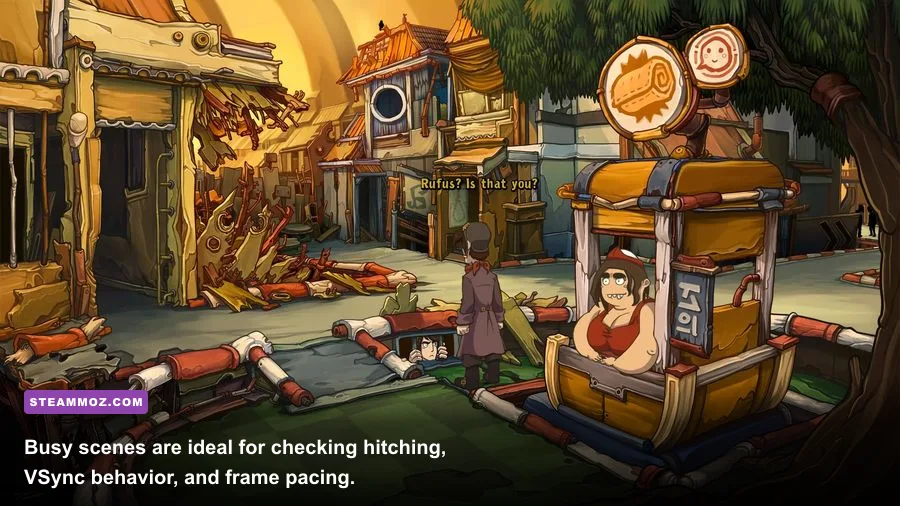
If Deponia runs with black borders, first confirm that the selected resolution matches the monitor’s aspect ratio. A 16:9 game on a 16:10 or ultrawide screen may naturally display borders to preserve the artwork’s proportions. That isn’t a performance problem. Stretching the image through the monitor’s scaling controls can fill the panel, but it will distort the scene.
Blurriness is usually a scaling problem. Check the in-game resolution, Windows display scaling, GPU scaling mode, and monitor sharpness settings. If you’re using borderless mode, Windows may composite the game at a desktop-scaled resolution rather than the exact value you selected. Fullscreen can fix that on some systems; on others, borderless is cleaner. Test both and compare the text in Rufus’s inventory rather than judging only the background.
For stutter, turn off unnecessary overlays one at a time. Steam Overlay, Discord, GeForce Experience, Radeon Software, Xbox Game Bar, and third-party FPS counters can all hook into older games. Most won’t cause trouble, but the only reliable way to identify a conflict is to disable them, launch Deponia, and revisit a busy scene such as a crowded platform or an area with several animated characters.
Also verify the game files through Steam before attempting compatibility tweaks. The official Steam file-verification instructions can replace damaged files without forcing you to reinstall the entire game. This is especially useful if the game suddenly stops launching after an update, displays missing artwork, or behaves differently from the previous session.
Run the game from an SSD if you have one, but keep expectations realistic. An SSD may reduce launch and load times; it won’t transform Deponia’s maximum FPS because the title doesn’t continuously stream demanding assets. Close background recording tools if you notice periodic hitches, particularly on laptops where CPU power can shift between the game and capture software.
Compatibility mode should be a last resort, not the first button you click. Older Windows compatibility presets can solve a launch issue, but they may also introduce audio problems, incorrect colors, or strange input behavior. If you need help isolating a platform-specific issue, compare your results with our broader PC performance guide for Dragonkin: The Banished; the games are very different, but the troubleshooting discipline is the same.
How to Test Your Final Deponia FPS Profile
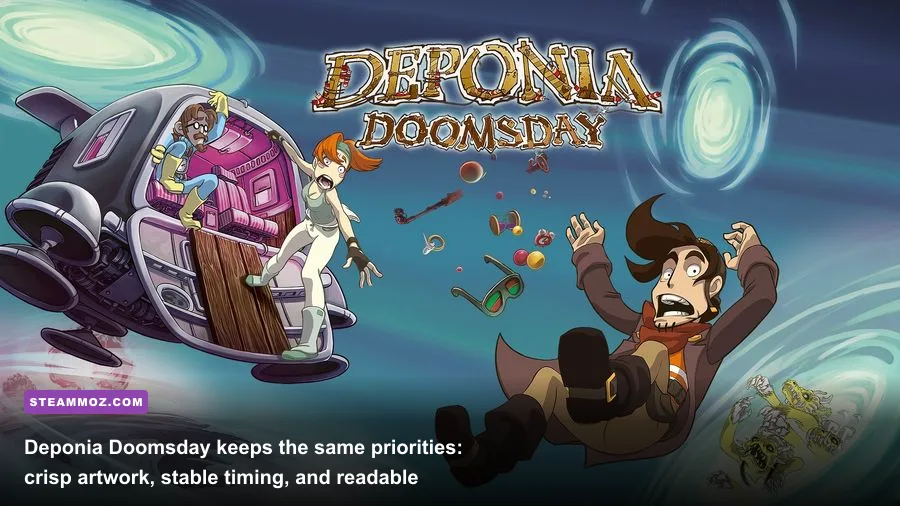
Don’t test performance only on the title screen. A menu can report a perfect frame rate while the actual game exhibits hitching during camera movement, dialogue transitions, or object-heavy scenes. Start a save in an area with several interactable objects, move the cursor across the scene, open the inventory, trigger a conversation, and transition to another screen. You’re checking consistency, not just the highest number.
Keep an eye on frame-time behavior if your overlay supports it. A stable 16.7-millisecond frame time corresponds to 60 FPS. A counter that says 60 while frame times spike to 30 or 40 milliseconds will feel less smooth than a locked 30 FPS profile with even delivery. In a point-and-click adventure, that difference appears as cursor judder, uneven background movement, or a dialogue animation that seems to pause for a fraction of a second.
Use a repeatable test route. Load a save near a busy location, walk through two or three screens, open the inventory, inspect a hotspot, and return to the original scene. Avoid changing settings during the test. Write down the resolution, display mode, VSync state, frame cap, and overlay status. This takes only a few minutes and prevents the classic PC troubleshooting mistake of changing five variables and then guessing which one helped.
| Test | Pass Condition | Problem Signal | Recommended Change |
|---|---|---|---|
| Scene movement | Background scrolls evenly | Judder or tearing | Test VSync and a 60 FPS cap |
| Inventory opening | Menu appears instantly and stays sharp | Blur, flicker, or delay | Check resolution and DPI scaling |
| Screen transition | Load completes without hitching | Long pause or freeze | Verify files and disable overlays |
| Dialogue sequence | Animation and audio stay synchronized | Audio drift or speed changes | Test fullscreen versus borderless |
| Long session | No gradual slowdown | Performance degrades over time | Check background apps and thermal limits |
If everything passes, stop tuning. Deponia doesn’t reward endless graphics tinkering. The ideal profile is usually native resolution, high or default quality, a display mode that avoids scaling problems, and VSync or a frame cap chosen for clean pacing. The extra FPS above that point won’t improve the writing, the timing of the jokes, or the satisfaction of solving one of Rufus’s gloriously questionable plans.
For most players, the final recommendation is simple: native resolution, fullscreen if stable, borderless if fullscreen misbehaves, VSync on when tearing is visible, and all quality settings at their highest available values. On weaker hardware, lower resolution before sacrificing artwork quality. On handhelds, cap the frame rate for battery life. And if the game still acts strangely, verify files and remove overlays before reaching for experimental fixes.
That approach keeps Deponia looking the way its artists intended while delivering the smooth, responsive performance modern hardware should make effortless. For more classic PC recommendations, check out our Dungeon Siege retrospective and our review of Desperados III.