
If Deleveled keeps crashing or feels choppy on PC, start with Steam’s file verification, disable every overlay, run the game from a simple local installation, and test Windows compatibility settings before touching advanced driver tweaks. Deleveled is a lightweight 2D puzzle game, so low FPS usually points to frame-pacing, display-scaling, overlays, or a broken GameMaker runtime rather than weak hardware.
That distinction matters. The game’s black-and-white visuals look almost effortless to render, but its levels depend on precise movement, gravity changes, and split-second momentum. A stutter can make a puzzle feel broken even when the average frame-rate counter looks healthy. The fixes below target both hard crashes and the more subtle “runs, but feels wrong” problem.
Check Deleveled’s files and installation first
Before changing drivers or editing configuration files, repair the installation. Deleveled is distributed through Steam, and a damaged executable, missing runtime file, or interrupted update can cause crashes immediately after launch or when a level loads.
Use Steam’s file verification
- Open Steam and right-click Deleveled in your library.
- Select Properties, then open Installed Files.
- Choose Verify integrity of game files.
- Wait for Steam to finish, then restart Steam completely.
- Launch Deleveled without another game or recording tool running in the background.
Verification replaces missing or altered files, but it does not necessarily remove old configuration data. If the crash survives verification, close the game and back up your save folder before testing a reset. Search Windows for folders named Deleveled, The Flavare, or a similarly named GameMaker save directory inside %APPDATA%, %LOCALAPPDATA%, and the Steam userdata folder. Don’t delete anything blindly: copy the folder to your desktop first, then rename the original to something like Deleveled_backup. Relaunching creates a clean configuration if the problem lives there.
Also confirm that the game is installed on an internal NTFS drive rather than a nearly full external disk or a cloud-synced folder. You can find the current build and system requirements on the official Deleveled Steam page. Its modest listed requirements mean a modern PC should have ample rendering power; that makes corrupted files and software conflicts more likely than a genuine hardware limit.
| Symptom | Most likely cause | First action | Expected result |
|---|---|---|---|
| Crash before the title screen | Damaged executable or runtime conflict | Verify files, then reboot | Game reaches the menu |
| Crash when loading a level | Corrupt local settings or save data | Back up and rename the config folder | Fresh settings are generated |
| Black screen with audio | Fullscreen, scaling, or overlay conflict | Disable overlays and test windowed mode | Video output returns |
| Brief freezes during play | Background capture, sync, or frame pacing | Close overlays and cap the display refresh | Smoother movement |

🎮 Deleveled
Looking to experience this game? Grab your digital key directly on our store for $1.49.
View on Steammoz Store →Fix Windows compatibility and display conflicts
Deleveled’s minimalist art doesn’t mean every display mode behaves identically. Older 2D games can react badly to Windows scaling, unusual refresh rates, multi-monitor layouts, or fullscreen optimizations. Test one change at a time so you know which fix actually worked.
Run a controlled compatibility test
- In Steam, open Properties > Installed Files > Browse.
- Find the Deleveled executable, right-click it, and choose Properties.
- Under Compatibility, enable Disable fullscreen optimizations.
- Open Change high DPI settings and test Override high DPI scaling behavior with Application selected.
- Apply the changes and launch the game directly from Steam.
Don’t enable Windows 7 compatibility mode automatically. It can help on a particular machine, but it can also introduce input, audio, or controller problems. Treat it as a second test, not a universal fix. If the game starts in a tiny window or the picture is stretched, return to the default DPI behavior and adjust Windows display scaling temporarily to 100 percent.
For a black screen, press Alt+Enter once after launch to switch between windowed and fullscreen presentation. If that works, leave the game windowed or borderless through your graphics driver rather than repeatedly forcing exclusive fullscreen. Laptop users should also open Settings > System > Display > Graphics, add the Deleveled executable, and assign the preferred high-performance GPU. This sounds unnecessary for a 2D title, but hybrid graphics laptops sometimes start older games on an integrated adapter with a problematic driver profile.
Keep Windows scaling, HDR, and variable-refresh testing separate. Turn HDR off temporarily, disable G-SYNC or FreeSync for the game, and set the monitor to a conventional 60 Hz profile. Deleveled’s puzzles don’t benefit from an erratic 144 Hz presentation if the game or desktop compositor is producing uneven frame times.
Use a stable FPS profile instead of chasing maximum frames
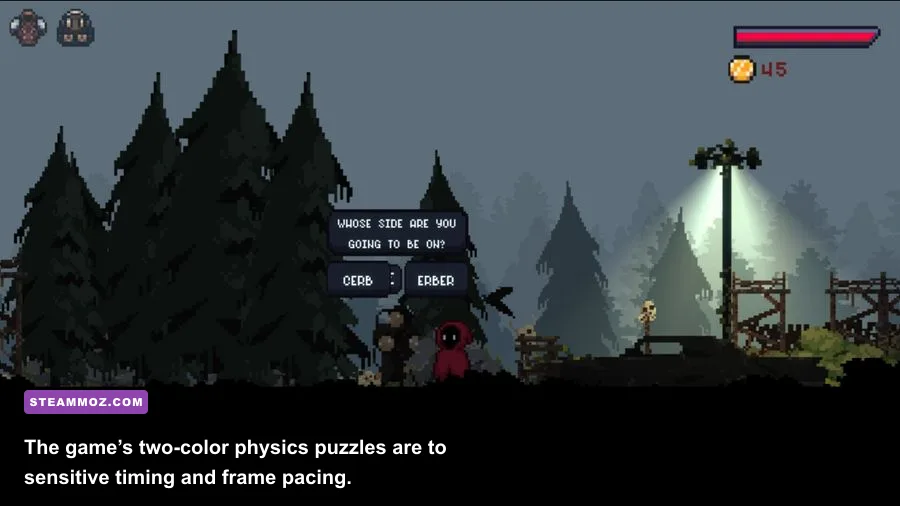
Deleveled does not offer the kind of extensive graphics menu found in a 3D game. You won’t find texture quality, shadow resolution, or ray tracing sliders to tune. That’s good news: the GPU workload is tiny. If the game reports low FPS, focus on synchronization and anything injecting itself into the render window.
| Setting or test | Recommended value | FPS or stability impact | Visual note |
|---|---|---|---|
| Steam overlay | Off for Deleveled | Lowers crash and hitch risk | No meaningful image-quality loss |
| Discord overlay | Off while testing | Can remove intermittent stutter | Chat remains available outside the game |
| Xbox Game Bar capture | Off | Reduces background capture spikes | Only recording features are affected |
| Fullscreen mode | Windowed first, then retest fullscreen | Separates scaling from rendering issues | Windowed mode may look less sharp at odd resolutions |
| Monitor refresh rate | 60 Hz test profile | Improves consistency on older runtimes | Use native refresh after stability returns |
| Frame limiter | 60 FPS externally, if needed | Reduces uneven frame delivery | Better control response than fluctuating FPS |
| V-Sync | Use the driver default initially | Prevents testing two sync systems at once | Enable only if tearing is visible |
Start with a 60 FPS cap because Deleveled’s gameplay is built around readable, repeatable movement rather than cinematic high refresh. If your monitor is 120 Hz or higher, try a 120 FPS cap only after the 60 FPS test is clean. A high cap can expose timing bugs or make a laptop bounce between power states for no practical benefit. Nvidia users can create a program profile in the Nvidia Control Panel; AMD users can do the same in Adrenalin. Avoid forcing aggressive Radeon Anti-Lag, Image Sharpening, or third-party frame generation onto this game.
For more PC performance troubleshooting ideas, Steamoz’s Drawful 2 PC requirements guide and Dragonkin graphics settings guide cover the same Windows-side bottlenecks in different genres.
Remove overlays, injectors, and controller conflicts
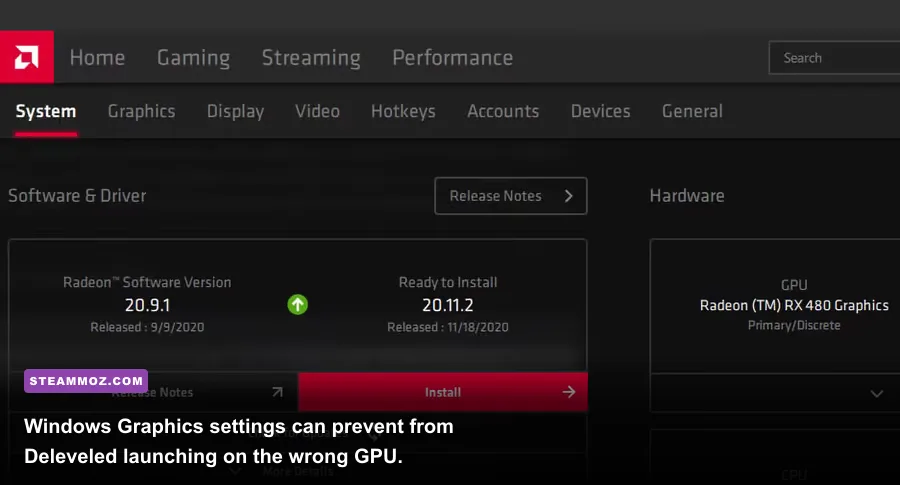
Overlays are the most common “invisible” cause of crashes in small PC games. Steam Overlay, Discord, Xbox Game Bar, Nvidia ShadowPlay, AMD recording, MSI Afterburner with RivaTuner Statistics Server, Overwolf, ReShade, and aggressive antivirus overlays can all hook into the game window. Deleveled doesn’t need any of them to run.
Perform a clean launch
- Disable the Steam overlay in the game’s Steam properties.
- Exit Discord completely, not just the chat window.
- Turn off Xbox Game Bar and background recording in Windows Gaming settings.
- Quit MSI Afterburner, RivaTuner, Overwolf, and RGB utilities.
- Pause cloud-sync utilities while testing if the game repeatedly resets or freezes.
- Launch Deleveled with only Steam and essential Windows services active.
If that fixes the crash, re-enable tools one by one. This matters because an overlay can be responsible even when it never appears on screen. RivaTuner’s frame limiter is particularly worth testing separately from the overlay; use one limiter only, since stacking an external cap, driver cap, and V-Sync can create latency and uneven pacing.
Controller issues deserve their own check. Disconnect extra gamepads, racing wheels, USB adapters, and virtual controller software such as DS4Windows while launching. Then test with keyboard input. If keyboard play is stable but the controller crashes or stops responding, reconnect one device and disable Steam Input for Deleveled or switch its controller layout to a basic gamepad template. The goal is to identify whether the problem is the game, the input translation layer, or a duplicate device.
For comparison, our ELEX crash and FPS fixes explain why overlays and injected monitoring tools can create symptoms that look like GPU failure.
Update drivers, runtimes, and power settings carefully

Once the clean launch passes, update the pieces that actually affect presentation: Windows, the graphics driver, and the Microsoft Visual C++ runtime when another application has damaged or removed shared components. Download drivers from the official Nvidia driver page, AMD support page, or Intel Download Center—not from random driver sites.
A clean driver installation is useful if Deleveled began crashing immediately after a GPU update. During installation, choose the clean or factory-reset option when offered, then reboot. Don’t install a beta driver just because the game is old. Stable drivers are the better match for a lightweight GameMaker title.
On laptops, plug in the charger and set Windows power mode to Best performance for one test session. A battery-saving profile can downclock the CPU or repeatedly switch the integrated and dedicated GPU. If performance improves, create a per-game power profile rather than leaving the entire laptop in maximum-performance mode all day.
Watch temperatures and clocks only if the problem affects other games too. Deleveled should not saturate a modern GPU, so a sudden 100 percent GPU load, thermal spike, or clock collapse suggests a system-wide issue. In that case, repair Windows files with sfc /scannow from an administrator Command Prompt, reboot, and test again. Avoid downloading replacement DLL files from unofficial websites; that “fix” often creates malware and additional crashes.
Final troubleshooting order for Deleveled
Use this order to avoid wasting an evening on random tweaks:
- Restart Windows and Steam.
- Verify Deleveled’s Steam files.
- Disable Steam, Discord, Xbox Game Bar, capture tools, and hardware overlays.
- Test windowed mode, 100 percent display scaling, and a 60 Hz monitor profile.
- Back up and rename the local Deleveled configuration folder.
- Assign the correct GPU on a hybrid laptop.
- Update or clean-install the graphics driver.
- Test keyboard input with every extra controller disconnected.
- Only then try compatibility settings or a clean Windows boot.
If none of that works, collect the crash time, Windows version, GPU model, driver version, launch mode, and the exact level or menu where the failure occurs. Include whether overlays were disabled and whether file verification found anything. The developer’s official site is the best starting point for identifying the current support channel, while the Deleveled Steam Discussions can reveal build-specific reports.
For most players, the winning combination is simple: clean Steam files, no overlays, windowed or correctly scaled display output, and a stable 60 FPS cap. Deleveled’s puzzles reward consistency, and once frame pacing stops fighting your inputs, its deceptively spare levels become challenging for the right reasons again.