
For the best Construction Simulator 2015 LIEBHERR A 918 graphics settings, start at 1920x1080 fullscreen, cap the game at a stable 60 FPS, keep textures and shaders high, and lower shadows, anti-aliasing, foliage, and post-processing first. The A 918 does not have a separate graphics preset, but its large articulated arm, detailed cab, site machinery, and wide camera view make it an excellent stress test for your PC.
The goal isn't a meaningless peak-FPS number. Excavator controls feel much better when frame delivery stays even while you rotate the camera, swing the upper carriage, and work beside several vehicles. A locked 45 FPS is preferable to a graph that jumps between 80 and 32 FPS every time you enter a crowded worksite.
Best A 918 graphics settings for maximum FPS
Use the profile below as your starting point. These recommendations target the original PC release of Construction Simulator 2015, including the LIEBHERR A 918. Menu names can vary slightly with a patch, language, or graphics API, but the performance priorities remain the same.
| Setting | Recommended value | FPS impact | Visual trade-off |
|---|---|---|---|
| Resolution | 1920x1080 | Very high | Drop to 1600x900 only when the GPU is the bottleneck |
| Display mode | Fullscreen | Low to medium | Usually gives cleaner frame pacing than borderless |
| V-Sync | Off for testing; on for tearing | Low | On can limit output to your monitor refresh rate |
| Texture quality | High | Low to medium | High keeps the A 918 cab and machinery surfaces sharp |
| Shader quality | High | Medium | Lowering it makes materials and lighting look flatter |
| Shadow quality | Low or medium | High | Soft shadows and contact detail become less precise |
| Anti-aliasing | 2x or off | Medium to high | Lower values create more jagged boom and cable edges |
| Foliage or object detail | Medium | Medium to high | Reduces distant vegetation and small scene clutter |
| Post-processing | Low or medium | Medium | Less bloom, blur, and cinematic filtering |
Keep textures high unless you are running out of VRAM. Texture quality mostly affects memory capacity rather than raw GPU calculation, so dropping it first often makes the A 918 look worse without fixing a CPU-limited worksite. Shadows are the better first cut: every tree, building, truck, and excavator can add another shadow caster, and the cost multiplies when the camera faces a dense yard.
If your display is 60 Hz, a 60 FPS cap is sensible. If the game cannot hold 60, test a steady 45 or 30 FPS instead of leaving an unstable uncapped output. Use your GPU control panel or an external limiter if the in-game menu does not offer a frame cap. Turn V-Sync back on only after testing; it removes tearing, but poorly paced V-Sync can make a 55 FPS scene feel rough on a 60 Hz screen.
🎮 Construction Simulator 2015: LIEBHERR A 918
Looking to experience this game? Grab your digital key directly on our store for $1.49.
View on Steammoz Store →Why the LIEBHERR A 918 exposes weak hardware
The A 918 is a wheeled excavator, and that matters for testing. You spend more time moving through the world than you would with a stationary machine, so the camera constantly streams new buildings, roads, vehicles, terrain pieces, and job markers. Swing the boom across the screen and you also create a moving silhouette that makes aliasing and frame-time spikes obvious.
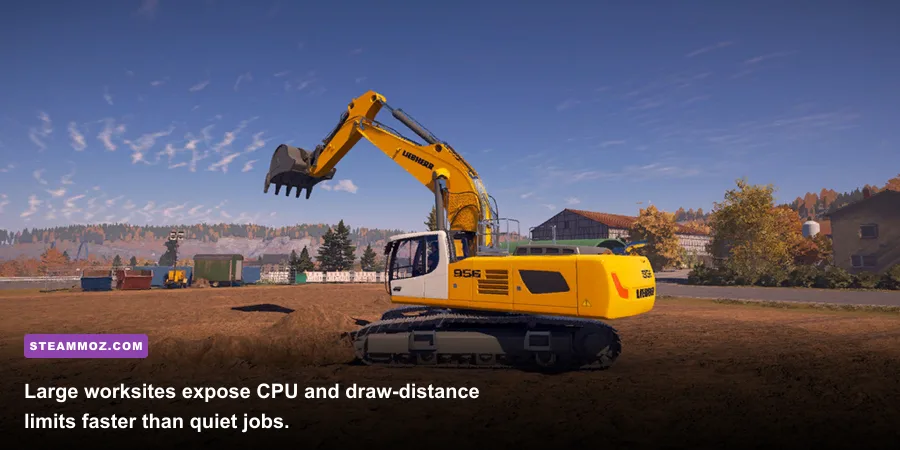
There are two separate limits to identify. A GPU limit appears when lowering resolution or anti-aliasing produces a clear FPS improvement. A CPU or world-simulation limit appears when the frame rate barely changes at 1600x900 but collapses in a busy industrial area. In the second case, lowering textures won't help. Reduce object detail, foliage, shadows, and view-distance-style options instead.
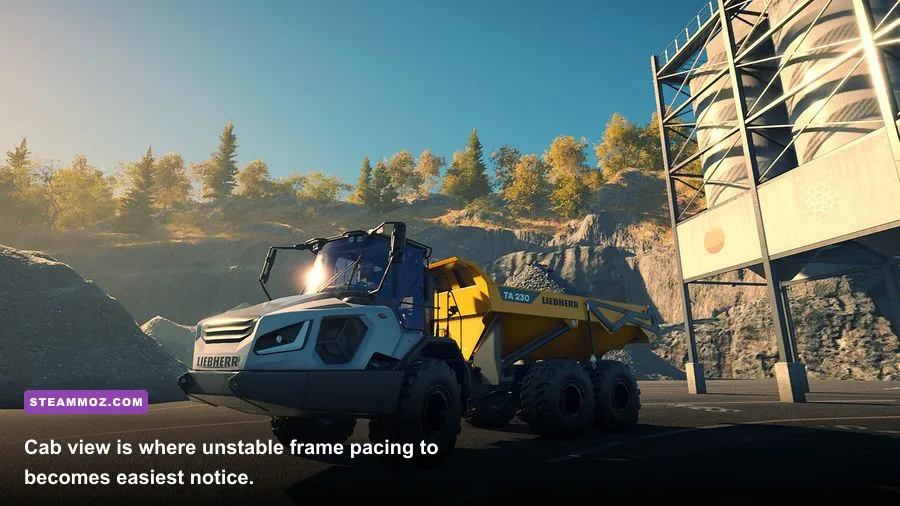
Cab view is especially revealing because the windshield, dashboard, mirrors, boom, and distant site are visible together. Third-person view can look faster simply because the camera hides some cab geometry, so don't tune only from the garage. Load a normal contract, drive the A 918 into the densest part of the worksite, rotate 360 degrees, then perform several full boom swings. That repeatable route is more useful than standing still in an empty field.
Published hardware targets and realistic profiles
The commonly listed PC requirements are modest by modern standards: a 64-bit Windows installation, a Core 2 Duo-class 2.4 GHz processor, 4 GB of RAM, and a GeForce GTX 560 or Radeon HD 6870-class graphics card for minimum play. Recommended listings commonly move toward a Core i5-class CPU, 8 GB of RAM, and GTX 760 or Radeon R9 280-class graphics. Treat those numbers as a floor, not a promise of locked 60 FPS at 1080p in every worksite.
| Hardware profile | Resolution | Suggested preset | Practical target |
|---|---|---|---|
| Older minimum-class PC | 1600x900 | Low shadows, low AA, medium textures | 30 FPS lock |
| Mid-range 1080p PC | 1920x1080 | High textures, medium shadows, 2x AA | 45-60 FPS |
| Modern desktop | 1920x1080 or 2560x1440 | High textures and shaders, medium shadows | 60 FPS with headroom |
| Integrated graphics laptop | 1280x720 | Low detail, low shadows, no AA | 30 FPS if thermals allow |
RAM and storage also influence smoothness. Four gigabytes can launch the game, but 8 GB gives Windows and background services more breathing room when a contract loads a large map. An SSD won't magically raise average FPS, yet it can reduce loading waits and make asset streaming feel less disruptive. Close browsers, launchers, recording software, and overlays before judging a marginal system.
Graphics settings to lower first, and what to keep high
Shadow quality is the biggest visual-performance lever in most A 918 scenes. Start at medium, then use low if you see drops while turning toward a construction yard. The excavator still looks convincing because its geometry, materials, and animation remain intact; what changes is the definition and distance of shadows. On older GPUs, this single adjustment can matter more than dropping from 1080p to 900p.
Anti-aliasing is next. The A 918's long boom, bucket teeth, handrails, and cab frame create plenty of thin diagonal edges. At 4x, those edges look cleaner, but the GPU must process more samples across a large outdoor image. Try 2x first. If you need every frame, disable it and accept some shimmer, particularly when driving past fences or power lines.
Post-processing is a good compromise setting. Lowering it can remove expensive blur, bloom, and other screen effects while preserving the core model quality. It also makes the image less hazy, which some players prefer when judging bucket placement. Foliage and object-detail controls are more important for CPU-limited systems because they reduce how much world geometry must be managed and drawn at distance.
Textures and shaders deserve different treatment. Keep textures high if your graphics card has enough VRAM and you aren't seeing stutter from memory pressure. Lower them to medium only when the game hitches during area transitions or your card is near its memory limit. Keep shaders high on a mid-range system: the setting helps preserve the look of painted metal, glass, dirt, and wet-looking surfaces, while the FPS cost is usually easier to tolerate than heavy shadows.
A clean tuning order
Change one option at a time and restart the same test route. First establish your native resolution, then lower shadows, anti-aliasing, foliage or object detail, and post-processing in that order. If FPS is still low, try 1600x900; if the GPU is very weak, 1280x720 is the emergency setting. Don't stack six changes at once, because you'll never learn which option actually solved the problem.
How to test stable FPS on a real construction job

A benchmark menu isn't enough for this game. Choose a contract that combines driving and excavation, preferably one with several parked machines, buildings, and active work markers. Enter the site with the A 918, stop near the material pile, and record the lowest sustained FPS while you perform the same camera movements every time.
- Warm up the scene. Drive around the site for two minutes so textures and world assets have loaded. Measuring the first few seconds mostly measures streaming.
- Test cab view. Look left, forward, and right, then rotate the camera across the boom. Watch for stutter rather than only the highest number.
- Test the machine animation. Lower the boom, curl the bucket, rotate the upper carriage, and drive forward. This catches frame-time spikes that a static screenshot misses.
- Test the crowded angle. Face the densest group of vehicles, buildings, trees, and job markers. If this is your worst case, tune for it.
- Set the cap. Choose the highest limit you can hold for the full route. A stable 45 FPS beats an uncapped 58-to-28 swing.
Use an overlay such as Steam's FPS counter for a quick read, but a frame-time graph is better. A flat 16.7 ms line means roughly 60 FPS; 22.2 ms is roughly 45 FPS; 33.3 ms is roughly 30 FPS. Short spikes during loading are less worrying than repeated spikes whenever you swing the cab toward the depot.
For more PC troubleshooting ideas, Steamoz's ELEX crash and FPS fixes and Drawful 2 PC performance guide cover the same useful basics: drivers, background processes, resolution scaling, and realistic hardware targets.
Final profile for smooth A 918 work

For most 1080p players, the sweet spot is fullscreen at 1920x1080, textures high, shaders high, shadows medium, anti-aliasing 2x, foliage or object detail medium, post-processing medium, and V-Sync off while you test. Lock to 60 FPS if your system holds it; otherwise choose 45 or 30 and keep the limit consistent.
On an older PC, use 1600x900, medium textures, medium shaders, low shadows, no anti-aliasing, low post-processing, and medium-to-low foliage. Keep the cab readable and the machinery identifiable; sacrificing distant grass is a much better trade than turning every surface into a blurry mess. On a modern GPU, increase resolution or anti-aliasing before maxing shadows, because shadow quality remains one of the least efficient ways to spend performance in busy outdoor scenes.
Finally, compare your tuned result with the official Steam listing for Construction Simulator 2015, the astragon Construction Simulator site, and LIEBHERR's mobile excavator information for the real machine background. The A 918 should feel heavy and deliberate, not sluggish because your frame time is falling apart. Tune for consistency, keep the important model detail intact, and you'll get the cleanest possible view of every bucket placement and swing.
If you enjoy squeezing performance from older PC games, our Far Cry 2 PC requirements breakdown and Dungeon Siege technical retrospective are useful next reads. For this simulator, though, the winning rule is simple: protect frame pacing first, lower shadows second, and never sacrifice sharp excavator textures before you know the GPU is actually out of memory.