
If Cheap Golf keeps crashing or running below a comfortable frame rate on PC, start with three fixes: verify the Steam files, force the game onto your dedicated GPU, and lower shadows, post-processing, resolution scale, and VSync before touching advanced Windows tweaks. Then update your graphics driver, disable overlays, and test one change at a time. That sequence solves most launch crashes, stutter, black screens, and low-FPS problems without turning the game into a blurry mess.
Cheap Golf is not the kind of game that should demand a powerhouse gaming rig, but small indie games can still behave badly when an old driver, hybrid laptop GPU, corrupted shader cache, or aggressive overlay gets in the way. The goal here isn't to blindly set every option to Low. It's to find the setting or background conflict actually causing the problem, then keep the cleanest possible image at a stable frame rate.
Check Cheap Golf’s PC Baseline First
Before changing graphics options, confirm that Windows is seeing the hardware you think it is. Press Win + R, type dxdiag, and check the System and Display tabs. Pay attention to the installed RAM, DirectX version, GPU name, and driver date. On a laptop, the Display tab can reveal that Cheap Golf is launching on Intel integrated graphics instead of an NVIDIA GeForce or AMD Radeon chip.
Also check the game’s Steam page for its current minimum and recommended requirements rather than relying on an old forum post. Requirements can change with patches, and the Steam listing is the useful reference if your installation has been updated. The official Steam search page for Cheap Golf is the safest starting point if the store listing has moved.
| Component | What to check | Warning sign | Best first move |
|---|---|---|---|
| Operating system | Windows is fully updated and 64-bit where supported | Pending restart or very old build | Install updates, reboot, then test again |
| Graphics card | Dedicated GPU appears in dxdiag | Game uses integrated graphics | Assign Cheap Golf to High performance GPU |
| Memory | Free RAM before launching | Browser, recording tools, and launchers consume most memory | Close heavy background programs |
| Storage | Several gigabytes free on the Steam drive | Drive nearly full or reporting errors | Free space and check the drive health |
| Drivers | Recent NVIDIA, AMD, or Intel driver | Crash began immediately after a driver update | Clean-install or roll back the driver |
Don't confuse a low average FPS number with bad frame pacing. A counter might show 90 FPS while the game visibly hitches every few seconds. Use Steam's in-game FPS display or a trusted monitoring tool and watch the frame-time graph if available. A locked 60 FPS is often smoother than a wildly fluctuating 120 FPS, especially during camera movement or when a course loads new effects.

🎮 Cheap Golf
Looking to experience this game? Grab your digital key directly on our store for $2.49.
View on Steammoz Store →Stop Cheap Golf Crashing at Launch
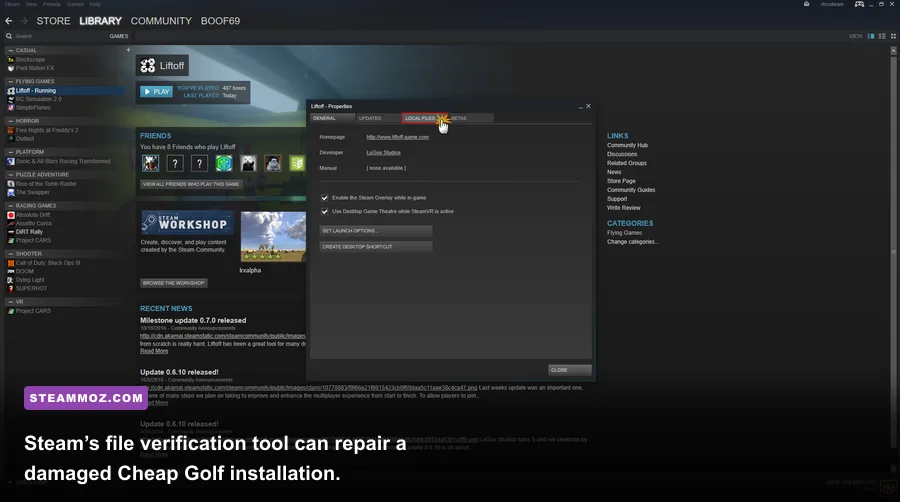
Start with Steam's built-in repair process. Close Cheap Golf, right-click it in your Library, choose Properties, open Installed Files, and select Verify integrity of game files. Wait for the scan to finish, then restart Steam. If one or more files are reacquired, launch the game before reinstalling anything else. This is the quickest fix for an interrupted update, missing executable, or damaged asset.
Next, remove compatibility settings that can make things worse. Find the game executable through Steam's Installed Files menu, open its Properties, and leave Run this program in compatibility mode disabled unless the developer specifically recommends it. You can test Run as administrator, but don't leave it enabled as a default solution: elevated permissions can create new problems with cloud saves, overlays, and folders protected by Windows.
Temporarily disable every overlay that hooks into the game. In Steam, turn off Enable the Steam Overlay while in-game under Cheap Golf's Properties. Also test with Discord overlay, NVIDIA App or GeForce Experience overlay, AMD Adrenalin metrics, Xbox Game Bar, MSI Afterburner, and OBS closed. Overlay conflicts are especially suspicious when the game crashes after pressing Alt+Tab, opening a screenshot panel, or changing resolution.
If the crash happens before the first menu, reset the game's local settings rather than repeatedly reinstalling it. Look in %APPDATA%, %LOCALAPPDATA%, and %USERPROFILE%\AppData\LocalLow for a folder named Cheap Golf or a folder matching its developer. Rename the folder to something like Cheap Golf_backup, then launch again. Renaming is safer than deleting because it preserves saves and lets you restore files if the reset changes nothing.
For a crash that appears only after loading a particular course, suspect a bad local save or a graphics setting stored in the profile. Back up the folder first, then test a new game or fresh profile. Keep Steam Cloud in mind: if the broken configuration returns after you reset it, temporarily disable Cloud synchronization, launch cleanly, and re-enable it after confirming the game works.
Finally, install the latest Microsoft Visual C++ Redistributable packages from Microsoft's official Visual C++ download page. If Cheap Golf reports a missing DLL such as VCRUNTIME140.dll or MSVCP140.dll, this is the correct source. Never download individual DLL files from random “fix” websites.
Use the Right Cheap Golf Graphics Profile

Once Cheap Golf launches, set a stable baseline. Choose your monitor's native resolution, use exclusive fullscreen if the game offers it, and disable VSync for the first test. If the image tears, turn VSync back on or use your driver's frame limiter. The important thing is to change only a few settings at a time, record the result, and avoid chasing a moving target.
| Setting | Recommended value | FPS impact | Visual trade-off |
|---|---|---|---|
| Display mode | Fullscreen or borderless fullscreen | Low to medium | Fullscreen can reduce desktop compositor interference |
| Resolution | Native monitor resolution first | Very high | Lower only if GPU usage is near 100% |
| Resolution scale | 100%; test 90% or 80% if available | High | Lower values soften edges and text |
| Shadows | Medium | Medium to high | Course lighting loses some depth, but gameplay remains clear |
| Anti-aliasing | Medium or FXAA | Low to medium | Lower settings create more jagged railings and edges |
| Post-processing | Low or Medium | Medium | Reduces bloom, depth effects, and image filtering |
| Effects and particles | Medium | Medium | Explosions and impact effects look less dense |
| Texture quality | High if VRAM allows | Low on modern GPUs | Lowering it mainly reduces surface detail |
| VSync | Off for testing; On for tearing | Variable | On can add latency or cap frames to refresh rate |
| Frame limit | 60 FPS for a 60 Hz display | Improves consistency | Prevents unnecessary GPU power draw |
Use GPU utilization to identify the bottleneck. If the GPU sits around 95–100% while FPS is low, reduce resolution scale, shadows, and post-processing first. If GPU usage is low but one CPU core is busy, lowering resolution won't help; cap the frame rate, close background software, and check for thermal throttling. Cheap Golf's physics and scene logic can still be held back by CPU scheduling even when the image looks simple.
For a 60 Hz monitor, a 60 FPS cap is a sensible starting point. For 120 Hz or 144 Hz displays, test 90 or 120 FPS only after the game is stable. A cap slightly below the refresh rate can improve frame pacing when using VRR. Don't enable a driver-level sharpening filter until the basic profile works; sharpening can make a soft low-resolution image look better, but it won't fix stutter.
Fix Low FPS, Stutter, and Laptop GPU Problems
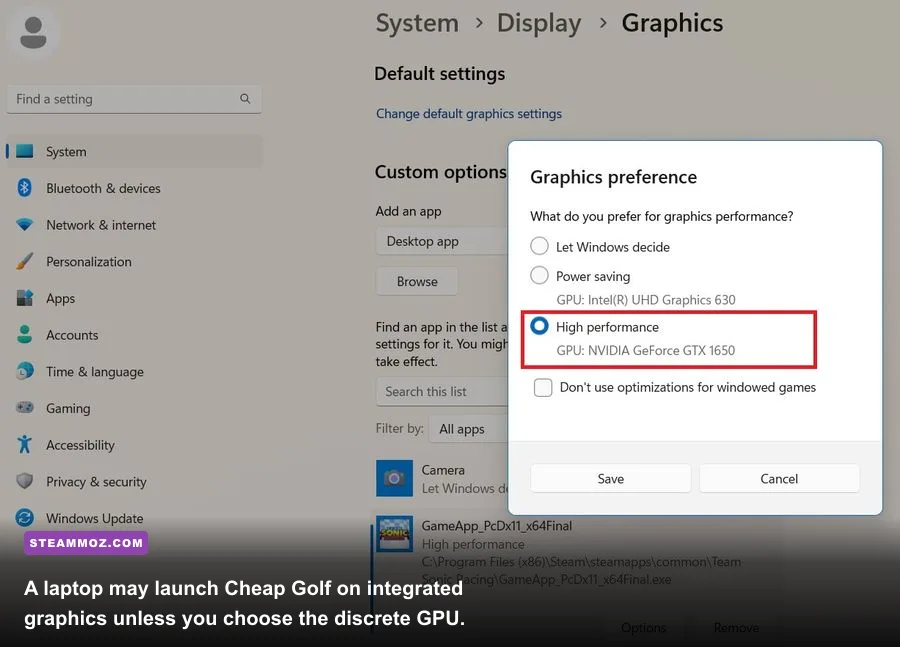
On Windows 11, go to Settings > System > Display > Graphics, add Cheap Golf's executable, select Options, and choose High performance. NVIDIA users can do the same in NVIDIA Control Panel under Manage 3D settings > Program Settings; AMD users should select the game in Adrenalin and use the high-performance profile. Plug in the laptop while testing, because battery modes often cap CPU and GPU power.
Windows power management matters more than many players expect. Set the active power mode to Best performance while playing, but don't leave a gaming laptop permanently pinned to maximum power if heat is already a problem. Monitor temperatures with a reputable tool. If clocks drop sharply after several minutes, the issue is thermal throttling rather than a missing graphics option. Cleaning blocked vents and raising the rear of the laptop can help; never cover the intake with a blanket or soft surface.
Disable background recording before judging performance. Xbox Game Bar's capture feature, instant replay in NVIDIA App, AMD's recording buffer, and browser hardware acceleration can all compete for GPU memory. Close Chrome tabs with video, pause cloud-sync clients, and stop large downloads. This is the same practical principle covered in Steamoz's Dragonkin settings performance guide: establish a clean baseline before stacking optimization software on top.
If stutter happens when you rotate the camera or enter a new area, let the game finish its first asset-building pass. Repeatedly quitting during that process can leave you thinking the problem is worse than it is. A shader cache can also be rebuilt after a driver update. The first run may hitch; compare the second and third runs before deciding whether the fix worked.
| Symptom | Likely cause | Test | Fix |
|---|---|---|---|
| Low FPS everywhere | GPU limit or resolution too high | GPU usage stays near 100% | Lower resolution scale and shadows |
| Low FPS with low GPU usage | CPU limit, power mode, or background task | One CPU thread is heavily loaded | Cap FPS, close apps, use Best performance mode |
| Brief hitches during camera movement | Shader or asset compilation | Stutter is worst on the first run | Repeat the run and allow caches to rebuild |
| Performance collapses after minutes | Thermal throttling | GPU or CPU clock falls as temperature rises | Improve airflow and clean cooling vents |
| Only a laptop struggles | Integrated GPU or battery limit | Check GPU name in Task Manager | Assign High performance GPU and plug in power |
Driver, Launch Option, and File Tests That Matter
Update your GPU driver from the official NVIDIA driver page, AMD support page, or Intel Download Center. If Cheap Golf started crashing immediately after an update, perform a clean installation or roll back to the previous stable driver. Don't install a beta driver while troubleshooting unless the release notes specifically mention Cheap Golf.
Steam launch options can help isolate a display problem, but they aren't magic performance commands. Try one at a time in Properties > General > Launch Options. A windowed test such as -windowed can confirm whether fullscreen initialization is crashing. If that launches successfully, switch to borderless mode in-game and test again. Remove the option once you've learned what it proves.
Don't paste a long list of undocumented commands from a forum into the launch box. Some options are engine-specific, can disable features, or can create a misleading result. Likewise, registry “FPS booster” packs and DLL injectors are poor bets for a small Steam game. The safer workflow is the same one used for other PC troubleshooting: verify files, reset configuration, update the driver, test a clean launch, and only then change advanced settings. Steamoz's ELEX crash and FPS fixes follows that same order for good reason.
If the crash persists, check Windows Event Viewer. Press Win + X, open Event Viewer, and browse to Windows Logs > Application after reproducing the failure. Look for an Error entry at the crash time and note the faulting module. A graphics-driver module points toward a driver or overlay conflict; an audio or third-party hook suggests another background application. Treat Event Viewer as a clue, not a verdict, because Windows often names the component that noticed the crash rather than the original cause.
For a stubborn installation, uninstall Cheap Golf, restart Windows, reinstall it to a short local path on a healthy SSD, and verify the files again. Avoid testing from an external drive or a folder synchronized by cloud software. If you still get repeatable crashes, send the developer the crash time, GPU model, driver version, Windows build, reproduction steps, and the relevant log. A useful report beats “game broken” every time.
A Stable Cheap Golf Setup You Can Keep
After troubleshooting, keep the profile simple: native resolution, fullscreen or borderless mode, medium shadows, medium effects, low or medium post-processing, textures as high as VRAM permits, and a frame cap matched to your display. Turn overlays back on one by one if you need them. If the crash returns after enabling a single overlay, you've found the conflict instead of having to reinstall the entire game.
| Profile | Resolution and cap | Graphics values | Best use |
|---|---|---|---|
| Stability first | Native resolution, 60 FPS cap | Shadows Low, effects Low, post-processing Low | Older laptops and crash diagnosis |
| Balanced | Native resolution, 60 or 90 FPS cap | Textures High, shadows Medium, effects Medium, post-processing Medium | Most mainstream PCs |
| Sharp image | Native resolution, display-matched cap | Textures High, anti-aliasing High, shadows Medium, effects High | GPUs with spare headroom |
| Performance test | 90% resolution scale, 60 FPS cap | Shadows Low, post-processing Low, VSync Off | Finding whether the GPU is the bottleneck |
Test the same course, camera angle, and shot sequence after every change. A repeatable benchmark is far more useful than wandering around and guessing. Record average FPS, the lowest noticeable moments, GPU usage, CPU temperature, and whether the crash appears. If you need more general PC performance ideas, Steamoz's Drawful 2 PC requirements guide is also useful for separating genuine hardware limits from messy background software.
Cheap Golf should not require extreme compromises. Verify the installation, reset corrupted settings, eliminate overlays, select the correct GPU, and build upward from a 60 FPS baseline. Lower resolution scale only when the GPU is actually saturated, and investigate heat or CPU load when it isn't. That method keeps the game looking good while removing the crashes and uneven frame pacing that make a relaxed round feel far more frustrating than it should.