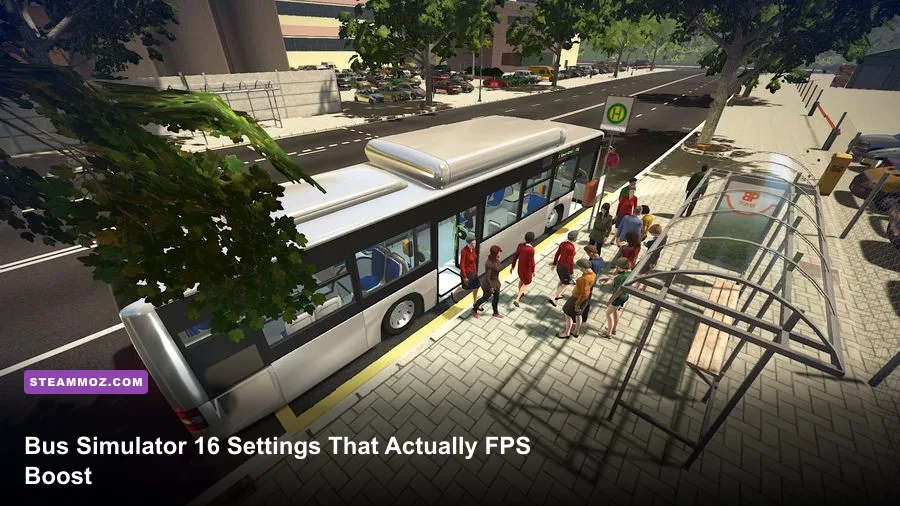
The best Bus Simulator 16 graphics settings for max FPS are 1280x720 or 1600x900 resolution, medium textures, low shadows, reduced anti-aliasing, and disabled V-Sync. Those changes target the game's biggest performance drains without turning every route into a blurry mess. Start with the balanced profile below, cap your frame rate externally if frame pacing is uneven, and test performance on a busy city street rather than an empty depot.
Bus Simulator 16 is an older game, but that doesn't mean every modern PC will run it perfectly. Its urban scenes can stack traffic, pedestrians, buildings, lighting, and vehicle reflections in the same view. The result is a familiar simulation-game problem: a high average frame rate that still feels jerky when you reach a crowded stop. The goal here isn't a meaningless 200 FPS number. It's a stable frame time while steering, checking mirrors, and braking at intersections.
The best starting profile for higher FPS
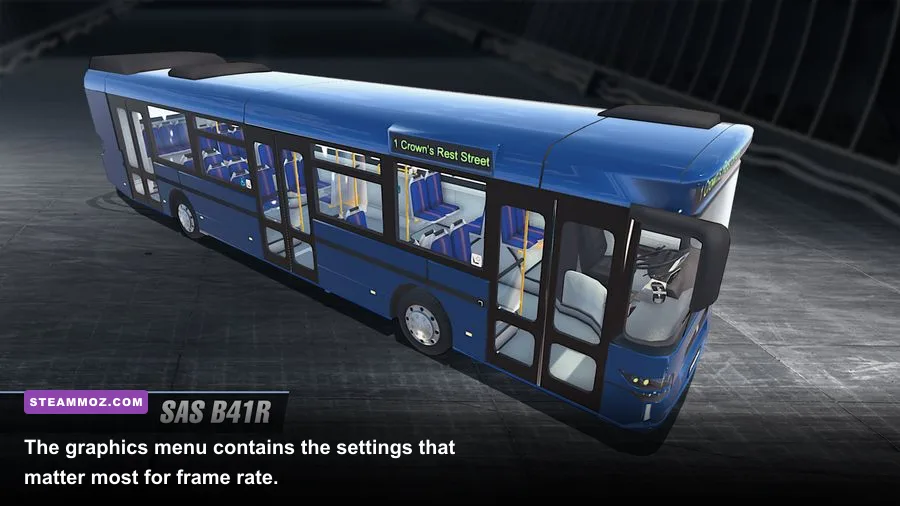
Before changing individual options, load a sensible baseline. Use your monitor's native resolution if your graphics card can hold a stable 60 FPS, but don't be afraid to step down to 1600x900 or 1280x720. Bus Simulator 16 benefits more from consistent motion than from razor-sharp signage on distant buildings.
| Setting | Recommended Value | FPS Impact | Visual Result |
|---|---|---|---|
| Resolution | 1600x900; 1280x720 for weak GPUs | High | Lower clarity, but a major GPU load reduction |
| Texture Quality | Medium | Low to medium | Good bus and building detail with lower VRAM use |
| Shadow Quality | Low | High | Less grounded lighting, much steadier city driving |
| Anti-Aliasing | Low or disabled | Medium to high | More jagged edges, but cleaner frame times |
| V-Sync | Off for testing | Variable | Removes synchronization latency; may introduce tearing |
| Reflections | Low or disabled | Medium | Less shine on windows and wet-looking surfaces |
That profile is the right first move for a GTX 650-class machine, which appears in the game's listed minimum PC requirements, and it also gives older integrated graphics a fighting chance. If you have a GTX 970-class card or newer, keep textures at high only after checking VRAM usage and hitching. Texture quality usually hurts memory capacity more than raw FPS, so high textures can be fine until streaming starts to stutter.
🎮 Bus Simulator 2016
Looking to experience this game? Grab your digital key directly on our store for $1.99.
View on Steammoz Store →Which settings cost the most frames?
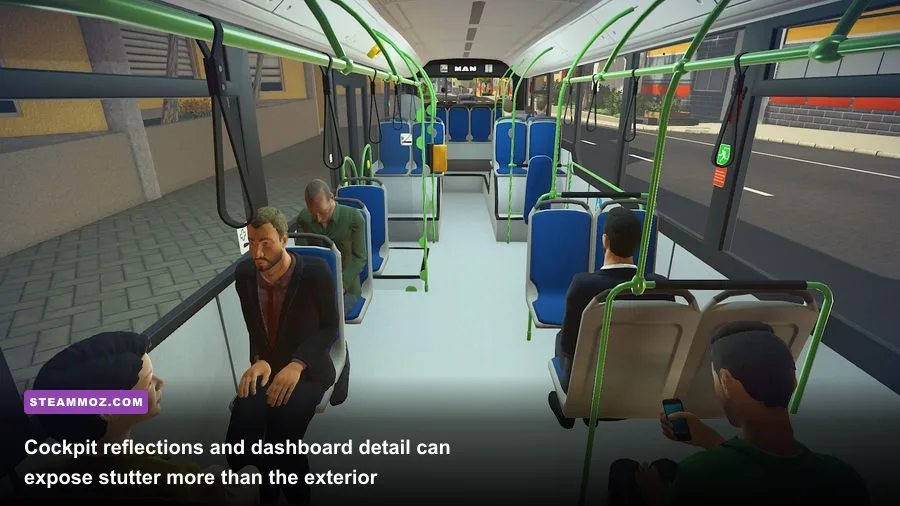
Shadows are the first setting I would cut. In Bus Simulator 16, shadow rendering affects more than the bus directly in front of you: city buildings, roadside objects, and traffic can all add extra work as the camera moves. High shadows may look attractive in a screenshot, but they are a poor trade during a packed route. Low shadows preserve basic depth while reducing the worst dips.
Resolution is the biggest blunt instrument. Moving from 1920x1080 to 1600x900 renders roughly 31 percent fewer pixels; moving to 1280x720 cuts the pixel count by half. That can rescue a GPU-limited system, although text and road markings become softer. If the game offers a resolution scale rather than a true internal scaler, prefer the lower display resolution first because it is easier to verify and less likely to create a strangely soft image.
Anti-aliasing is next. It smooths jagged rooflines, poles, and road signs, but older rendering hardware pays for that smoothing every frame. Disable it while testing. If the game looks too rough, use the lowest available option rather than jumping straight to the highest mode. Reflections are also deceptively expensive in cockpit view, especially when glass, traffic, and bright lights overlap.
| Performance Problem | Change First | Why It Works | What You Give Up |
|---|---|---|---|
| Low FPS everywhere | Lower resolution | Reduces the total number of rendered pixels | Image sharpness |
| Drops near intersections | Lower shadows and reflections | Reduces scene and lighting workload | Depth and surface detail |
| GPU memory stutter | Lower textures | Leaves more VRAM for streaming | Texture definition |
| Jerky camera movement | Disable V-Sync, then cap FPS | Improves frame-pacing control | Potential screen tearing |
| Blurry, unstable image | Use native resolution and lower shadows | Preserves clarity while cutting a cheaper setting | Some extra GPU load |
Use the right profile for your hardware
The official Steam listing places the minimum target around a 3 GHz Intel Core i3, 4 GB of RAM, and a GeForce GTX 650 or Radeon HD 7750. Its recommended specification rises to an i5-class processor, 8 GB of RAM, and a GTX 970-class GPU. Those are old requirements now, but the CPU distinction still matters: a stronger graphics card won't completely fix stutter caused by busy traffic simulation and background processes.
Low-end profile
Choose 1280x720, low textures, low shadows, disabled anti-aliasing, low reflections, and V-Sync off. This is the profile for a laptop GPU, GTX 650-level card, or a system with only 4 GB of memory. Close browsers and launchers before playing. If the route still falls below 30 FPS at intersections, lower resolution before sacrificing textures again; a muddy bus interior makes driving harder without fixing CPU-side simulation.
Balanced profile
Use 1600x900 or 1920x1080, medium textures, low shadows, low anti-aliasing, and low reflections. Keep V-Sync off during diagnosis. This is the sweet spot for many older gaming PCs because the bus, road markings, and buildings remain readable while shadows stop dominating the frame budget. A stable 45 FPS usually feels better than a fluctuating 60.
High-FPS profile
At 1080p, use medium or high textures, low shadows, low anti-aliasing, and disabled reflections. This profile is intentionally conservative. Bus Simulator 16's visual identity comes from its vehicles and city layout, not expensive shadow maps, so you lose less than you might expect. If you have headroom, raise textures first, then anti-aliasing. Leave shadows for last.
| PC Class | Resolution | Textures | Shadows / Reflections | Target |
|---|---|---|---|---|
| Minimum-era PC | 1280x720 | Low | Low / Off | 30 FPS stability |
| Older gaming PC | 1600x900 | Medium | Low / Low | Stable 45 FPS |
| Recommended-era PC | 1920x1080 | Medium to High | Low / Low | Stable 60 FPS where possible |
How to test FPS without fooling yourself
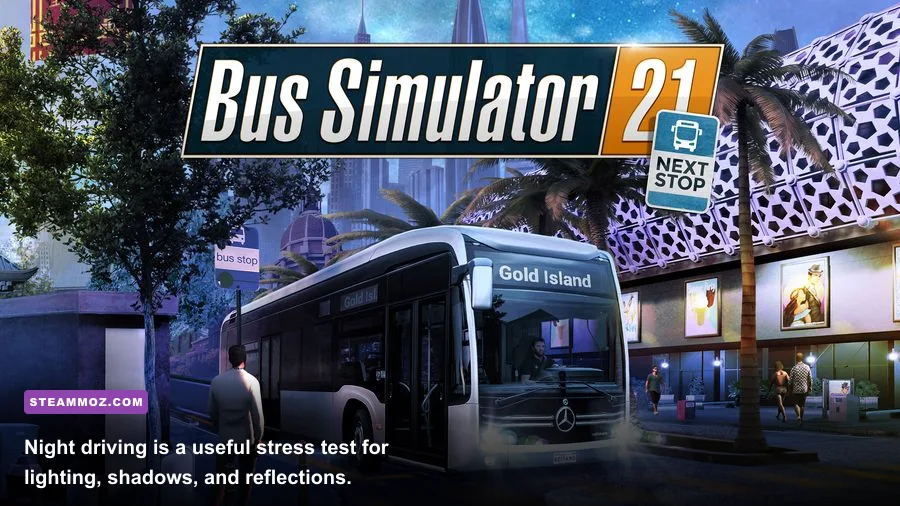
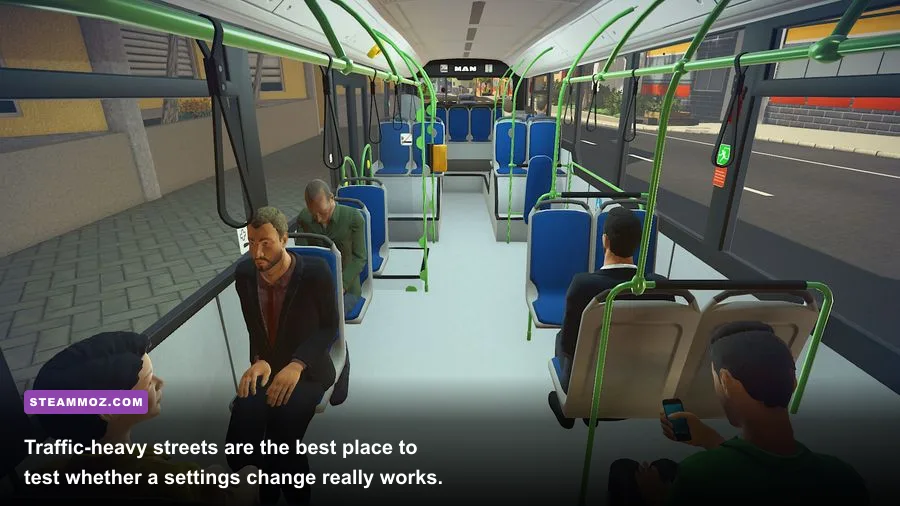
Don't benchmark inside the garage. It has fewer objects and almost no meaningful traffic load. Instead, drive the same route through a dense district, stop at a busy intersection, open the cockpit view, and watch the frame rate while turning through traffic. Repeat the test at daytime and nighttime. Lighting and reflections can expose a weak setting that looks harmless on a quiet road.
Change one setting at a time, restart the game if the option requests it, and record three numbers: average FPS, worst sustained FPS, and whether the game hitches while turning. A five-minute test is more useful than staring at a counter for ten seconds. MSI Afterburner, NVIDIA's performance overlay, or AMD Adrenalin can show GPU utilization and frame time. If GPU usage sits near 95–99 percent, lower resolution, anti-aliasing, or reflections. If GPU usage is low while FPS collapses near traffic, the CPU or streaming behavior is probably the limiter.
For a 60 Hz monitor, an external 60 FPS cap can smooth delivery if the game overshoots and oscillates. If your PC cannot hold 60, cap at 30 or 45 instead of letting the frame rate bounce between 34 and 60. A consistent cap also reduces heat and fan noise during long routes. Test V-Sync both on and off after finding a stable profile: on can remove tearing, but it may add latency or produce harsher drops when the system misses its refresh interval.
Windows and Steam fixes worth trying
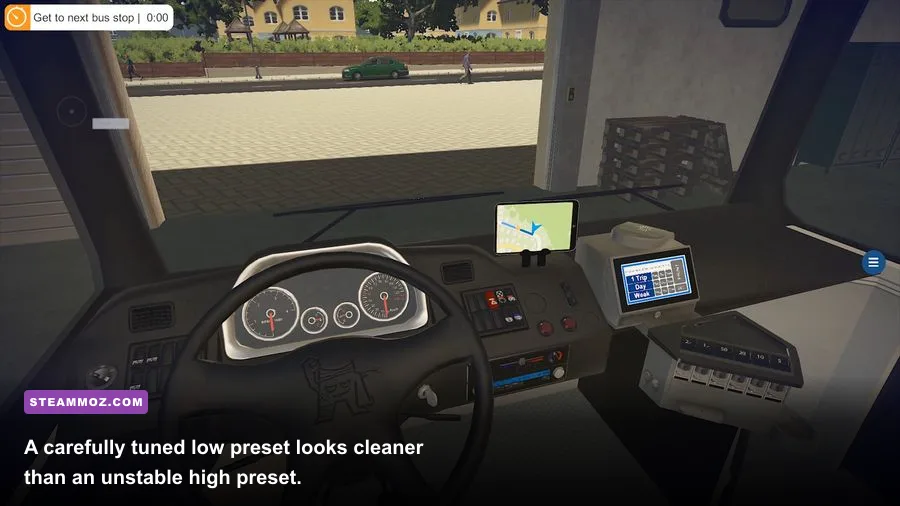
Graphics settings aren't the whole story. Install the game on an SSD if possible, especially if you notice pauses when entering a new neighborhood. Keep your GPU driver current, use the Windows High performance power plan while plugged in, and disable battery-saving modes on laptops. Avoid forcing aggressive driver-level sharpening or anti-aliasing overrides; older games can react badly to modern control-panel features.
Verify the installation through Steam if textures vanish, the game crashes after changing resolution, or performance suddenly changes after an update. Right-click Bus Simulator 16 in your library, open Properties, choose Installed Files, and select Verify integrity of game files. Turn off unnecessary overlays one at a time, including recording tools, Discord's overlay, and hardware monitoring overlays. Don't delete configuration files blindly: back them up first, because a reset can erase your working resolution and control setup.
For official requirements and ownership details, check the Bus Simulator 16 Steam page. The publisher's astragon website is also useful for broader support and game information. If you're comparing the series with newer driving games, Steamoz's guide to the best bus sim games after Bus Simulator 16 is a good next stop.
The final max-performance setup
For most players, the winning configuration is 1600x900, medium textures, low shadows, low anti-aliasing, low reflections, and V-Sync off while testing. Cap the result to a stable 30, 45, or 60 FPS, depending on what the busiest route can actually sustain. If you need more performance, lower resolution first; if the game stutters only in crowded areas, cut shadows and reflections before touching texture quality.
Don't chase a pretty screenshot at the expense of route consistency. Bus Simulator 16 is at its best when steering feels predictable, braking inputs arrive immediately, and the frame time doesn't collapse as passengers board. Once you've found that baseline, raise one visual option at a time—textures first, anti-aliasing second, shadows last. That method gives you a faster bus, a clearer cockpit, and far fewer mystery dips than simply selecting the game's highest preset.
For another practical performance-focused read, see Steamoz's settings guide for fixing low FPS and the Architect Life crash and FPS fixes. The same principle applies here: measure a repeatable worst-case scene, make targeted changes, and keep the setting that improves frame pacing—not merely the one that inflates an average number.