If Brothers in Arms: Hell’s Highway crashes, freezes, or crawls at low FPS on your PC, start with a clean configuration reset, verify the Steam files, disable overlays, and reduce shadows and post-processing before lowering texture quality. The 2008 Unreal Engine 3 shooter is usually limited by old configuration files, fullscreen compatibility, driver quirks, or frame-time spikes rather than modern GPU horsepower.
This guide targets the Steam version on Windows 10 and Windows 11. It covers the fixes that are safe to try first, explains which settings actually affect performance, and gives you a repeatable way to tell a genuine GPU bottleneck from a broken launch configuration. Make a backup before editing files, and don’t download random replacement DLLs from unofficial sites.
Start with the fixes most likely to stop crashes
Before changing advanced settings, make the installation boring and predictable. Close MSI Afterburner, RivaTuner Statistics Server, ReShade, Discord overlay, GeForce Experience overlay, Xbox Game Bar, and any recording software. Older Unreal Engine 3 games can launch perfectly until an overlay hooks into the renderer, then crash during the intro video or when a checkpoint loads.
- Verify the installation. In Steam, right-click the game, choose Properties, open Installed Files, and select Verify integrity of game files. Let Steam reacquire anything missing or damaged.
- Run one clean launch. Remove temporary Steam launch options. Do not stack compatibility flags from different guides; an old command can force the wrong renderer or resolution.
- Reset the game’s settings. If the crash began after changing resolution, anti-aliasing, or display mode, close Steam and rename the game’s local configuration folder rather than deleting it. Search Windows for folders containing BrothersInArms, Hell's Highway, or BIA inside your Documents or AppData directories. Renaming preserves a rollback copy.
- Try borderless windowed mode. If exclusive fullscreen crashes after the logo, start windowed at 1280×720 or 1600×900, reach the main menu, then raise the resolution gradually. Windows’ fullscreen optimizations are a frequent trouble spot for older games.
- Install current GPU drivers cleanly. Use the official NVIDIA driver page or AMD support page. If the game broke immediately after a driver update, rolling back one stable driver can be more useful than repeatedly reinstalling the game.
- Install legacy runtime components. The game may need older DirectX files even when DirectX 12 is installed. Use Microsoft’s DirectX End-User Runtime Web Installer, then reboot.
For the official store build, keep the Brothers in Arms: Hell’s Highway Steam page bookmarked. It is the safest reference for file ownership and installation details. If Steam itself fails to write files, move the installation to a library folder with normal user permissions instead of launching the game as administrator every time.
| Symptom | Most likely cause | First fix | What not to do |
|---|---|---|---|
| Crash before the main menu | Broken resolution or overlay hook | Rename the config folder and disable overlays | Do not install random DLL packs |
| Crash while loading a checkpoint | Corrupt file, shader cache, or unstable overclock | Verify files, remove overclocks, reboot | Do not keep retrying the same save indefinitely |
| Black screen with sound | Fullscreen or refresh-rate mismatch | Launch windowed at 1280×720 | Do not force an unsupported refresh rate |
| Instant exit after logos | Compatibility or runtime conflict | Clear launch options and install legacy DirectX files | Do not run several compatibility modes together |

🎮 ARMS
Looking to experience this game? Grab your digital key directly on our store for $59.99.
View on Steammoz Store →Fix Windows compatibility without making the game unstable
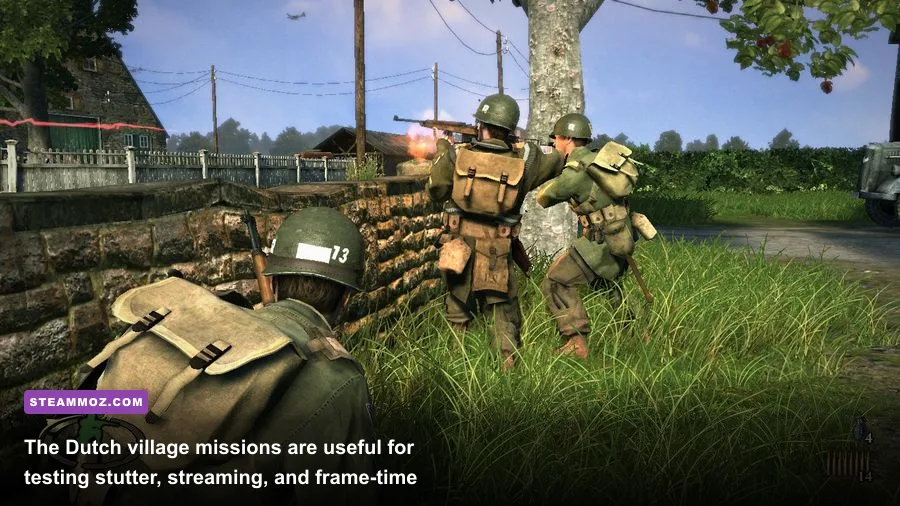
Hell’s Highway predates modern fullscreen management, high-refresh monitors, and Windows’ aggressive security layers. That doesn’t mean you should turn on every compatibility option. Start with the smallest change that addresses your symptom.
Open the game’s local files through Steam’s Browse command, locate the main game executable, open Properties, and check the Compatibility tab. Test Disable fullscreen optimizations first. If the game still crashes on launch, test Windows 7 compatibility mode by itself. Never combine Windows 7 mode, Windows XP mode, high-DPI overrides, and administrator mode all at once; that makes it much harder to identify the setting causing a regression.
High-DPI scaling can produce a black screen or a tiny, misplaced window on 1440p and 4K monitors. In the executable’s compatibility settings, open Change high DPI settings and test application scaling only if the display is visibly mis-scaled. It will not improve FPS, and on some systems it can make the UI softer.
Windows Security can also interfere when the game writes a new profile or save. If the game launches but cannot save settings, check Controlled folder access and allow the game through Windows Security rather than permanently disabling antivirus protection. Keep Steam and the game on a local SSD with adequate free space; a nearly full drive can turn level streaming into stutter and failed writes.
Finally, cap the frame rate externally if the game swings wildly between very high and very low output. A stable 60 FPS is a better target than an unlocked 180 FPS followed by 25 FPS during explosions. Use your GPU control panel or RTSS, but test with overlays disabled first. If you want broader troubleshooting habits for older PC releases, Steamoz’s guide to ELEX PC crashes and FPS problems covers similar configuration traps.
Use these graphics settings for stable FPS
Do not begin by dropping texture quality to its lowest setting. On a modern GPU, textures usually cost less than dynamic shadows, anti-aliasing, and post-processing. The biggest win comes from reducing the number of expensive effects that run across the whole scene, especially smoke, explosions, foliage, and outdoor lighting in the Dutch village sections.
| Setting | Recommended value | FPS impact | Visual trade-off |
|---|---|---|---|
| Resolution | Native 1080p; 1600×900 for weak GPUs | High | Lowering resolution helps GPU load but makes the image softer |
| Texture detail | High if VRAM allows; Medium below 2 GB | Low to medium | Lower values blur uniforms, weapons, and rubble |
| World detail | High, then Medium if outdoor stutter persists | Medium | Reduces distant geometry and environmental density |
| Shadow detail | Medium | High | Lower settings make lighting less defined but improve consistency |
| Anti-aliasing | 2x or Off for low-end systems | Medium to high | Edges shimmer more when disabled |
| Post-processing | Medium or Low | High | Reduces bloom, depth effects, and cinematic softness |
| Anisotropic filtering | 8x | Low | Keeps roads and ground textures clearer at an angle |
| Motion blur | Off | Low | Sharper camera movement and easier target tracking |
| V-sync | On only if tearing is distracting | Variable | Can add latency or expose uneven frame pacing |
For a sensible first profile, use 1920×1080, High textures, High world detail, Medium shadows, 2x anti-aliasing, Low post-processing, 8x anisotropic filtering, and motion blur off. If that still dips below 45 FPS, reduce shadows before textures. If the average FPS looks fine but the game feels jerky, lower world detail and post-processing one step at a time; that often improves the one-percent lows.
Older Unreal Engine 3 titles may compile or stream shaders during the first visit to a location. A brief hitch that disappears on the second pass is different from a permanent low-FPS problem. Test the same checkpoint three times, walk through the same doorway, and compare frame pacing rather than judging performance from a single explosion.
Separate low FPS from stutter and CPU limits

Use a monitoring tool only for diagnosis, not as another permanent overlay. Watch GPU utilization, GPU memory, CPU usage, and frame time. If GPU usage sits around 95–99 percent, lower resolution or anti-aliasing. If the GPU is underused while one CPU thread is busy, reduce world detail, shadows, and background applications instead. A modern six-core processor can still show a CPU limit because older games often lean heavily on one primary thread.
Explosions are especially revealing. The game’s squad combat frequently combines smoke, particle effects, dynamic shadows, AI, and destructible scenery. A sudden dip when a tank fires does not automatically mean your GPU is too weak. Medium shadows and Low post-processing usually preserve the atmosphere while removing the worst spikes.
Keep your GPU driver profile conservative: application-controlled texture filtering, no forced sharpening, no forced anti-aliasing, and no aggressive latency mode. Disable hardware monitoring overlays while testing. Also remove CPU and GPU overclocks, including factory profiles, for the first troubleshooting session. Instability often appears only during checkpoint saves or large scripted battles, which makes it look like a game bug.
| Observed behavior | Likely limit | Change first | Target result |
|---|---|---|---|
| GPU usage near 99% at all times | GPU rendering load | Resolution, anti-aliasing, post-processing | Stable frame time without blurry textures |
| GPU usage low, one CPU core busy | CPU or game-thread limit | World detail, shadows, background apps | Fewer dips during AI-heavy fights |
| Average FPS is high but movement feels uneven | Frame pacing or refresh mismatch | Cap at 60 FPS and test V-sync | Consistent delivery between frames |
| Hitches only on first pass | Shader or asset streaming | Repeat the route and avoid judging one pass | Reduced repeat stutter after caching |
| Crashes during effects-heavy scenes | Driver, overclock, or damaged asset | Reset clocks, verify files, lower effects | Reliable checkpoint loading |
Use a clean save test when possible. If one campaign checkpoint crashes while a new mission runs normally, the save or streamed asset may be damaged. Back up your saves, verify the files, and load an earlier checkpoint. Don’t overwrite every save slot while troubleshooting. The game’s linear campaign makes a rotating manual-save habit particularly valuable.
Modern hardware profiles that work in practice
The original game’s official requirements are modest by today’s standards, but “can launch” and “runs smoothly” are different goals. The table below is a practical profile rather than a promise of identical results; laptops, driver versions, background tasks, and resolution all matter.
| PC class | Resolution | Recommended profile | Expected goal |
|---|---|---|---|
| Integrated graphics laptop | 1280×720 or 1600×900 | Medium textures, Medium world detail, Low shadows, Off anti-aliasing, Low post-processing | Playable 30–60 FPS with dips in battles |
| Older dedicated GPU | 1600×900 or 1920×1080 | High textures, Medium world detail, Medium shadows, 2x anti-aliasing, Low post-processing | More consistent 45–60 FPS |
| Modern mainstream GPU | 1920×1080 | High textures and world detail, Medium shadows, 2x–4x anti-aliasing, Medium post-processing | Stable 60 FPS in most missions |
| Modern high-end GPU | 2560×1440 | High textures, High world detail, Medium shadows, 4x anti-aliasing, Medium post-processing | High average FPS; cap for smoother pacing |
At 4K, the game can look surprisingly clean, but the old UI and scaling may become awkward. If you choose 3840×2160, start with Medium post-processing and 2x anti-aliasing rather than maxing every option. The visual gain from higher anti-aliasing is small compared with the performance cost. A 1440p capped profile is often the sweet spot on modern monitors.
For comparison, Steamoz’s Dragonkin settings guide explains the same useful principle: protect frame pacing first, then restore visual detail in the settings that cost the least. The same logic works here. High textures and anisotropic filtering preserve the game’s character; low shadows and post-processing protect performance.
Final crash-proof checklist for Hell’s Highway
Run through this order if the game still refuses to cooperate:
- Restart the PC and close overlays, recording tools, RGB utilities, and hardware monitors.
- Verify the Steam installation through Steam’s official file-verification support page.
- Rename the local configuration folder and launch at 1280×720 windowed.
- Disable fullscreen optimizations; test Windows 7 compatibility mode separately only if needed.
- Install Microsoft’s legacy DirectX runtime and reboot.
- Reset GPU clocks and use a clean, current or known-stable driver.
- Set textures High, shadows Medium, post-processing Low, anti-aliasing 2x, motion blur Off, and cap at 60 FPS.
- Test the same mission three times, especially after a checkpoint or major explosion.
- If only one save crashes, load an earlier checkpoint rather than repeatedly forcing the bad one.
- Record the exact crash location, Windows version, GPU driver, resolution, and settings before seeking support.
Most players won’t need an unofficial patch or a complicated config edit. Hell’s Highway is old enough that a fresh profile, clean runtime files, sensible fullscreen behavior, and restrained shadows solve more problems than brute-force hardware. If you’re also revisiting other older PC games, Steamoz’s Dungeon Siege performance and replayability coverage is a good reminder that classic games often need careful setup, not expensive upgrades.
Once the game launches reliably, change only one setting at a time and keep a written baseline. That turns troubleshooting from guesswork into a quick test: if a crash returns after enabling post-processing or exclusive fullscreen, you know exactly what to undo. With those problem settings under control, Baker’s campaign remains a tense, distinctive World War II shooter—and it should run without turning every checkpoint into a gamble.