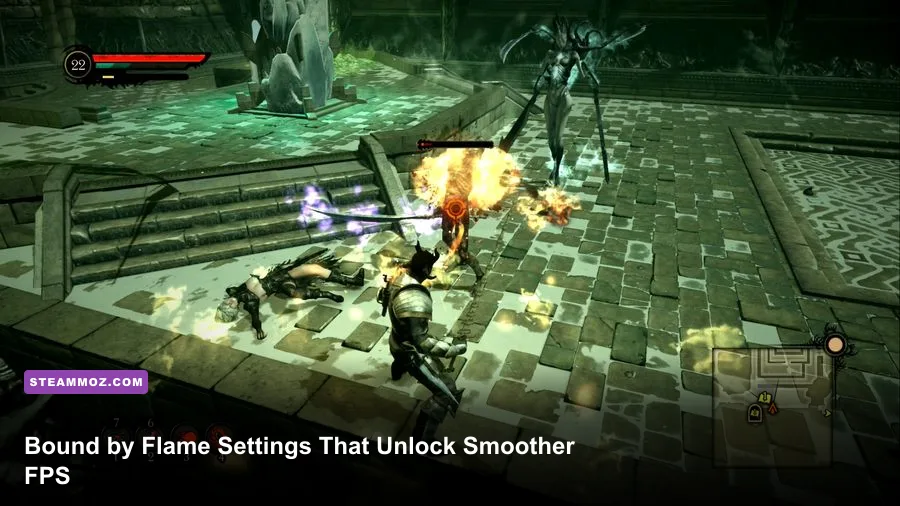
For the best Bound by Flame graphics settings for max FPS and performance, start at 1920x1080 fullscreen, disable V-Sync, use medium shadows, keep textures on high if your card has at least 2 GB of VRAM, and reduce anti-aliasing and ambient occlusion before touching resolution. Bound by Flame is an older 2014 RPG, so even modest modern hardware can run it well; the real challenge is avoiding uneven frame pacing, shader hitching, and heavy shadow effects in crowded areas such as Volcania and Fort Harrow.
This is not a game where every setting deserves equal sacrifice. Textures usually have a much smaller FPS cost than shadows, while ambient occlusion can make dark scenes look richer but is one of the first effects worth cutting when the GPU is struggling. The guide below targets a stable 60 FPS on a sensible gaming PC, with separate profiles for older GPUs, integrated graphics, and high-refresh displays.
Before changing anything, update the GPU driver, launch the game once so it creates its configuration files, and close recording software. Bound by Flame's visuals are stylized rather than cutting-edge, so chasing an unstable 120 FPS often looks worse than locking a clean 60. If you also play older RPGs, our Dungeon Siege performance review covers the same kind of frame-pacing problems that modern systems can expose in classic PC releases.
The best Bound by Flame settings for 60 FPS
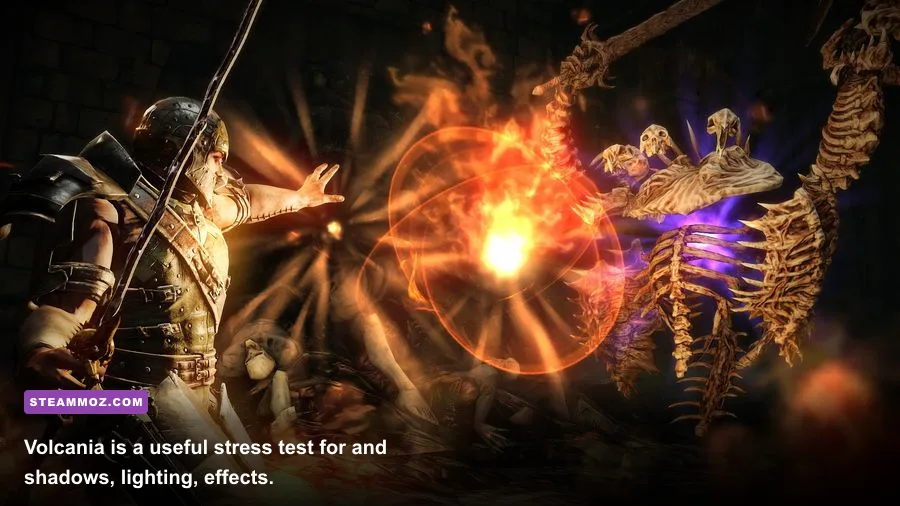
Use the following as the default profile for a desktop or laptop with a dedicated GPU roughly comparable to a GTX 750 Ti, GTX 950, Radeon R7 370, or anything newer. Bound by Flame's official minimum requirements are very low by current standards, but minimum hardware targets normally describe launching the game rather than delivering a locked frame rate. A 1080p profile with controlled shadows gives you the cleanest balance.
| Setting | Recommended value | FPS impact | Visual note |
|---|---|---|---|
| Resolution | 1920x1080 | High if lowered | Keep native resolution for a clearer HUD and character detail. |
| Display mode | Fullscreen | Low | Usually offers the most consistent frame delivery. |
| V-Sync | Off, or On for a 60 Hz display | Input and latency impact | Disable it when using an external frame limiter. |
| Texture quality | High | Low to medium | Mostly consumes VRAM rather than raw GPU power. |
| Shadow quality | Medium | High | The first major setting to lower in busy scenes. |
| Anti-aliasing | Medium or the lowest stable option | Medium | Lower it before reducing resolution. |
| Ambient occlusion | Off or Low | Medium to high | Improves contact shadows but can drag down minimum FPS. |
| Effects and post-processing | Medium | Medium | Preserves fire, magic, and transformation effects without excess blur. |
| View distance | High if available | Low to medium | Reducing it can make distant scenery pop in noticeably. |
There is a practical reason to retain high textures. Bound by Flame's environments use relatively compact texture assets compared with modern open-world games, and texture quality generally hits memory bandwidth and VRAM before it hammers shader throughput. If you have 4 GB or more of VRAM, high textures are a near-free visual upgrade. On a 1 GB card, however, texture streaming can cause pauses or visible texture swaps; medium is safer.
Shadows are the performance villain. They affect the hero, enemies, foliage, architecture, and fire-lit surfaces at once, so their cost rises sharply in areas with multiple light sources. Medium shadows still preserve enough depth to keep Fort Harrow from looking flat. Low shadows offer a worthwhile emergency boost, but they make the world look noticeably washed out and can remove the visual separation between characters and ground.
For a 60 Hz monitor, either enable V-Sync or use a frame limiter at 60 FPS. Do not stack several synchronization methods. V-Sync combined with a driver-level limiter can add unnecessary latency, while uncapped rendering can produce wild GPU usage and uneven delivery even when the counter reports 90 FPS. On a variable-refresh display, disable in-game V-Sync and cap the game a few frames below the panel's refresh rate if your driver supports it.

🎮 Bound By Flame
Looking to experience this game? Grab your digital key directly on our store for $0.83.
View on Steammoz Store →Best settings for low-end PCs and integrated graphics
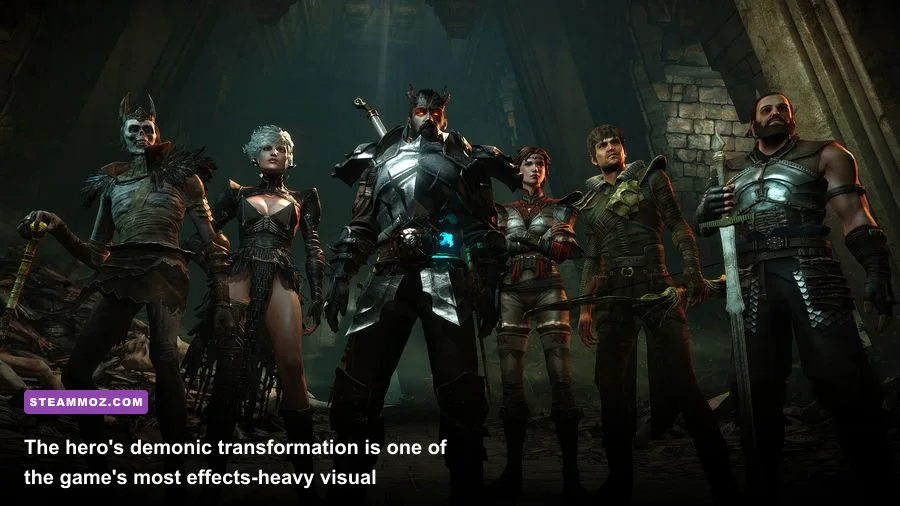
The original PC requirements list a 3 GHz processor, 3 GB of RAM, and a GeForce GTX 460 or Radeon HD 5850-class GPU for the recommended tier. That hardware is old now, but Bound by Flame can still behave awkwardly on integrated graphics because shared memory and laptop power limits matter more than the age of the CPU. If you are using Intel UHD, an older Vega iGPU, or a low-power GeForce MX chip, aim for a stable 30 or 45 FPS rather than an ambitious 60.
| Hardware profile | Resolution target | Graphics profile | Expected goal |
|---|---|---|---|
| GTX 1060 / RX 580 or newer | 1920x1080 | High textures, medium-high effects, medium shadows | Locked 60 FPS in most gameplay. |
| GTX 750 Ti / GTX 950 / R7 370 | 1920x1080 | High textures, medium shadows, low AO | Stable 60 with occasional dips. |
| GT 1030 / Radeon 550 | 1600x900 or 1920x1080 | Medium textures, low shadows, low AA | 45-60 FPS depending on scene. |
| Intel UHD / older Vega iGPU | 1280x720 or 1600x900 | Low shadows, AO off, medium textures | 30-45 FPS with reduced resolution. |
| Steam Deck-class handheld | 1280x800 or game-supported 720p | Medium preset, low shadows, capped frame rate | Prefer a consistent 40 or 45 FPS target. |
Start by lowering resolution only when the GPU is pinned at 99 percent. At 720p, the interface and subtitles become softer, and Bound by Flame's dark scenes lose some definition. A better first move is to switch off ambient occlusion, lower shadows to low, and reduce anti-aliasing. Those changes can recover the minimum frame rate without making every character look blurry.
On integrated graphics, keep textures at medium unless you see hitching during movement. Shared system memory is not the same as dedicated VRAM: assigning more memory in firmware does not magically create faster graphics memory. Also plug in a laptop, choose its high-performance power mode, and confirm that the game is using the dedicated GPU if the machine has one. Windows Graphics settings can assign the executable to the high-performance adapter.
Frame pacing deserves special attention on weak systems. A locked 30 FPS can feel surprisingly good in this deliberate third-person RPG, while a fluctuating 27-48 FPS feels rough during dodges and parries. Use a stable cap through your GPU control panel when the game's own V-Sync option produces uneven results. Test the cap in combat, not just in an empty corridor: enemy groups, fire, and spell effects create the useful worst case.
Handheld players should also watch battery and temperature limits. A 40 FPS cap often gives Bound by Flame a better balance than an uncapped 60 attempt, because the GPU stops bouncing between high and low clocks. Keep shadows low, disable AO, and leave textures at medium or high depending on available memory. The game's 2014 rendering pipeline does not need a huge wattage budget to look coherent.
How each graphics option affects performance
Do not tune Bound by Flame by randomly dragging every slider down. Change one option at a time, record the result in the same area, and watch the minimum FPS rather than the average. The opening regions, snowy paths, settlements, and Volcania all stress the renderer differently. Fire-heavy combat and scenes with several enemies are the best places to judge whether a setting is actually helping.
| Priority | Change | Why it helps | What you give up |
|---|---|---|---|
| 1 | Ambient occlusion off | Removes extra screen-space shading passes. | Less grounding beneath feet, walls, and props. |
| 2 | Shadows medium or low | Reduces shadow-map rendering from multiple lights. | Flatter environments and softer enemy shadows. |
| 3 | Anti-aliasing lower | Reduces edge-smoothing cost and bandwidth use. | More jagged railings, weapons, and foliage. |
| 4 | Effects medium | Controls particles, glow, and post-processing. | Less dramatic fire and transformation lighting. |
| 5 | Resolution lower | Delivers the largest raw GPU gain. | Everything becomes softer, including text. |
| 6 | Textures lower | Reduces VRAM pressure and streaming demand. | Surfaces lose detail; average FPS may barely change. |
Ambient occlusion, anti-aliasing, and shadows
Ambient occlusion darkens the small gaps where armor meets a body, where feet meet terrain, and where objects sit against walls. It is attractive in Bound by Flame's gloomy camps, but it is not essential to readability. If the game dips whenever several enemies surround you, turning AO off is a cleaner fix than dropping from 1080p to 720p.
Anti-aliasing is a middle-ground adjustment. At a high setting, it can soften the jagged edges around the protagonist's weapons and the railings in fortress areas, but older anti-aliasing implementations often consume more performance than their image-quality gain justifies. Use the lowest option that removes the most distracting shimmer. If the available menu offers only broad presets, choose medium and compensate with a modest resolution scale through the GPU driver only if necessary.
Shadow quality has the most obvious relationship with minimum FPS. A character's dodge is timing-sensitive, and a dip during an enemy wind-up is far more damaging than a slightly rougher shadow. Medium is the sweet spot. Low should be reserved for hardware below the GTX 460-class target or for laptops that throttle after several minutes.
Textures, effects, and post-processing
Effects quality governs the visual noise around fire, magic, explosions, and the hero's demonic abilities. Bound by Flame's transformation scenes are a good test because they combine glow, particles, and lighting. If effects cause drops, medium preserves the important color and silhouette cues while removing some expensive flourish. Do not confuse a brighter image with a faster image: post-processing can make the scene look smoother while still costing frames.
Motion blur, if exposed by your build or driver profile, should be disabled for a sharper view during combat. Blur can hide judder, but it also makes rapid camera turns and dodge timing less readable. Bloom is less expensive on most systems, so keep it if you like the game's fiery mood. If you need more performance, remove AO and reduce shadows before sacrificing textures.
Fix stutter, crashes, and inconsistent frame pacing
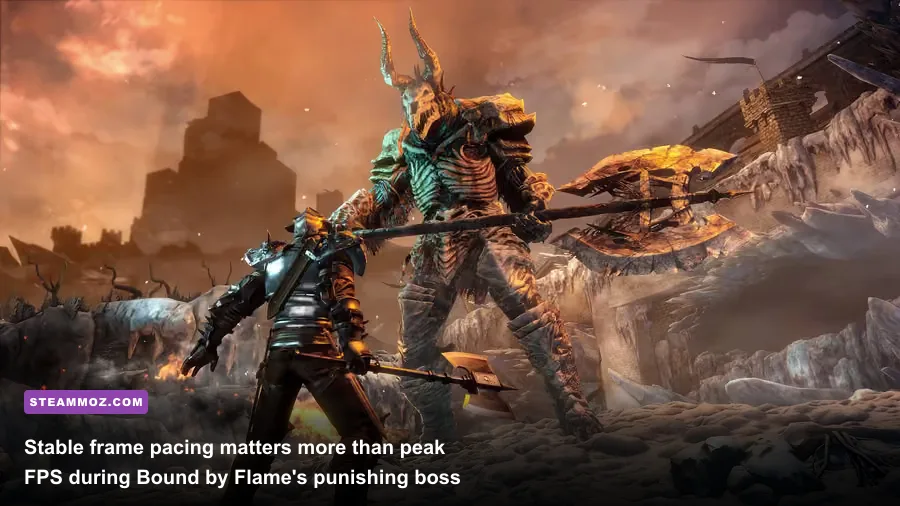
Average FPS is only half the story. Bound by Flame can feel sluggish when the counter is high if the frame-time graph is spiky. Start with the basics: install the game on an SSD, close browser tabs and overlays, disable unnecessary capture tools, and let the first few minutes of a new area play without constantly alt-tabbing. Older games can compile or cache assets in a way that makes the first pass through a location less smooth.
Steam's file verification is worth running after crashes, missing textures, or a failed configuration change. Open the game's Properties, choose Installed Files, and use Verify integrity of game files. Also check the official Bound by Flame Steam page for the current supported build and community reports. If you use mods, test a clean installation first; old injectors and reshade presets can conflict with fullscreen presentation.
Fullscreen behavior can vary across Windows versions. If exclusive fullscreen produces black screens or repeated alt-tab crashes, try borderless windowed mode through the game's launcher or configuration file, then cap FPS externally. Borderless can add a little compositor overhead, but it is often more stable on modern desktops. The right choice is the mode that delivers consistent frame times on your machine, not the one that sounds fastest on paper.
Keep the game and driver at sensible resolutions. Forcing a modern sharpening filter, aggressive downsampling, or unusual aspect ratio can introduce shimmering and UI problems that look like performance defects. Use the monitor's native 16:9 resolution first. Ultrawide users should test carefully because a wider field of view may expose more geometry and can make older interface elements behave unpredictably.
Crashes are not always caused by graphics quality. Check whether the problem appears in a repeatable location, after a specific cutscene, or only when an overlay is active. Disable Steam Overlay, Discord Overlay, and GPU recording one by one rather than changing everything at once. If the game only crashes after long sessions, monitor temperatures and clock speeds; thermal throttling can look like a graphics bug before it becomes one. Our ELEX PC fixes guide has additional troubleshooting ideas that apply to older Spiders-era PC releases.
Testing routine and final performance profile
Use a repeatable test instead of judging performance from the opening cutscene. Load a save near an active settlement, move through a busy section, trigger a combat encounter, and repeat the same dodge-and-camera movements. Include an area with fire or strong lighting, because those scenes expose the gap between an attractive average and a poor minimum. Write down average FPS, the lowest sustained reading, and whether controls feel responsive.
The recommended max-FPS profile
For a modern mid-range PC, use 1920x1080 fullscreen, high textures, medium shadows, low or disabled ambient occlusion, medium anti-aliasing, medium effects, and a 60 FPS cap. This profile keeps Bound by Flame's muddy forests, icy ruins, and volcanic landscapes recognizable without allowing shadow calculations to dominate the GPU. If your card stays below 60 in combat, lower effects first, then shadows, and only afterward reduce resolution.
For a high-refresh monitor, do not assume the game benefits from an uncapped 144 FPS. The engine and animation presentation are built around an older console-era design, and an unstable high frame rate can make camera movement feel less consistent. Test a 90 or 120 FPS cap if your system can sustain it, but a locked 60 remains the most reliable target. Input latency improves only when frame delivery is genuinely stable.
| Target | Resolution | Core profile | Cap and sync |
|---|---|---|---|
| Maximum visual quality | Native 1440p or 4K | High textures, high shadows, AO on | Use the highest stable cap; expect GPU-limited dips. |
| Balanced 60 FPS | 1920x1080 | High textures, medium shadows, AO low/off | 60 FPS cap; V-Sync or VRR, not both unnecessarily. |
| Older dedicated GPU | 1600x900 or 1080p | Medium shadows, low AA, AO off | 45 or 60 FPS cap based on combat tests. |
| Integrated graphics | 1280x720 | Medium textures, low shadows, low effects | 30 or 40 FPS cap for consistent frame pacing. |
Bound by Flame rewards a stable image more than a lavish one. Its best moments are built around readable enemy attacks, careful dodges, and the contrast between the hero's human and demonic powers—not ultra-dense foliage or cinematic shadow maps. That is why the recommended profile protects resolution and textures while cutting AO and shadows. You keep the atmosphere, preserve combat clarity, and spend performance where your eyes notice it least.
For more PC tuning advice across demanding RPGs, see our guide to Dragonkin settings that make every frame count. If you want more background on the studio behind Bound by Flame, visit Spiders' official website and the official Focus Entertainment game page. Set the profile, test it during a real fight, and tune the minimum FPS—not the biggest number your counter happens to display.