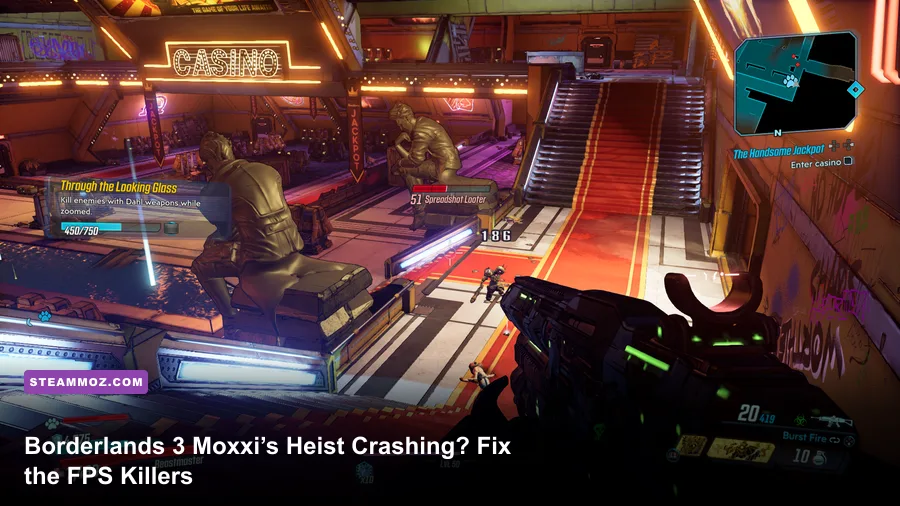
If Borderlands 3 crashes or crawls through Moxxi’s Heist of the Handsome Jackpot, start with three changes: verify the game files, switch between DirectX 11 and DirectX 12, and lower Volumetric Fog, Screen Space Reflections, and Material Quality before touching resolution. Then clear the Borderlands 3 shader cache, update your GPU driver with a clean install, and cap the frame rate below your monitor’s refresh rate. This combination fixes most DLC-specific crashes, traversal stutter, and sudden low-FPS drops on PC without turning the whole casino into a blurry mess.
The Handsome Jackpot is unusually demanding because its neon casino halls combine dense geometry, reflective surfaces, volumetric lighting, destructible props, elemental effects, and crowds of Maliwan, Hyperion, and Loader enemies. A PC that runs Pandora smoothly at 100 frames per second can still hitch badly in The Spendopticon or crash while loading Jack’s Secret. The good news is that the problem is usually a bad rendering path, corrupted cached shaders, unstable overlays, or a settings profile that overwhelms video memory—not the DLC itself being permanently broken.
Before changing anything, check the official Borderlands 3 Steam page for your installed edition and make sure the Handsome Jackpot add-on is listed in your DLC library. Players using Epic should check the official Epic Games Store DLC page. That simple check prevents a surprising number of launch loops caused by an incomplete or mismatched installation.

Why Handsome Jackpot runs worse than Pandora
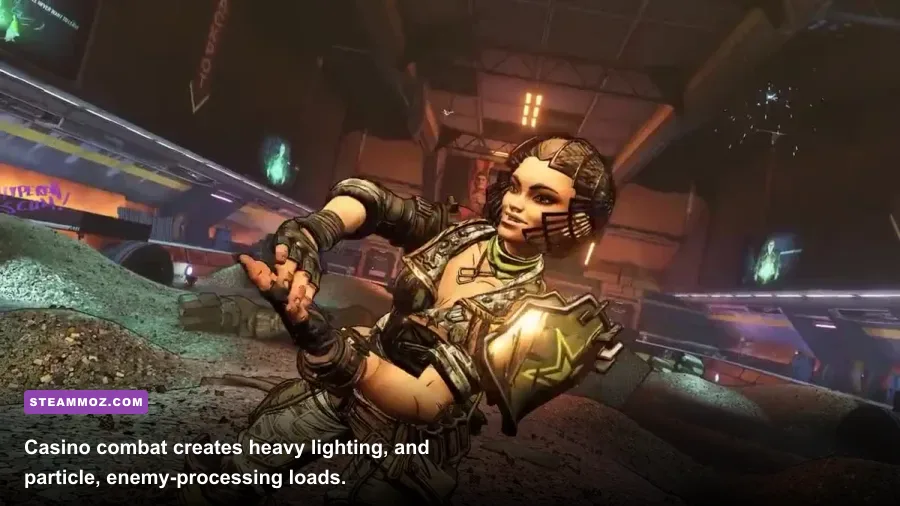
Moxxi’s Heist pushes different parts of the renderer than the base game’s open desert maps. The Spendopticon is packed with emissive neon signs and glossy floors. The Compactor adds fog, fire, debris, and machinery. Jack’s Secret combines narrow corridors with heavy particle effects, while VIP Tower arenas throw shield bubbles, explosions, projectiles, and multiple AI routines into the same frame. These scenes can become CPU-limited during enemy waves and GPU-limited when reflections and fog fill the screen.
That distinction matters. If GPU usage sits near 95 to 99 percent and the frame rate falls when you enter a bright casino room, reduce resolution scale, Volumetric Fog, Reflections, and Shadow Quality. If GPU usage drops below roughly 80 percent while one CPU core is pegged, lowering texture quality will not help. Use a frame-time graph in MSI Afterburner, AMD Adrenalin, or the NVIDIA overlay rather than trusting average FPS alone. A stable 60 FPS with consistent frame times feels far better than a counter that jumps between 110 and 48.
Borderlands 3 also streams large chunks of world data while you move between arenas. That is why traversal stutter can appear even after combat performance looks fixed. Installing the game on an SSD, leaving at least 15 percent free space, and allowing the first few minutes of a new driver’s shader compilation to finish can make a bigger difference than aggressive overclocking.
| Symptom | Likely Cause | Best First Fix | What Not to Do |
|---|---|---|---|
| Crash while loading DLC | Corrupt files, shader cache, or API conflict | Verify files, clear cache, test DX11 | Repeatedly launch with every overlay enabled |
| Low FPS in neon rooms | Reflections, fog, shadows, or VRAM pressure | Reduce fog and reflections first | Drop textures to Low immediately |
| Hitching while moving | Asset streaming or shader compilation | Use an SSD and rebuild shaders | Judge performance from the first minute |
| Sudden stutter during firefights | CPU-heavy AI and particle effects | Cap FPS and reduce effects | Use an unstable CPU overclock |
🎮 Borderlands 3 Moxxi's Heist of the Handsome Jackpot
Looking to experience this game? Grab your digital key directly on our store for $10.04.
View on Steammoz Store →Stop crashing with this repair sequence
Follow these steps in order. Changing ten variables at once makes it impossible to identify the real culprit, while this sequence isolates the common failure points without risking your save files.
1. Verify the Handsome Jackpot installation
On Steam, right-click Borderlands 3, choose Properties, open Installed Files, and select Verify integrity of game files. In the Epic Games Launcher, open Library, select the three dots beside the game, choose Manage, and click Verify. Let the launcher replace damaged files, then reboot Windows before launching. Do not uninstall the entire game first; verification is faster and preserves your configuration.
2. Test the opposite graphics API
Borderlands 3 can run through DirectX 11 or DirectX 12. DX12 often delivers better long-session performance on newer systems once shaders are built, but it may produce longer initial stutters or crashes after a driver update. DX11 is usually the better diagnostic mode because it starts more predictably. Set the API in the game’s Advanced Graphics menu, restart fully, and test the same location for at least five minutes. If the game crashes before the menu, edit the configuration file only after backing it up, or use the launcher’s command-line option for the alternate API.
3. Rebuild cached shaders
Close the game and launcher, then use Windows Disk Cleanup to remove DirectX Shader Cache. NVIDIA users can also clear the contents of the driver shader cache location after stopping the game; AMD users should use Adrenalin’s Reset Shader Cache option. The next launch may stutter while shaders compile. That is expected. Do not interrupt it during the first traversal through The Spendopticon, because repeatedly quitting during compilation can leave you thinking the fix failed.
4. Remove overlay conflicts
Temporarily disable Steam Overlay, Discord Overlay, GeForce Experience or AMD recording, Xbox Game Bar, MSI Afterburner’s on-screen display, and RGB utilities. Borderlands 3’s crashes are often blamed on the DLC when an overlay hooks into the renderer during a map transition. Once the game is stable, re-enable services one at a time. If only one overlay causes the crash, keep it disabled rather than sacrificing the entire graphics profile.
5. Clean-install the GPU driver
Download the current driver directly from NVIDIA or AMD. Choose the clean installation option where available, or use Display Driver Uninstaller in Windows Safe Mode if the problem began immediately after an update. Avoid beta drivers, third-party driver packs, and automatic overclocking while diagnosing crashes. Reboot, launch Borderlands 3 once with default settings, and only then apply your tuned profile.
6. Check Windows and hardware stability
Turn off XMP or EXPO temporarily if the game crashes under heavy combat but passes lighter benchmarks. Borderlands 3 can expose marginal memory settings even when other games appear fine. Watch CPU and GPU temperatures; sustained GPU temperatures around the upper 80s Celsius or a CPU hitting its thermal limit can create clock drops that look like a software crash. Also make sure the Windows page file is system-managed, especially on machines with 8GB or 16GB of RAM.
For more PC troubleshooting ideas, compare this workflow with Steamoz’s ELEX crash and FPS fixes and the practical performance advice in Dragonkin’s frame-saving settings guide. The games use different engines, but the diagnostic logic—API, cache, overlays, drivers, and frame-time testing—translates well.
Best graphics settings for stable FPS
Do not begin by setting everything to Low. Borderlands 3’s texture quality has a smaller frame-rate cost than fog, reflections, and shadows, provided your GPU has enough VRAM. Keeping textures at High preserves weapon detail, enemy readability, and the comic-book look that makes the DLC work. The profile below targets a stable 60 FPS at 1080p on a mainstream GPU such as a GTX 1660 Super, RTX 2060, RX 5600 XT, or better. At 1440p, use the same priorities but start at 75 to 85 percent resolution scale.
| Setting | Recommended Value | Approximate FPS Impact | Visual Trade-Off |
|---|---|---|---|
| Resolution Scale | 100% at 1080p; 75–85% at 1440p | Very high | Lower values soften the image |
| Texture Quality | High if VRAM allows | Low to medium | Low makes weapons and surfaces muddy |
| Material Quality | Medium | Medium | Less surface complexity and sheen |
| Shadow Quality | Medium | Medium to high | Edges and distant shadows become simpler |
| Draw Distance | Medium | Medium | Far geometry appears later |
| Anti-Aliasing | FXAA or low temporal option | Low to medium | FXAA is softer but stable |
| Volumetric Fog | Low | High in Compactor areas | Less smoke depth and light scattering |
| Screen Space Reflections | Low or Off | High in casino interiors | Floors and glass lose reflections |
| Foliage | Medium | Low in this DLC | Minimal effect inside the casino |
| Motion Blur | Off | Small | Sharper camera movement |
| FidelityFX Sharpening | On, moderate amount | Small gain in clarity | Restores detail after scaling |
Volumetric Fog is the standout performance lever. It affects light shafts, smoke, and atmospheric depth, so the FPS gain is most obvious in The Compactor rather than an empty corridor. Screen Space Reflections are similarly expensive in the casino because every glossy surface asks the GPU to approximate what is outside the current camera view. Turn them off before sacrificing textures.
Material Quality deserves a careful compromise. High can make neon surfaces and machinery look excellent but increases memory and shader workload. Medium is the sweet spot for 6GB cards. If you have 4GB of VRAM and see texture pop-in, delayed weapon skins, or hitching after fast travel, use Medium textures and close browsers before lowering the resolution.
Fix low FPS, stutter, and bad frame pacing
Set a sensible frame-rate cap. For a 60Hz display, cap at 60 FPS or 58 through RTSS if you use adaptive sync. For 120Hz, a 117 FPS cap is a good starting point; for 144Hz, try 141. The goal is to leave a little GPU headroom so explosions and enemy spawns do not slam the renderer into 100 percent usage. Borderlands 3’s heavy combat feels noticeably smoother when the frame-time line stays flat, even if the cap is lower than your uncapped average.
Use fullscreen rather than borderless while testing. Borderless is convenient for alt-tabbing, but Windows composition and capture tools can add latency or interfere with frame pacing. Disable resolution scaling in Radeon Super Resolution or NVIDIA Image Scaling until the base game is stable. If you need more performance afterward, use the game’s Resolution Scale first and pair it with moderate sharpening rather than piling multiple upscalers on top of one another.
CPU-limited players should reduce Draw Distance, Material Quality, and crowd-heavy effects instead of lowering resolution. Close launchers and browsers, set the game to High priority only if background tasks are interrupting it, and avoid parking CPU cores with aggressive motherboard utilities. GPU-limited players should target Fog, Reflections, Shadows, and resolution scale. The difference is easy to confirm: lower resolution and check whether FPS rises. If it barely changes, the CPU or streaming path is the bottleneck.
Install the game on an SSD and leave shader compilation alone after a driver change. Fast travel between The Spendopticon, Trashlantis, and The Compactor is a good test route because each area stresses streaming differently. If stutter improves after a complete circuit, the issue was probably shader or asset preparation. If it worsens steadily, watch VRAM and system memory; a leak, background recorder, or page-file thrash may be involved.
| Hardware Situation | Target Profile | Priority Changes | Expected Result |
|---|---|---|---|
| 4GB VRAM, 8GB RAM | 1080p Low/Medium, 60 FPS cap | Textures Medium, fog Low, close background apps | Fewer streaming hitches |
| 6–8GB VRAM, 16GB RAM | 1080p High, 60–100 FPS cap | Reflections Low, shadows Medium | Strong image quality with stable combat |
| 8GB+ VRAM, modern six-core CPU | 1440p High, 75–120 FPS cap | Keep textures High, tune fog and shadows | Sharp visuals with manageable spikes |
| CPU-limited laptop | 1080p Medium, 60 FPS cap | Draw distance Medium, performance mode | Reduced combat frame-time spikes |
How to test the fix inside the DLC
Use a repeatable route instead of wandering around and guessing. Load into The Spendopticon, sprint through the first casino halls, trigger a firefight near vending machines, then fast travel to The Compactor and repeat the test during a heavy Loader encounter. Finally, visit a boss arena you have already unlocked. Keep the same weapon, field of view, resolution, and frame cap for every run. This gives you useful comparisons instead of misleading one-off numbers.
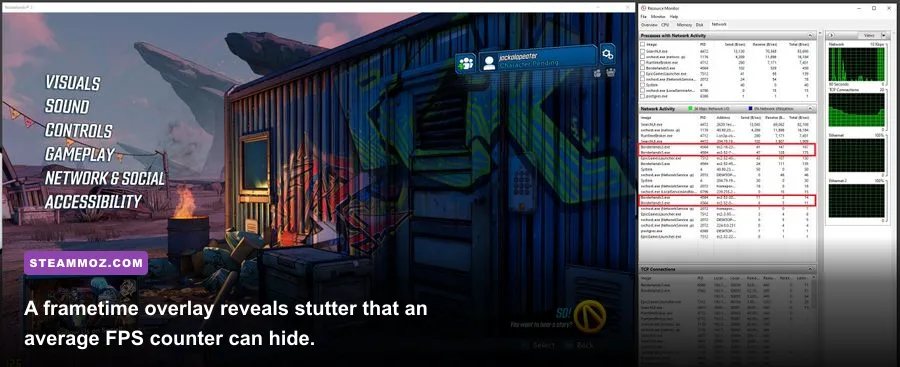
Watch the 1% low FPS and frame-time graph. A 60 FPS average with 1% lows near 25 means the game still feels jerky. Aim for a consistent 16.7-millisecond frame time at 60 FPS, or 8.3 milliseconds at 120 FPS. Enable the in-game FPS counter for a quick check, then use a frametime overlay for serious tuning. Record GPU utilization, VRAM, RAM, and temperatures during the same route. If VRAM is full and hitching follows camera turns, lower textures or resolution scale. If the GPU is underused during combat, investigate CPU load and overlays.
Do not benchmark the first launch after deleting shaders and declare victory or failure. The game needs time to rebuild them. Also test after a full restart, because sleep and fast startup can preserve a bad driver state. Once the DLC runs cleanly for 20 to 30 minutes, re-enable one overlay or recording feature at a time and retest. This is slower than clicking every setting randomly, but it identifies the exact source of the crash.
Last-resort fixes that protect your save
Back up your save folder before deleting configuration files. Borderlands 3 stores saves separately from the game installation, but you should still copy the folder to another drive or cloud location. Do not delete profile data casually: that can affect unlocked cosmetics, Golden Keys, and account-wide settings. If only one character crashes when entering the DLC, test a different character or load an earlier backup to determine whether the issue is save-specific.
Reset the game’s configuration after a driver or major Windows update if settings refuse to stick. Rename the configuration folder rather than deleting it, launch the game to generate fresh files, and rebuild your profile carefully. Start with DX11, 1080p, High textures, Medium shadows, Low fog, and reflections off. If the clean profile works, add your preferred field of view, resolution scale, and controller settings one by one.
Disable third-party overclocks, undervolts, ReBAR experiments, and custom launch arguments while testing. Borderlands 3 is a poor place to validate an unstable GPU curve because its mixture of shader compilation, particle effects, and streaming can fail in ways a synthetic benchmark misses. Restore stock settings first, then apply a conservative adjustment only after the Handsome Jackpot remains stable.
If none of this helps, report the crash with your GPU model, driver version, API, Windows build, RAM amount, exact map, and whether an overlay was active. Gearbox maintains support information through its official support portal, while the official Borderlands website is useful for current game and account information. Include crash logs when requested, and avoid downloading random replacement DLLs from unofficial fix sites.
For broader PC optimization comparisons, Steamoz’s real-world PC requirements guide explains why minimum specifications rarely guarantee smooth frame pacing. The same principle applies here: stable storage, clean drivers, sensible caps, and targeted settings beat a flashy ultra preset that collapses during every Handsome Jackpot firefight.
The reliable order is simple: verify files, test DX11 and DX12 separately, rebuild shaders, disable overlays, clean-install the GPU driver, then tune fog, reflections, shadows, and the frame cap. Keep textures higher when VRAM allows, test in the same casino routes, and change one thing at a time. With that approach, Moxxi’s heist should return to what it does best—ridiculous gunfights, ridiculous neon, and a surprisingly smooth path to the casino vault.