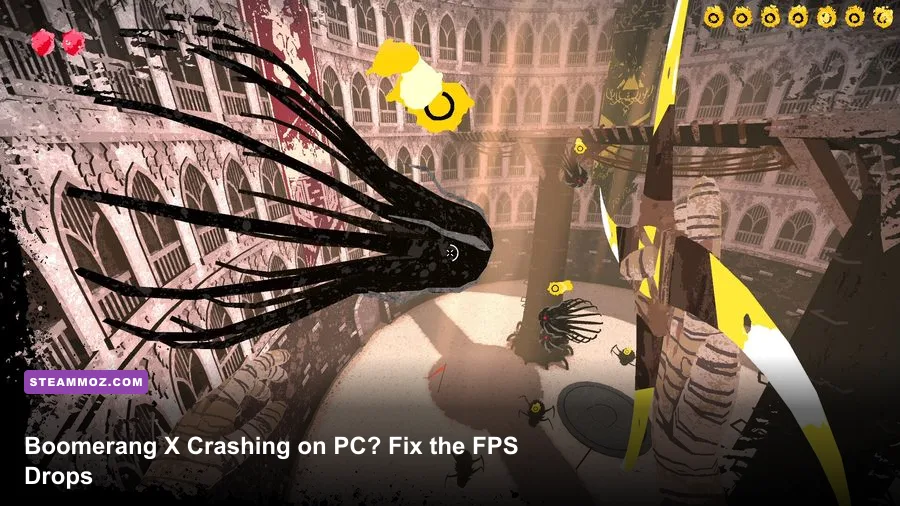
If Boomerang X is crashing or running at low FPS on your PC, start with a clean 1080p profile: use exclusive fullscreen, disable V-Sync and motion blur, lower shadows and effects, cap the game to a stable 60 FPS, then update your GPU driver and verify the Steam installation. The game’s frantic dash, grapple, slow-motion, and boomerang-return mechanics punish inconsistent frame pacing, so a locked 60 FPS usually feels better than an unstable 120.
Boomerang X is not a demanding game by modern standards, yet that does not make every PC setup immune to trouble. Its arenas fill with particles, enemies, fast camera swings, and rapid movement in every direction. A small hitch that would be harmless in a turn-based RPG can throw off a grapple, ruin a mid-air dodge, or make the returning boomerang feel late. This guide focuses on fixes that target both outright crashes and the low-FPS or stutter problems players actually feel during combat.
Before changing anything, check the official Steam page for Boomerang X and compare its listed requirements with your hardware. For broader PC troubleshooting habits, Steamoz’s guide to ELEX crash and FPS fixes is also useful, especially if several games are misbehaving.
Start with this five-minute stability checklist
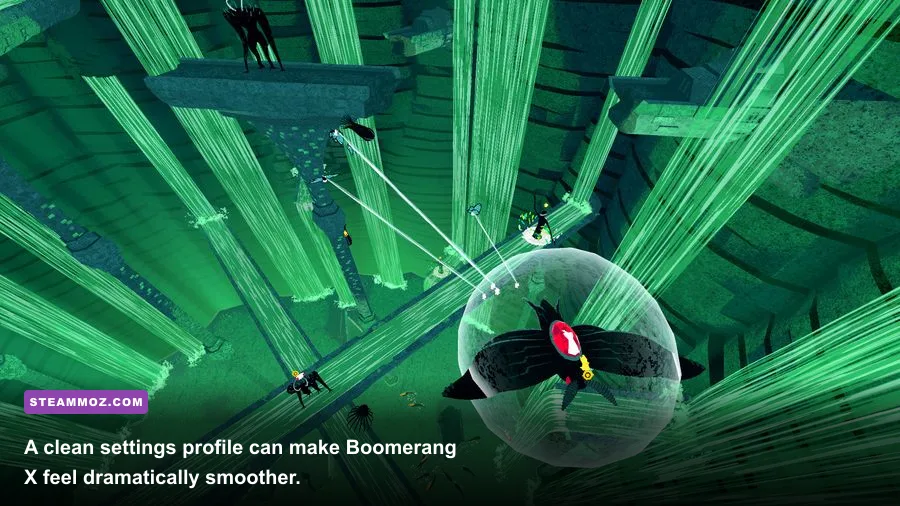
Do these steps in order rather than changing ten settings at once. That gives you a clear answer about which fix helped.
1. Restart Steam and remove overlays
Close Boomerang X, exit Steam completely from the notification area, and relaunch it. Temporarily disable the Steam Overlay by opening the game’s Properties, selecting General, and switching off Enable the Steam Overlay while in-game. Also test with Discord Overlay, NVIDIA App or GeForce Experience overlay, AMD Software overlay, Xbox Game Bar, and MSI Afterburner’s RivaTuner overlay disabled. Overlay hooks can conflict with Unity-based games, particularly when the game changes resolution or switches between fullscreen and borderless mode.
2. Verify the installation
In Steam, right-click Boomerang X, choose Properties, Installed Files, and Verify integrity of game files. This replaces damaged or incomplete files without deleting your saves. If Steam reports a repair, reboot the computer before testing again; otherwise an old process or locked file can make the first launch look broken.
3. Update the graphics driver properly
Install the latest stable driver for your NVIDIA, AMD, or Intel GPU. If crashes began immediately after a driver update, roll back one version instead of assuming newer is always better. A clean driver installation is worthwhile when the crash occurs during startup, when the screen goes black, or when the game closes as the first arena loads.
4. Check Windows power and GPU assignment
On a laptop, open Windows Settings, System, Display, Graphics, add the Boomerang X executable, and choose High performance. Play while connected to AC power. Windows battery modes can downclock the GPU enough to create severe frame-time spikes, even though the average FPS counter looks acceptable.
5. Stop forced compatibility tweaks
Right-click the game executable, open Properties, Compatibility, and make sure compatibility mode is off unless you are solving a very specific Windows issue. Avoid random launch options copied from unrelated games. They can force an incorrect renderer, resolution, or input mode and make a simple crash harder to diagnose.

🎮 Boomerang X
Looking to experience this game? Grab your digital key directly on our store for $4.99.
View on Steammoz Store →The best Boomerang X graphics profile for stable FPS
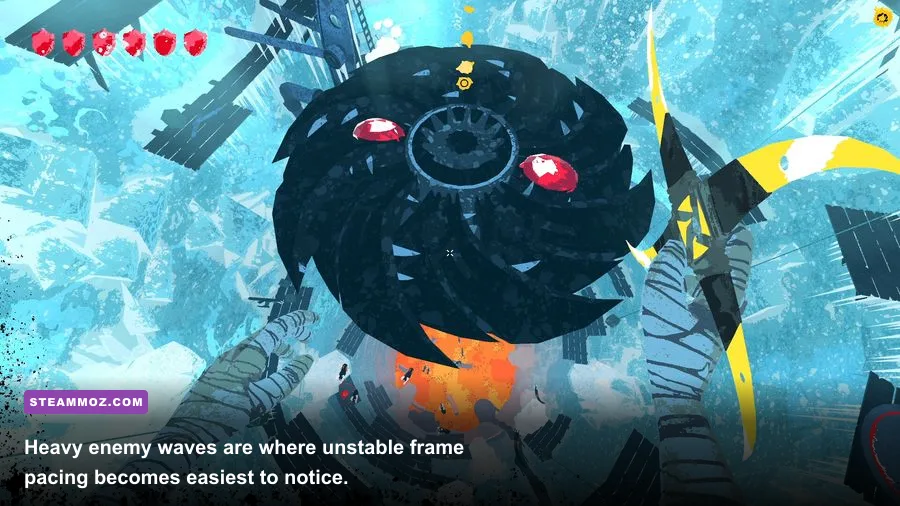
The goal is not to make Boomerang X look ugly. The goal is to remove the settings that create expensive frame-time spikes while preserving the contrast that helps you track the boomerang and airborne targets. Begin at your monitor’s native resolution, then adjust the profile below.
| Setting | Recommended value | FPS impact | Visual note |
|---|---|---|---|
| Display mode | Exclusive fullscreen | Low to medium | Usually gives the most consistent presentation and avoids desktop compositor issues. |
| Resolution | 1920×1080, or native resolution | High if lowered | Lower only when the GPU is clearly saturated; image clarity matters for fast targets. |
| V-Sync | Off for testing | None directly | Removes added latency, though you can re-enable it if tearing is distracting. |
| Frame rate cap | 60 FPS, or your monitor’s stable refresh target | Improves consistency | A stable cap is preferable to swinging between 70 and 130 FPS. |
| Shadows | Low or medium | Medium to high | One of the safest reductions when arenas become busy. |
| Effects and particles | Medium | Medium to high | Reduces combat spikes without heavily damaging geometry quality. |
| Anti-aliasing | Medium or the lowest clean option | Low to medium | Lower this after shadows and effects, not before them. |
| Motion blur | Off | Small | Improves visual tracking during dashes, grapples, and quick turns. |
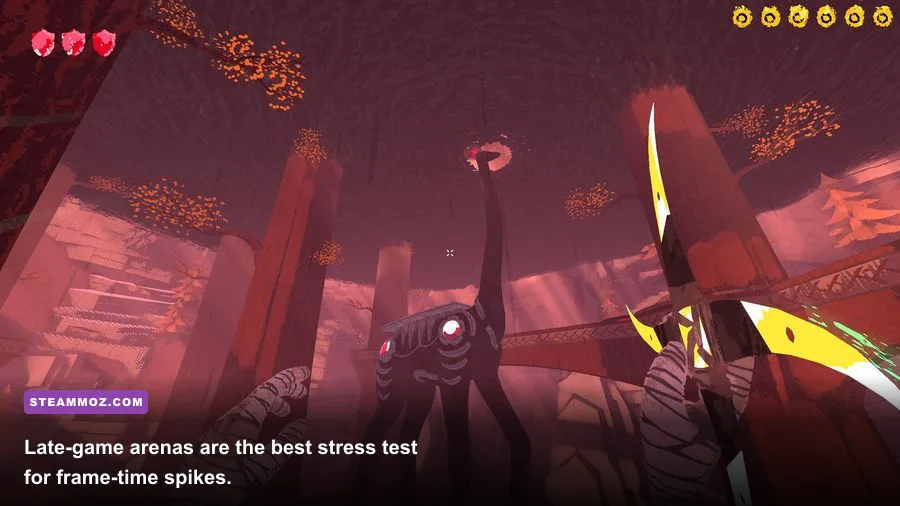
Test this profile in the same busy arena for at least five minutes. Do not judge performance from the title screen or a quiet section. Boomerang X’s frame rate is most likely to dip when several enemies, projectiles, lighting effects, and rapid camera movements overlap. If 60 FPS is stable, leave the cap there. If your PC holds 120 FPS everywhere except during large waves, a 90 or 100 FPS cap may feel better than an uncapped graph full of sudden drops.
For a more detailed explanation of why a stable cap beats headline FPS, see our coverage of settings that make every frame count. The same principle applies here, but Boomerang X makes it more obvious because movement and aiming are inseparable.
How to stop startup crashes and black screens
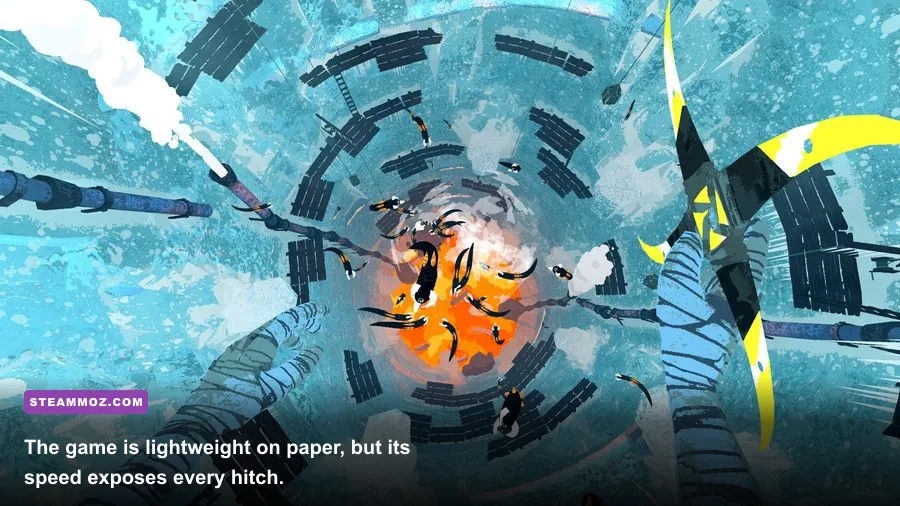
A crash at launch usually points to a file, driver, overlay, permission, or configuration problem rather than raw GPU power. Work through these fixes from least destructive to most invasive.
Reset the game’s local configuration
If Boomerang X crashes after changing resolution, refresh rate, or display mode, its saved display configuration may no longer match your monitor. Close Steam and back up the game’s local save and configuration folders before removing only the display configuration file or folder associated with Boomerang X. The exact location can vary by Windows installation and game build, so use Steam Cloud carefully: disabling it temporarily prevents a bad configuration from being restored immediately. Re-enable it after the game launches normally.
Do not delete your entire user-data directory without a backup. That can remove progress, unlocks, and settings. The safe approach is to rename a suspected configuration folder, launch the game, and restore files one by one if needed.
Run the executable with normal permissions
Do not force Run this program as an administrator unless you have a specific permission error. Elevated and non-elevated overlays sometimes fail to hook consistently. Instead, install the game in a normal Steam library folder, make sure your Windows account can write to it, and allow the game through your security software when prompted.
Repair common runtime components
Install pending Windows updates and repair Microsoft Visual C++ Redistributable packages if several games crash. Also check Windows Security’s protection history for a quarantined game file. If an antivirus program is blocking the executable, add the Steam library folder as an exception only if you trust the installation source. Never download replacement DLL files from random websites.
Test without HDR and unusual refresh modes
Temporarily disable Windows HDR and set the monitor to a conventional refresh rate such as 60, 120, or 144 Hz. A black screen that recovers after Alt-Tab often points to a display negotiation problem. Once the game works, restore HDR or a custom refresh mode individually so you know which feature causes the conflict.
Fix low FPS, stutter, and uneven frame pacing
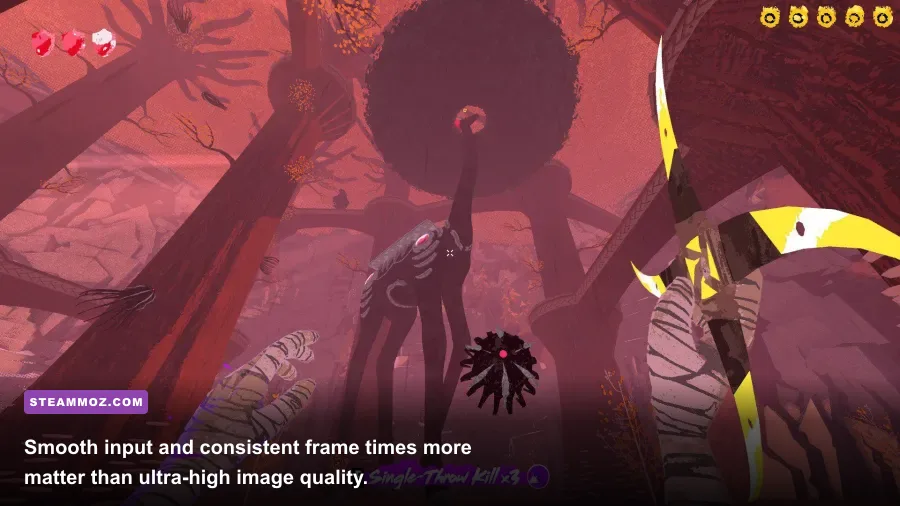
Average FPS is only half the story. If the counter says 90 but the game pauses every time you grapple across an arena, you are dealing with frame-time spikes. Use the GPU performance overlay, Windows Task Manager, or a trusted monitoring tool to determine whether the GPU, CPU, memory, or background software is responsible.
| Symptom | Likely bottleneck | First fix | What success looks like |
|---|---|---|---|
| Low FPS everywhere | GPU load or resolution | Lower resolution, shadows, and effects | GPU usage falls and FPS rises without hitching. |
| Only busy arenas dip | Effects, shadows, or CPU scene work | Lower effects and cap FPS | Large waves feel consistent instead of collapsing suddenly. |
| Short freezes during movement | Background tasks or shader compilation | Close overlays and wait through one test run | Repeated traversal becomes smooth. |
| High FPS but delayed input | V-Sync or frame queue | Disable V-Sync and use a stable cap | Throws and grapples respond more immediately. |
| Performance worsens over time | Thermal throttling | Check temperatures and cooling | Clock speeds remain stable after ten minutes. |
Watch GPU utilization first. If it sits near 95–100 percent, lower resolution, shadows, and effects. If GPU usage is low while FPS remains poor, the limit may be CPU-side, a power profile, a background process, or a driver issue. Close browsers with video tabs, launchers, RGB utilities, recording software, and hardware-monitoring tools you do not need.
Thermal throttling is easy to miss on laptops. A game can launch at a healthy 100 FPS and fall to 45 after several minutes as the CPU or GPU reaches its temperature limit. Clean blocked vents, use a firm surface, select a performance power mode, and monitor clock speeds rather than temperature alone. If clocks repeatedly drop during a dip, software settings will not fully solve the problem.
Disable recording features such as instant replay while troubleshooting. Capturing every fast movement can add overhead, and Boomerang X’s constant camera motion produces more capture work than a static game. Once the frame-time graph is clean, re-enable recording and test it separately.
Make controls and display changes without triggering problems
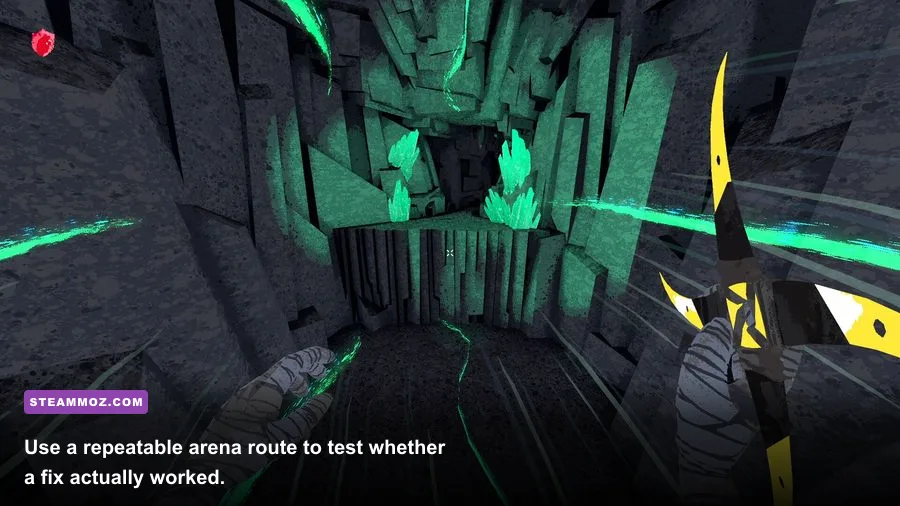
Boomerang X feels best when movement, aiming, and the returning weapon stay readable. That means performance settings should support control, not just make a benchmark number look impressive.
Use a consistent mouse sensitivity and disable motion blur first. Motion blur can smear the boomerang during its return path and make a brief hitch look worse than it is. If you use a controller, connect it before launching the game and avoid switching rapidly between controller and mouse during a resolution change. Some games rebuild their input state during focus changes, which can look like a crash or a frozen window.
Borderless windowed mode is convenient for Alt-Tab, but exclusive fullscreen is the better diagnostic mode. Borderless can inherit desktop scaling, HDR behavior, and background refresh settings. If exclusive fullscreen fixes stutter, keep it enabled or re-test borderless after disabling HDR and overlays.
For high-refresh displays, set a cap slightly below the refresh rate when using adaptive sync. A 141 FPS cap on a 144 Hz monitor or 162 FPS on a 165 Hz display can reduce synchronization swings. If your PC cannot hold that target in busy arenas, use 60 or 90 instead. The right number is the highest frame rate that remains stable during the worst combat sequence, not the number shown while standing still.
Advanced fixes when the usual steps fail
If Boomerang X still crashes after verification, driver testing, and a clean graphics profile, isolate the problem rather than throwing more launch commands at it.
Use a clean boot test
Temporarily disable non-Microsoft startup services through Windows System Configuration, restart, and launch the game with Steam only. If the crash disappears, re-enable services in batches until the conflict returns. Audio suites, RGB controllers, performance overlays, and motherboard utilities are common suspects because they inject software into games.
Check Windows Event Viewer
Open Event Viewer, go to Windows Logs, Application, and inspect the error created at the crash time. A faulting module associated with a GPU driver points toward driver cleanup or rollback. A repeating Unity, graphics, or access-violation entry suggests configuration, runtime, or overlay interference. Event Viewer will not always name the real cause, but repeated patterns are more useful than guessing.
Reinstall only after backing up saves
Reinstalling is the final software step, not the first. Back up local saves, note your current display settings, uninstall Boomerang X, restart Windows, and install it into a different Steam library folder if possible. This rules out a damaged installation path and stale files. If the same crash affects other Unity games, focus on the driver, Windows, RAM stability, or overclock instead of repeating the game reinstall.
Finally, remove GPU and CPU overclocks, including automatic motherboard profiles, for one test session. Unstable memory can crash a lightweight game just as easily as a demanding one. If stock settings fix the issue, tune gradually and test with a repeatable combat route.
For more PC performance reading, Steamoz also covers real PC requirements and smooth-play testing. If your problem is specific to Steam’s client rather than the game, consult official Steam Support before deleting local data.
How to confirm the fix actually worked
Do not stop after a successful launch. Load the same arena, perform the same movement route, and repeat the same actions: throw the boomerang, grapple across the arena, use slow motion during a crowded wave, and trigger several returns through active enemies. Test for ten minutes, because thermal throttling and background tasks often take time to appear.
Record three things: average FPS, the lowest sustained FPS during a busy encounter, and whether input feels consistent. A profile that holds 60 FPS with no pauses is a win, even if the uncapped counter once reached 140. If crashes return only after enabling an overlay, HDR, an overclock, or a custom refresh mode, you have identified the trigger and can leave that feature disabled.
The most reliable Boomerang X setup is deliberately unglamorous: updated stable drivers, exclusive fullscreen, native 1080p or a sensible resolution, medium effects, low-to-medium shadows, motion blur off, a stable frame cap, and no overlays while testing. That combination preserves the game’s sharp visual rhythm and gives every throw, grapple, dash, and slow-motion dodge the timing it deserves.