If Bee Simulator crashes on startup or crawls below 60 FPS, start with the fixes that target Unreal Engine’s common trouble spots: verify the Steam installation, update your GPU driver, disable overlays, use exclusive fullscreen, and lower shadows, foliage, and post-processing before touching resolution. The game’s PC requirements are modest by modern standards, but its large outdoor environments can still create stutter on older four-core CPUs and graphics cards.
This guide separates a hard crash from a low-FPS problem, then gives you a stable settings profile for 1080p. It also explains what to change when the game runs smoothly inside the hive but tanks while flying through the park. For broader PC troubleshooting ideas, Steamoz’s ELEX crash and FPS fixes follows a similar diagnostic approach.
Check Bee Simulator’s PC requirements first
Before chasing obscure fixes, compare your machine with the specifications listed on the official Bee Simulator Steam page. The minimum target is roughly a 64-bit Windows 7-era PC with an Intel Core i5-2500K-class processor, 8 GB of RAM, and a GeForce GTX 660 or Radeon HD 7870-class GPU. The recommended tier moves toward an i7-4770K-class CPU, 16 GB of memory, and a GTX 970 or Radeon R9 290-class graphics card.
Those numbers matter because low FPS has two very different causes. If your graphics card is below the minimum class, reducing resolution can help. If your GPU usage sits below 90 percent while the frame rate dips during flight, the CPU, asset streaming, or background applications are more likely responsible. Bee Simulator also requires a 64-bit operating system and DirectX 11 support, so old 32-bit Windows installations are a dead end rather than a settings problem.
| Component | Minimum target | Recommended target | What it means in play |
|---|---|---|---|
| Operating system | 64-bit Windows 7 or newer | 64-bit Windows 10 or newer | Use current Windows updates for driver and DirectX compatibility |
| Processor | Core i5-2500K class | Core i7-4770K class | CPU limits show up during outdoor flight and scene streaming |
| Memory | 8 GB RAM | 16 GB RAM | 8 GB can work, but background apps increase hitching |
| Graphics | GTX 660 or Radeon HD 7870 class | GTX 970 or Radeon R9 290 class | Foliage, shadows, and resolution determine GPU load |
| API and storage | DirectX 11, about 10 GB | DirectX 11, SSD preferred | An SSD reduces texture and area-streaming pauses |
🎮 Bee Simulator: The Hive
Looking to experience this game? Grab your digital key directly on our store for $14.99.
View on Steammoz Store →Stop Bee Simulator from crashing on startup
1. Verify every installed file
In Steam, right-click Bee Simulator, choose Properties, open Installed Files, and select Verify integrity of game files. Let the scan finish completely, then restart Steam. A failed update, interrupted download, or damaged Unreal asset can cause an immediate crash before the main menu appears. If Steam replaces files, launch the game once before adding mods, reshade tools, or custom launch options.
2. Refresh the graphics driver cleanly
Install the latest stable driver from NVIDIA or AMD. Choose the clean-install option where available. Driver updates sometimes preserve a broken shader cache, so if Bee Simulator still crashes after updating, clear the vendor shader cache through Windows storage settings or the GPU control panel, reboot, and let the game rebuild it.
3. Remove overlay conflicts
Temporarily disable Steam Overlay, Discord Overlay, Xbox Game Bar, GeForce Experience or AMD recording overlays, MSI Afterburner’s on-screen display, and RGB monitoring software. These hooks can collide with an older DirectX 11 title, particularly when you use borderless mode or switch windows repeatedly. Test with only Steam running. If that fixes the crash, re-enable overlays one at a time to identify the offender.
4. Reset broken local settings
A corrupted configuration can crash the game before it reaches the graphics menu. Close Steam, back up Bee Simulator’s local save and configuration folders, then rename the game’s settings folder rather than deleting it immediately. Start the game so it creates fresh defaults. If the crash disappears, restore saves only—not the old graphics configuration. This is especially useful after changing resolution, display mode, or monitor setup.
Also unplug unnecessary controllers and launch with a single monitor if the crash occurs during startup. Avoid permanent compatibility-mode settings unless the official Varsav Game Studios website specifically recommends them; compatibility layers can introduce new input and display issues on modern Windows.
Use these settings to fix low FPS and stutter
For a stable 1080p starting point, select fullscreen, cap the frame rate to a value your PC can hold, and reduce the settings that affect scene complexity. Don’t immediately drop everything to Low: Bee Simulator’s bright outdoor art loses depth quickly when shadows and foliage are stripped away, while some options barely change performance.
| Setting | Recommended value | FPS impact | Visual trade-off |
|---|---|---|---|
| Resolution | 1920×1080; 1600×900 for weak GPUs | Very high | Lowering it improves GPU-limited performance but softens the image |
| Display mode | Fullscreen | Low to medium | Usually gives steadier frame pacing than borderless mode |
| Resolution scale | 100%; 85–90% if needed | High | Lower scale is often cleaner than dropping all quality settings |
| Shadows | Medium | High | Low shadows save frames in parks but make scenes flatter |
| Foliage or view distance | Medium | High on older GPUs and CPUs | Reduces distant grass and vegetation density |
| Anti-aliasing | Medium | Medium | Lower values create more shimmer around branches and buildings |
| Post-processing | Low or Medium | Medium | Reduces bloom and image effects without changing geometry |
| Textures | High with 4 GB VRAM; Medium with 2 GB | Low if VRAM is sufficient | Keep this higher than shadows when memory allows |
| V-Sync | Off with an FPS cap; On for visible tearing | Variable | On can add latency and lock performance to monitor refresh |
Make one change at a time and test the same route. Fly from the hive toward the open park, turn through a flower-heavy area, and repeat the route twice. The first pass may stutter while shaders and assets load; the second pass tells you whether the setting change actually helped. If you have a 60 Hz display, a 60 FPS cap is sensible. On weaker hardware, a locked 30 FPS can feel dramatically better than a fluctuating 35–55 FPS.
Why FPS drops during flight through the park

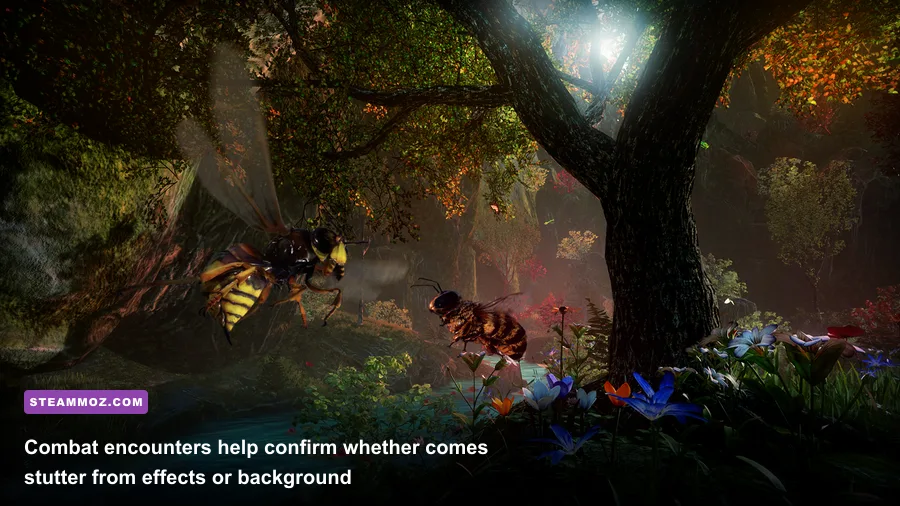
Bee Simulator is far easier to run indoors than outdoors. The hive has fewer visible objects, while park flight combines distant geometry, foliage, shadows, NPC activity, lighting, and streaming. That mix can produce a CPU-limited dip even when lowering resolution barely changes the frame rate.
Watch GPU usage with an overlay only after the game is stable. If GPU usage is near 95–99 percent, lower resolution scale, shadows, anti-aliasing, and post-processing in that order. If GPU usage falls to 60–80 percent during a dip, lower foliage or view distance, close browser tabs and launchers, and check CPU temperatures. A processor that is throttling under sustained load can look like a game bug.
Install the game on an SSD if possible, keep at least 15 percent free space on the drive, and disable aggressive background scans while playing. Don’t expect an SSD to create a higher average FPS; its real benefit is reducing the harsh hitch when Bee Simulator streams another part of the city or park.
Choose a frame-rate target you can actually hold
Competitive precision isn’t the point here, so consistency wins. A 60 FPS cap is excellent on a recommended-class PC. A 45 FPS cap can suit a mid-range laptop if 60 isn’t sustainable. On a minimum-spec machine, use 900p or 720p, Medium shadows, Low foliage, and a 30 FPS cap. Avoid uncapped output: it encourages the GPU to run flat out, raises temperatures, and can turn occasional stutter into constant frame-time noise.
Fix freezes, black screens, and alt-tab crashes
Black screens are often display-mode or resolution problems rather than a failed installation. Start the game with only one monitor active, use fullscreen, and avoid changing resolution while a loading transition is underway. If you can hear audio behind a black screen, press Alt+Enter once to switch display mode, then wait several seconds before clicking. Repeatedly alt-tabbing during a flight transition is a reliable way to make an older PC title unhappy.
Disable HDR temporarily, set Windows display scaling to its normal value for testing, and turn off GPU-level sharpening or forced anti-aliasing. Laptop players should connect the charger, select the High Performance or Best Performance power mode, and force Bee Simulator onto the dedicated GPU through Windows Graphics settings. Integrated graphics can launch the game while delivering unusable performance.
If the game freezes after several minutes, check temperatures and memory use rather than reinstalling immediately. A GPU approaching its thermal limit may downclock; 8 GB systems can also begin paging when Steam, a browser, recording software, and antivirus scans are all active. Close those programs, reboot, and test a clean session.
Use a clean troubleshooting order before reinstalling
Reinstalling is worth trying only after the cheaper fixes fail. Follow this order so you know what solved the problem: reboot the PC, verify files, update the GPU driver, disable overlays, reset local settings, lower the performance-heavy options, and test with a capped frame rate. If the game works after one step, stop changing things and write down the working configuration.
| Symptom | Most likely cause | First action | Last-resort action |
|---|---|---|---|
| Crash before menu | Bad config, driver hook, damaged file | Verify files and disable overlays | Rename local settings folder |
| Crash during loading | Asset file or shader-cache issue | Clear shader cache and verify files | Reinstall to an SSD |
| Low FPS everywhere | GPU below target, wrong graphics adapter | Confirm dedicated GPU and lower resolution scale | Upgrade hardware |
| Dips only outdoors | Foliage, shadows, CPU streaming load | Lower foliage and shadows; cap FPS | Reduce view distance and background load |
| Stutter after alt-tab | Borderless or overlay conflict | Use fullscreen and disable overlays | Restart the game after changing windows |
If none of that works, uninstall Bee Simulator, reboot, reinstall it to a healthy drive, and verify the files again before launching. Keep your save backup separate from the installation directory. When reporting the issue to the developer, include your CPU, GPU, RAM, Windows version, driver version, resolution, exact crash point, and whether verification changed anything. That detail is far more useful than simply saying the game “doesn’t run.”
For another example of practical PC tuning, see Steamoz’s Dragonkin settings guide and Drawful 2 PC requirements breakdown. The same principle applies here: find the bottleneck first, then make the smallest visual compromise that fixes it.