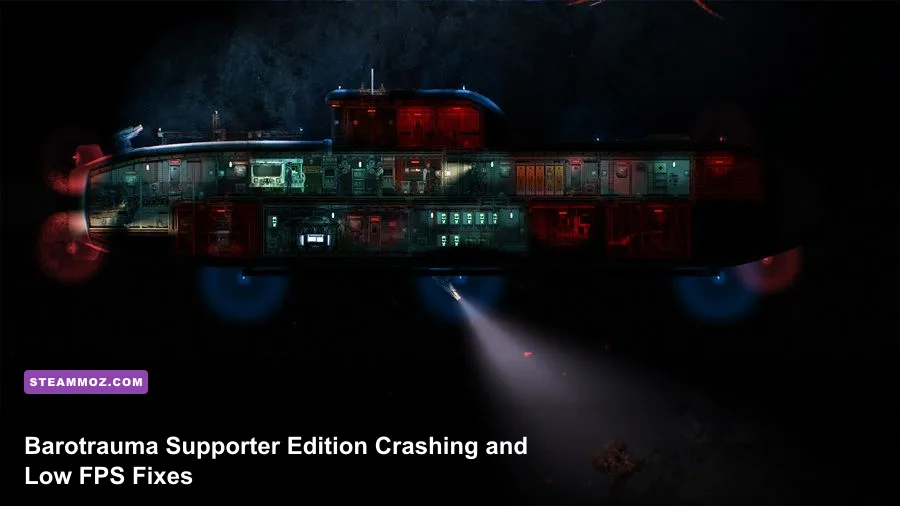
If Barotrauma - Supporter Edition keeps crashing or running below 60 FPS, start with a clean mod test, verify the Steam files, disable high-cost lighting and particles, then cap the frame rate. The Supporter Edition does not use a special performance-heavy game build; it is the same core Barotrauma executable with supporter content. Most problems come from outdated Workshop mods, corrupted local files, driver overlays, CPU-heavy submarine simulations, or graphics settings that punish older hardware.
That distinction matters. Buying the Supporter Edition won't require a different fix than owning the standard game, and reinstalling the supporter content usually won't repair a crash caused by a broken campaign mod. Follow the order below so you can identify the actual cause instead of randomly lowering settings and hoping for the best.

First, identify whether the problem is a crash or frame-time spike
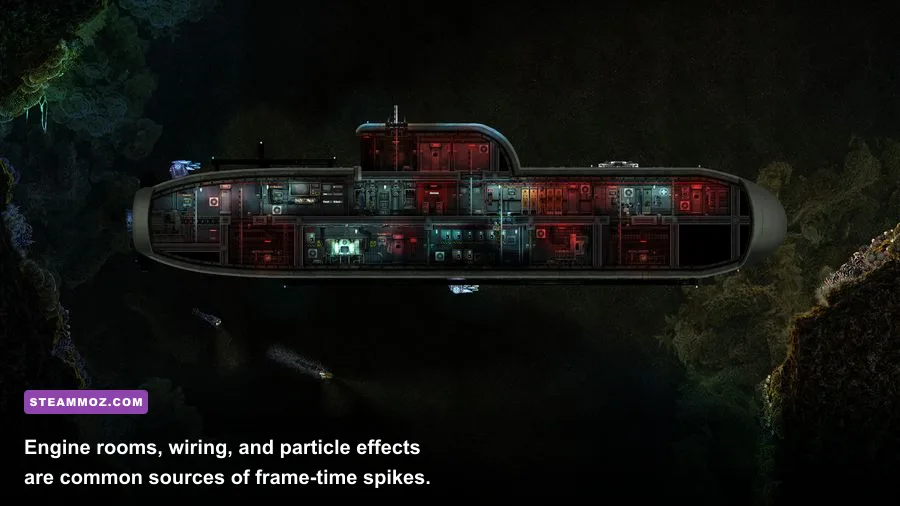
Barotrauma can feel like it is crashing when the game is actually stalling for several seconds. A real crash usually closes to desktop, freezes permanently, or produces a crash report. A frame-time spike leaves the game running but makes characters, water, and menus appear to move in bursts. The distinction points to different fixes.
Watch the pattern for a few minutes. If the frame rate collapses whenever a large crew gathers inside a highly wired submarine, the bottleneck is probably CPU simulation rather than your graphics card. If FPS drops when lights, fires, explosions, or creatures appear, GPU rendering and particles are more likely. If the game closes when loading a save, joining a server, or entering a specific location, suspect a mod, damaged save, or version mismatch.
| Symptom | Most likely cause | Best first test | Typical fix |
|---|---|---|---|
| Desktop crash during startup | Broken mod, overlay, or damaged file | Launch vanilla and verify files | Disable mods, overlays, then repair installation |
| Crash while loading a campaign | Outdated content mod or corrupted save | Load a new vanilla campaign | Update or remove the mod; restore an earlier save |
| Low FPS near fires and explosions | Lighting and particle workload | Disable particles and reduce lighting | Use the performance graphics profile below |
| Low FPS in crowded submarines | CPU simulation, wiring, items, and pathfinding | Test a small default submarine | Reduce crew, entities, and background applications |
| Online rubber-banding | Network or server simulation, not raw FPS | Compare single-player and multiplayer | Try another server and check ping or host load |
Use Steam's FPS counter or a tool such as MSI Afterburner to watch GPU utilization and frame time. A GPU sitting around 40 percent while the game struggles at 35 FPS usually means the CPU or simulation is holding it back. Increasing resolution in that situation won't solve anything; it only adds GPU work.

🎮 Barotrauma - Supporter Edition
Looking to experience this game? Grab your digital key directly on our store for $20.39.
View on Steammoz Store →Fix Barotrauma crashes in the correct order
1. Launch a completely vanilla session
From the main menu, disable every Workshop mod and any enabled submarine, creature, item, or overhaul package. Do not only disable the last mod you installed. Barotrauma updates can make an older mod incompatible even when that mod worked for months, and multiplayer servers may automatically download content that conflicts with your local load order.
Start a new single-player campaign using a stock submarine. Do not test with your main save first. If the clean campaign works, the executable is probably fine and your original save or mod stack is the culprit. Re-enable mods in small groups, restarting between tests. When the crash returns, split that group in half. This binary-search approach finds a bad mod far faster than enabling 80 items one by one.
2. Verify the Supporter Edition installation
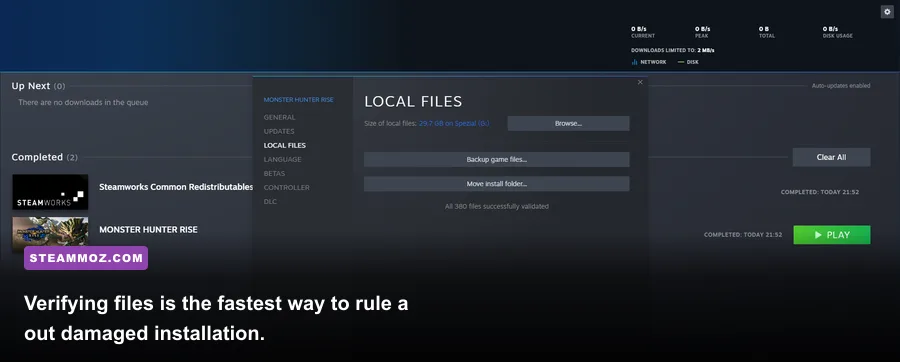
In Steam, right-click Barotrauma, select Properties, open Installed Files, and choose Verify integrity of game files. Steam will replace missing or altered files, but it will not automatically repair every Workshop download or rescue a corrupted campaign save. After verification completes, restart Steam and test a vanilla campaign again.
Keep the official Barotrauma Steam page handy for checking the current build and DLC listing. The Supporter Edition content is not a magic compatibility layer, so don't treat the supporter pack as a separate executable when diagnosing crashes.
3. Remove overlays and hook-based utilities
Temporarily disable the Steam Overlay, Discord Overlay, GeForce Experience or NVIDIA App overlay, Xbox Game Bar, AMD recording features, and RGB or hardware-monitoring tools that inject into games. Also turn off ReShade if you use it. These tools are convenient, but a crash that only happens during loading, alt-tabbing, or opening a menu often points to an overlay conflict.
After the test, re-enable utilities one at a time. This preserves the feature you actually want instead of leaving every overlay disabled forever. Windows Security or third-party antivirus can also quarantine a file after an update; check its history before adding exclusions, and only whitelist the official game directory if you trust the installation.
4. Update drivers, then test a clean driver profile
Install a current graphics driver for your NVIDIA, AMD, or Intel GPU. If crashes began immediately after a driver update, use the manufacturer's clean-install option or roll back to the previous stable driver. Reset Barotrauma's per-game control panel profile rather than forcing unusual shader, sharpening, frame-generation, or low-latency settings globally.
Barotrauma is not a ray-tracing showcase. Frame generation is unnecessary, and aggressive driver overrides can introduce latency or instability without improving the game's simulation-bound scenes. For troubleshooting, use the driver's default profile, native Windows scaling, and a normal fullscreen or borderless mode.
The best Barotrauma graphics settings for stable FPS
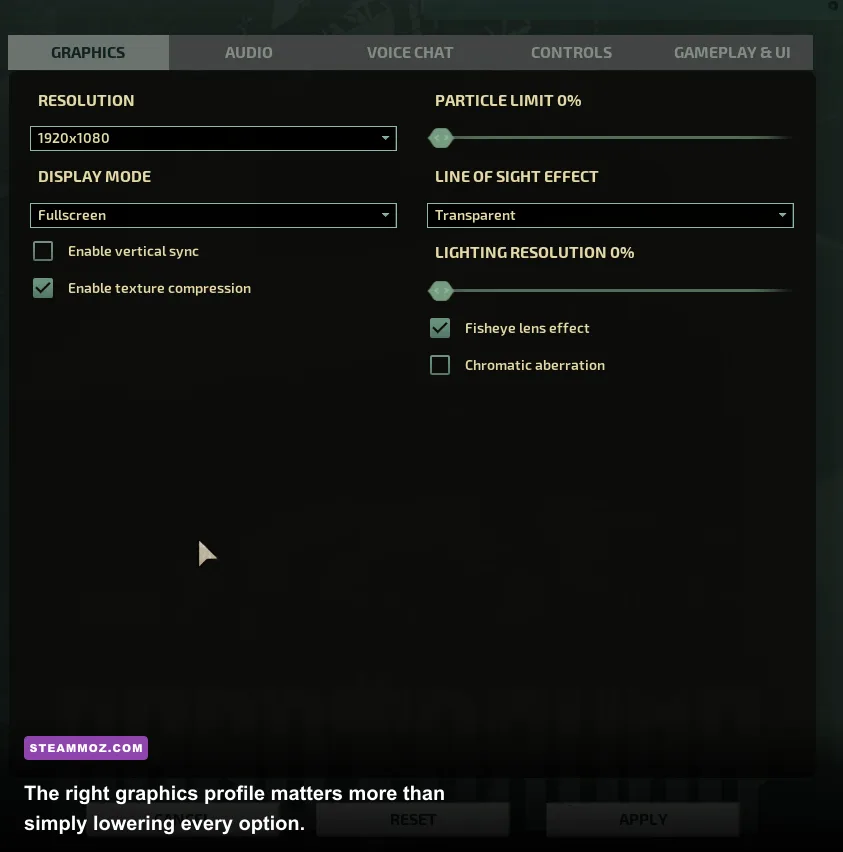
Lowering every option to its minimum can make the game ugly without fixing the real bottleneck. Lighting quality, particle effects, and post-processing are the first settings to target because they become expensive during fires, floods, explosions, and creature attacks. Resolution helps only when the GPU is saturated.
| Setting | Recommended value | FPS impact | Visual trade-off |
|---|---|---|---|
| Resolution | Native first; 1600x900 or 1280x720 if GPU-limited | High | Lower resolution softens text and sprites |
| Lighting quality | Medium; Low for older GPUs | High in combat and fires | Less dramatic shadows and light falloff |
| Particles | Low or Medium | Medium to high | Fewer sparks, smoke, debris, and effects |
| Post-processing | Off for troubleshooting | Low to medium | Reduced glow and screen effects |
| VSync | Off while testing; on if tearing is severe | Variable | VSync can add latency or lock uneven frame rates |
| Background lighting or bloom | Off or Low | Medium on weak GPUs | Flatter scenes and less atmospheric glow |
| Animation quality | Medium | Low to medium | Less smooth character and creature animation |
| Texture quality | High if VRAM allows; Medium below 4 GB VRAM | Low unless VRAM is full | Lower texture clarity |
| Frame-rate cap | 60 FPS, or 30 FPS on low-end hardware | Improves consistency | Caps peak performance but reduces spikes |
Use one of these three profiles
Low-end stability: Use 1280x720 or 1600x900, Low lighting, Low particles, post-processing off, animation Medium, and a 30 FPS cap. This is often better than an unstable 50-to-80 FPS range because a fixed ceiling leaves headroom for a sudden fire or monster encounter.
Balanced 60 FPS: Keep native resolution, set lighting and particles to Medium, disable post-processing, use High textures when VRAM allows, and cap at 60. This profile keeps Barotrauma's moody lighting intact while removing the effects most likely to cause frame-time spikes.
High-end quality: Use native resolution, High textures, High lighting, Medium particles, and post-processing only if your GPU remains above roughly 90 percent utilization without stutter. If FPS falls specifically during explosions, drop particles before textures. If GPU utilization is low, return to CPU and simulation troubleshooting instead.
For more general PC optimization habits, compare the practical approach in Steamoz's Dragonkin settings guide and the hardware-focused advice in our PC requirements breakdown. Barotrauma's bottleneck is often more complicated than a simple GPU preset, though.
Why crowded submarines can tank FPS even on good PCs
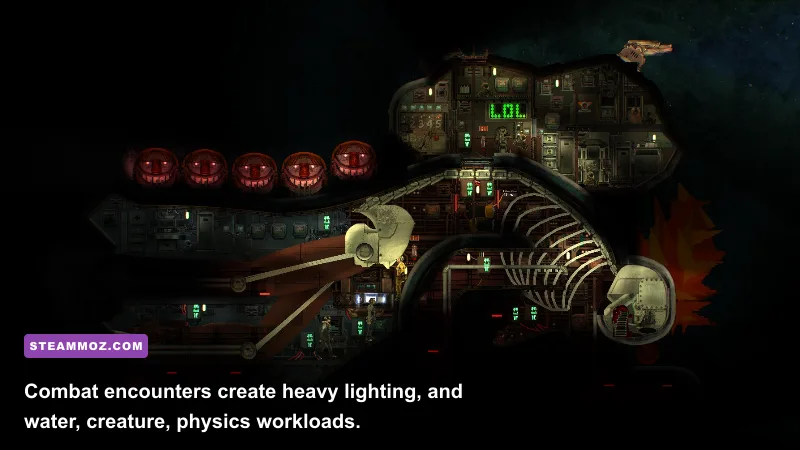
Barotrauma simulates a lot more than what is visible on screen. Characters navigate compartments, operate machinery, move items, manage status effects, interact with doors and vents, and respond to flooding. A large custom submarine filled with hundreds of items and complicated wiring can produce CPU frame-time spikes even if the graphics card is barely working.
That is why an empty default Dugong may run smoothly while a heavily modified campaign submarine stutters. The problem isn't necessarily poor optimization on your machine; it can be the simulation cost of the vessel itself. Test with the Dugong, Barsuk, or another stock submarine. If the stock boat is stable but your custom vessel is not, move excess loose items into cabinets, remove decorative lights, simplify automated doors, and avoid enormous networks of constantly active components.
Creature encounters can amplify the issue. Crawlers, Mudraptors, Hammerheads, and larger threats add pathfinding, collision, damage, and animation work. Fires and flooding add additional checks across compartments. A frame drop during a chaotic breach is normal if it recovers immediately; a permanent decline after hours of campaign play suggests a runaway mod, an overloaded submarine, or a background process consuming memory.
Close browsers with dozens of tabs, game launchers, browser-based overlays, and video-recording software before testing. On laptops, plug in the charger and set Windows to Best performance. Confirm that Barotrauma uses the dedicated GPU rather than integrated graphics in Windows Graphics settings or your GPU control panel. Don't use a maximum-performance power plan as a permanent fix if it creates unnecessary heat, but it is a useful diagnostic.
Fix Workshop mods, saves, and multiplayer version mismatches
Mods are the number-one reason a previously stable Barotrauma campaign starts crashing after an update. The dangerous cases are not limited to total overhauls. A tiny item pack can fail when its XML references an asset that changed, while a submarine mod can break loading because a component or talent path no longer exists.
Use a safe mod isolation routine
- Write down your current enabled mod order and back up important saves.
- Disable all mods and launch a new vanilla campaign.
- Enable only the essential content mod, then test loading and saving.
- Add cosmetic and submarine mods one at a time, restarting after each group.
- Remove duplicate versions of the same mod and check the Workshop page for update notes.
Never overwrite your only save while testing. A campaign can load successfully and still become unstable after a save operation writes incompatible content. Keep an untouched backup outside the Barotrauma save folder. If only one campaign crashes while new campaigns work, restore an older save or remove the mod that added the broken entity. Reinstalling the entire game won't repair a save that already contains invalid data.
In multiplayer, the host's enabled content and load order matter. Make sure every player and the server are on the same game version, and let the server distribute required Workshop content rather than manually mixing old local copies. A disconnect or desynchronization is not always a PC crash; compare the same hardware in single-player before changing graphics settings.
Check the official Barotrauma website, the official Barotrauma Wiki, and the game's Steam discussions for update-specific compatibility notes. Community reports are especially useful when a patch has just landed and multiple mods fail simultaneously.
Use logs to find the crash instead of guessing
When the obvious fixes fail, inspect the game's logs immediately after a crash. Barotrauma normally writes its local data under your Windows user profile, commonly in %APPDATA%\Local\Daedalic Entertainment GmbH\Barotrauma. Depending on the build and installation history, you may find files such as debug.log, crash reports, or related diagnostic output there. Search the newest file for Exception, OutOfMemory, NullReference, Lua, Workshop, or a mod name.
A repeated Lua or XML error naming the same Workshop package is strong evidence against that mod. An out-of-memory message points toward very large textures, an overloaded mod pack, or a long session with a memory leak. A graphics-device or driver error suggests the driver, overlay, resolution, or unstable GPU overclock. Save the log before launching again because some games overwrite diagnostic files on the next run.
Remove GPU and CPU overclocks while troubleshooting, including factory-tuned profiles that have become unstable after a driver change. Check temperatures with a trusted monitor and clean dust from a throttling laptop or desktop. Thermal throttling usually causes a gradual FPS decline rather than an instant crash, but unstable clocks can create both symptoms.
For comparison, the same disciplined crash-first approach works in other PC games, as shown in Steamoz's ELEX crash and FPS fixes and our Everspace 2 troubleshooting guide. The key is to change one variable at a time and record what happened.
A clean recovery plan that usually works
If you want the shortest reliable path, use this order: back up saves, disable every mod, verify Steam files, restart the PC, update or clean-install the GPU driver, disable overlays, and launch a new campaign on a stock submarine. Set lighting and particles to Medium or Low, turn off post-processing, and cap FPS at 60 or 30. Test for at least 15 minutes, including a fire, flooding, and a creature encounter if possible.
If the vanilla test is stable, restore your content gradually. If it still crashes, test a new Windows user profile or a clean boot to rule out background software, then inspect the latest log. If it only stutters in one custom submarine, optimize that vessel rather than replacing hardware. If GPU usage is maxed out, lower resolution and lighting. If GPU usage stays low while frame time is high, focus on mods, submarine complexity, CPU temperature, and background processes.
Finally, don't confuse Supporter Edition ownership with a separate technical branch. The supporter bonuses don't demand a special graphics preset, and installing them again won't cure a corrupted save. A clean mod baseline, verified files, sensible lighting settings, and a controlled test campaign will solve the majority of Barotrauma crashes and low-FPS cases without sacrificing the game's best atmosphere.