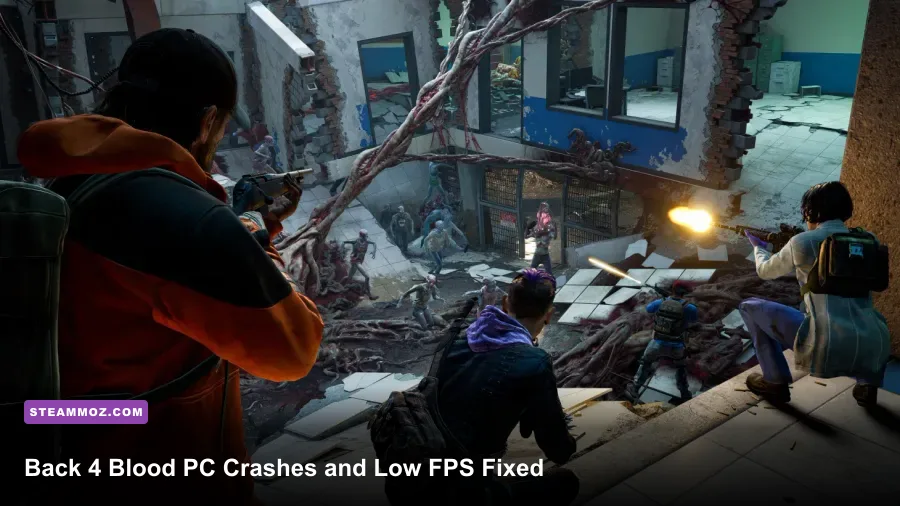
If Back 4 Blood keeps crashing, freezing during a loading screen, or dropping below a playable frame rate on PC, start with three fixes: verify the Steam files, perform a clean GPU-driver update, and switch to the tuned settings profile below. Then clear shader caches and cap your FPS. Those steps solve the most common Unreal Engine 4 crashes and eliminate the worst horde-event stutters without making the game look muddy.
Back 4 Blood is not uniformly demanding. A quiet hallway can run perfectly, then a Corruption Card triggers a fog effect, an Ogre spawns, and dozens of Ridden flood the screen. That sudden workload is why average FPS can look healthy while the game still feels broken. The goal is stable frame time, not a screenshot-friendly peak number.
Before changing anything, check the official Back 4 Blood Steam page for current updates and confirm that Windows and Steam are fully patched. If the game crashes only in online sessions, also check Turtle Rock's official news page for service issues.

Start with the fixes that stop most crashes
Don't begin by deleting random folders or reinstalling Windows. Work through the causes in the order below. Each step changes one likely failure point, and together they cover corrupted files, bad overlays, driver conflicts, unstable overclocks, and broken cached shaders.
1. Verify the installation in Steam
Open Steam, right-click Back 4 Blood, select Properties, choose Installed Files, and click Verify integrity of game files. Steam may replace damaged pak files after an interrupted update or a crash during patching. This is especially important if the crash happens on one campaign chapter rather than at launch.
Verification can restore files, but it won't remove a corrupted local configuration. If the game still crashes before reaching the main menu, close Steam and back up, then rename the Back 4 Blood settings folder under %LOCALAPPDATA%. Search Windows for the Back 4 Blood folder rather than blindly deleting Local AppData; the exact subfolder can vary by installation and update. Renaming it forces fresh settings while preserving a rollback copy.
2. Remove instability before blaming the game
Return the GPU, CPU, and RAM to stock settings. A memory profile that passes a benchmark can still fail when Back 4 Blood streams level data while rendering a horde. Temporarily disable XMP or EXPO, GPU undervolting, MSI Afterburner overclocks, and motherboard auto-overclock features. If stability returns, tune gradually instead of running the old profile.
Disable overlays one at a time: Steam Overlay, Discord Overlay, GeForce Experience or AMD Software overlay, Xbox Game Bar, and monitoring tools that inject an on-screen display. Overlay conflicts often produce a crash on launch or when Alt-Tabbing, not a consistent in-game error. You can turn them back on after finding the offender.
3. Clean-install the graphics driver
Install the latest stable NVIDIA or AMD driver, choosing the clean-install option when offered. If crashes began immediately after a driver update, test the previous recommended driver instead. A Display Driver Uninstaller pass in Windows Safe Mode is worthwhile when normal installation leaves old components behind, but create a restore point first.
Also disable GPU scheduling, recording, and sharpening features temporarily. These aren't automatically bad, but troubleshooting with NVIDIA Reflex, Radeon Anti-Lag, ReLive, Instant Replay, and third-party filters all active makes the result impossible to read.
4. Repair Windows components and permissions
Run Steam as normal first; administrator mode is not a universal performance fix. If Windows reports missing DLLs, repair the Microsoft Visual C++ 2015-2022 Redistributable packages and DirectX runtime from Microsoft's official downloads. In an elevated Command Prompt, run sfc /scannow, then DISM /Online /Cleanup-Image /RestoreHealth if system files are damaged.
Avoid downloading individual DLL files from unofficial sites. They frequently bundle malware and rarely address the actual runtime problem.
| Symptom | Most likely cause | First action | Escalation |
|---|---|---|---|
| Crash before the menu | Driver, overlay, or broken config | Clean driver install and rename settings folder | Test stock hardware and repair runtimes |
| Crash during one mission | Damaged game file or shader cache | Verify Steam files and clear shader cache | Reinstall only after checking Event Viewer |
| Crash when Alt-Tabbing | Overlay or fullscreen transition | Use borderless windowed mode | Disable every overlay and recording hook |
| Black screen with audio | Resolution, HDR, or display driver conflict | Launch in borderless at native resolution | Reset config and test one monitor |
🎮 Back 4 Blood
Looking to experience this game? Grab your digital key directly on our store for $5.99.
View on Steammoz Store →Use this Back 4 Blood low-FPS settings profile
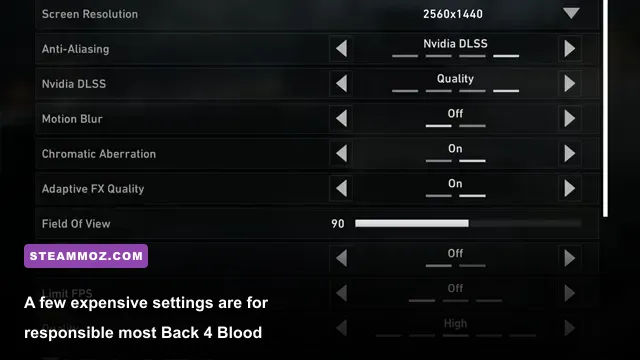
Back 4 Blood's biggest visual-performance traps are not always the settings with the most impressive names. Volumetric effects, post-processing, shadows, and foliage multiply their cost during fog, fire, and horde events. Start with the balanced profile below at your monitor's native resolution. Apply changes, restart the game if requested, and test the same safe-room exit or horde event for a useful comparison.
| Setting | Recommended value | FPS impact | Visual trade-off |
|---|---|---|---|
| Display mode | Fullscreen or borderless | Low | Fullscreen can reduce background interference; borderless is safer for Alt-Tab |
| Resolution | Native, then 90% resolution scale | High | Lower scale improves GPU-limited FPS but softens distant detail |
| Texture quality | High with 6GB+ VRAM; Medium below 6GB | Medium | Mostly affects VRAM use and texture clarity |
| Shadow quality | Medium | High | Reduces dynamic shadow detail and horde-event spikes |
| Post-processing quality | Low or Medium | Medium | Less bloom, blur, and screen-space processing |
| Effects quality | Medium | High | Less expensive smoke, fire, debris, and blood effects |
| Foliage quality | Medium | Medium | Lower grass and vegetation density outdoors |
| Anti-aliasing | Medium; avoid unnecessary supersampling | Medium | Balances shimmer against GPU cost |
| Motion blur | Off | Small | Sharper aiming and fewer smeared fast turns |
| Chromatic aberration | Off | Small | Cleaner image at the screen edges |
| V-Sync | Off for testing; enable if tearing is severe | Variable | Can add latency or lock performance to display refresh |
Texture quality is the setting people often lower too aggressively. It usually costs VRAM rather than raw GPU compute. On a card with 8GB or more, High textures can look substantially better with little FPS loss. If you see hitching when entering new rooms, texture streaming is more suspicious than texture quality itself: close browsers, disable recording, and lower textures one step to test whether VRAM pressure is causing paging.
Don't use a 200% resolution scale while trying to fix low FPS. That is supersampling, and it can more than double the number of pixels the GPU must shade. If the GPU is pinned near 99%, lower resolution scale to 90% or 80% before touching textures. If the GPU sits at 60% while FPS is poor, you're probably CPU-limited, capped by V-Sync, or dealing with background software.
Choose a frame-rate cap instead of chasing peaks
Cap the game at a number your PC can hold during a Ridden surge. A stable 60 FPS feels far better than bouncing between 105 and 48. Use the in-game limiter if it behaves consistently; otherwise use your GPU control panel or RTSS. For a 144Hz monitor, 90 or 100 FPS is a sensible target on midrange hardware. For a 60Hz display, a locked 60—or a steady 50 if the system is weaker—is preferable to constant spikes.
Fix stutter, shader compilation, and horde-event drops

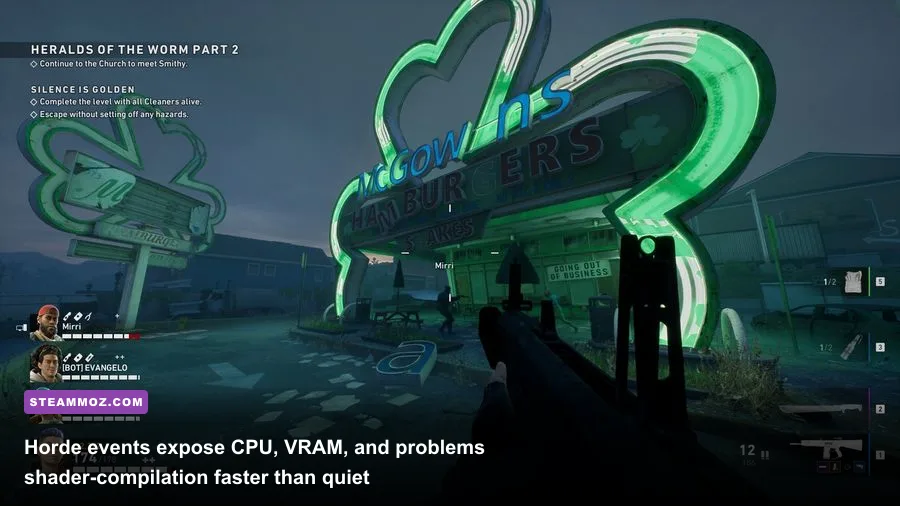
Low average FPS and stutter are different problems. A low average means the renderer cannot produce frames quickly enough. Stutter means frame delivery is uneven, often because the game is compiling shaders, streaming assets, or waiting on the CPU. Back 4 Blood's dark corridors can hide a weak setup until an alarm door, Ogre, Breaker, or Director event combines particles and enemy AI.
Clear the right caches
Clear the DirectX Shader Cache through Windows Settings > System > Storage > Temporary files, selecting DirectX Shader Cache. NVIDIA users can also clear the driver shader cache from the NVIDIA Control Panel by setting Shader Cache Size to Driver Default or Unlimited, then rebooting. AMD users should use the Reset Shader Cache option in AMD Software.
The first run afterward may stutter while shaders rebuild. That doesn't mean the fix failed. Play a short offline run, rotate through outdoor areas, shoot common weapons, and trigger effects so the cache can repopulate. Judge the second or third run, not the first five minutes.
Separate CPU bottlenecks from GPU bottlenecks
Use an overlay that reports GPU utilization, CPU thread load, VRAM, RAM, FPS, and frametime. A GPU at 95-99% with a stable CPU points to resolution scale, effects, shadows, or anti-aliasing. A GPU below roughly 85% while one or two CPU threads are saturated points to enemy simulation, streaming, or background tasks. Lowering resolution won't solve the second case.
Back 4 Blood has no magic setting that removes every CPU spike during a horde. Close Chrome tabs, launchers, RGB suites, and cloud-sync tools. Set Windows power mode to Best performance while testing, and keep the game on an SSD with at least 20GB of free space. An SSD won't turn a weak CPU into a fast one, but it can reduce streaming stalls compared with a hard drive.
Use the right API cautiously
Back 4 Blood can behave differently between its supported rendering paths and driver versions. If your installation exposes a DirectX 12 option, test it after creating a baseline; some systems gain smoother frame pacing, while others see crashes or longer shader stutter. If a recent change made the game unstable, revert to the previous API or remove any experimental launch option you added.
Don't stack random launch commands copied from old forum posts. Options such as forced DirectX modes, aggressive CPU thread flags, and undocumented memory parameters can make Unreal Engine 4 games less stable rather than faster.
Match the fix to your PC hardware
The official minimum target is an Intel Core i5-6600 or AMD FX-6300, 8GB of RAM, and a GTX 960 or Radeon R9 370 with 4GB of VRAM. The recommended specification rises to an i5-8400 or Ryzen 7 1800X, 12GB of RAM, and a GTX 970 or Radeon R9 390. Those targets describe launch-era compatibility, not a guarantee of modern 1440p performance.
| PC profile | Resolution target | Settings profile | Likely limitation |
|---|---|---|---|
| Minimum-class PC, 8GB RAM | 1080p, 30-60 FPS | Low/Medium, 80-90% scale, Medium textures | CPU spikes, RAM pressure, 4GB VRAM |
| Recommended-era PC, 12-16GB RAM | 1080p, locked 60 FPS | Medium/High mix, native resolution | Horde effects and shadows |
| Modern midrange GPU, 16GB RAM | 1080p high-refresh or 1440p 60 | High textures, Medium shadows/effects | GPU load at 1440p |
| Modern enthusiast PC | 1440p high-refresh | High textures, tune effects and post-processing | CPU frametime during large events |
Eight gigabytes of RAM is technically enough for the minimum target, but it leaves little room for Windows, Steam, voice chat, and a browser. If the game freezes while loading a chapter and disk activity stays high, upgrade to 16GB before buying a faster GPU. Similarly, a 4GB graphics card can run the game, but high textures plus background applications can cause hitching even when the average FPS looks acceptable.
On a laptop, plug in the charger, select the discrete GPU in Windows Graphics settings, and check temperatures. A laptop that starts at 90 FPS and falls to 45 after ten minutes is probably throttling. Clean the vents, raise the rear for airflow, and use a reasonable fan profile. Don't confuse thermal throttling with a graphics-setting problem.
For broader PC troubleshooting, Steamoz's guide to ELEX crash and FPS fixes covers the same driver, overlay, and config traps. The settings logic also applies to older Unreal Engine games, though Back 4 Blood's horde simulation makes CPU frametime more important.
Test changes without guessing
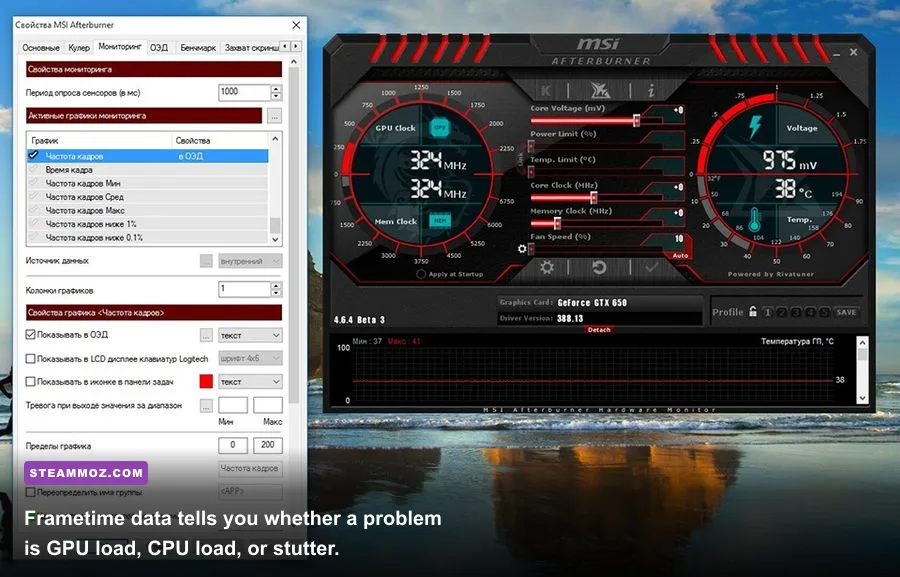
Make one change, restart when requested, and repeat the same test. The cleanest benchmark is a short offline campaign run from the same safe room, because matchmaking, player behavior, and different Corruption Cards can otherwise change the workload. Record average FPS, the one-percent low, GPU usage, and frametime. A graph with frequent tall spikes is the evidence you need to chase stutter.
A reliable 15-minute troubleshooting loop
- Restart the PC, close overlays, and launch Back 4 Blood with stock hardware settings.
- Run the same campaign section for five minutes without changing settings mid-run.
- Write down FPS, GPU utilization, VRAM usage, and the exact moment of any crash.
- Apply one fix, such as Medium effects or a shader-cache reset, then repeat the route.
- Test a real horde event before declaring success; quiet corridors conceal instability.
If crashes continue, open Windows Event Viewer and check Windows Logs > Application immediately after the failure. An application error naming the executable points toward the game, driver, or overlay. A display-driver timeout points toward the graphics stack or unstable hardware. WHEA hardware errors are more serious and justify checking temperatures, RAM stability, power delivery, and system memory.
Don't automatically disable Windows security features or run questionable compatibility modes. Back 4 Blood is an online co-op game, so anti-cheat, overlays, injected DLLs, and modified files can create problems that a normal single-player game might tolerate. Keep the install unmodified while testing, and use the official Warner Bros. support portal if the crash remains reproducible after a clean setup.
My preferred final profile is simple: native resolution, High textures when VRAM allows, Medium shadows and effects, Low post-processing, motion blur and chromatic aberration off, and an FPS cap the PC can sustain during an Ogre or Breaker encounter. That combination keeps weapons and Ridden readable while cutting the expensive spectacle that causes the ugliest frame-time spikes.
For comparison, Steamoz's Dragonkin performance settings guide explains why stable frame pacing matters more than maximum FPS, while the Everspace 2 crashing fix guide offers another useful approach to separating crashes from GPU limits. If Back 4 Blood still fails after file verification, clean drivers, stock hardware, a fresh config, and cache rebuilding, the remaining culprit is likely system-level instability rather than a single graphics slider.