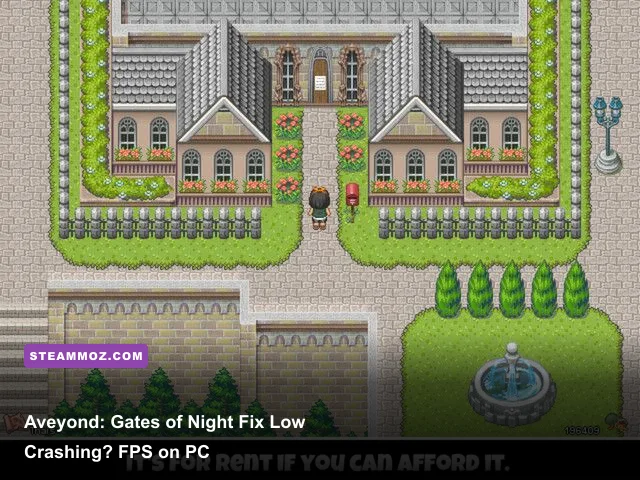
If Aveyond: Gates of Night crashes, freezes during a map transition, or feels strangely sluggish on a modern PC, the quickest fix is usually a clean Steam file verification followed by windowed mode, compatibility adjustments, and a frame-rate cap. The game is old and lightweight, so low FPS rarely means your graphics card is too weak; it more often points to legacy fullscreen behavior, display scaling, corrupted configuration data, overlays, or poor frame pacing.
That distinction matters. You shouldn't start by lowering every setting in Windows or replacing hardware. Gates of Night uses a simple 2D presentation, and a current laptop should have more than enough raw performance for it. The frustrating part is that older PC games can behave worse on fast systems because their rendering and timing assumptions predate modern monitors, high refresh rates, hybrid graphics, and aggressive overlay software.
This guide focuses on the PC and Steam release, with fixes arranged from safest to most invasive. Test the game after each change, and keep a backup of your save folder before deleting configuration files. If you're also working through another old-school RPG, our Dungeon Siege performance notes cover many of the same compatibility traps.
Start With the Fastest Crash and FPS Fixes
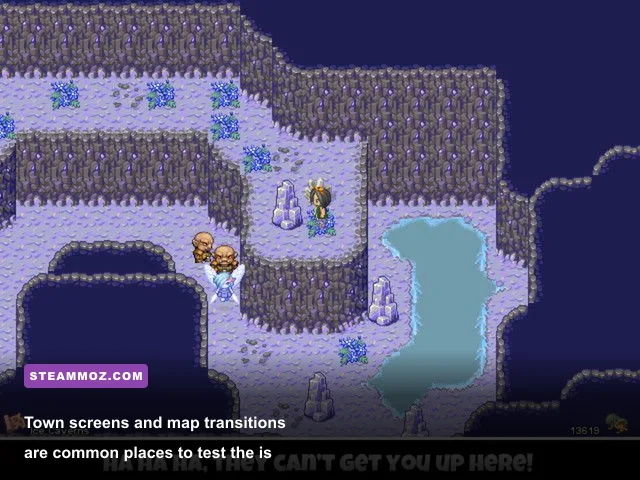
Before changing Windows settings, establish whether the problem is the game installation, the display mode, or the PC environment around it. Launch Gates of Night after closing browsers, recording tools, RGB utilities, and overlays. Steam Overlay, Discord, GeForce Experience, AMD Adrenalin, MSI Afterburner, and Xbox Game Bar can all hook into an older executable. Any one of them may turn a harmless mode switch into a crash.
1. Verify the Steam installation
Open Steam, right-click Aveyond: Gates of Night, choose Properties, open Installed Files, and select Verify integrity of game files. Steam will replace missing or damaged files without touching normal save data. This is especially useful after an interrupted update, a forced shutdown, or moving the game between drives.
Do not repeatedly verify files while the game is still running. Exit it completely, including any process left in Task Manager, then verify once. If Steam reports repaired files, restart the client before testing. A crash that disappears after verification was installation-related, not a graphics-performance problem.
2. Test windowed mode before compatibility mode
Legacy fullscreen is the most common trigger for black screens, instant crashes, and severe stutter. If the game offers a windowed option in its launcher, use it first. If it only exposes a configuration file, change one display option at a time and save a copy before editing. Windowed or borderless operation lets Windows handle scaling instead of forcing an old fullscreen handshake against a 144Hz or ultrawide display.
For low FPS, temporarily set your desktop to 60Hz and test again. A game that looks like it is running at 10 or 20 FPS may actually be rendering correctly while presenting frames unevenly to a high-refresh panel. Once the issue is confirmed, restore your normal refresh rate and use a driver-level cap of 60 FPS rather than leaving the desktop permanently changed.
| Test | What to change | What the result means |
|---|---|---|
| Clean launch | Close overlays and background hooks | Stability improves if an injector was conflicting |
| File check | Steam Installed Files verification | Repaired files indicate installation corruption |
| Display check | Windowed mode or 60Hz temporarily | Improvement points to fullscreen or frame pacing |
| Fresh profile | Rename, rather than delete, config data | Improvement indicates damaged settings |
Keep notes as you test. Old games often have more than one symptom from the same cause: a bad fullscreen setting can produce a crash at launch, while a mismatched refresh rate produces what feels like low FPS in the exact same session.

🎮 Aveyond: Gates of Night
Looking to experience this game? Grab your digital key directly on our store for $1.99.
View on Steammoz Store →Fix Windows Compatibility Without Making the Game Worse
Compatibility settings can rescue Gates of Night, but piling on every checkbox is a mistake. Start with the executable that Steam actually launches. From Steam's Manage menu, choose Browse local files, identify the main game executable, right-click it, and open Properties > Compatibility.
Use this order of operations
First select Disable fullscreen optimizations. This is the least disruptive option for older 2D games that misbehave when Windows applies modern fullscreen presentation rules. Launch and test a town, a dungeon, and a battle. If the crash remains, enable Run this program as an administrator only as a diagnostic step. If administrator mode fixes it, the real issue may be write permissions in the installation folder or a configuration file stored in a protected location.
Next try compatibility mode for Windows 7. Windows XP compatibility can help with genuinely ancient software, but it can also break modern video handling, introduce scaling problems, or interfere with Steam's overlay. Use XP mode only if Windows 7 mode changes nothing and the game fails before reaching its title screen.
High-DPI scaling is another frequent culprit. Select Change high DPI settings, enable the option to override high-DPI scaling behavior, and test Application first. If text becomes tiny or the window is incorrectly sized, try System instead. Don't enable every DPI option simultaneously; that makes it impossible to tell which setting helped.
| Compatibility option | When to try it | Likely trade-off | Recommended choice |
|---|---|---|---|
| Disable fullscreen optimizations | Black screen, crash on launch, stutter | May remove modern fullscreen behavior | First compatibility test |
| Windows 7 mode | Startup or map-transition crashes | Can alter scaling and input behavior | Second test |
| Windows XP mode | Only if newer modes fail | Higher chance of display problems | Last resort |
| High-DPI override | Blurry, oversized, or clipped window | Text may appear smaller | Use Application first |
| Run as administrator | Config cannot save or game exits instantly | Reduces normal Windows protection | Diagnostic, not default |
For more background on making lightweight games behave on current hardware, see our guide to real PC requirements and compatibility testing. The same principle applies here: confirm the exact failure before applying a broad fix.
Build a Stable 60 FPS Profile for Gates of Night
There may not be a modern graphics menu with granular shadows, reflections, or texture sliders in Aveyond: Gates of Night. That doesn't mean you have no performance controls. The useful adjustments live around the game: display resolution, refresh rate, scaling, overlays, driver profiles, and synchronization. Because the artwork is 2D, reducing GPU quality settings is usually less effective than stabilizing presentation.
Recommended baseline
Set Windows to the monitor's native resolution, then run the game windowed if fullscreen causes trouble. Cap the executable at 60 FPS through NVIDIA Control Panel, AMD Software, or your laptop's graphics utility. If your driver offers a per-application vertical sync option, test V-Sync after applying the cap. Avoid stacking multiple frame limiters, such as an in-game cap, RTSS cap, and driver cap at once; they can create delayed input and uneven pacing.
On a gaming laptop, force the game to use the dedicated GPU only if the integrated GPU is clearly causing a crash or unstable presentation. For a title this light, the integrated GPU is normally sufficient and may actually produce fewer switching problems. Keep the laptop plugged in, select a balanced or high-performance power profile, and turn off battery-saving refresh-rate features while testing.
| Setting or profile | Recommended value | FPS impact | Visual or stability note |
|---|---|---|---|
| Resolution | Native desktop resolution | Low | Best image clarity; lower only to test scaling |
| Refresh rate | 60Hz during diagnosis | Indirect | Exposes whether high-refresh pacing is the problem |
| Frame limit | 60 FPS | Improves consistency | Prefer one limiter, not several |
| V-Sync | Driver-controlled test | Small overhead | Can remove tearing but may add latency |
| Steam Overlay | Off for testing | Usually negligible | Removes a common injection conflict |
| Windows scaling | 100% or DPI Application override | Indirect | Prevents stretched or clipped legacy windows |
How to tell real low FPS from bad frame pacing
Walk through an empty area, open the inventory, trigger a battle, and then transition into a different map. If movement is smooth but menus hitch or transitions pause, the issue is probably not GPU load. If the entire game slows consistently, check background CPU usage and power mode. If the frame rate is high but animation appears to jump, use a cap and V-Sync rather than lowering resolution.
Don't install a random “FPS booster” or DLL pack. These tools often replace files, inject code into the executable, or bundle unwanted software. A lightweight RPG should never require a mysterious optimizer to run acceptably.
Stop Crashes During Saves, Battles, and Map Transitions
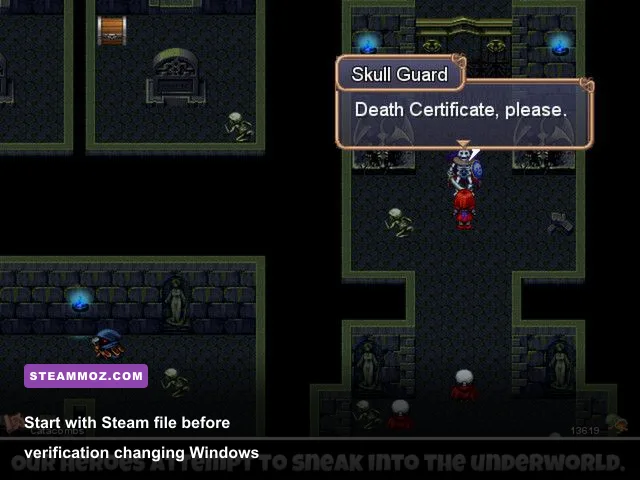
Once launch problems are under control, isolate the exact moment of the crash. Gates of Night can behave differently at the title screen, during a save operation, when entering a battle, or while loading a new area. That timing tells you which fix to prioritize.
If it crashes on launch
Disable Steam Overlay and other overlays, then run the executable in windowed mode. Disconnect unnecessary controllers and close macro software. If the game still exits immediately, check Windows Security or third-party antivirus quarantine history. Older executables are sometimes blocked from creating configuration files even when the main game files are intact. Add the game's folder as an exception only if you trust the installation source, then remove that exception later if it wasn't needed.
Also check Event Viewer. Search for Event Viewer from the Start menu, open Windows Logs > Application, and look for an Error entry at the crash time. A faulting module tied to a graphics overlay points in one direction; a missing runtime or access violation points in another. Don't download a replacement DLL from a random website based on the module name.
If it crashes during a map transition
Verify files, then test an earlier save. If only one save crashes while other saves work, the file itself may be damaged or the game may be hitting an unusual event state. Keep multiple rotating saves rather than overwriting one slot. This is particularly important in story-driven RPGs where a single save can contain the only safe entry point before a town, dungeon, or scripted sequence.
Temporarily turn off cloud synchronization if Steam keeps restoring the problematic save. Copy the local save folder first, disable synchronization, load a known-good save, and create a new manual save. Re-enable cloud sync only after confirming that the new file loads correctly. Never delete all saves as a first response.
If battles or menus stutter
Capture one test with Steam Overlay disabled and one with it enabled. If the difference is obvious, leave the overlay off for this game. Then test Windows Game Bar, Discord overlay, GPU recording, and performance monitoring one at a time. A turn-based battle doesn't need a high frame rate, but inconsistent pauses can still make input feel delayed and can cause you to click through menus at the wrong moment.
| Crash location | Most likely cause | First fix | Safe follow-up |
|---|---|---|---|
| Before title screen | Overlay, permissions, compatibility | Windowed mode and overlay shutdown | Check Event Viewer |
| Loading a new area | Damaged file or save state | Verify files and load backup | Rebuild a manual save |
| Saving | Write permission or security software | Test a different save location or admin mode | Review antivirus history |
| Battle or inventory | Overlay or frame-pacing conflict | Disable hooks and cap at 60 FPS | Test overlays individually |
If you enjoy older RPG systems and want a second opinion on pacing and save management, our Deponia progression guide and Dins Curse survival tips cover the same kind of low-tech, high-consequence design.
Use a Clean Install Only After the Basic Tests
A clean install is worthwhile when Steam verification changes nothing, the crash follows the game across several saves, or configuration edits have left the launcher in a bad state. It should be clean, not reckless. Back up saves first, record your current compatibility settings, and note whether the problem happens in fullscreen or windowed mode.
The safe reinstall sequence
Back up the save folder and any screenshots. Uninstall the game through Steam, then use Browse local files before uninstalling if you need to identify where saves or custom files live. After uninstalling, check whether the installation directory still contains leftover configuration files. Rename the folder instead of deleting it immediately; this gives you a recovery path if you discover that your saves were stored there.
Restart Windows, install the game to the default Steam library, and launch it once before restoring saves. This creates a fresh configuration profile. Test a new game for several minutes, visit a town, enter a battle, open menus, and make a manual save. Only then copy your backed-up saves into the new location. If the fresh game works but the old save crashes, the issue is save-specific rather than a broken installation.
Keep the first launch simple: no mods, reshade filters, custom DLLs, compatibility layers, or third-party widescreen patches. Once the base game is stable, add one modification at a time and test again. Official support information is the safest place to check for release-specific instructions, including the Steam listing and community reports, the Amaranth Games website, and the publisher's current support channels where available.
A practical stable profile
For most modern Windows systems, the reliable profile is simple: verified files, windowed mode if fullscreen is unstable, 60 FPS cap, overlays disabled, native resolution, and no unnecessary compatibility flags. Add Windows 7 compatibility only if launch or transition crashes remain. Add a DPI override only when the window is scaled incorrectly. Use administrator mode only to prove that permissions are involved, then fix the folder or security rule instead of leaving elevated privileges enabled forever.
| Component | Minimum troubleshooting profile | Recommended profile | Pro-tuned profile |
|---|---|---|---|
| Game files | Steam installation | Verified installation | Verified after every major change |
| Display mode | Windowed for diagnosis | Windowed or stable fullscreen | Mode that holds a flat 60 FPS |
| Frame pacing | 60Hz test | 60 FPS cap | One cap plus tested V-Sync |
| Overlays | Disabled | Disabled for this game | Re-enable individually only if needed |
| Compatibility | None initially | Disable fullscreen optimizations | Windows 7 or DPI override only when proven useful |
Finally, don't confuse a brief loading pause with a failing game. Older RPGs may pause while loading assets or switching maps, but a repeatable desktop crash, corrupted save, or persistent stutter deserves investigation. If nothing changes after a clean install, fresh save, disabled overlays, and a stable 60 FPS profile, report the exact Windows version, GPU, display refresh rate, crash location, and Event Viewer faulting module. “Low FPS” alone isn't enough information to diagnose the problem.
With those steps, Aveyond: Gates of Night should run smoothly on hardware far below a modern gaming PC's capabilities. The winning approach isn't brute-force graphics reduction; it's giving an older 2D RPG a predictable window, a predictable refresh target, clean files, and enough room to save its configuration safely.
For more PC troubleshooting built around older games rather than generic booster software, check Steamoz's frame-by-frame settings guide and our Desperados III performance coverage.