If Astrea: Six-Sided Oracles keeps crashing, freezing between encounters, or dropping below a smooth frame rate, start with three fixes: verify the Steam files, update your GPU driver, and lower the game’s rendering effects before changing resolution. Astrea is a relatively lightweight Unity deckbuilder, so persistent crashes usually point to damaged files, overlays, driver conflicts, or a broken local configuration rather than an underpowered graphics card.
The good news is that you don’t need to sacrifice the game’s crisp dice, status icons, or colorful Oracle portraits to make it stable. The fixes below separate genuine GPU limitations from frame-time spikes caused by effects, background software, fullscreen behavior, and corrupted settings. Apply them in order, testing the same battle after each change so you know which adjustment actually worked.
Check Astrea’s PC requirements before changing settings
Astrea doesn’t demand modern gaming hardware. The Steam listing puts the minimum target around a 2.0 GHz processor, 4 GB of memory, a graphics card with 1 GB of VRAM, and roughly 2 GB of available storage. Those figures are modest, but they don’t guarantee perfect frame pacing on every laptop. Integrated graphics, aggressive power-saving modes, old Intel or AMD drivers, and high-DPI Windows scaling can still produce hitching.
First, confirm that Windows is using the dedicated GPU if you have a gaming laptop. Open Settings > System > Display > Graphics, add Astrea’s executable, select Options, and choose High performance. The executable is normally inside the game’s Steam installation folder, usually under steamapps\common\Astrea. Don’t select a random launcher file if Steam provides more than one executable; use the file that actually starts the game.
Next, check the practical basics:
- Keep at least 5 GB free on the drive containing Astrea and your Windows temporary files.
- Run Windows Update, then install the latest stable NVIDIA, AMD, or Intel graphics driver.
- Use your laptop’s plugged-in performance profile instead of Battery Saver.
- Close browser video tabs, recording tools, RGB utilities, and hardware-monitoring overlays while testing.
- Don’t use compatibility modes or administrator settings unless a specific error requires them.
| Component | Steam-listed minimum | Practical target | What it affects |
|---|---|---|---|
| Operating system | Windows-compatible 64-bit setup | Fully updated Windows 10 or 11 | Driver support and Unity compatibility |
| Processor | 2.0 GHz CPU | Recent 4-core laptop or desktop CPU | Loading, turn transitions, background simulation |
| Memory | 4 GB RAM | 8 GB RAM | Alt-tab stability and multitasking |
| Graphics | 1 GB VRAM-class GPU | Modern integrated GPU or better | Effects, scaling, and frame pacing |
| Storage | About 2 GB | SSD with free space available | Launch and save responsiveness |
If your computer clears those requirements but Astrea still crashes on launch, jump straight to the file-integrity and configuration steps. Buying a new GPU is not the answer for a game that normally runs comfortably on basic hardware.

🎮 Astrea: Six-Sided Oracles
Looking to experience this game? Grab your digital key directly on our store for $12.49.
View on Steammoz Store →Stop Astrea from crashing at launch or between battles
Launch crashes are usually easier to solve than random mid-run exits. Start with Steam’s repair tool: right-click Astrea in your library, open Properties > Installed Files, and select Verify integrity of game files. Steam will compare the installation with the current build and replace missing or damaged files. Let the process finish completely, even if it appears stuck near the end while redistributing a larger file.
After verification, disable overlays for one test session. Steam Overlay, Discord, Xbox Game Bar, NVIDIA App, AMD Adrenalin recording, MSI Afterburner/RivaTuner, and Overwolf can all hook into a Unity game. You don’t have to uninstall them. Turn them off temporarily, launch Astrea, and load the same run. If the crash disappears, re-enable each overlay individually to identify the offender.
Cloud synchronization can also make a bad local state return immediately. Back up your Astrea save folder first, then disable Steam Cloud for the game, launch once, and test a new run. If a new run works but an older run crashes when loaded, the save may be damaged or affected by a version change. Don’t delete your only copy. Keep the backup and contact the developer through the Astrea Steam Discussions with your system details.
For a stubborn configuration problem, close the game and rename—not delete—the Astrea folder in %USERPROFILE%\AppData\LocalLow if you can locate it. Unity games commonly store preferences and logs in the LocalLow directory, although the exact folder name can vary by publisher. Renaming it forces a clean configuration on the next launch while preserving a rollback copy. This can fix black screens, crashes immediately after changing resolution, and settings that survive reinstalls.
Finally, check the game’s Player.log or crash files in the same Unity data location. Repeated references to a graphics device, out-of-memory error, or a specific DLL are useful clues. Don’t download replacement DLL files from unofficial sites; repair the relevant driver or Windows runtime instead. The safest official starting points are the Astrea Steam page and the developer’s official developer page.
Best Astrea graphics settings for stable FPS
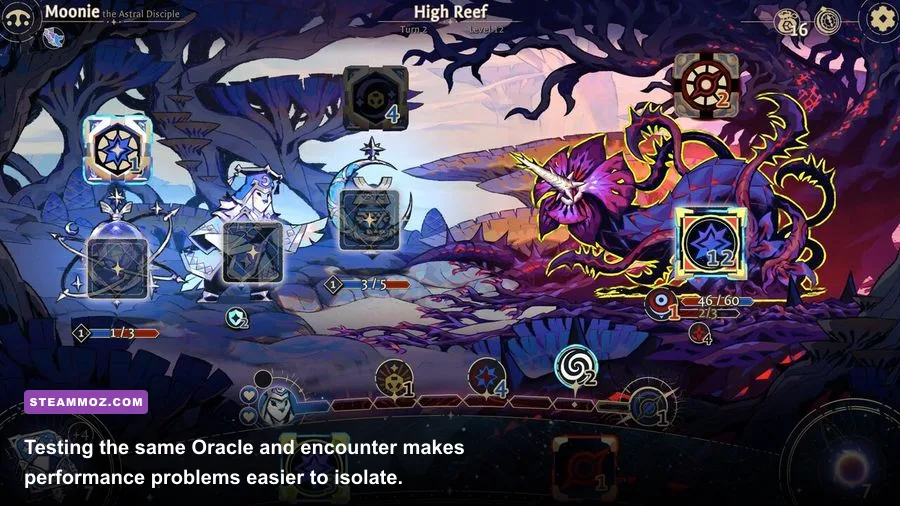
Astrea’s art is mostly interface, portraits, dice, particles, and animated combat effects. That means the biggest performance gains come from reducing the number of effects rendered at once, not from aggressively lowering texture quality. If your FPS counter looks fine in menus but collapses during a large turn, you’re seeing a frame-time spike rather than a permanently weak GPU.
Begin with the game’s native resolution and fullscreen mode. If exclusive fullscreen behaves badly, use borderless windowed mode; if borderless introduces stutter, switch back to fullscreen and disable Windows fullscreen optimizations on the executable. Avoid forcing a resolution through third-party launchers until the in-game settings have been tested.
| Setting | Recommended value | FPS impact | Visual trade-off |
|---|---|---|---|
| Display mode | Fullscreen first, borderless second | Low to medium | Fullscreen can reduce desktop compositor interference |
| Resolution | Native desktop resolution | Medium to high | Lower only if GPU usage stays near 100% |
| VSync | Off for testing; on if tearing appears | Low | Off reveals raw performance and input latency |
| Quality preset | Medium, then raise individual options | Medium | Preserves most interface clarity |
| Shadows | Low or medium | Medium | Usually the safest effect to reduce |
| Post-processing | Low or disabled | Medium to high | Less bloom and screen treatment during battles |
| Particles and effects | Medium | High during large turns | Dice and status animations become less busy |
| Frame cap | 60 FPS, or 30 FPS on weak hardware | Improves consistency | A stable cap feels better than unstable peaks |
Use a 60 FPS cap as your baseline. If the game oscillates between 60 and 35 FPS, a locked 30 FPS can feel dramatically smoother than an uncapped presentation. On a 120 Hz or 144 Hz display, don’t assume Astrea benefits from 144 FPS; the game’s turn-based design makes consistent frame delivery more important than a high refresh target.
If the game offers separate toggles for bloom, screen shake, damage numbers, or combat effects, turn off one option at a time. Bloom and screen-wide flashes are common sources of short GPU bursts. Keep the UI and dice quality high if those options are independent—the strategic information is more important than a subtle lighting pass.
Fix stuttering, freezes, and sudden frame-time spikes
Low average FPS and stutter need different solutions. A machine rendering Astrea at 45 FPS constantly is being limited by something consistent. A machine reporting 120 FPS that freezes for half a second whenever a relic, Purification effect, or enemy status animation appears is suffering from spikes.
Use Steam’s in-game FPS counter or a trusted monitoring tool and watch GPU usage, CPU usage, RAM, and frame time. If GPU usage is 95–100% during the drop, reduce resolution, particles, post-processing, or shadows. If GPU usage falls while one CPU core peaks, close background programs, remove overlays, and use a stable frame cap. If RAM is nearly full, reboot before playing and close browsers; Windows may be paging assets to disk.
Shader compilation can create stutters after a driver update or first launch. Give Astrea a few minutes at the title screen, then play a short test run instead of judging performance from the first encounter. Repeatedly deleting shader caches can make this worse because the game has to rebuild them. Only clear the GPU shader cache when a driver update or corrupted cache is clearly implicated.
Turn off background recording as well. Windows Game Bar clips, NVIDIA Instant Replay, AMD recording, and Discord capture can interrupt a lightweight game more noticeably than a demanding 3D title. If you stream, test with capture disabled first, then add it back at 30 FPS and a moderate bitrate.
Steam’s launch-options box can help isolate display problems, but use it carefully. A useful diagnostic is -screen-fullscreen 0, which forces a windowed launch in many Unity builds. If that works when fullscreen crashes, remove the option later and change the mode inside the game. Don’t stack random DirectX commands from forum posts; unsupported flags can create another crash instead of fixing the original one.
Reliable settings for laptops, integrated graphics, and Steam Deck
On a laptop, plug in the charger and set the manufacturer profile to Performance. Windows can quietly cap an integrated GPU when it detects battery power, making Astrea appear broken even though the hardware is capable. Set the display refresh rate to its normal value, but cap the game at 60 FPS. A 30 FPS cap is sensible for older Intel UHD graphics if battles still hitch at 60.
For Steam Deck, start with the game’s default Proton compatibility rather than forcing a random version. If you experience a new crash after changing Proton, return to the previous working version and verify files. Set the refresh rate and frame limit to the same value—40/40 or 60/60 are cleaner than mismatched combinations—and avoid stacking Steam’s global frame limiter with an in-game limiter until you’ve tested both separately.
| Hardware profile | Resolution target | Frame cap | Suggested profile |
|---|---|---|---|
| Modern gaming PC | Native | 60 or display refresh | High quality, effects medium if spikes appear |
| Older dedicated GPU | Native, then 1600×900 | 60 | Medium quality, shadows and post-processing low |
| Intel UHD or similar iGPU | 1280×720 to 1600×900 | 30 or 60 | Low effects, low shadows, borderless if fullscreen misbehaves |
| Steam Deck | 1280×800 | 40 or 60 | Default Proton, medium effects, matched refresh and cap |
Don’t chase a higher wattage limit on handheld hardware just for Astrea. The game is turn-based, and extra heat can cause the device to throttle later. A steady 40 FPS profile usually feels better than a brief 60 FPS burst followed by repeated drops. For broader PC tuning ideas, Steamoz’s Dragonkin settings guide covers the same performance-first approach, while the Drawful 2 PC requirements breakdown is useful for checking whether a low-spec system is being held back by Windows rather than the game.
When none of the PC fixes work
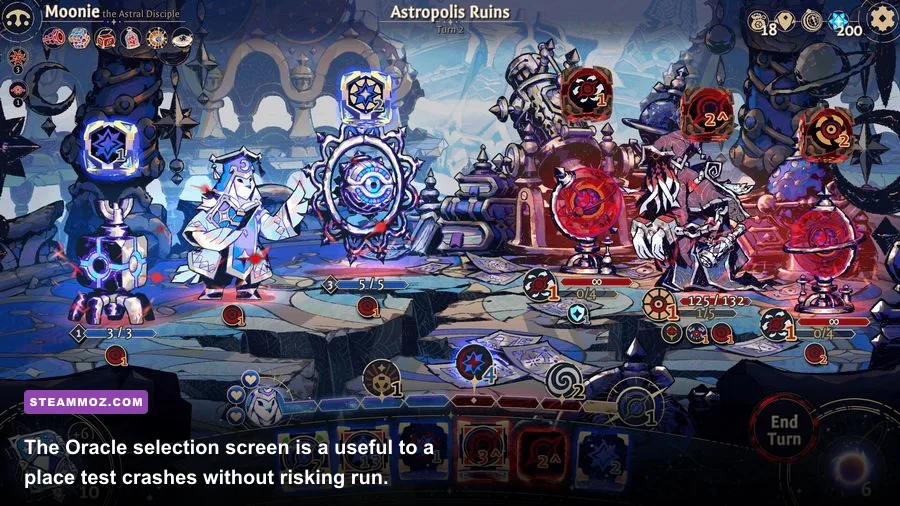
If Astrea still crashes after file verification, a clean configuration reset, driver updates, and overlay testing, stop repeating the same reinstall. Record the exact trigger: launch, Oracle selection, loading a saved run, end-of-turn effects, or returning to the map. Note whether the crash produces a black screen, a Unity error, a freeze, or a desktop exit. Those details distinguish a display initialization problem from a damaged save or an encounter-specific bug.
Before a full reinstall, uninstall the game through Steam, restart Windows, and check that the old installation folder is gone before downloading again. Keep your save backup outside the Astrea directory. If the problem began immediately after a patch, check the official Steam announcements for known issues and report the crash through the developer’s support channels with your Player.log, GPU model, driver version, Windows version, and whether overlays were enabled.
One final warning: avoid “FPS booster” utilities, registry cleaners, unofficial DLL packs, and pirated replacement builds. Astrea’s performance problems are usually solved by reducing effects, fixing the driver path, or clearing a broken Unity preference—not by adding another background program.
For most players, the winning setup is straightforward: verify the installation, disable overlays, run the dedicated GPU, use fullscreen or a clean borderless window, cap at 60 FPS, and lower post-processing and particles before touching resolution. If you enjoy methodical troubleshooting, Steamoz’s ELEX PC crash-and-FPS fixes offers a useful companion checklist. And once Astrea is stable, remember that its real challenge is still the dice: protect frame pacing, then focus on building a run around your Oracle’s Purification, Corruption, and Discipline tools rather than blaming every bad turn on the hardware.