If you want the best Assassin’s Creed Valhalla: Dawn of Ragnarök graphics settings for max FPS, start with High textures, Medium shadows, Medium volumetric clouds, Very High world detail, and AMD FSR 2 set to Quality or Balanced. Disable motion blur, depth of field, and chromatic aberration, then cap the game a few frames below your monitor’s refresh rate. This profile keeps Svartalfheim’s lava, dwarven ruins, and combat effects looking excellent while avoiding the biggest performance traps.
Dawn of Ragnarök uses the same demanding AnvilNext 2.0 foundation as the base game, but its volcanic skies, dense settlements, fire effects, and Hugr-Rip powers create more difficult scenes than a quiet stretch of England. A PC that holds 60 FPS beside Ravensthorpe can still dip into the mid-40s during a Muspelheim raid. The goal here isn’t a pretty benchmark number; it’s stable frame pacing while exploring Eitri, fighting Surtr’s forces, and gliding across the lava-filled corners of Svartalfheim.
The best balanced settings for Dawn of Ragnarök

Use the following profile as your starting point at 1080p or 1440p. It targets a consistent 60 FPS on a modern mid-range gaming PC, typically one with a Ryzen 5 5600 or Core i5-12400F, 16GB of RAM, and a Radeon RX 6700 XT, GeForce RTX 3060 Ti, or faster graphics card. Your exact result will depend on drivers, the game’s patch version, and whether you’re looking at a busy settlement or an open plateau.
| Setting | Recommended Value | FPS Impact | Visual Note |
|---|---|---|---|
| Window Mode | Fullscreen | Low | Usually provides the cleanest frame pacing and input response. |
| Resolution | Native | Very high | Keep native resolution unless you need a major performance recovery. |
| Resolution Scale | 100% | Very high | Lower only after reducing heavier settings such as clouds and shadows. |
| Anti-Aliasing | High | Medium | High is a good clarity-to-performance compromise. |
| World Details | Very High | Medium | Preserves distant terrain, ruins, and settlement density. |
| Clutter | High | Low to medium | Grass and small debris remain convincing without maxing the GPU. |
| Shadows | Medium | High | One of the easiest settings to lower for an immediate gain. |
| Volumetric Clouds | Medium | High | High and Very High can punish performance above lava fields. |
| Water | High | Low to medium | High keeps rivers and reflective pools detailed. |
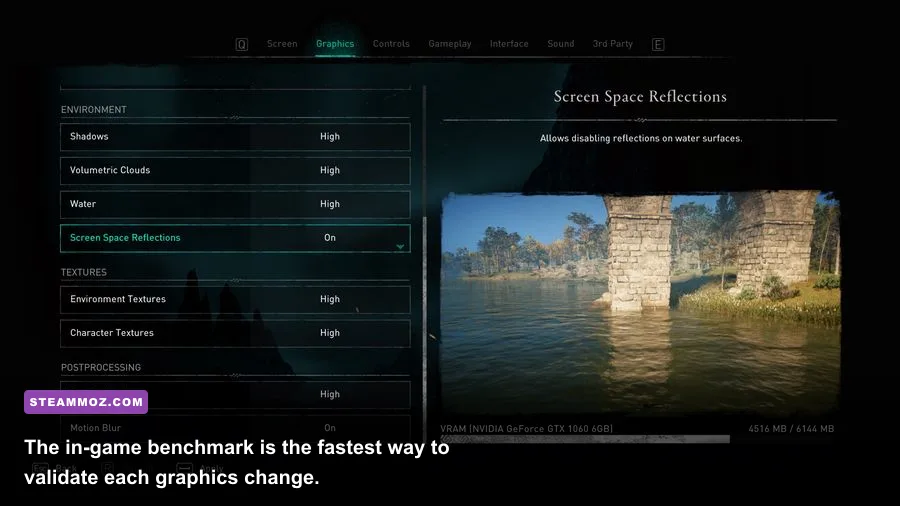
| Screen Space Reflections | High | Medium | Useful around wet surfaces, but not worth sacrificing 1% lows. |
| Environment Textures | High | Low | Needs sufficient VRAM more than raw GPU power. |
| Character Textures | High | Low | Keep this high for Eivor and boss armor detail. |
| Depth of Field | Off | Small | Removes artificial blur during dialogue and aiming. |
| Motion Blur | Off | Small | Improves clarity during dodges and mounted travel. |
| Adaptive Quality | Off initially | Variable | Use only if you prefer a locked target over a fixed image resolution. |
| Upscaler | FSR 2 Quality | Large gain | Best first step for 1440p cards struggling to hold 60 FPS. |
Don’t blindly select Ultra because the preset exists. Ultra shadows and clouds consume a surprising amount of GPU time for changes you’ll rarely notice while sprinting, parrying, or piloting a raven. High textures are generally safe on an 8GB card at 1080p and 1440p, while Very High textures are better reserved for cards with 10GB or more VRAM. If you see sudden hitching when entering Eitri, texture streaming—not average FPS—may be the real problem.
🎮 Assassin's Creed Valhalla: Dawn of Ragnarök
Looking to experience this game? Grab your digital key directly on our store for $9.99.
View on Steammoz Store →Which settings give the biggest FPS gains?
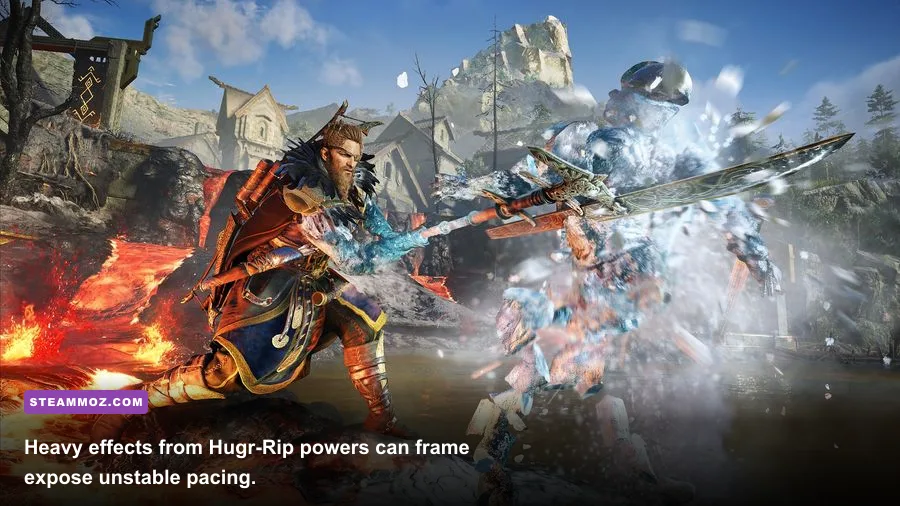
For Dawn of Ragnarök, shadows and volumetric clouds are the first switches to test. Shadows affect the enormous number of light sources scattered through dwarven camps and fiery Muspelheim arenas. Clouds are expensive because they combine lighting, transparency, and atmospheric depth across a large section of the horizon. Dropping either from Very High to Medium often produces a larger gain than lowering textures, water, or character quality.
| Setting Change | Typical FPS Gain | Image Quality Cost | Who Should Use It |
|---|---|---|---|
| Very High shadows to Medium | 6–12% | Moderate in dense areas | Players missing a stable 60 FPS. |
| Very High clouds to Medium | 5–10% | Moderate in bright skies | GPUs sitting near 99% usage. |
| Resolution scale 100% to 90% | 8–12% | Noticeable softness | 1080p systems with limited GPU headroom. |
| FSR 2 Quality to Balanced | 8–15% | More shimmer and softness | 1440p players targeting 60–75 FPS. |
| World details Very High to High | 3–7% | Less distant geometry | CPU-limited systems or busy settlements. |
| Screen space reflections High to Medium | 2–5% | Less surface reflection | Players exploring watery or rainy regions. |
| Clutter High to Medium | 2–5% | Thinner grass and debris | Older CPUs and systems with 16GB RAM. |
Textures are usually a poor place to chase FPS. They mostly affect VRAM capacity and streaming stability rather than raw shader performance. Lowering environment textures from High to Medium can help a 4GB card avoid stutters, but it won’t magically fix a GPU that is already rendering at full load. Likewise, disabling depth of field makes the image cleaner but won’t turn 45 FPS into 60.
Use the built-in benchmark after every major change. Run it once to warm up shader caches, then compare the average and minimum results from a second pass. More importantly, visit a demanding location yourself. A benchmark can’t perfectly reproduce a raid with fire, smoke, NPCs, and an active Hugr-Rip power. For a real-world test, fast-travel to Eitri, sprint through a populated area, then start a fight near a lava-lit camp.
Best upscaling settings for 1080p, 1440p, and 4K
AMD FSR 2 is the most useful performance tool in Dawn of Ragnarök. It renders internally below your output resolution and reconstructs a sharper final image. Quality is the sweet spot for 1440p, while Balanced can rescue a card that can’t maintain 60 FPS. At 1080p, native resolution or FSR Quality generally looks better because aggressive reconstruction has fewer pixels to work with.
| Output Resolution | Recommended Upscaler | Target Hardware | Expected Trade-Off |
|---|---|---|---|
| 1920×1080 | Native or FSR Quality | GTX 1660 Super, RX 5600 XT, RTX 2060 | Native is clearest; Quality helps stabilize demanding fights. |
| 2560×1440 | FSR Quality | RTX 3060 Ti, RX 6700 XT, RTX 4060 Ti | Strong image quality with a useful GPU workload reduction. |
| 2560×1440 high refresh | FSR Balanced | RTX 3070, RX 6800, RTX 4070 | Slight softness, but more realistic for an 80–100 FPS target. |
| 3840×2160 | FSR Balanced or Performance | RTX 4070 Super, RX 7800 XT, RTX 4080 | Performance is softer; use it only when 4K native is impractical. |
| 3440×1440 | FSR Quality | RTX 3070 Ti, RX 6800 XT, RTX 4070 | Balances ultrawide clarity with the extra pixel load. |
At 1440p, start with FSR Quality, then lower clouds and shadows before moving to Balanced. That order matters. Balanced reconstruction can introduce shimmer around foliage, roof edges, and glowing lava particles. If you’re using a large 4K monitor, FSR Balanced is less offensive than it is at 1080p because the output contains more pixels, but fine vegetation will still look less stable than native rendering.
Nvidia owners should also check whether their game build exposes DLSS or a sharpening option through the current PC version. If DLSS is available on your setup, Quality is normally the right choice for 1440p and Balanced is the practical choice for 4K. Don’t stack excessive driver-level sharpening on top of an upscaler. A restrained sharpening value can restore clarity; too much creates bright halos around Eivor’s silhouette and makes distant foliage sparkle.
CPU, VRAM, and PC settings that stop stutter

Average FPS tells only half the story. Valhalla can feel rough at 60 FPS if the frame-time graph spikes whenever you enter a settlement, summon a mount, or trigger a large combat encounter. Dawn of Ragnarök adds more particle-heavy scenes, so a stable 1% low is worth protecting even if that means giving up a few Ultra details.
Start with 16GB of system memory, but 32GB is increasingly comfortable for an open-world session with a browser, Ubisoft Connect, and overlays running in the background. Keep the game on an SSD. The expansion streams huge environmental sections and texture data as you move between dwarven interiors and open terrain; a hard drive can turn traversal into hitching that no graphics slider will solve.
| Component | Minimum Practical Target | Recommended for 60 FPS | Pro-Tuned Advice |
|---|---|---|---|
| CPU | Core i5-8400 or Ryzen 5 2600 | Core i5-12400F or Ryzen 5 5600 | Lower world detail if crowded areas are CPU-bound. |
| GPU | GTX 1660 Super or RX 5600 XT | RTX 3060 Ti or RX 6700 XT | Use FSR Quality at 1440p and Medium clouds. |
| VRAM | 6GB at 1080p | 8–12GB at 1440p | Reduce textures before other settings if streaming hitches appear. |
| System RAM | 16GB dual-channel | 32GB dual-channel | Close launchers and browser tabs when chasing 1% lows. |
| Storage | SATA SSD | NVMe SSD | Install the game and expansion on the SSD, not an HDD. |
| Driver | Current stable release | Clean current GPU driver | Delete old shader caches only when troubleshooting corruption. |
For Nvidia cards, use the driver control panel’s power management mode only for the game profile, not globally. Set it to Prefer maximum performance if the GPU is dropping clocks aggressively. On Radeon hardware, keep shader cache enabled and avoid forcing a driver-level frame limiter on top of the game’s own cap unless you’ve tested the combination.
Variable refresh rate is a major quality-of-life upgrade. If your display supports G-SYNC or FreeSync, enable it, set V-Sync according to your monitor’s recommended VRR configuration, and cap the game slightly below the refresh ceiling. A 60Hz screen can use a 58 or 59 FPS cap; a 144Hz monitor can start at 141 FPS, although most systems will need a 60 or 72 FPS target in this expansion. A locked 60 feels better than an unstable 75 that repeatedly collapses during raids.
Ultra, High, and low-end profiles compared
High-quality 60 FPS profile
Use this on an RTX 3060 Ti, RX 6700 XT, RTX 3070, RX 6800, or similar card. Keep textures, world detail, water, and character quality on High or Very High. Set shadows and clouds to Medium, use FSR Quality at 1440p, and cap at 60 FPS. This is the profile I’d recommend for most players because it keeps the visual identity of Svartalfheim intact without wasting GPU time on effects you’ll barely register while moving.
High-refresh 90 to 120 FPS profile
High refresh requires sharper compromises. Use High textures, High world detail, Medium shadows, Low or Medium clouds, Medium reflections, and FSR Balanced at 1440p. Set resolution scale to 90% only if Balanced still misses your target. A powerful RTX 4070 or RX 7800 XT may approach 90 FPS in lighter scenes, but don’t expect a flawless 120 FPS across the entire expansion. The engine’s CPU workload and open-world streaming can become the limit before the GPU does.
Entry-level 1080p profile
For a GTX 1660 Super, RTX 2060, RX 5600 XT, or similar card, choose 1080p, High textures, High world detail, Medium clutter, Low shadows, Low clouds, Medium water, and FSR Quality. If the game still dips below 50 FPS, use FSR Balanced before dropping textures. Disable motion blur and depth of field, then cap at 45 or 50 FPS if 60 remains inconsistent. A stable cap makes traversal and combat feel much more deliberate.
| Profile | Resolution and Upscaler | Key Settings | Best Target |
|---|---|---|---|
| Visual Showcase | 4K native or FSR Quality | Very High textures, High shadows, High clouds | 30–60 FPS on RTX 4080-class hardware |
| Balanced 1440p | 1440p FSR Quality | High textures, Medium shadows, Medium clouds | Locked 60 FPS |
| High Refresh | 1440p FSR Balanced | High textures, Low clouds, Medium reflections | 75–100 FPS where CPU allows |
| Budget 1080p | 1080p FSR Quality or Balanced | Medium shadows, Low clouds, High textures | 45–60 FPS |
Ultra makes sense when you’re taking screenshots, not necessarily when you’re playing through the story. Very High world detail can be worthwhile because it keeps distant mountains, ruins, and architecture richer. Ultra shadows, however, mostly deliver more precise shadow edges and coverage. During a frantic fight against a Flame-Keeper or a Muspelheim champion, those extra shadow samples disappear beneath movement, particles, and camera shake.
Fixing dips during combat, raids, and exploration
If performance falls specifically during combat, watch GPU utilization and frame time rather than guessing. GPU usage near 95–99% means lower clouds, shadows, reflections, or output resolution. GPU usage below that level while the frame rate remains low points toward a CPU, streaming, or background-process limit. Crowded raids can stress the CPU with NPC behavior, animation, collision, and destruction, so lowering world detail and clutter may help more than lowering anti-aliasing.
Hugr-Rip powers deserve special attention. The Power of Muspelheim surrounds Odin with fire-resistant effects, while the Power of Winter and Power of Rebirth can fill the screen with frost, sparks, and flame. These moments are short, but they often coincide with several enemies, destructible objects, and dynamic lighting sources. If your 1% lows collapse when activating a power, try Medium clouds and shadows first, then cap the frame rate. Don’t sacrifice texture quality for a two-second effect unless VRAM is already overflowing.
Mounted travel can expose traversal stutter. Let the game finish compiling shaders after a driver update, avoid running recording software at an unnecessarily high bitrate, and keep at least 15 percent free space on the SSD. Overlays from Ubisoft Connect, Discord, Steam, and GPU software can also introduce inconsistent frame pacing. Disable them one at a time rather than changing ten things at once, so you know which fix actually worked.
For more PC optimization habits, Steamoz’s Dragonkin settings guide covers the same practical approach to frame pacing, while the Elex PC fixes guide is useful when crashes and performance problems overlap. The principle is simple: measure one variable, test a repeatable scene, and keep the change only if frame time improves.
Final settings checklist for maximum performance
Before launching the expansion, update your GPU driver, install Dawn of Ragnarök on an SSD, and close unnecessary background applications. Confirm that your monitor is running at its actual refresh rate in Windows. Then apply High textures, Medium shadows, Medium clouds, High reflections, Very High or High world detail, and FSR Quality. Disable motion blur, depth of field, and chromatic aberration. Run the benchmark twice, followed by a real test in Eitri or a busy Muspelheim camp.
If you’re short of your target, lower settings in this order: clouds, shadows, screen space reflections, resolution scale, then world detail. Keep textures high unless you’re seeing VRAM-related stutter. At 1440p, move from FSR Quality to Balanced only after those settings are tuned. At 1080p, avoid Performance mode unless you have no other way to hold a playable frame rate; the softness around foliage and distant structures is much more obvious.
For official reference, compare your hardware against the Assassin’s Creed Valhalla Steam page, check updates through Ubisoft’s official Valhalla page, and review support information through the Ubisoft Support hub. The base game and expansion can behave differently across hardware, so treat published requirements as a floor rather than a promise of locked 60 FPS.
The winning Dawn of Ragnarök setup is rarely the Ultra preset. It’s a carefully balanced profile that protects frame time where the game is actually expensive: volumetric skies, dynamic shadows, dense settlements, and particle-heavy battles. Start with the settings above, test in the parts of Svartalfheim where your PC struggles, and you’ll get a cleaner, steadier adventure without turning Odin’s fiery mythological playground into a blurry mess.