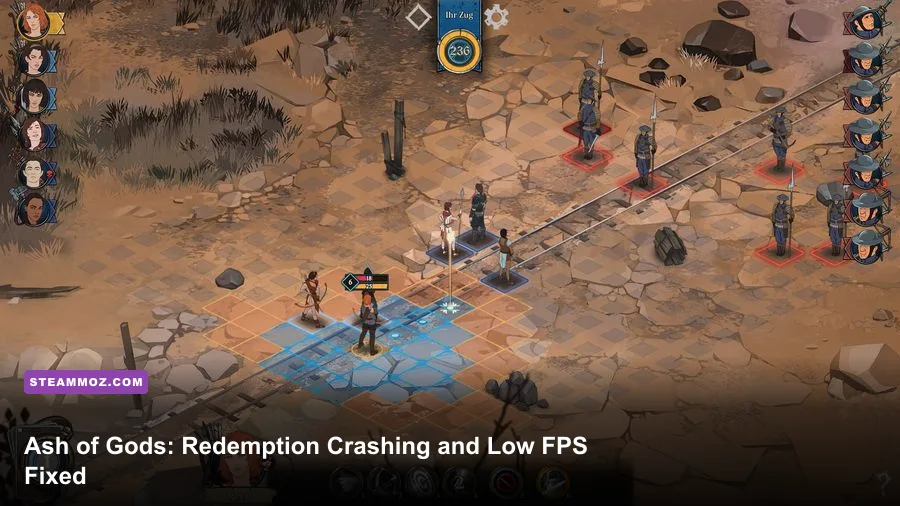
If Ash of Gods: Redemption crashes, stutters, or feels stuck at an unpleasant frame rate on PC, start with three fixes: verify the Steam installation, disable every overlay, and run the game in a stable windowed or borderless resolution. Then update your GPU driver, remove conflicting launch tweaks, and cap performance at 60 FPS. Because Ash of Gods is a relatively light 2D Unity game, severe slowdown usually points to a broken file, display-scaling conflict, background capture software, or a driver problem rather than weak hardware.
This guide targets the Steam version and covers crash-on-launch errors, black screens, freezes between story panels, low FPS during battles, and stutter after alt-tabbing. The fixes are ordered from safest to most invasive, so you can stop as soon as the game behaves normally. Before changing anything, check the official Steam page for current platform information and patches.
Start with the fixes that solve most PC crashes
First, close Ash of Gods completely and restart Steam. A suspended Unity process can leave a lock or graphics device state behind, especially after a crash during a cutscene. Open Task Manager with Ctrl+Shift+Esc and end any remaining Ash of Gods or Unity-related process before launching again.
Verify the installation
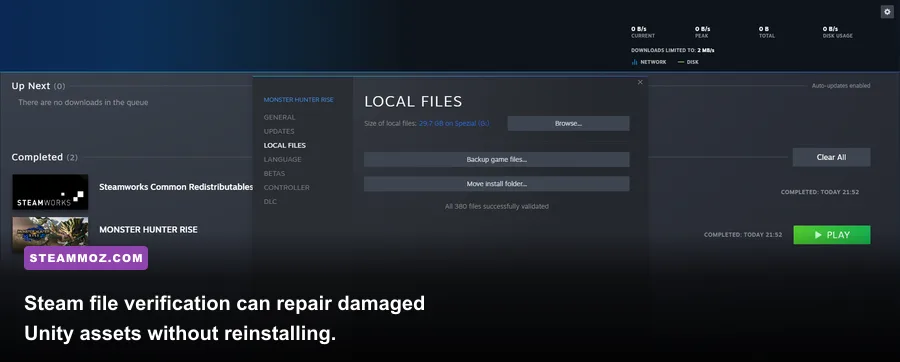
In Steam, right-click Ash of Gods: Redemption, select Properties, open Installed Files, and choose Verify integrity of game files. Wait for the process to finish even if Steam reports that only one file needs replacement. The game’s illustrated scenes, videos, fonts, and localization assets are loaded at different points in the campaign, so a damaged file may not cause trouble until you reach a particular chapter or battle.
Do not immediately delete the entire installation. Verification is faster and preserves your downloads. After Steam replaces a file, reboot Windows and test the exact action that previously failed, such as loading a save, opening the deck screen, or entering a combat encounter.
Remove launch options
Properties, General, and Launch Options should normally be empty. Delete old commands such as -force-d3d11, -force-opengl, custom resolution flags, and unofficial FPS arguments unless a specific support instruction requires them. Older Unity launch parameters can force a rendering path that your current driver handles poorly.
Also turn off Steam Cloud temporarily if the crash happens while loading one particular save. Copy your saves first, then test with Cloud disabled. If a clean local save loads but the synced save crashes, the problem is probably save corruption rather than graphics performance. You can find developer updates and support information through AurumDust’s official website.
| Symptom | Most likely cause | First fix | Success check |
|---|---|---|---|
| Closes before the menu | Driver, overlay, or bad launch flag | Clear launch options and disable overlays | Reaches the main menu twice |
| Black screen with audio | Resolution or fullscreen handshake | Use windowed mode and reset display scaling | Menu renders normally |
| Crash during a chapter | Damaged asset or save file | Verify files and test an earlier save | Battle or scene loads |
| Low FPS everywhere | Driver profile, capture tool, or power mode | Disable hooks and select maximum performance | Stable 60 FPS in battle |

🎮 Ash of Gods: Redemption
Looking to experience this game? Grab your digital key directly on our store for $4.99.
View on Steammoz Store →Fix black screens, fullscreen crashes, and resolution bugs
Ash of Gods uses illustrated 2D scenes, but fullscreen switching still depends on Windows’ display handshake. If the game shows a black screen, flashes, or crashes when you press Alt+Enter, launch it in windowed mode first. Once the menu appears, choose your monitor’s native resolution and test borderless or fullscreen one at a time.
Use a conservative display profile
For a 1080p monitor, begin at 1920×1080. On a 1440p display, test 2560×1440 only after the game works at 1920×1080. A very high desktop scaling percentage can make older Unity interfaces behave badly, particularly when Windows is using a mixed-DPI multi-monitor setup.
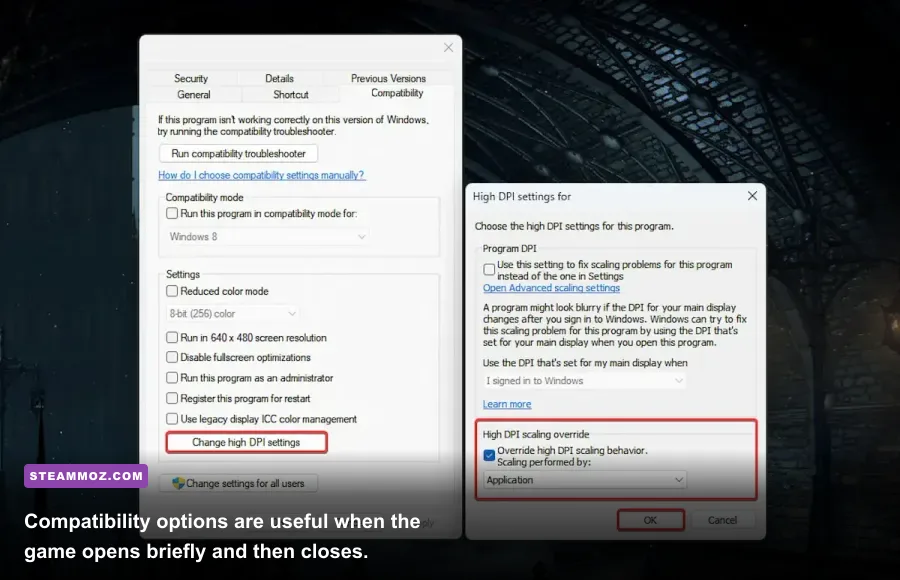
Right-click the game executable, open Properties, select Compatibility, then Change high DPI settings. Test Override high DPI scaling behavior with Application selected. This is not a universal performance boost, but it can stop a launch crash or a badly scaled window on laptops and dual-monitor systems. If it makes the image worse, undo it; compatibility settings should be tested individually, not stacked blindly.
Reset the local configuration
If changing settings inside the game is impossible, close Steam and back up Ash of Gods configuration and save folders before renaming anything. Search Windows for folders containing Ash of Gods or the developer name AurumDust inside %USERPROFILE%\AppData\LocalLow and %APPDATA%. Rename only the configuration folder, not your saves, then relaunch so Unity can create fresh display settings.
The exact folder can vary by build, so do not erase random AppData directories. Make a desktop backup first. If a fresh configuration fixes the crash, restore saves afterward and reapply settings slowly. This approach is safer than downloading a mystery config file from a third-party forum.
Stop overlays and background apps from stealing frames
For this game, an overlay conflict is more plausible than a GPU bottleneck. Steam Overlay, Discord, Xbox Game Bar, GeForce Experience, AMD Adrenalin metrics, MSI Afterburner with RivaTuner, OBS, and aggressive antivirus overlays can all inject hooks into a Unity process. You do not need to uninstall them; disable them temporarily and identify the offender.
Test a clean launch
Disable Steam Overlay for the game through Properties, General. Turn off Discord’s game overlay, Windows Game Bar, and GPU recording features. Exit MSI Afterburner and RivaTuner completely rather than merely hiding their on-screen display. Launch a campaign, load a battle, and alt-tab once. If the game stabilizes, re-enable tools individually until the crash or hitch returns.
Cloud sync, browser tabs, and a music player rarely cause a true Ash of Gods crash, but real-time recording and hardware monitoring can produce frame-time spikes. Watch frame time rather than only average FPS. A game reporting 60 FPS can still feel rough if it jumps between 16.7 ms and 50 ms frame intervals.
Use the correct Windows power mode
On a laptop, connect the charger and set Windows Power Mode to Best performance. In NVIDIA Control Panel, create a profile for Ash of Gods and use Prefer maximum performance only for testing. On AMD hardware, disable Radeon Chill for the game and check that a driver-level frame limiter is not set to an unusually low value.
These changes matter most when the game is accidentally running on integrated graphics. In Windows Graphics settings, add the game executable and select High performance. Confirm the GPU in Task Manager while the game is open. If the dedicated GPU remains idle, update the laptop manufacturer’s graphics package before forcing a new driver.
Use a stable graphics profile for smooth 60 FPS
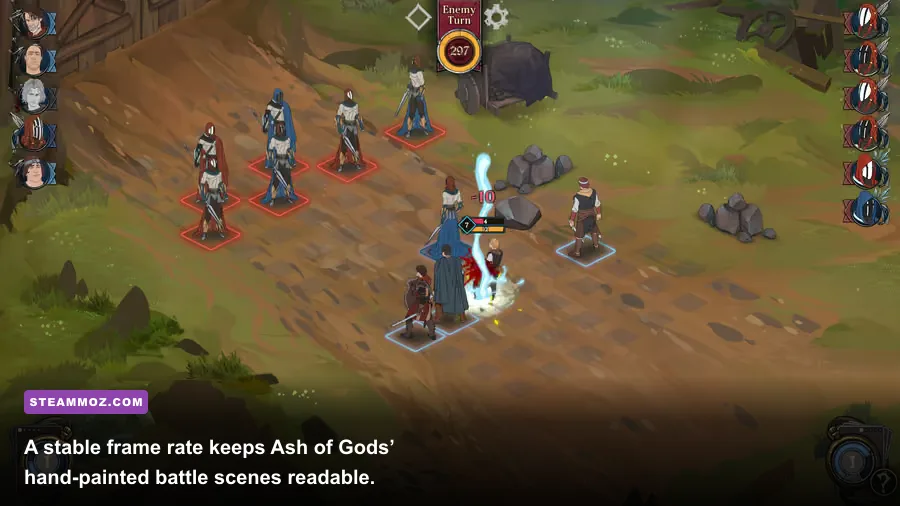
Ash of Gods: Redemption should run comfortably on modest modern hardware because its battles and story panels are not demanding 3D environments. The official Steam listing is the right place to compare your PC against the published minimum configuration, but driver state and software conflicts matter more than raw GPU power here. Treat 60 FPS as the sensible target instead of chasing an unnecessarily high refresh rate.
| Setting or profile | Recommended value | FPS impact | Visual or stability note |
|---|---|---|---|
| Resolution | Native desktop resolution | Low to medium | Use 1920×1080 for troubleshooting |
| Display mode | Borderless or windowed test | Low | Best first step for black screens |
| V-Sync | On for 60 Hz displays | Low | Reduces tearing and frame pacing swings |
| Quality | High, then Medium if needed | Low | Do not sacrifice quality before testing overlays |
| Frame limit | 60 FPS | Reduces spikes | Use the in-game option if available |
| Background capture | Off | Medium on older CPUs | Often improves stutter more than lowering resolution |
Lowering resolution is useful as a diagnostic. If 1280×720 produces exactly the same stutter as native resolution, your GPU is not the limiting factor. Focus on CPU background load, overlays, power management, and frame pacing instead. If lowering resolution dramatically improves performance, check that the game is using the dedicated GPU and that your driver profile is not applying forced supersampling or sharpening.
V-Sync can add a little input latency, but this is a narrative tactics game rather than a competitive shooter. Stable frame delivery is more valuable than chasing 144 FPS between menus. If your monitor is 120 or 144 Hz, test a 60 FPS cap first. An uncapped frame rate can make older Unity titles render menus unnecessarily fast, increase power draw, and expose driver timing problems.
Update drivers, Windows, and DirectX without making things worse
Install a current stable GPU driver from NVIDIA, AMD, or Intel, then reboot. Choose a clean installation if the installer offers one and you have recently changed graphics cards. Do not install beta drivers solely to fix a two-dimensional game unless the release notes specifically mention your hardware.
Windows Update should also be current, especially for laptop graphics switching and display handling. Open the DirectX Diagnostic Tool with dxdiag and check for errors, but remember that Ash of Gods does not need a modern DirectX 12 feature set to render its core scenes. Reinstalling random DLL files from file-sharing websites is dangerous and is not a legitimate crash fix.
Repair the Microsoft runtime only when logs point there
If Windows Event Viewer identifies a missing Visual C++ runtime or a side-by-side error, install the official Microsoft Visual C++ Redistributable packages from Microsoft’s download page. Install the x86 package as well as x64 when a game’s architecture is unclear. Avoid third-party all-in-one DLL packs.
For recurring crashes, open Event Viewer, choose Windows Logs, Application, and inspect the error at the crash time. A faulting module naming a GPU driver supports a driver rollback or clean install. A module naming an overlay supports disabling that overlay. If the event only names the game executable, verification and configuration reset are still the safest next moves.
Recover from save-specific crashes and campaign freezes
If the menu works but a particular encounter crashes, do not assume your entire campaign is lost. Ash of Gods moves between story scenes, travel decisions, and tactical battles, so the failure may be tied to one damaged asset or a bad state created during a save. Test an earlier save from before the problematic chapter. If it loads, progress again with overlays disabled and Steam Cloud temporarily paused.
Keep backup copies outside the game’s save directory. Rename them with the date and chapter rather than overwriting every file. Never edit campaign saves with a text editor unless the developer specifically provides a supported tool; changing a single value can make the whole profile unreadable.
Some players report freezes after alt-tab, especially when switching from fullscreen to another monitor. Use borderless mode, disable fullscreen optimizations through the executable’s Compatibility tab, and avoid rapidly pressing Alt+Tab during a loading transition. Give the game several seconds to finish loading its illustrated scene before clicking repeatedly. That sounds basic, but repeated input during a stalled Unity transition can turn a recoverable hitch into a not-responding window.
If none of these steps works, collect your Windows version, GPU model, driver version, crash timestamp, affected chapter, and whether a new campaign reproduces the problem. Send that information through the developer’s official support channels rather than posting only that the game crashes. For broader PC troubleshooting, Steamoz’s guide to ELEX crash and FPS fixes covers similar driver, overlay, and configuration checks, while the Drawful 2 PC requirements guide explains how to separate genuine hardware limits from software problems.
Recommended troubleshooting order for Ash of Gods
Run the fixes in this order: restart Steam and Windows, verify files, clear launch options, disable every overlay, test windowed 1920×1080, enable V-Sync with a 60 FPS target, update the GPU driver, and only then reset the local configuration. This sequence protects your saves and gives each change a clear diagnostic purpose.
| Step | Action | Why it matters | Keep the change? |
|---|---|---|---|
| 1 | Restart Steam and end leftover processes | Clears stuck Unity sessions | Yes |
| 2 | Verify Steam files | Repairs missing or damaged assets | Yes |
| 3 | Remove launch options | Returns rendering to a supported default | Yes |
| 4 | Disable overlays and capture | Removes injection and frame-time conflicts | Usually |
| 5 | Test windowed 1080p at 60 FPS | Separates display bugs from hardware limits | If stable |
| 6 | Update or clean-install the GPU driver | Fixes driver-side device failures | Yes |
| 7 | Back up saves and reset configuration | Repairs corrupted display preferences | Only if needed |
The key takeaway is simple: Ash of Gods: Redemption should not require extreme graphics compromises. If it crashes or crawls, verify the build and remove software hooks before lowering image quality. Once the game reaches the menu reliably, a native-resolution borderless profile, V-Sync, and a 60 FPS cap usually deliver the cleanest experience for Thorn Brenin’s campaign, Lo Pheng’s battles, and every tense decision in between. If you enjoy older RPGs that reward patience, Steamoz’s Dungeon Siege retrospective is worth a look after your installation is stable.
For official announcements and version changes, monitor the Ash of Gods Steam news hub and the official Ash of Gods page. Patch behavior can change, so recheck launch options and graphics profiles after a major update.