For the best Alien: Isolation Safe Haven graphics settings, start at 1080p, disable Motion Blur, Depth of Field, Chromatic Aberration, and Film Grain, then set Shadows and Reflections to Medium, Ambient Occlusion to SSAO or Medium, and Anti-Aliasing to SMAA. Keep Textures on High if your GPU has at least 4GB of VRAM. This profile usually delivers a much steadier frame rate than the Ultra preset while preserving the sharp industrial detail that makes Safe Haven work.
Safe Haven isn't a separate graphics engine or a dramatically heavier version of the campaign. It's Survivor Mode content running through the same renderer, but its compact rooms, terminal lighting, reflective metal, smoke, and sudden Xenomorph encounters make inconsistent frame pacing especially noticeable. A number that looks fine in an empty corridor can collapse into stutter when the Alien, sparks, shadows, and volumetric-looking lighting effects overlap.
The advice below targets desktop PCs and laptops running the Steam version of Alien: Isolation on Steam. The goal isn't to make Sevastopol look flat. It's to spend performance on the effects you actually see while moving, hiding, crafting, and sprinting for a save point.
Best Safe Haven graphics preset for maximum FPS

Use the table below as the fast setup. It is a balanced competitive profile rather than a low-end preset: textures remain detailed, the image stays readable in dark rooms, and the expensive effects are reduced before they can damage frame time.
| Setting | Recommended value | FPS impact | Visual trade-off |
|---|---|---|---|
| Resolution | Native 1080p or 1440p | Very High | Lowering resolution gives the largest raw GPU gain but makes text and terminals softer. |
| Texture Quality | High | Low to Medium | High keeps wall panels, warning labels, and equipment sharp; use Medium below 4GB VRAM. |
| Shadow Quality | Medium | High | Reduces shadow-map cost while retaining useful silhouettes and room depth. |
| Reflection Quality | Medium | Medium to High | Metal and wet surfaces lose some subtle reflections, but gameplay readability barely changes. |
| Ambient Occlusion | SSAO or Medium | Medium | Preserves contact shadows around crates, vents, and furniture without the heaviest setting. |
| Anti-Aliasing | SMAA | Low to Medium | SMAA keeps railings and cables cleaner than FXAA with less softness than heavier options. |
| Motion Blur | Off | Small | Improves clarity during sprinting and quick mouse turns. |
| Depth of Field | Off | Small to Medium | Keeps terminals, loot, and hallway corners sharp instead of artistically blurred. |
| Chromatic Aberration | Off | Small | Removes colored edge fringing and produces a cleaner image. |
| Film Grain | Off | Very Small | Removes artificial noise, which is particularly distracting in dark Safe Haven rooms. |
| V-Sync | Off with VRR; On without VRR if tearing bothers you | Variable | VRR is preferable; ordinary V-Sync can add latency and cap performance. |
| Frame-rate limit | Refresh rate minus 2 or 3 FPS | Stability gain | A cap of 57 FPS for a 60Hz display often feels smoother than constant 60-to-45 swings. |
Start with the native resolution your display expects. Dropping from 1440p to 1080p can produce a major boost on a mid-range GPU, but it also makes the game's CRT-style interfaces and small objective text less comfortable to read. If you use an Nvidia or AMD upscaler externally, test it carefully; Alien: Isolation's older image pipeline can reveal shimmer on grilles and chain-link surfaces.
Textures are the easiest setting to overreact to. High texture quality primarily consumes VRAM, not enormous amounts of shader power. If performance is excellent but you see hitching when entering new rooms, lower textures one step before touching resolution. That symptom often points to VRAM pressure or asset streaming rather than a weak CPU.

🎮 Alien: Isolation Safe Haven
Looking to experience this game? Grab your digital key directly on our store for $3.99.
View on Steammoz Store →Which settings actually cost the most FPS?
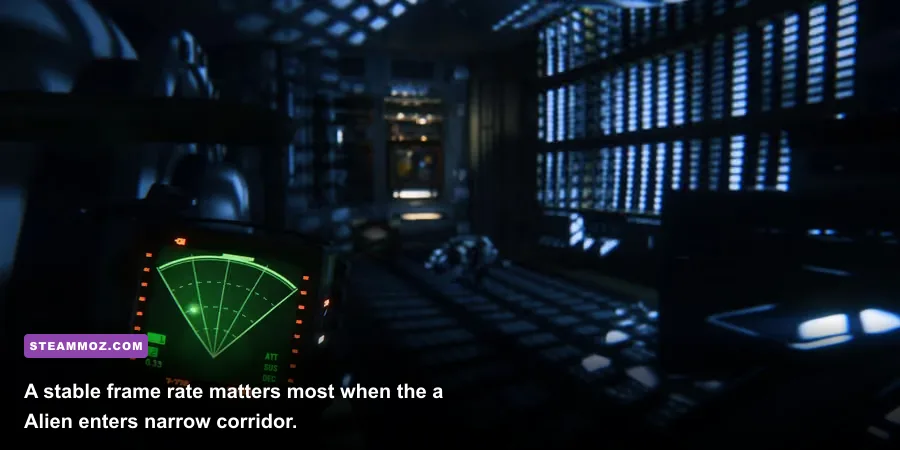
Alien: Isolation is old enough to run well on modest hardware, but its visual tricks aren't equally expensive. Shadows and reflections are the first places to look when the GPU is pinned at 99 percent. Ambient occlusion follows close behind, especially in scenes packed with props and layered geometry.
Shadow Quality affects more than the darkness beneath a table. It controls how accurately lights cast shadows across walls, machinery, and moving characters. Safe Haven's tight rooms create many nearby surfaces for shadows to land on, so Ultra can spend a surprising amount of GPU time on detail you only glimpse while hiding. Medium is the sweet spot: the Alien still reads as a moving silhouette, and rooms retain convincing depth.
Reflection Quality matters around glossy floors, metal doors, glass, and wet industrial surfaces. High or Ultra looks excellent in screenshots, but the effect is rarely important while you are checking a motion tracker or peeking around a locker. If your average FPS is already acceptable but your 1% lows are ugly, Medium reflections are a sensible cut.
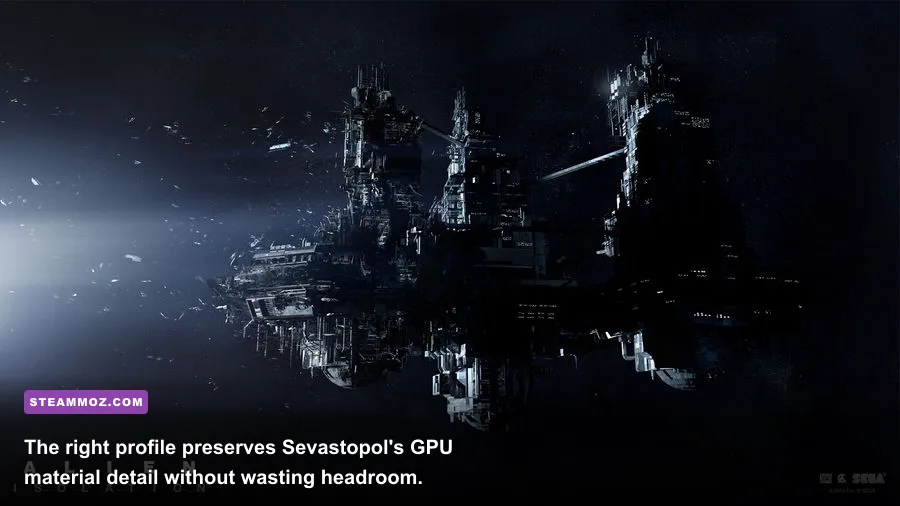
Ambient Occlusion supplies the grime and contact shading that stop Sevastopol from looking like a collection of floating objects. Turning it off improves performance, but vents, crates, desks, and door frames lose weight. Keep SSAO or the game's Medium option unless you're working with integrated graphics. It is one of the few effects worth retaining for atmosphere.
Anti-aliasing is a more personal trade-off. FXAA is light but softens small text and thin cables. SMAA usually offers a cleaner middle ground. If your version exposes a heavier temporal option and you dislike ghosting around the Alien's movement, avoid it. A crisp, stable SMAA image is generally better for spotting a door panel or motion tracker contact than a smoother but smeared picture.
| GPU situation | First setting to reduce | Second adjustment | What to keep high |
|---|---|---|---|
| Integrated graphics | Resolution | Shadows and reflections to Low | Texture filtering and basic texture quality if VRAM allows |
| 4GB GPU | Shadows to Medium | Reflections to Medium | Textures on High at 1080p |
| 6–8GB GPU | Reflections if needed | SSAO instead of heavier AO | Native resolution and High textures |
| Modern mid-range GPU | Cap frame rate for consistency | Keep shadows High only after testing | Native resolution, High textures, SMAA |
| High-end GPU at 1440p | None initially | Use a frame cap to control heat and pacing | High textures, shadows, reflections, and SSAO |
Don't chase Ultra simply because the game offers it. The jump from High to Ultra is most visible in still images, not during a tense Safe Haven run. If you want to spend extra headroom somewhere, use it on resolution or a stable frame-rate target. Those choices improve clarity and control more consistently than maximum reflections.
Safe Haven FPS profiles for low-end and high-end PCs
The right target depends on your monitor and your tolerance for input latency. A locked 60 FPS is an excellent target for most systems. It gives mouse movement a dependable feel without asking an older game engine to deliver pointless 144 FPS in every dark corridor. If you own a 120Hz or 144Hz display, 90 or 120 FPS can feel superb, but measure the worst scenes rather than trusting the opening area.
Low-end profile: stable 30–60 FPS
Use 1280x720 or 1600x900 if native 1080p cannot hold your target. Set textures to Medium, shadows to Low, reflections to Low, ambient occlusion off or Low, and SMAA or FXAA for anti-aliasing. Disable every cinematic effect. A locked 30 FPS is preferable to a wildly fluctuating 45 FPS on integrated graphics, especially during an Alien chase where frame-time spikes can ruin a carefully timed escape.
Balanced profile: 60 FPS at 1080p
This is the profile most players should use: native 1080p, High textures, Medium shadows, Medium reflections, SSAO, SMAA, and all post-processing effects off. Cap at 60 FPS, or at 57 FPS through your driver if you use a 60Hz VRR display. This profile keeps the game's strong material work intact while trimming the settings that create the most uneven GPU load.
High-refresh profile: 90–144 FPS
At 1440p, begin with High textures, Medium shadows, Medium reflections, SSAO, and SMAA. If the GPU cannot sustain your chosen cap, lower reflections first, then shadows. Avoid reducing textures unless you encounter hitching or your VRAM is full. The Alien's movement is deliberately unpredictable, so a stable 90 FPS can feel better than a nominal 144 FPS that repeatedly drops into the seventies.
Ultra profile: screenshot quality
Ultra is for systems with substantial headroom and players who value maximum environmental fidelity over frame-time consistency. Test it in a busy Safe Haven room, beside reflective surfaces, and during an encounter—not just in a quiet corridor. Keep Motion Blur and Film Grain off even here. Those effects are stylistic, not proof of a higher-quality presentation.
| Target | Resolution | Core profile | Recommended cap |
|---|---|---|---|
| Entry-level laptop | 720p–900p | Medium textures, Low shadows, Low reflections, AO Off | 30 or 60 FPS |
| 1080p mainstream PC | 1920x1080 | High textures, Medium shadows and reflections, SSAO, SMAA | 60 FPS |
| 1440p performance PC | 2560x1440 | High textures, Medium/High shadows, Medium reflections, SSAO | 90 or 120 FPS |
| High-end desktop | 1440p or 4K | High or Ultra core settings, cinematic effects selectively disabled | Refresh-rate dependent |
Safe Haven is built around short, high-pressure decisions, so frame pacing beats a high average. Use CapFrameX, MSI Afterburner, or your GPU overlay to watch 1% lows. If the counter says 100 FPS but the game feels jerky, the average is hiding spikes. A cap slightly below your lowest sustainable refresh target gives the GPU breathing room and reduces those sudden jolts.
Fix stutter, tearing, and input lag on PC
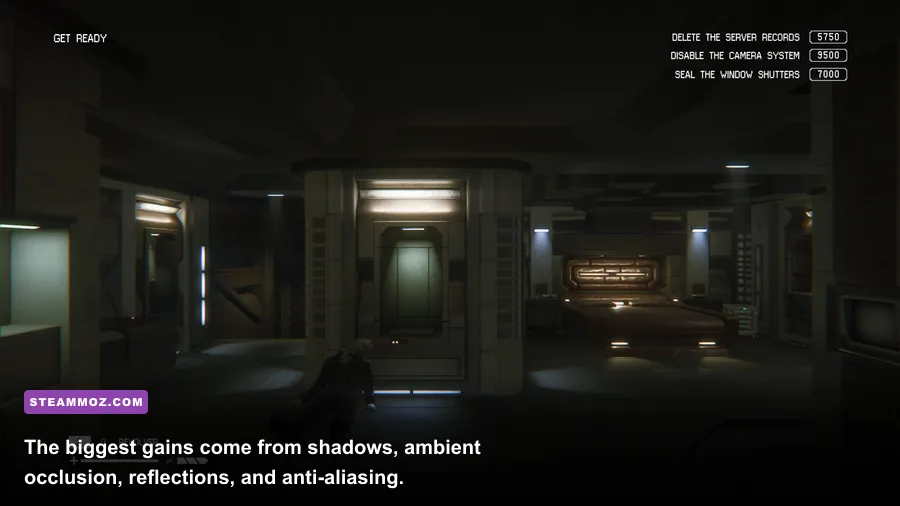
Before changing every slider, confirm where the problem lives. GPU-limited performance shows high GPU usage and improves when you reduce resolution, shadows, or reflections. CPU-limited performance shows a busy primary thread while lowering resolution does almost nothing. Safe Haven's compact spaces can still produce short CPU spikes when AI, lighting, animation, and streaming events arrive together.
For variable-refresh displays, enable FreeSync or G-SYNC and disable in-game V-Sync if your driver setup is configured correctly. Set a frame cap two or three frames below the display's maximum refresh rate. For a 144Hz panel, try 141 FPS; for 120Hz, try 117. If you don't have VRR, test V-Sync on for a clean image or off if latency matters more than tearing. Don't stack multiple frame limiters without checking which one is actually controlling the game.
Borderless windowed mode is convenient for alt-tabbing, but exclusive fullscreen can sometimes reduce overhead on older Windows configurations. Test both after restarting the game. Also close browser video, recording software, RGB utilities, and overlays you don't need. Alien: Isolation is not demanding by modern standards, but background capture can still disturb frame pacing on a laptop or older quad-core CPU.
Install the game on an SSD if possible. An SSD won't magically raise your average FPS, yet it can reduce the length of asset-streaming hitches when Safe Haven loads connected rooms. Keep several gigabytes free on the drive, update your GPU driver, and use the High Performance power mode while plugged in. Laptop owners should confirm the game is using the discrete GPU rather than integrated graphics.
Don't use random “FPS boost” configuration packs before testing the clean game. Alien: Isolation has a passionate modding community, but unofficial launch parameters and altered injector files can create crashes, broken shadows, or inconsistent input. If the game suddenly performs badly after an update or driver change, verify files through Steam and remove experimental overlays first. The official SEGA support pages are a safer starting point than downloading an anonymous preset.
Clarity settings that help you survive the Alien
Performance is only half of a good Safe Haven setup. The other half is seeing and hearing information before panic takes over. Turn Motion Blur off so quick turns don't smear doorways. Disable Depth of Field because it can blur the exact terminal, locker, or vent you need to interact with. Chromatic Aberration and Film Grain add horror flavor, but both reduce edge clarity in an already dark game.
Keep brightness moderate rather than lifting it until every corner is visible. Excessive brightness destroys the contrast that makes movement readable and can make the image look gray. Use your monitor's black-level controls instead. The game's darkness is part of its design, but crushing blacks on a cheap panel is not. If you can't distinguish a doorway from a wall, adjust display gamma carefully before lowering shadows.
Field of view is worth testing, especially on ultrawide monitors. A wider FOV gives you more peripheral information but can reduce the visual size of distant details and may affect performance slightly because more geometry is visible. Use the game's normal FOV first, then increase it in small steps. If motion feels uncomfortable, a modest FOV with Motion Blur disabled is usually the cleaner solution.
Keep subtitles on if you rely on audio cues less than a headphone user. The Alien's hiss, footsteps, and movement through vents are vital, but Safe Haven's machinery can mask quiet sounds through speakers. Headphones help you identify direction, while subtitles can prevent missed objective prompts. Neither option affects FPS, and both can make a bigger practical difference than a jump from High to Ultra.
If you want to compare visual quality before committing, take screenshots in the same Safe Haven room with only one setting changed at a time. Look at reflective floor panels, shadow edges around crates, fine cables, and text on terminals. This controlled test shows whether a setting is buying visible detail or merely consuming your performance budget.
Final Safe Haven optimization checklist
Apply the balanced profile first, load Safe Haven, and test the most demanding part of your route rather than the menu or a quiet hallway. Move through a room with multiple lights, interact with a terminal, sprint briefly, and observe an encounter if you can do so safely. Watch both average FPS and frame-time behavior. The best settings are the ones that remain predictable when the game stops being calm.
- Set native resolution and choose a realistic target: 60 FPS is the safest starting point.
- Use High textures when VRAM allows; lower them if you see streaming hitching or memory pressure.
- Set shadows and reflections to Medium before lowering resolution.
- Keep SSAO or Medium ambient occlusion for environmental depth unless the GPU is extremely limited.
- Use SMAA, then disable Motion Blur, Depth of Field, Chromatic Aberration, and Film Grain.
- Enable VRR where available and cap the frame rate just below the monitor's refresh rate.
- Test 1% lows in a busy Safe Haven room, not only in an empty corridor.
- Verify Steam files and remove overlays or unofficial tweaks if stutter begins unexpectedly.
For more PC troubleshooting ideas, Steamoz's ELEX PC fixes guide covers the same practical diagnostic approach, while the Everspace 2 FPS troubleshooting guide explains why frame-time stability matters more than a headline average. Those lessons transfer neatly to Alien: Isolation.
Finally, check the Creative Assembly website for developer information and the official Alien: Isolation site for game details. Safe Haven is at its best when the image stays sharp, the controls stay responsive, and the performance never gives the Alien an accidental advantage. Medium shadows, medium reflections, High textures, SMAA, and disabled cinematic blur remain the strongest all-around recipe for max FPS without stripping away Sevastopol's grimy personality.