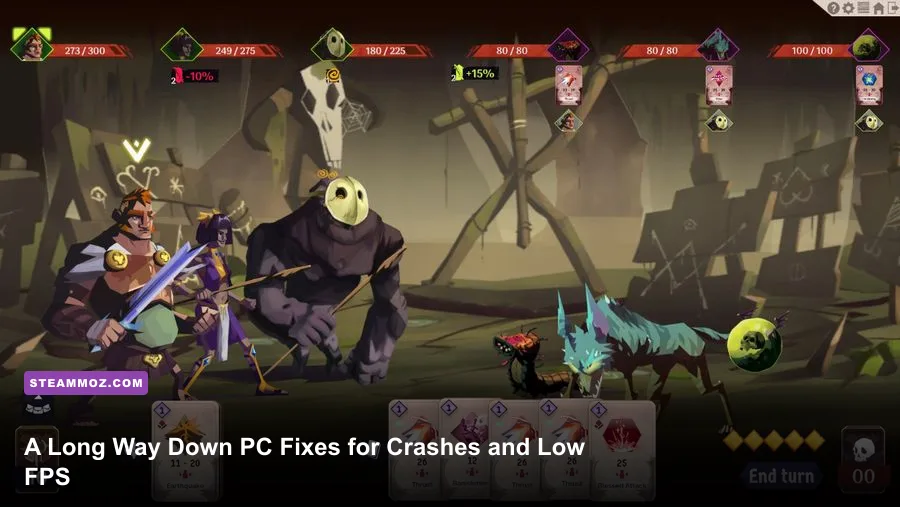
If A Long Way Down keeps crashing or running below a smooth frame rate on PC, start with three fixes: verify the Steam installation, disable every overlay, and use a conservative fullscreen graphics profile. The game is a lightweight turn-based deck-building RPG, so persistent performance trouble usually points to a broken Unity configuration, driver conflict, background software, or bad frame pacing rather than demanding hardware. Work through the fixes below in order; don't jump straight to reinstalling Windows or buying a new GPU.
A Long Way Down is built around dungeon exploration, card combat, equipment, and repeated runs. That matters because the game doesn't need a huge rendering budget to feel good. A locked 60 fps is already an excellent target, and a locked 30 fps is perfectly playable if your system is struggling. The goal is consistency during map transitions, combat effects, card selection, and reward screens—not a dramatic number in an uncapped counter.
Before changing anything, note when the problem happens. A crash at startup suggests corrupted settings, missing runtime files, or an overlay. A crash after several rooms can indicate a memory or driver issue. Stutter only during card battles points more toward frame pacing, background CPU activity, or an overlay hooking into the game. Write down your GPU, driver version, Windows version, and whether the game is installed on an SSD. That small diagnosis step prevents random tweaking.
First, separate a crash from a frame-rate problem
These problems often get lumped together, but they need different treatments. A crash closes the game, freezes the process, or throws a Unity-style error. Low FPS means the game remains playable but renders slowly. Stutter is different again: the FPS counter may say 60 while individual frames arrive unevenly, producing a hitch when opening a menu or entering a new dungeon section.
Run a clean baseline first. Reboot Windows, launch only Steam and A Long Way Down, and load the same save or start a new run. Turn off Discord, GeForce Experience, AMD Adrenalin, Xbox Game Bar, MSI Afterburner overlays, Overwolf, and RGB control panels temporarily. If the problem disappears, re-enable those tools one at a time. Overlay software injects itself into the rendering path, and small Unity games can react badly even when much larger games do not.
| Symptom | Most likely cause | Best first test |
|---|---|---|
| Crash before the title screen | Corrupt settings, overlay, missing runtime | Disable overlays and reset the configuration |
| Crash after loading a save | Damaged local data or driver conflict | Test a new run and verify files |
| Low FPS everywhere | Wrong GPU, power mode, resolution, or driver | Check GPU usage and Windows power settings |
| Short hitches during combat | Frame pacing, effects, overlay, background task | Use a 60 fps cap and close monitoring tools |
Also check that Steam is launching the game on your dedicated GPU. In Windows, open Settings, System, Display, Graphics, add the game's executable if it isn't listed, choose Options, and select High performance. This is particularly important on laptops, where Windows may assign a small Unity game to integrated graphics even when a discrete GPU is available.

🎮 A Long Way Down
Looking to experience this game? Grab your digital key directly on our store for $3.59.
View on Steammoz Store →Fix A Long Way Down crashes without guessing
Start with Steam's file check. Open your Library, right-click A Long Way Down, choose Properties, select Installed Files, and click Verify integrity of game files. Steam will replace damaged or incomplete files while leaving your saves alone. If the verification reports a problem, reboot before testing again; a file locked by antivirus software can otherwise remain unavailable.
Next, remove overlays instead of merely hiding them. In the game's Steam Properties, switch off the Steam Overlay. Disable Discord's game overlay, NVIDIA's in-game overlay, AMD's overlay, and Xbox Game Bar. Don't forget recording tools such as OBS plugins or RivaTuner Statistics Server. After changing them, fully exit Steam from the system tray and reopen it. A window left running in the background may retain the old injection module.
Update your graphics driver with a clean installation if the crash began after a driver update. If it started immediately after installing a new driver, rolling back to the previous stable version is reasonable. Avoid installing optional recording, broadcast, or performance-overlay components during the test. This is the same basic logic behind the driver and overlay workflow used in our ELEX PC crash-fix guide.
Corrupted Unity preferences are another common culprit. Close the game and Steam, then back up any save folder before removing configuration files. Search Windows for folders named A Long Way Down, and inspect %USERPROFILE%\AppData\LocalLow and %APPDATA%. Move only configuration files or the game's settings folder to your desktop; don't delete your saves blindly. Relaunching will force the game to create fresh preferences. If the crash vanishes, restore files one by one to identify the damaged setting.
If Windows blocks the executable, add the Steam library folder to your antivirus exclusions for one test session. Never disable security permanently. Also install pending Windows updates and the Microsoft Visual C++ Redistributables used by modern PC games. A clean boot is useful when the crash appears only on your machine: disable non-Microsoft startup services, test the game, then restore services afterward.
For stubborn crashes, use the official A Long Way Down Steam page and its community discussions to check for a current build-specific report. Include your crash timing, GPU, driver, Windows version, and the last action before failure. “It crashes” gives developers almost nothing to work with; “it closes when selecting a reward after the third combat encounter” is actionable.
The low-FPS settings that actually matter
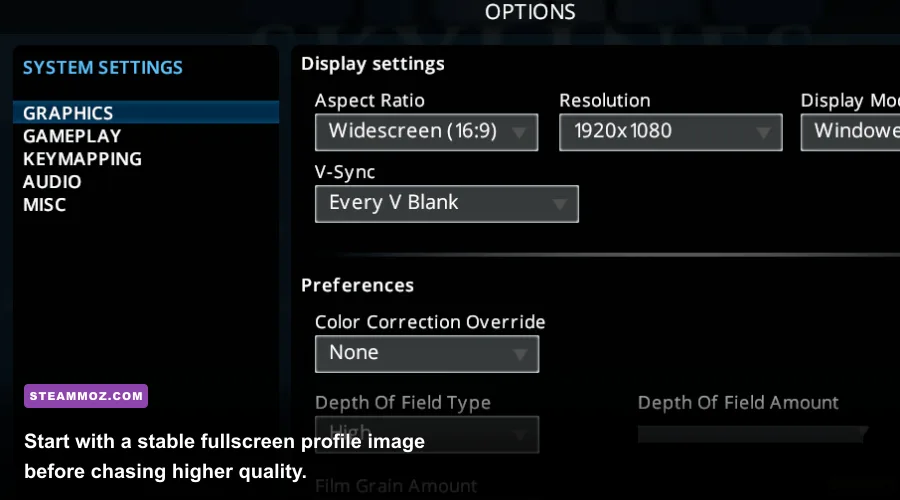
Because A Long Way Down is not a modern open-world game, lowering every option at once is the wrong approach. Start at your monitor's native resolution in exclusive fullscreen if the game offers it. If the display option is labelled simply Fullscreen, test borderless as well; some systems deliver better frame pacing in borderless, while others lose performance because the desktop compositor remains involved.
| Setting | Recommended value | FPS impact | Visual trade-off |
|---|---|---|---|
| Display mode | Fullscreen first, borderless second | Low to medium | Borderless is easier to alt-tab but may pace frames differently |
| Resolution | Native; test 1600x900 or 1280x720 if needed | High | Lower resolution softens text and card artwork |
| V-Sync | On for tearing; off for latency testing | Low | On can add latency but stabilizes presentation |
| Shadows | Medium or Low | Medium | Dungeon lighting loses some depth |
| Effects and particles | Medium | Medium during combat | Spell and card effects become less dense |
| Anti-aliasing | Medium or the lowest acceptable option | Low to medium | Edges may look slightly more jagged |
| Texture quality | High unless VRAM is very limited | Low | Lower values make cards and environments blurrier |
| Frame cap | 60 fps, or 30 fps on weak hardware | Improves consistency | Reduces spikes and unnecessary GPU load |
Resolution is usually the first high-impact adjustment. Drop one step rather than immediately using 720p, then replay the same combat scene. If FPS improves substantially, the GPU is the bottleneck. If it barely changes, the problem is probably CPU scheduling, a frame limiter conflict, or the game running on the wrong adapter. Lowering textures won't fix a CPU bottleneck, and turning off V-Sync won't magically create extra rendering power.
Use one frame limiter only. The in-game cap is preferable when available. If the game has no reliable cap, use the NVIDIA Control Panel, AMD Software, or RTSS—not all three together. A cap a few frames below your display refresh can reduce tearing, but for this title a stable 60 fps matters more than chasing 120 or 144. Turn off motion blur if available; it doesn't increase performance much, but it makes camera and transition stutter less unpleasant.
For additional context, compare your approach with Steamoz's settings guide for Dragonkin and the Drawful 2 PC performance breakdown. The principle is the same: change one variable, repeat a consistent test, and measure frame pacing rather than trusting a single peak number.
Stop stutter caused by Windows, drivers, and power limits
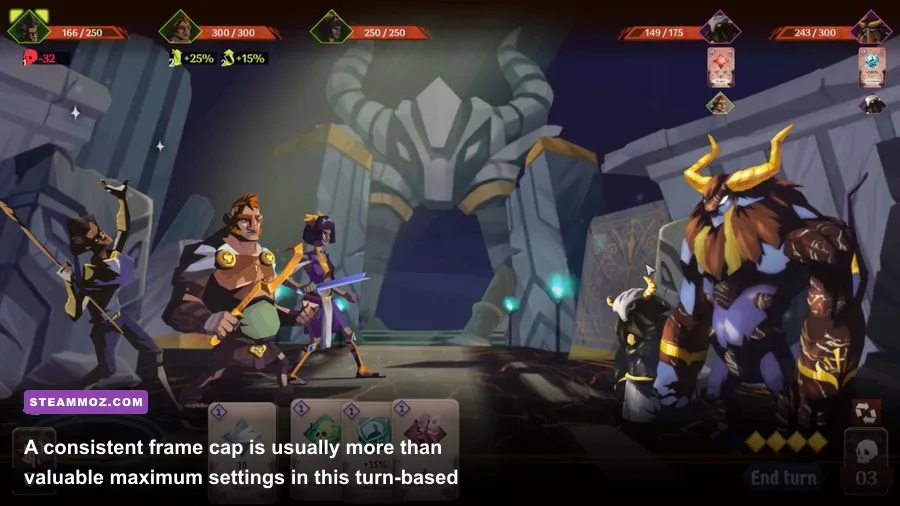
If the game averages a healthy frame rate but still feels jerky, inspect the whole system. On laptops, connect the charger and select Windows Best performance or the manufacturer's performance mode. Battery-saving profiles can throttle the CPU between card animations and map transitions, creating inconsistent frame delivery. Keep the laptop on a hard surface, too; thermal throttling can begin after several minutes even when the opening room looks perfect.
Open Task Manager while testing and watch CPU, GPU, memory, and disk activity. A GPU stuck near 100 percent confirms that resolution or effects are the useful levers. A single CPU core maxing out while total CPU usage looks low is a classic game-thread limit. A disk spike when entering a new area suggests background indexing, cloud synchronization, or an antivirus scan. Pause OneDrive and similar sync tools temporarily, and don't record the game while diagnosing hitching.
Windows Hardware-accelerated GPU scheduling can help one machine and hurt another. Treat it as a controlled experiment: change it in Settings, System, Display, Graphics, Default graphics settings, reboot, and test the identical scene. Do the same with fullscreen optimizations. Right-click the game's executable, open Properties, Compatibility, and test Disable fullscreen optimizations only if fullscreen produces unusual flicker or hitching. Keep the change if it helps; revert it if nothing improves.
Don't overlook refresh-rate mismatches. Set Windows to the monitor's intended refresh rate, then test with V-Sync enabled. If you have multiple monitors, especially one at 60 Hz and another at 144 Hz, video playback or a browser animation on the second display can complicate frame pacing. Close hardware-accelerated browser windows while testing. This sounds minor, but Unity games can expose scheduling issues that are invisible in heavier titles.
Finally, keep GPU temperatures and clocks realistic. A desktop GPU running at low utilization but stuck at an unusually low clock may be in a power-saving state or using the wrong adapter. A laptop that starts smoothly and degrades after ten minutes is more likely thermal than graphical. Clean vents, use the manufacturer's fan profile, and retest before changing advanced driver settings.
A clean testing profile for reliable 60 fps
After the crash fixes, build a known-good profile instead of turning features back on randomly. Use native resolution, fullscreen, medium shadows and effects, high textures, V-Sync on, and a 60 fps cap. Disable all overlays. Play through the same opening sequence and one complete combat encounter, then open the map and reward screens. Those transitions exercise more of the game than standing still in an empty room.
| Profile | Resolution | Frame target | When to use it |
|---|---|---|---|
| Quality baseline | Native | 60 fps | Dedicated GPU with stable clocks |
| Balanced | Native, medium effects | 60 fps | Most laptops and older gaming PCs |
| Low-power stable | 1600x900 or 1280x720 | 30 fps | Integrated graphics or thermal-limited laptops |
| High-refresh test | Native | 90-120 fps only if stable | Systems with ample GPU headroom and no pacing issues |
Once that profile works, re-enable one overlay or raise one setting. Test for at least 15 minutes, including combat and exploration, before making another change. If a particular overlay brings the crash back, leave it disabled for this game. There is no prize for forcing Discord's overlay to work when the Steam client and game already provide everything you need.
If a specific save crashes while a new run works, back up the save and report the issue rather than repeatedly overwriting it. Steam Cloud can restore a damaged file with another damaged copy, so temporarily disable synchronization before replacing local data. Conversely, if every save crashes after a patch, verify files and check the game's official Steam community discussions for matching reports.
For broader troubleshooting habits, our Everspace 2 crash and FPS guide covers the same diagnostic discipline, while the Dungeon Siege performance discussion is a useful reminder that older or smaller RPGs can still behave differently across modern Windows setups.
The short version is simple: verify the install, reset suspicious Unity preferences, remove overlays, force the correct GPU, and cap the frame rate. Then tune resolution and effects only if monitoring proves the GPU is the bottleneck. A Long Way Down doesn't need extreme hardware to feel good; it needs a clean launch environment and consistent frame delivery. With that baseline in place, crashes become diagnosable instead of mysterious, and a smooth 60 fps run is usually much closer than the first error message suggests.