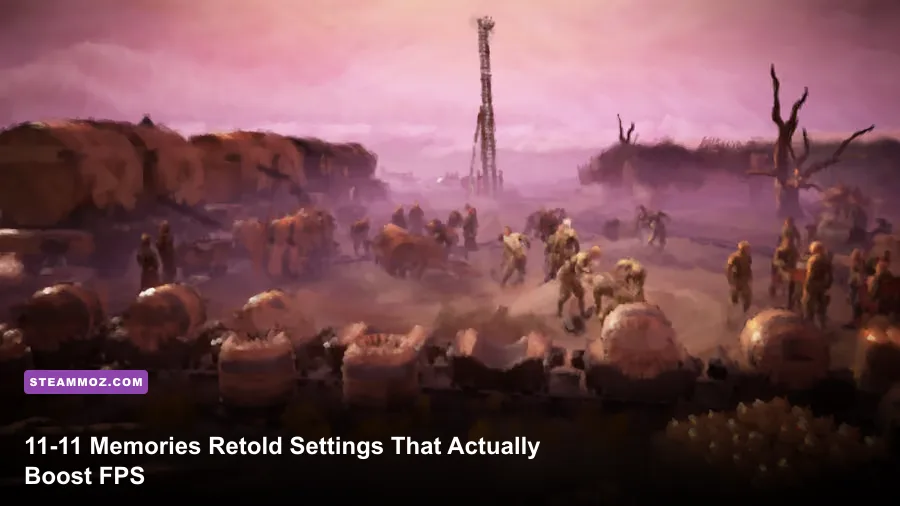
The best 11-11 Memories Retold graphics settings for max FPS are 1080p, Fullscreen, VSync off, Medium or High quality, reduced shadows, and motion blur disabled. That combination preserves the game's striking oil-paint look while removing the settings most likely to cause dips in trenches, villages, and busy outdoor scenes. If you're using hardware near the Steam minimum, start at Low or Medium; a GTX 970-class PC can comfortably target 60 FPS at 1080p with a few targeted compromises.
11-11 Memories Retold is not a twitch shooter, so chasing an unstable 100 FPS makes less sense than securing a clean, consistent frame time. The game's slow exploration, cinematic camera work, and frequent character close-ups make stutter more noticeable than a small reduction in foliage or shadow detail. Use the profiles below as a baseline, then test them in the most crowded section you can reach rather than judging performance in a quiet corridor.
The Best 11-11 Memories Retold Settings for 60 FPS
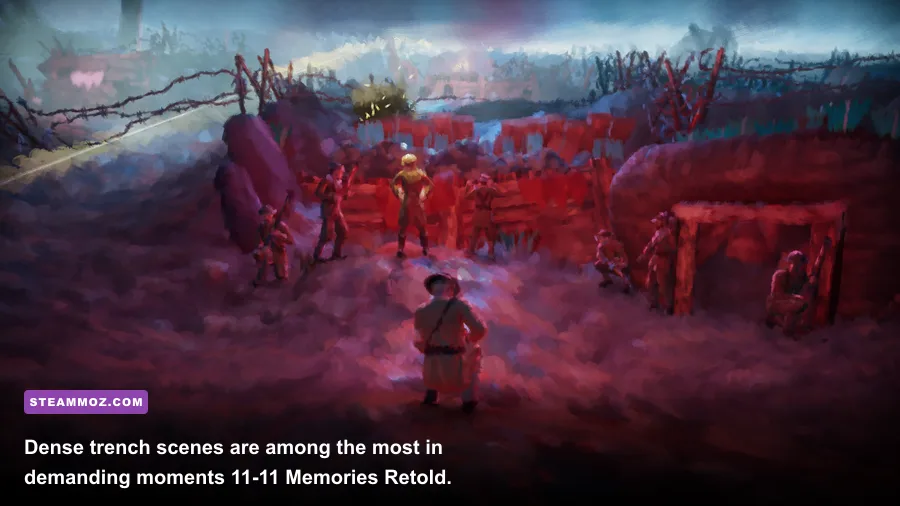
For most gaming PCs, this is the sweet spot. Set the display to your monitor's native resolution, choose Fullscreen rather than a windowed mode, and begin with the High preset. High keeps the painterly surfaces, atmospheric lighting, and character detail intact. It also avoids the flat, overly simplified look that Low can create during close-ups.
Turn VSync off while testing. If your frame rate is comfortably above your display's refresh rate, VSync can introduce unnecessary latency; if you see tearing, turn it back on or use your GPU driver's adaptive sync option. A 60 FPS cap is a sensible target for a 60 Hz display and usually produces steadier delivery than allowing the game to swing between 70 and 110 FPS.
| Setting | Recommended Value | FPS Impact | Visual Note |
|---|---|---|---|
| Resolution | Native 1080p | Very High | Best clarity-to-performance balance |
| Display Mode | Fullscreen | Low | Usually improves consistency and input response |
| Quality Preset | High | Medium | Preserves the painted environments |
| Shadows | Medium | High | Small visual loss, useful gains in outdoor scenes |
| Effects/Post-Processing | Medium or High | Medium | Lower this if fog and lighting cause dips |
| Textures | High | Low to Medium | Keep high unless VRAM is limited |
| Motion Blur | Off | Minimal | Sharper camera movement and easier frame-time testing |
| VSync | Off for testing | None | Enable later if tearing bothers you |
The biggest practical win here is shadows. 11-11's scenes use strong lighting and layered environmental detail, so shadow quality can cost more than its menu description suggests. Dropping shadows one step generally keeps the silhouettes and painted lighting believable while reducing GPU work during forest paths, trenches, and larger village views.

🎮 11-11 Memories Retold
Looking to experience this game? Grab your digital key directly on our store for $4.49.
View on Steammoz Store →Best Low-End Settings for Minimum Hardware
The published Steam minimum is an Intel Core i5-2300 or AMD FX-6120 paired with 8GB of RAM and a GeForce GTX 660 2GB or Radeon HD 7870 2GB. Those parts can run the game, but they leave very little headroom for high presets or modern high-resolution displays. On this class of system, target 1600×900 or 1280×720 before sacrificing every quality option.
Choose Low, then raise textures to Medium if the game remains stable and your graphics card has enough VRAM. Textures usually affect memory more than raw frame rate; shadows and effects are the settings that should be cut first when the GPU is overloaded. Keep the resolution scale at 100 percent if the game exposes it. A crisp native 900p image often looks better than a blurry 1080p render reduced internally.
| Hardware Situation | Resolution | Preset | Priority Adjustment |
|---|---|---|---|
| GTX 660 / HD 7870 class | 720p to 900p | Low | Shadows Low, effects Low, VSync off |
| GTX 1050 / RX 560 class | 900p to 1080p | Medium | Shadows Medium, textures Medium |
| GTX 1650 / RX 570 class | 1080p | Medium-High | Reduce shadows before resolution |
| GTX 970 / R9 290X class | 1080p | High | High textures, Medium shadows |
Close background launchers and browser tabs before testing older hardware. The game lists 8GB of system memory, but Windows, Steam, and a browser can consume enough of that budget to cause hitching during scene transitions. If you get pauses rather than consistently low FPS, memory pressure or storage streaming may be the real culprit.
Which Settings Cost the Most FPS?
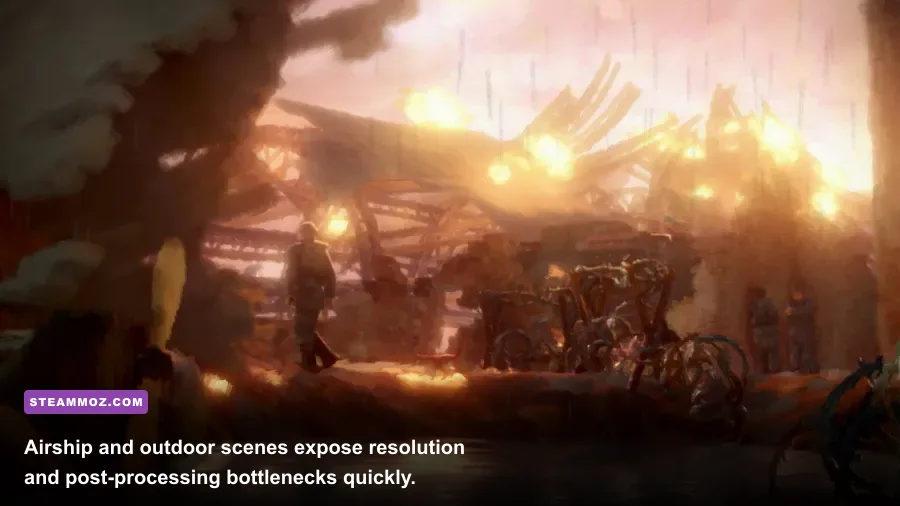
Resolution is always the first major lever. Moving from 1080p to 1440p pushes roughly 78 percent more pixels, so even a well-optimized preset can struggle at the higher target. If your GPU is sitting near 99 percent usage, lower resolution or render scale first. If GPU usage is low while the frame rate remains poor, the limit may be the CPU, background activity, or a scene-specific frame-time spike.
Shadows and effects
Shadows are the best quality-to-FPS adjustment. High shadow settings make outdoor lighting richer, but the improvement is subtle against 11-11's deliberately brushy art style. Medium is the recommended value for a 60 FPS profile. Effects or post-processing come next, especially if fog, bloom, particles, and atmospheric lighting push your GPU over its limit.
Textures and character detail
Keep textures high when possible. The painterly surfaces can look muddy when texture quality is reduced, and the loss is obvious during close-ups of Harry, Kurt, and other story characters. Lower textures only when you see hitching caused by VRAM pressure or when your card has around 2GB of VRAM. Character detail is worth preserving because the game spends so much time framing faces and clothing.
Motion blur and VSync
Motion blur is mostly a preference setting, but disabling it makes camera movement clearer and makes stutter easier to diagnose. VSync doesn't create FPS; it synchronizes presentation to your display. Turn it off while benchmarking, then enable it if tearing appears. With variable-refresh monitors, use the monitor's adaptive-sync mode and cap the game a few frames below the panel's maximum refresh rate.
| GPU Limitation | First Change | Second Change | What to Avoid |
|---|---|---|---|
| GPU at 99% usage | Lower resolution or scale | Reduce shadows | Dropping textures first |
| Low VRAM and hitching | Lower textures | Close background apps | Running high-resolution texture options |
| CPU-limited dips | Use a 60 FPS cap | Reduce effects and view-heavy options | Expecting resolution changes to fix it |
| Visible tearing | Enable VSync or adaptive sync | Apply a frame cap | Uncapped fluctuating FPS |
How to Test Performance Without Guessing
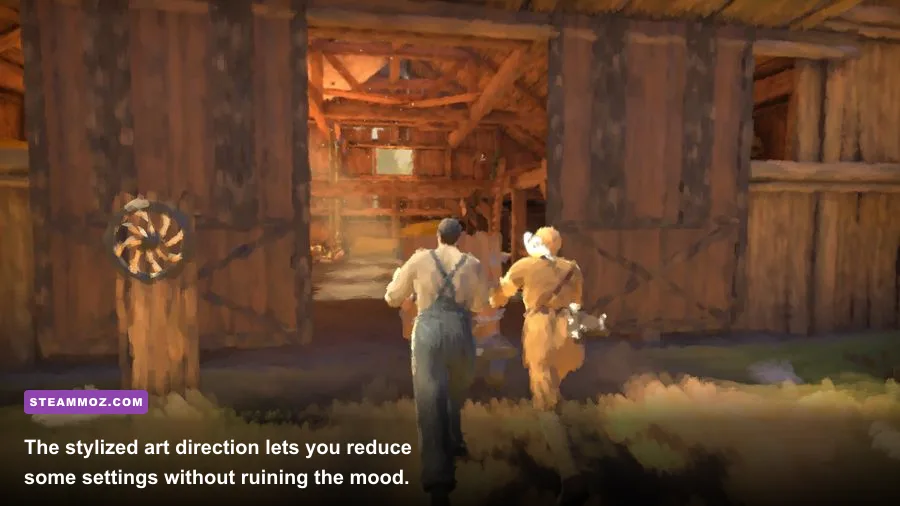
Use the same route for every adjustment. A quiet menu or empty hallway tells you almost nothing. Test a section with multiple characters, outdoor lighting, and camera movement, then watch the worst one-percent lows rather than only the average FPS. A profile showing 60 FPS most of the time but dropping to 28 in a village will feel less polished than one holding 45 FPS consistently.
Make one change at a time. Start with the High preset, disable motion blur, and record your result. Drop shadows to Medium, test again, then lower effects if necessary. Changing five options simultaneously makes it impossible to know which one helped. If you use Steam's overlay, remember that the overlay itself can slightly affect frame pacing on older systems, so compare with it disabled if your results look inconsistent.
For broader PC troubleshooting, Steamoz's ELEX FPS and crash fixes cover useful habits such as checking drivers, power modes, and background processes. The same basics matter here: install the latest stable GPU driver, use Windows' High performance mode when testing, and make sure the game is installed on a healthy drive with free space.
Recommended Profiles for 1080p, 1440p, and Steam Deck
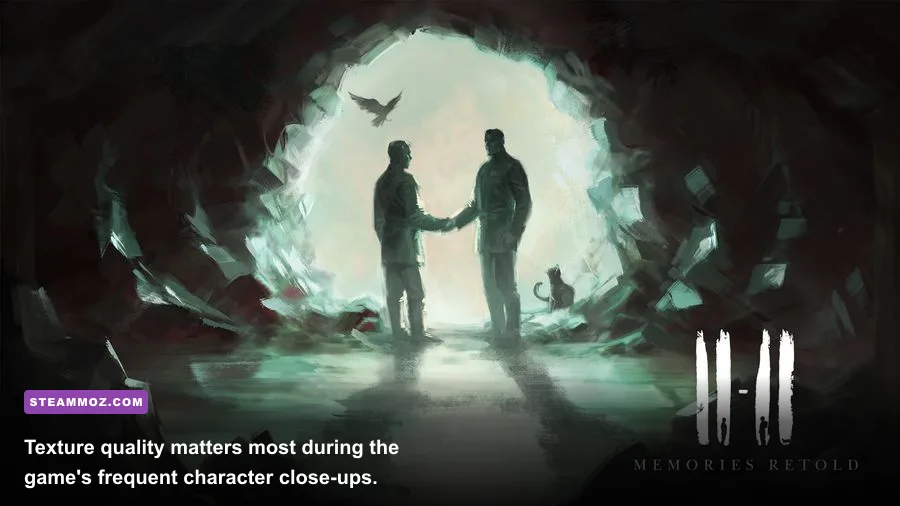
At 1080p, High with Medium shadows is the strongest general recommendation. It keeps the visual identity intact and should suit hardware around the GTX 970 or R9 290X recommended tier listed on Steam. At 1440p, start with High, then lower effects and shadows before touching textures. The extra pixel load is severe enough that a 60 FPS target may require Medium settings on older enthusiast cards.
For a Steam Deck-style handheld profile, use 1280×800, Low or Medium, Medium textures, Low shadows, motion blur off, and a 30 FPS cap. The cap is important: a locked 30 gives the cinematic adventure a stable rhythm and reduces power draw. If outdoor scenes hold above 40 FPS, try a 40 FPS cap, but don't let the frame rate constantly bounce between 30 and 50.
| Target | Resolution | Preset | Expected Approach |
|---|---|---|---|
| 1080p / 60 FPS | 1920×1080 | High, Medium shadows | Best overall image and smoothness |
| 1440p / 60 FPS | 2560×1440 | Medium-High | Lower effects and shadows first |
| Low-end desktop | 1280×720 or 1600×900 | Low-Medium | Prioritize stable frame times |
| Steam Deck-style profile | 1280×800 | Low-Medium | 30 FPS cap, Low shadows |
Before changing files or forcing launch commands, check the official 11-11 Memories Retold Steam page for the current requirements and updates. You can also compare your setup against the publisher's official game page and follow DigixArt's official site for developer information.
Finally, don't let a benchmark ruin the game. 11-11 Memories Retold is built around mood, color, and quiet cinematic detail rather than competitive reaction speed. Keep textures and character detail high when your VRAM allows it, cut shadows first, and lock a frame rate your PC can genuinely sustain. That recipe delivers the clearest image and the smoothest performance without sanding away what makes this unusual World War I story so memorable.