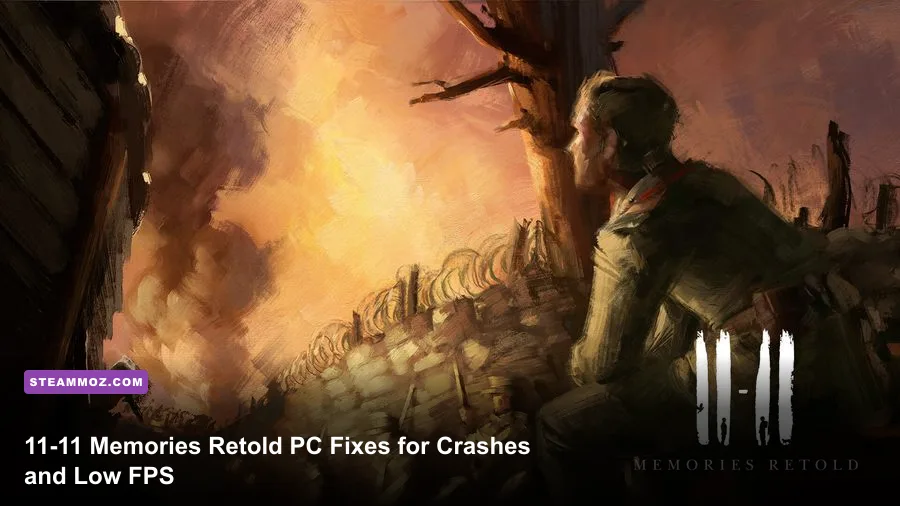
If 11-11 Memories Retold crashes, stutters, or crawls below 30 FPS on PC, start with a clean graphics reset, verify the Steam installation, disable overlays, and use a locked 30 or 60 FPS profile rather than blindly selecting Ultra. The biggest gains usually come from lowering shadows, post-processing, effects, and resolution scale; recurring crashes are more often tied to corrupted Unreal Engine 4 configuration files, outdated GPU drivers, overlays, or unstable overclocks.
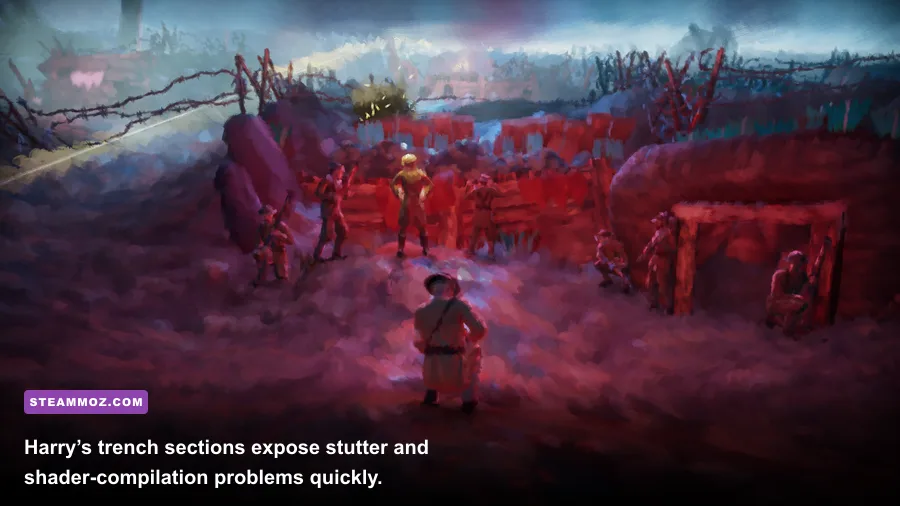
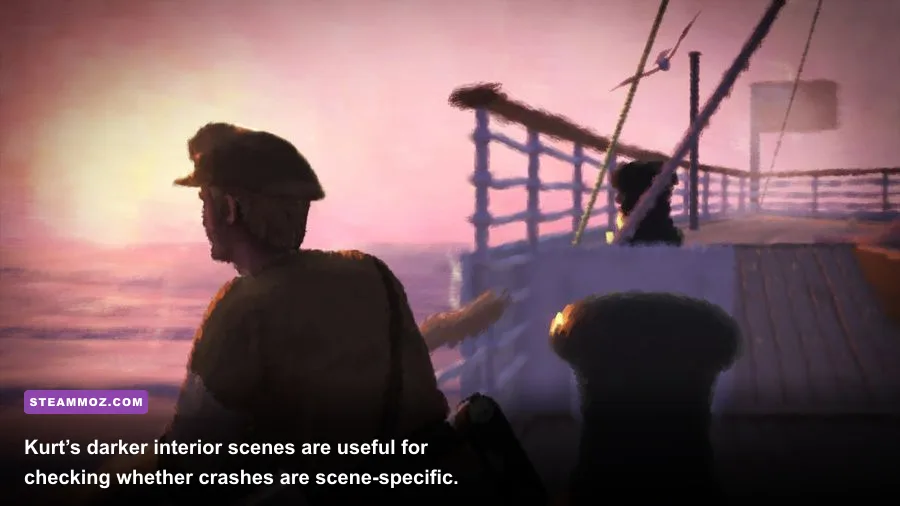
This is a particularly worthwhile game to tune properly. 11-11 Memories Retold is a narrative adventure from Bandai Namco and DigixArt, built around the parallel stories of Harry Lambert and Kurt Waldner during the final year of World War I. Its brush-painted presentation looks simple in still screenshots, but volumetric effects, foliage, shadows, character animation, and large outdoor scenes can create sudden frame-time spikes on older hardware.
Start with these fixes before changing every setting
Do the following in order. Testing after each step matters, because it tells you whether the problem is the game, Windows, or a third-party utility.
- Restart Steam and the PC. This clears a stuck overlay hook and gives the GPU driver a clean session.
- Verify the installation. In Steam, right-click the game, choose Properties, open Installed Files, and select Verify integrity of game files. A damaged pak or executable can cause a crash during a specific chapter.
- Update the GPU driver. Install the current WHQL driver for your NVIDIA, AMD, or Intel card. If the crashes began immediately after a driver update, use the previous stable driver instead.
- Turn off overlays temporarily. Disable Steam Overlay, Discord Overlay, Xbox Game Bar, GeForce Experience or AMD recording overlays, MSI Afterburner’s RTSS overlay, and ReShade. Several hooks can collide with an older Unreal Engine 4 build.
- Remove overclocks. Return the GPU, CPU, and RAM to stock settings. A game can appear stable in heavier titles but fail during shader compilation or loading transitions.
Also check Windows Security if the game closes without an error. Controlled Folder Access or aggressive antivirus software can block a game from writing saves and configuration files. Add the game’s installation folder and its save/config directory as exclusions only if you trust the installation.

🎮 11-11 Memories Retold
Looking to experience this game? Grab your digital key directly on our store for $4.49.
View on Steammoz Store →Reset the Unreal Engine configuration safely
A corrupted configuration is one of the most useful crash fixes for 11-11 Memories Retold. Before deleting anything, close the game and Steam. Open File Explorer, enable hidden items, then check:
%LOCALAPPDATA%\11-11 Memories Retold\Saved\Config\WindowsNoEditor
Copy that entire folder to your desktop as a backup. Delete or rename the WindowsNoEditor folder, relaunch the game, and let it generate fresh files. This resets resolution, quality, keybinds, and display preferences, but it should not remove your save progress. If your installation uses a slightly different folder name, search %LOCALAPPDATA% for GameUserSettings.ini and 11-11 rather than deleting random folders.
If the game crashes before reaching the menu, temporarily unplug unnecessary controllers and launch it with only your keyboard and mouse connected. Then select a conservative resolution and window mode. Borderless mode is convenient, but exclusive fullscreen can behave better on systems with multiple monitors or aggressive desktop scaling. If the reset works, reapply settings one at a time instead of importing an old configuration.
Do not download replacement DLL files from random “fix” sites. They often bundle malware, and a missing system DLL is better repaired through Windows Update, the Microsoft Visual C++ Redistributable package, and the DirectX runtime supplied through legitimate Microsoft channels.
The best settings for stable 30, 60, and 120 FPS
There is no competitive advantage to chasing 144 FPS here. A stable frame rate makes the quiet exploration, stealthy movement, and cinematic transitions feel much better than a fluctuating counter. The table below uses practical targets rather than promises: your CPU, GPU, resolution, and driver can move results significantly.
| Setting | Recommended value | FPS impact | Visual trade-off |
|---|---|---|---|
| Resolution | Native for 60 FPS; 1600×900 or 1280×720 for weaker GPUs | Very high | Lower resolution softens the painted image but gives the largest GPU gain |
| Resolution Scale | 90% first; 75–85% for struggling hardware | High | Small reduction is hard to notice during movement |
| Shadows | Medium | High | Reduces shadow resolution and distance, especially outdoors |
| Post Processing | Medium | Medium to high | Less bloom, depth-of-field softness, and cinematic filtering |
| Effects | Medium | Medium | Explosions, smoke, fog, and particles become less expensive |
| Foliage | Medium or Low | Medium | Fewer detailed plants in wide exterior scenes |
| View Distance | High on modern CPUs; Medium on older quad-cores | Medium | Lower values simplify distant scenery |
| Textures | High if VRAM allows; Medium below 4 GB | Low to medium | Lower texture detail is visible, but it rarely fixes CPU stutter |
| Anti-Aliasing | High or Medium | Low to medium | Lower values create more shimmering on foliage and geometry |
| V-Sync | On for a fixed 60; off with a properly configured VRR display | Low | Prevents tearing but may add latency or uneven pacing |
For a modest gaming laptop, use 1080p, 85% resolution scale, Medium shadows, Medium effects, Low foliage, Medium post-processing, and High textures only if the GPU has at least 4 GB of VRAM. For a modern mid-range desktop, native 1080p or 1440p with Medium shadows and High textures is a sensible starting point. If you need a fast emergency profile, select the lowest preset, restore textures to Medium or High, then raise anti-aliasing. Textures usually cost more VRAM than frame time, while shadows and effects hit performance immediately.
Why low FPS happens in this particular game
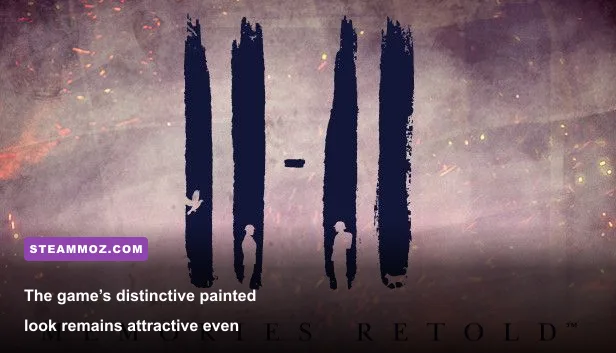
11-11 Memories Retold can be GPU-limited in foggy battlefields and CPU-limited when the game streams a new area. The painted art style doesn’t mean the renderer is lightweight. Large scenes combine dynamic lighting, translucent smoke, foliage, animated characters, and post-processing. A GPU sitting at 95–99% usage points toward resolution, shadows, effects, or scale. GPU usage below roughly 80% while frame time spikes usually suggests a CPU, streaming, shader, driver, or background-process problem.
Watch frame time instead of trusting the average FPS number. A reported 60 FPS can still feel rough if individual frames jump from 16.7 milliseconds to 40 milliseconds. Cap the game at 60 FPS with your driver or RTSS if it constantly swings between 70 and 100. On weaker systems, a locked 30 FPS is a legitimate solution, not a failure: it prevents the distracting 24–45 FPS oscillation that makes camera movement feel worse.
Keep the game on an SSD when possible. An HDD can make chapter transitions and new areas hitch as assets stream in. Close browsers with video tabs, launchers, RGB utilities, hardware monitors, and recording software while testing. Windows 11 users should also test Hardware-accelerated GPU scheduling both on and off; it helps some systems and introduces stutter on others, so keep whichever produces steadier frame times.
Crash fixes for chapter loads, black screens, and startup exits
Crash after pressing Play
Reset the configuration folder first, then verify files. If the window opens and closes immediately, disable overlays and force the game to run on the dedicated GPU through Windows Settings > System > Display > Graphics. Laptop owners should connect the charger and set the Windows power mode to Best performance. Integrated graphics can launch the game but may fail once the first detailed scene loads.
Crash during a chapter transition
Lower textures one step if VRAM is near its limit, disable recording tools, and let the shader or asset-loading process finish rather than repeatedly alt-tabbing. If only one location crashes, verify files again and load an earlier checkpoint. A damaged autosave can be more specific than a damaged installation. Back up saves before experimenting with folders.
Black screen or no response
Use Alt+Enter to switch display modes, then choose a supported resolution. Disconnect a second monitor temporarily if the game is opening off-screen. Disable HDR and Windows compatibility scaling for the game executable during testing. Avoid forcing a third-party fullscreen optimization tweak unless you can reverse it; Windows display settings and the game’s own options are safer starting points.
Fatal error or missing runtime message
Run Windows Update, repair or reinstall the Microsoft Visual C++ 2015–2022 x64 and x86 redistributables, and install the official DirectX End-User Runtime if an older component is missing. Never replace dxgi.dll, d3d11.dll, or Visual C++ files with downloads from unofficial mirrors. The official Windows Update guidance is the right place to start with system-level repairs.
A clean troubleshooting profile that usually works
Use this profile when you want a dependable baseline before chasing prettier visuals:
| Hardware situation | Resolution profile | Quality profile | Frame-rate target |
|---|---|---|---|
| Integrated or entry-level GPU | 1280×720, 75–80% scale | Low preset, Medium textures if VRAM permits, V-Sync on | 30 FPS locked |
| GTX 660/960-class or similar | 1600×900 or 1080p, 80–90% scale | Medium shadows, effects, foliage, and post-processing | 30–60 FPS depending on scene |
| GTX 970/1060-class or similar | 1080p native | High textures, Medium shadows, High view distance | Stable 60 FPS target |
| Modern mid-range desktop | 1080p or 1440p native | High textures and view distance, Medium shadows and effects | 60 FPS; higher caps are optional |
The original Steam system requirements list 8 GB of RAM and a GTX 660-class minimum GPU, with a GTX 970-class recommendation. Treat those figures as a launch-era floor, not a guarantee of modern 60 FPS performance. Windows updates, driver overhead, background applications, and higher-resolution displays all change the result.
For context, our other PC tuning guides for Cricket Through the Ages, Drizzlepath: Glass, and Exogate Initiative follow the same useful rule: fix frame pacing first, then spend performance on image quality. If a game still misbehaves after file verification and a clean config reset, document your GPU model, driver version, Windows version, crash location, and whether overlays were disabled before contacting Bandai Namco support or checking the developer’s DigixArt website.
The winning order is simple: stock hardware, current drivers, verified files, clean configuration, no overlays, then sensible graphics settings. Don’t lower everything at once and guess. Change one group, replay the same section, and watch frame time. That approach usually turns 11-11 Memories Retold from a crash-prone, stuttering experience into the calm, stable narrative adventure it was meant to be.