For the best First Strike: Final Hour performance, use exclusive fullscreen, keep textures at High, drop shadows and effects to Medium, disable motion blur and film grain, and use an 80–90 FPS cap that your PC can hold consistently. Those changes usually improve frame pacing more than blindly selecting the lowest preset. The biggest gains come from resolution scaling, shadows, volumetric effects, foliage, and post-processing—not texture quality.
Before changing anything, make sure the game is installed on an SSD, your GPU driver is current, and Windows is using the dedicated graphics card. First Strike: Final Hour can feel perfectly smooth at 75 FPS and strangely sluggish at 110 FPS if frame times spike during explosions or busy outdoor encounters. The target here isn't a flashy average benchmark; it's stable performance when the match gets loud.
Best First Strike: Final Hour graphics settings
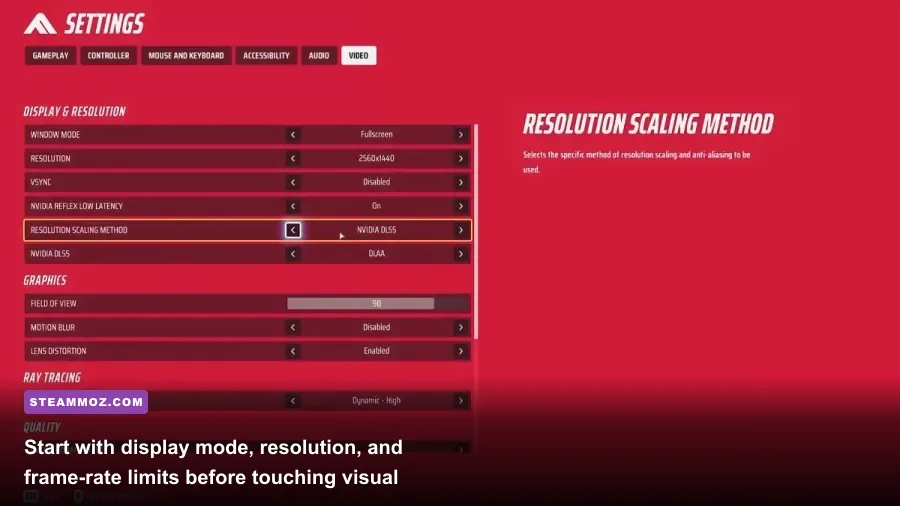
This is the balanced preset I recommend first for a mid-range gaming PC. It prioritizes visibility and consistent input response while leaving enough texture detail to keep distant surfaces from looking muddy. Apply it, restart the game if prompted, then test the same busy combat location for at least five minutes.
| Setting | Recommended value | FPS impact | Visual note |
|---|---|---|---|
| Display mode | Exclusive Fullscreen | Low to medium gain | Usually gives steadier frame pacing than borderless |
| Resolution | Native monitor resolution | Very high | Keep native if possible; lower only as a last resort |
| V-Sync | Off | Low | Reduces latency, though tearing may appear |
| Frame limit | Refresh rate minus 3 FPS | Stability gain | Use 141 for 144Hz or 162 for 165Hz |
| Resolution scale | 100% | Very high | Lower to 90% for a quick GPU-side boost |
| Textures | High | Low to medium | Needs VRAM, but rarely hurts the GPU core much |
| Shadows | Medium | High | Large gain in outdoor firefights |
| Effects | Medium | High | Reduces smoke, sparks, and explosion spikes |
| View distance | High | Medium | Protects long-range visibility |
| Foliage | Medium | Medium to high | Improves clarity and helps minimum FPS |
| Anti-aliasing | High or temporal | Medium | Lower only if shimmering bothers you less than blur |
| Motion blur | Off | Small gain | Cleaner tracking while turning |
| Film grain | Off | Minimal | Removes unnecessary visual noise |
Keep textures at High unless the game is exceeding your graphics card's VRAM. Texture quality mainly affects memory use and asset streaming; it isn't the first lever to pull when the frame rate collapses. If you have a 4GB GPU, Medium textures are safer. With 8GB or more, High is usually the sensible starting point.
For additional context, compare this approach with our Bionic Dues performance settings and Aragami: Nightfall PC optimization guide. Both demonstrate the same useful rule: preserve clarity settings, cut expensive atmosphere first.

🎮 First Strike: Final Hour
Looking to experience this game? Grab your digital key directly on our store for $2.99.
View on Steammoz Store →Best FPS presets for low-end and high-end PCs
Don't use one preset for every machine. A laptop with an RTX 3050 and a desktop with an RX 7800 XT need different compromises. The table below gives realistic starting points, but your actual result depends on resolution, CPU speed, driver version, and whether First Strike: Final Hour is GPU- or CPU-limited in a particular scene.
| PC profile | Resolution scale | Quality profile | Practical target |
|---|---|---|---|
| GTX 1650 / RX 570, 16GB RAM | 80–90% | Low effects, Low shadows, Medium textures | 60 FPS at 1080p with dips possible |
| RTX 3050 / RX 6600, 16GB RAM | 90–100% | Medium shadows and effects, High textures | 60–90 FPS at 1080p |
| RTX 4060 / RX 7600, 16GB RAM | 100% | High textures, Medium effects, High view distance | 90–144 FPS at 1080p |
| RTX 4070 / RX 7800 XT, 32GB RAM | 100% | High or Very High, Medium shadows | 120–165 FPS at 1440p |
| RTX 4080 / RX 7900 XTX | 100% | High preset with selective reductions | 144 FPS or higher at 1440p |
The low-end profile
On a GTX 1650-class card, start at 1080p with 90% resolution scale. If combat still drops below 60 FPS, use 80% before reducing textures. Set shadows and effects to Low, foliage to Low, view distance to Medium, and anti-aliasing to Medium. This keeps enemy silhouettes readable while cutting the settings most likely to punish minimum FPS.
At 80% scale, the image will be softer, but it should remain playable. Sharpening—if available in the game's display menu—can recover some edge definition. Avoid stacking aggressive sharpening with heavy temporal anti-aliasing; that combination often creates flickering foliage and noisy weapon outlines.
The competitive high-FPS profile
For a 144Hz or 165Hz monitor, set a frame cap just below refresh rate. A 141 FPS cap on 144Hz or 162 FPS on 165Hz gives the GPU a little breathing room and can reduce the uneven pacing caused by constantly hitting the ceiling. If your system cannot hold that number, cap at 120 or 90 instead. A locked 120 FPS is better than a wild 165-to-75 FPS swing.
Competitive players should use Medium shadows, Medium effects, Low foliage, High view distance, and no motion blur. Keep anti-aliasing high enough that enemy movement doesn't dissolve into shimmering pixels. The goal isn't the lowest possible settings; it's a clean image with predictable latency.
Which settings cost the most FPS?
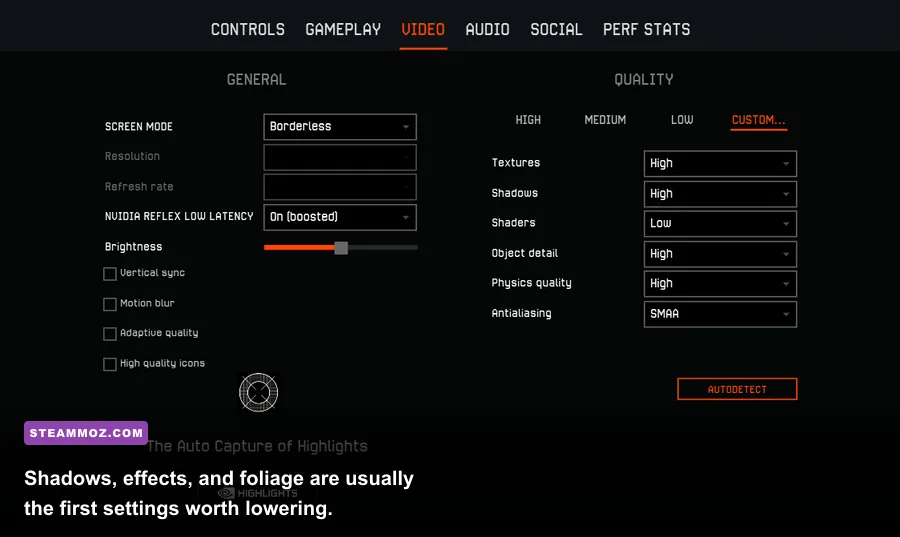
Change one option at a time and watch the one-percent-low behavior, not only the FPS counter's headline number. A setting that adds five average frames but causes a stutter during smoke may be a terrible trade in an actual match.
| Priority | Setting to change | Expected benefit | What you give up |
|---|---|---|---|
| 1 | Resolution scale | Largest GPU-side gain | Image sharpness |
| 2 | Shadows | Strong minimum-FPS improvement | Contact shadows and depth |
| 3 | Effects | Fewer explosion and smoke spikes | Particle detail |
| 4 | Foliage | Better outdoor consistency | Grass and vegetation density |
| 5 | View distance | Moderate GPU and CPU relief | Distant world detail |
| 6 | Anti-aliasing | Moderate gain | Edges become rougher or shimmer |
| 7 | Textures | Helps VRAM-limited systems | Surface detail and streaming quality |
Shadows deserve special attention. They are expensive because the engine has to render extra scene information from light sources, and the cost becomes obvious in exterior areas packed with cover. Moving from High to Medium often delivers a better result than lowering every setting by one step.
Effects are the other major troublemaker. Explosions, muzzle flashes, smoke, and debris can create short GPU spikes that feel like input lag even when your average FPS looks healthy. If your game feels smooth until grenades start flying, lower Effects before lowering textures or view distance.
Fix stutter, input delay, and unstable frame times

Low FPS and stutter aren't always the same problem. If the counter says 100 FPS but aiming feels uneven, look for frame-time spikes, background applications, shader compilation, or an uncapped GPU running at maximum utilization. Cap the frame rate, close browsers and recording tools, and test again.
Use the right sync method
With a variable-refresh monitor, enable FreeSync or G-SYNC in the monitor and driver software, then leave in-game V-Sync off if latency is your priority. If tearing is distracting, enable V-Sync through the driver and keep the frame cap below refresh. NVIDIA's official Reflex documentation also explains why lower latency depends on avoiding a permanently saturated render queue.
Don't assume V-Sync automatically fixes stutter. It can hide tearing while adding a noticeable delay if the game repeatedly misses its refresh deadline. A stable cap and sensible settings are the foundation; synchronization comes afterward.
Check whether you're CPU- or GPU-limited
If GPU usage sits near 95–99% during drops, lower resolution scale, shadows, and effects. If GPU usage is low while one or two CPU threads are busy, lowering resolution won't help much. Reduce view distance, foliage, and other scene-density options instead. Shut down overlays from Discord, launchers, and browser hardware acceleration while testing.
For a second opinion, our A Year of Rain low-FPS fixes and City of Gangsters troubleshooting guide cover practical driver, overlay, and frame-pacing checks that apply here too.
Safe upscaling and resolution settings
If First Strike: Final Hour exposes an upscaler such as FSR, use it before dropping the monitor's native resolution. Start with Quality at 100% output resolution, then try Balanced only if the GPU remains the bottleneck. Performance modes can produce distracting shimmer around fences, foliage, and thin weapon geometry—exactly the places where an FPS player needs clean information.
| Mode | When to use it | Image quality | Recommendation |
|---|---|---|---|
| Native / 100% | GPU has headroom | Best | Preferred for 1080p and 1440p |
| Quality / 90–100% | Need a moderate boost | Very good | Best first compromise |
| Balanced / roughly 80–90% | Large GPU limitation | Acceptable | Use at 1440p before Performance |
| Performance / roughly 65–75% | Only when chasing a minimum target | Soft | Avoid unless 60 FPS is otherwise impossible |
AMD's official FSR documentation explains the basic scaling behavior, but your eyes are the final judge. Stand in a foliage-heavy area, pan across distant cover, and inspect thin edges. If details crawl or shimmer, step back to Quality and lower shadows instead.
The final 10-minute optimization checklist
Apply the balanced profile, restart the game, and test a repeatable route that includes outdoor movement, close-range combat, smoke, and explosions. Record the average FPS and the worst drops. Then make changes in this order:
- Set exclusive fullscreen and native resolution.
- Disable motion blur, film grain, chromatic aberration, and depth of field.
- Cap FPS three frames below your monitor's refresh rate.
- Lower Effects and Shadows to Medium.
- Lower Foliage if outdoor scenes remain unstable.
- Use 90% resolution scale or Quality upscaling if GPU usage stays above 95%.
- Keep Textures High unless VRAM usage causes streaming stutter.
- Restart after major changes and retest the same combat sequence.
Finally, check the game's official Steam listing for patches and current system information. Performance can shift after shader, lighting, or map updates, so don't treat one benchmark as permanent truth. For most players, Medium shadows and effects, High textures, disabled blur, and a sensible FPS cap deliver the best First Strike: Final Hour experience: clear targets, low latency, and far fewer ugly frame-time surprises.