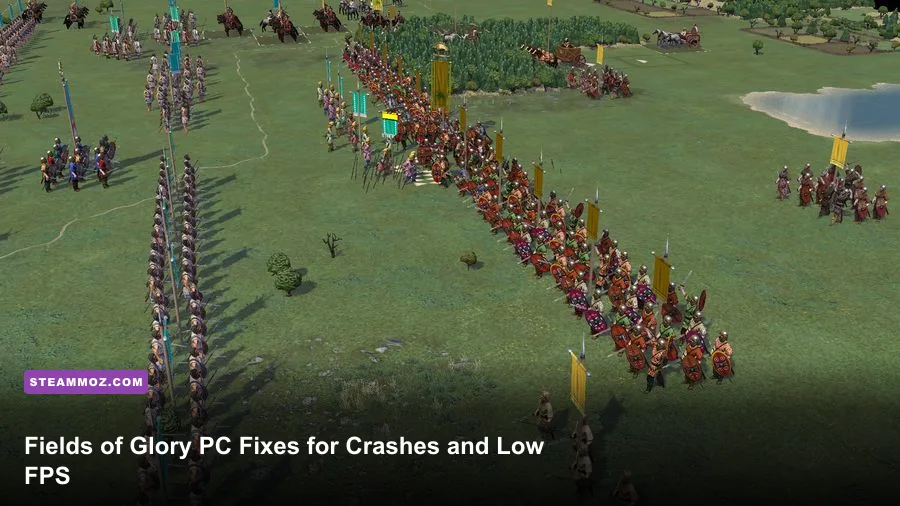
The fastest way to fix Fields of Glory crashes and low FPS on PC is to separate the problem by scene: repair the Steam installation, reset the game's configuration, disable overlays, update or clean-install your GPU driver, then lower battle-view effects before touching resolution. Fields of Glory II is generally undemanding on modern hardware, but its 3D battle scenes can behave very differently from the campaign map. If you actually mean Fields of Glory: Kingdoms or Fields of Glory II: Medieval, the same Windows troubleshooting order applies, although the exact menu names and workload can differ.
This guide focuses primarily on Fields of Glory II, the Slitherine turn-based ancient warfare game, with notes for the Medieval and Kingdoms releases where they matter. The key is not to throw every setting to Low. That often makes the game look worse without fixing the real cause, especially when the hitch comes from a driver conflict, corrupted shader cache, an overlay, or a CPU-heavy late-game battle.
First, identify whether the crash is the game or Windows
Start by reproducing the failure in a controlled way. Note whether Fields of Glory closes during launch, while loading a battle, immediately after selecting an army, or only after several turns. Those symptoms point to different causes.
A crash before the main menu usually suggests a damaged configuration file, missing runtime component, unsupported display mode, or overlay collision. A crash while loading a particular battle is more suspicious: that save or scenario may be damaged, a mod may be outdated, or the game may be requesting a bad asset. A crash after 20 or 30 minutes can indicate a driver timeout, overheating, unstable overclock, or a memory problem rather than a simple game bug.
Before changing anything, launch a different scenario or start a small custom battle. Avoid testing only a huge engagement with several divisions and a busy battlefield. If small battles work but a late campaign save repeatedly fails, copy the save folder somewhere safe and test an earlier save. Do not delete saves while troubleshooting.
Also confirm which title is installed from the Steam library. Fields of Glory II, Fields of Glory II: Medieval, and Fields of Glory: Kingdoms are separate games. Their names are close enough that advice for one can be mistakenly applied to another. Check the exact product on the official Fields of Glory II Steam page, and use the game's current Steam branch rather than an old executable downloaded from a forum.
| Symptom | Most likely cause | First action | What not to do |
|---|---|---|---|
| Crash before menu | Config, overlay, driver, or runtime issue | Disable overlays and reset configuration | Keep reinstalling without removing the bad config |
| Crash loading one battle | Corrupt save, mod, or scenario asset | Test a new battle and an earlier save | Overwrite every save with the failing one |
| Stutter in 3D battles | GPU effects, driver cache, or frame pacing | Use a capped 60 FPS profile | Assume the campaign map represents battle performance |
| Crash after extended play | Heat, unstable hardware, or driver timeout | Check temperatures and remove overclocks | Raise graphics settings to “test” the issue |

🎮 Fields of Glory
Looking to experience this game? Grab your digital key directly on our store for $1.39.
View on Steammoz Store →Repair Steam files and reset Fields of Glory settings
Steam's file check should be your first hands-on fix. Right-click Fields of Glory II in Steam, choose Properties, open Installed Files, and select Verify integrity of game files. Let the process finish, then restart Steam. If one or more files are replaced, test the game before adding mods or custom launch options.
Verification doesn't always remove a broken user configuration. The game can keep bad resolution, renderer, audio, or input values outside the installation directory. Close the game and Steam, then back up your save files. Look in the game's user-data locations under Documents, Saved Games, or AppData\Local and identify the Fields of Glory folder. Rename the configuration folder rather than deleting it; a name such as FieldsOfGlory_backup makes it easy to restore.
When you relaunch, the game should create fresh settings. Test at 1920×1080, windowed or borderless mode, with default quality. If that works, reapply changes one at a time. Reintroducing every old setting at once makes it impossible to find the offender.
Turn off Steam Cloud temporarily if it immediately restores the broken configuration or a damaged save. In the game's Steam properties, open the General tab and disable cloud synchronization for the test. Once the game is stable, re-enable it after backing up local saves. Cloud sync is useful, but it can also copy a problem from one PC to another.
Remove launch options unless you deliberately added one for a known reason. Old DirectX flags, forced resolutions, compatibility switches, and community tweaks can clash with a current driver. If you use mods, move them out temporarily and test the unmodified game. Slitherine's official Fields of Glory II page is a safer reference for supported content than random executable replacements.
Best graphics settings for stable FPS

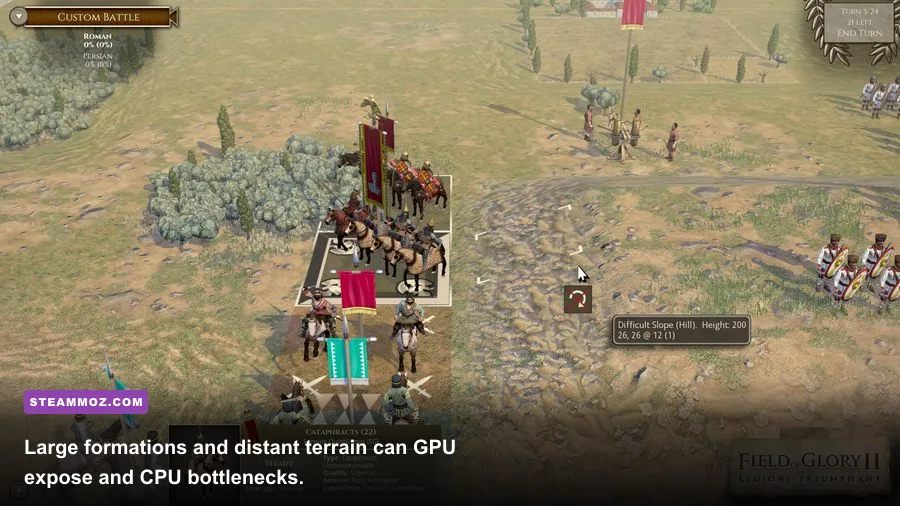
Fields of Glory II is not a twitch shooter, so a consistent 60 FPS is a better target than chasing an unstable 144 FPS. Camera movement, unit animations, smoke, shadows, and terrain detail are most noticeable in the 3D battle view. The campaign layer usually needs far less rendering power, which is why a machine can show a high campaign frame rate and still dip when hundreds of soldiers occupy the screen.
Start with the native resolution of your monitor and use a 60 FPS cap if the game or your GPU control panel allows it. A cap reduces rapid frame-time swings and stops an older GPU from running flat-out in menus. If your monitor is 144 Hz, try 60 or 72 FPS first; a locked, even frame pace feels better than a range that jumps between 48 and 130.
| Setting | Recommended value | FPS impact | Visual trade-off |
|---|---|---|---|
| Resolution | Native 1080p or 1440p | High at 4K | Lower resolution softens unit and terrain detail |
| Texture quality | High if VRAM allows | Low to medium | Mostly affects surface clarity and memory use |
| Shadows | Medium | Medium to high | Lower settings reduce depth and contact detail |
| Terrain or environment detail | Medium-High | Medium in large battles | Lower detail makes distant maps visibly flatter |
| Effects, smoke, and particles | Medium | Medium during combat | Less atmosphere around volleys and impacts |
| Anti-aliasing | Low or medium | Medium | Edges may shimmer on banners and spear lines |
| V-Sync | On for tearing, off for testing | Frame pacing dependent | Can add latency or expose uneven frame delivery |
| Display mode | Borderless, then exclusive fullscreen | Usually small | Fullscreen can help some driver setups |
If FPS drops only when you zoom close to a massed line of troops, lower shadows and effects first. If FPS stays low everywhere, test resolution and anti-aliasing. If the number looks high but the camera feels jerky, the problem is frame time, not average FPS. Disable V-Sync temporarily, close recording software, and compare a capped 60 FPS run.
Three practical performance profiles
Balanced 1080p: use native 1920×1080, High textures, Medium shadows, Medium effects, and low-to-medium anti-aliasing. This is the sensible starting point for a mainstream laptop or a desktop with an older GTX or Radeon card.
Large-battle profile: keep textures High, drop shadows and effects to Low or Medium, reduce environment detail one step, and cap the game at 60 FPS. This preserves the sharp look of units while cutting the settings that multiply work across a wide battlefield.
Low-end profile: use 1600×900 or 1280×720 only if 1080p remains unstable, Low textures if VRAM is limited, Low shadows, Low effects, and no forced supersampling. Do not lower every option blindly; texture quality often has less impact on FPS than shadows and resolution.
For comparison, our broader Dragonkin settings guide explains the same useful principle: preserve the settings that improve image clarity and cut the ones that create repeated scene-wide calculations.
Driver, Windows, and overlay fixes that stop random crashes

Update your graphics driver through NVIDIA, AMD, or Intel's official support channel. If Fields of Glory began crashing immediately after a driver update, use the manufacturer's rollback option or perform a clean installation of the previous stable driver. A clean install is worth trying when the game worked for months and then started failing after a driver change.
Disable every overlay for one test session: Steam Overlay, Discord Overlay, Xbox Game Bar, GeForce Experience or NVIDIA App overlay, AMD recording tools, MSI Afterburner and RivaTuner statistics, and any RGB utility that injects into games. Older or smaller strategy titles can be unusually sensitive to hook-based overlays. If the crash disappears, re-enable them individually until you find the culprit.
Run Steam and the game normally first. Administrator mode is not a universal fix and can create permission conflicts with Steam Cloud or save locations. Use Windows compatibility settings only if the official developer recommends them or the title has a documented issue on your Windows build.
Check Windows Security if the game starts and then vanishes without an error. Controlled Folder Access can block a game from writing configuration or save data. Add the legitimate game executable as an allowed app rather than disabling antivirus protection entirely. Never download a “fixed” DLL from an unverified site.
Verify that the game uses the dedicated GPU on a gaming laptop. In Windows Graphics settings, add the Fields of Glory executable and select High performance. Also plug the laptop into AC power, select a performance power mode, and disable battery-saving GPU limits. A laptop running on its integrated graphics can appear to have a low-FPS problem even when every in-game setting is correct.
Finally, remove CPU and GPU overclocks, undervolts, and aggressive memory profiles for testing. Turn-based games can run for long sessions, and a marginal memory overclock may fail only when a large battle loads. Watch temperatures with a trusted monitor. If the GPU remains cool but the game stutters, the bottleneck is more likely driver, CPU, or frame pacing than heat.
Fixes for stutter, long loads, and battle-only slowdowns

Use a repeatable benchmark route. Load the same battle, wait for the first turn to finish, zoom from the deployment area to the densest unit formation, rotate the camera, and trigger the same combat sequence. Comparing identical actions tells you whether a setting actually helped. Randomly playing different battles produces misleading results because terrain, weather, unit count, and effects can change the workload.
Large engagements are the real stress test. A small clash with a few formations may sit at 60 FPS while a scenario with long lines, cavalry, artillery effects, and dense terrain produces frame-time spikes. That does not necessarily mean your PC is underpowered. It can reflect the game's simulation and rendering workload. Lower battle effects and shadows, close background applications, and use a frame cap before dropping resolution.
Keep the game and Windows on an SSD when possible. An SSD won't magically increase average FPS, but it can reduce loading pauses and texture streaming hiccups. Leave free space on the drive and avoid running a disk-heavy download or antivirus scan during testing. If stutter appears every time the camera reaches a particular map area, verify files and test an earlier save; a damaged asset is more likely than a sudden graphics-card failure.
Audio can also be part of a crash chain. Set Windows output to a normal stereo device, disable spatial-audio enhancements, and test with Bluetooth headsets disconnected. This is especially useful if the crash occurs when battles begin, music changes, or voice effects load. Once stable, turn enhancements back on one at a time.
| Test | Result | Interpretation | Next move |
|---|---|---|---|
| New custom battle | Stable | Installation and renderer probably work | Investigate save, mod, or scenario |
| Every battle stutters | Low FPS globally | Driver, GPU selection, or settings issue | Use low-effects profile and dedicated GPU |
| Only zoomed formations stutter | Battle-view dip | Shadows, effects, or CPU scene load | Lower shadows/effects and cap at 60 |
| Crash with overlay enabled | Overlay-specific failure | Injection conflict confirmed | Leave the offending overlay disabled |
| Crash after a driver update | Regression likely | New driver conflicts with the title | Clean-install or roll back the driver |
For a useful second opinion on diagnosing demanding PC games, see Steamoz's PC requirements breakdown and Dins's Curse troubleshooting tips. The games differ wildly, but the disciplined process—change one variable, reproduce the issue, record the result—transfers perfectly.
When reinstalling is justified
Reinstall only after verification, configuration reset, overlay testing, and driver checks. Uninstall the game through Steam, restart Windows, reinstall it to an SSD, and verify the files again before restoring mods or old configuration folders. Back up saves first, including any files stored outside Steam's standard cloud directory.
If the fresh install still crashes at the same point, collect evidence instead of repeating the reinstall. Record the title and version, Windows version, GPU driver version, display mode, resolution, whether overlays are disabled, and the exact battle or save that fails. Include crash logs from the game's installation or user-data folder if present. Post that information on the official Slitherine forum or contact Slitherine support.
For Fields of Glory: Kingdoms, use the same file-verification and overlay procedure, but don't assume an issue in that game proves anything about Fields of Glory II. For Fields of Glory II: Medieval, test both campaign and battle scenes separately and mention the exact edition when reporting a bug. Clear details save everyone time.
The best stable setup is usually less dramatic than players expect: verified files, a fresh configuration, current or known-good drivers, disabled overlays, native 1080p, Medium shadows and effects, and a 60 FPS cap. Start there. If the game is smooth, raise one setting at a time. Fields of Glory's careful battlefield pace rewards consistency far more than a flashy frame-rate number that collapses whenever the lines close and the first volleys land.
And if you're jumping between older strategy games, Steamoz's Dungeon Siege performance review is worth bookmarking too. The same rule applies across classic PC games: stabilize the software stack first, then tune visuals around the scenes that actually expose the problem.