If Fatal Fury: City of the Wolves keeps crashing or dipping below 60 FPS on PC, start with a clean GPU-driver install, verify the Steam files, disable overlays, and use a capped 60-FPS graphics profile. The biggest wins usually come from lowering shadows, effects, post-processing, and screen-space reflections rather than texture quality. After that, test the game in Training Mode before returning to ranked play.
That order matters. A fighting game can feel awful even when the average frame rate looks acceptable: a brief stutter during a reversal, a hitch during a super move, or uneven frame pacing can throw off a combo. The target is not merely “high FPS.” You want a locked, predictable 60 FPS with no background application stealing frametime.
Check your PC before changing settings
First, compare your machine with the specifications listed on the official Steam page. The published minimum target is an Intel Core i5-7500 or AMD Ryzen 3 1200, 8 GB of RAM, and a GeForce GTX 1060 6 GB or Radeon RX 580. The recommended tier moves to an Intel Core i7-8700 or Ryzen 5 3600, 16 GB of RAM, and an RTX 2070 or Radeon RX 5700 XT. Both profiles call for a 64-bit Windows installation and DirectX 12-capable hardware.
Those numbers are a useful baseline, not a guarantee of perfect performance at every resolution. A GTX 1060-class card may handle 1080p at a competitive 60 FPS with reduced effects, while 1440p and 4K demand substantially more GPU headroom. Laptop GPUs are especially easy to misread: an RTX 3060 Laptop GPU is not automatically equal to a desktop RTX 3060, and an integrated Radeon GPU can fall below the listed minimum even if the CPU is fast enough.
| Component | Published Minimum | Recommended Target | Practical Goal |
|---|---|---|---|
| CPU | Core i5-7500 / Ryzen 3 1200 | Core i7-8700 / Ryzen 5 3600 | Keep background apps closed |
| Memory | 8 GB RAM | 16 GB RAM | 16 GB reduces Windows paging |
| GPU | GTX 1060 6 GB / RX 580 | RTX 2070 / RX 5700 XT | Use 1080p for a locked 60 FPS |
| API | DirectX 12 hardware | Current Windows 64-bit drivers | Install the newest stable driver |
If your issue is a total crash rather than low performance, note what happens immediately beforehand. A crash while launching points toward drivers, corrupted files, permissions, or an incompatible overlay. A crash only during a super move or stage transition is more likely to involve shader compilation, a damaged asset, unstable overclocking, or a driver timeout.

🎮 FATAL FURY: City of the Wolves
Looking to experience this game? Grab your digital key directly on our store for $9.99.
View on Steammoz Store →Fix crashes before chasing frame rate
Begin with Steam’s file check: right-click the game, open Properties, choose Installed Files, and select Verify integrity of game files. Let the process finish, then restart Windows. Verification can repair a failed download, but it will not repair a broken graphics driver or an unstable GPU profile.
Next, perform a clean driver installation. NVIDIA users can choose the clean-install option in the custom installer; AMD users should use the Factory Reset option in Adrenalin when available. Download drivers directly from the NVIDIA driver page or AMD support page, rather than relying on a random driver mirror. If crashes began immediately after a driver update, test the previous stable release instead of endlessly reinstalling the newest package.
Turn off every overlay for the first test run. Disable Steam Overlay, Discord Overlay, Xbox Game Bar, NVIDIA App or GeForce Experience overlay, AMD metrics overlay, MSI Afterburner’s RivaTuner display, and RGB or motherboard monitoring tools. These programs hook into the game’s presentation layer. They’re convenient, but a clean launch is the fastest way to identify whether one is responsible.
Also remove all CPU and GPU overclocks, including automatic motherboard profiles such as XMP or EXPO if the crash survives the steps above. Fighting games place unusual importance on consistent timing, and a system that survives a benchmark can still fail when the game rapidly loads effects, audio, and animation assets. If the game launches only after deleting a custom configuration, back up your save data and reset the local settings rather than repeatedly forcing the same damaged profile.
For Windows-side failures, install pending Windows updates, update chipset drivers, and confirm that your page file is not disabled. Keep at least 15 GB free on the game drive so shader and temporary files have room. If Windows reports a “device removed” or graphics timeout error, lower the GPU load first; registry hacks that extend the timeout only hide the symptom and can make recovery slower.
Use a locked 60 FPS profile for competitive play
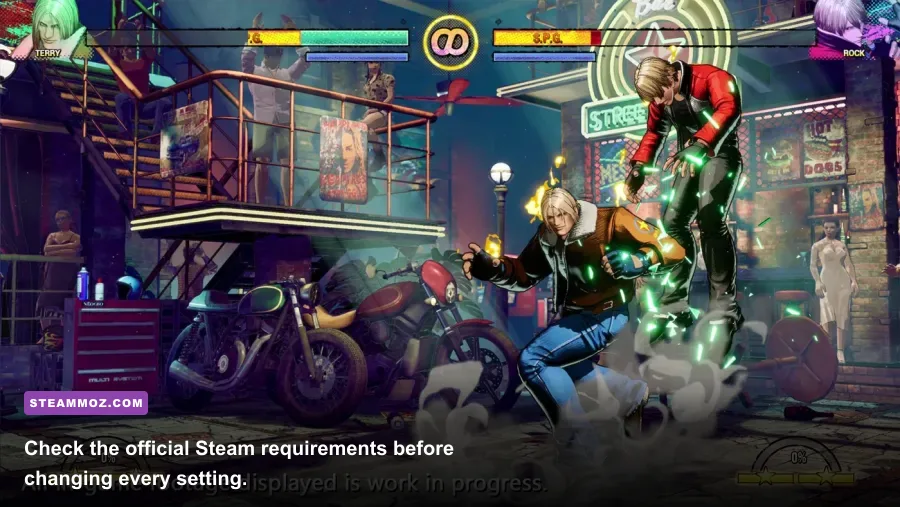
Fatal Fury: City of the Wolves is built around a 60-FPS fighting-game rhythm. Do not chase 144 FPS if the game cannot maintain it consistently. A stable 60 FPS with even frame pacing is preferable to a fluctuating 90–144 FPS presentation, especially when your monitor’s refresh rate and the game’s output do not line up.
Set the display resolution to your monitor’s native 1920×1080 first. Use exclusive fullscreen if the game offers it; if borderless mode produces better alt-tab behavior, keep borderless but disable Windows fullscreen optimizations through the executable’s Properties menu as a troubleshooting test. Turn VSync on if you see tearing, then cap the game at 60 FPS through its own limiter or your GPU control panel. Avoid stacking multiple limiters, because two frame caps can create uneven pacing.
| Setting | Recommended Value | FPS Impact | Visual Trade-Off |
|---|---|---|---|
| Resolution | 1920×1080 | Very high | Lower resolution is the fastest GPU fix |
| Frame Rate Limit | 60 FPS | Stability gain | Protects consistent fighting-game timing |
| VSync | On if tearing appears | Small latency cost | Cleaner presentation; test with VRR |
| Texture Quality | High with 6–8 GB VRAM | Low to medium | Keep high unless VRAM usage spikes |
| Shadow Quality | Medium | Medium to high | Less shadow detail, often a major gain |
| Effects Quality | Medium | High during supers | Reduces particles and flashy impact effects |
| Post Processing | Low or Medium | Medium | Less bloom and image processing |
| Ambient Occlusion | Low or Off | Medium | Flatter contact shading in stages |
| Screen-Space Reflections | Off or Low | Medium | Less reflective surface detail |
| Motion Blur | Off | Small | Sharper movement and clearer reactions |
Textures are usually the last setting to reduce because they mostly consume VRAM rather than raw shader performance. If lowering textures suddenly stops crashes, your card may be running out of VRAM, especially at 1440p with browsers, recording software, or a second monitor active. On a GTX 1060 6 GB or RX 580, Medium textures are a sensible diagnostic step, but you may be able to return to High after reducing effects and reflections.
Stop stutter from shaders, overlays, and background load
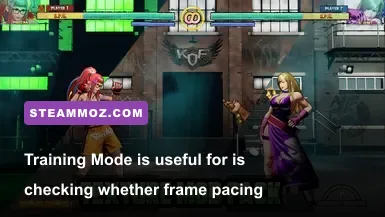
The first match after a driver update, patch, or graphics change can stutter while shaders are prepared. Let the game sit at the title screen for a minute, enter Training Mode, and perform several rounds using the characters and stages that normally cause trouble. Do not judge performance from the first few seconds after loading. Once the common effects have been cached, repeat the test.
If stutter returns every launch, clear only the relevant shader cache through your GPU driver tools, reboot, and allow it to rebuild. NVIDIA users can use the Windows Disk Cleanup utility to remove DirectX Shader Cache. AMD users can reset the shader cache from Adrenalin’s graphics settings. The first run afterward may be worse; that is expected. Repeatedly clearing it before every session guarantees that the game keeps rebuilding the same data.
Close browsers with video playback, OBS previews, hardware-monitor windows, and game launchers you don’t need. Set Windows power mode to Best Performance while plugged in, and force the game to use the dedicated GPU on a laptop through Windows Graphics Settings. Play while connected to AC power. Battery-saving modes can lower clocks enough to create dramatic drops even when the laptop technically exceeds the recommended specification.
For VRR displays, enable G-SYNC or FreeSync and test a 60-Hz cap first. If you still feel hitching, temporarily disable VRR, use VSync, and compare the result in Training Mode. This isolates whether the problem is the game, the driver, or the monitor’s synchronization behavior. A frame-time graph from MSI Afterburner can help: a flat 16.67-ms line means a proper 60 FPS lock, while tall spikes reveal stutter hidden by the average-FPS counter.
Apply the fixes in the right order
1. Establish a clean baseline
Restart Windows, close overlays, connect the laptop to power, remove overclocks, and launch only Steam and Fatal Fury: City of the Wolves. Play Training Mode for ten minutes. Test a busy stage and a character with conspicuous special effects, then record whether the failure is a crash, a repeatable FPS drop, or one-time shader hitching.
2. Repair the installation and drivers
Verify the Steam files, update or clean-install the GPU driver, and install Windows and chipset updates. Check the official SNK website and the game’s Steam announcements for patches or known issues. If the game crashes only after a specific update, report the exact GPU model, driver version, Windows build, and reproduction steps rather than posting only “PC crash.”
3. Lower the expensive settings
Use 1080p, Medium shadows, Medium effects, Low post-processing, and Low or Off ambient occlusion and reflections. Keep textures High if VRAM allows it. Cap at 60 FPS and test again. If the game becomes stable, raise one setting at a time. Changing five options together makes it impossible to identify the real bottleneck.
4. Separate GPU and CPU problems
If lowering resolution produces a large improvement, the GPU is the limit. If FPS barely changes but frame-time spikes continue, close background processes and investigate CPU load, thermals, and power limits. A CPU near 100 percent can cause stutter even with a powerful graphics card. Watch temperatures during a match, not just on the desktop: sustained thermal throttling often appears after several rounds.
| Symptom | Most Likely Cause | First Fix | Confirmation Test |
|---|---|---|---|
| Crash before the main menu | Driver, overlay, damaged files | Clean driver and verify files | Launch with every overlay disabled |
| Crash during effects | VRAM pressure or unstable overclock | Lower effects and textures | Repeat the same super move in Training |
| Short stutters only on first load | Shader compilation | Complete several Training rounds | Restart and replay the same stage |
| Low FPS at all times | Resolution or GPU limit | Use 1080p and Medium effects | Compare 100% and 75% render scale |
| Random hitching after minutes | Thermal or background load | Close apps and check temperatures | Compare plugged-in and battery play |
For broader PC troubleshooting habits, Steamoz’s guide to fixing crashes and low FPS in City of Gangsters covers a similar clean-baseline approach. You can also compare how we check demanding PC requirements in Back 4 Blood and Cossacks 3.
Once the game survives repeated Training Mode tests, try Arcade or Story content, then an unranked online match. Keep a note of the settings that worked. If a later patch or driver changes performance, you can return to that known-good profile instead of starting from scratch. For a competitive fighter, boring consistency wins: a clean 60 FPS, stable frame pacing, and no overlays are worth far more than a handful of extra reflections.
Finally, if none of these steps works, send SNK or Steam support a useful report: CPU and GPU models, RAM amount, Windows version, driver version, resolution, graphics preset, crash location, and whether file verification changed anything. That information gives developers a reproducible lead—and gets you closer to the next match than another blind reinstall.