If Eternal Threads keeps crashing, freezing during timeline transitions, or dropping below a smooth frame rate, start with three fixes: verify the Steam installation, use the game's native resolution with a capped 60 FPS, and lower shadows, effects, and post-processing before touching texture quality. Then update your GPU driver, disable overlays, and test a clean launch. Those steps solve most problems without wrecking the game's deliberately moody visuals.
Cosmonaut Studios' narrative adventure isn't a twitch shooter, but unstable performance still hurts. A hitch while moving through the house can interrupt audio cues, while a crash during a timeline jump can wipe out the rhythm of an investigation. The good news is that Eternal Threads is far lighter than many modern Unreal Engine releases. Its official Steam page lists an Intel Core i5-4590 or AMD FX-8350, 8 GB of RAM, and a GTX 970 or Radeon R9 290 as the minimum target. That means a sensible settings profile should make 1080p play comfortably on a wide range of older gaming PCs.
Check the real cause before changing graphics
First, identify whether you're dealing with a crash, a sustained low frame rate, or short shader and asset hitches. They need different fixes. A game that runs at 55-60 FPS but pauses for half a second when entering a room has a streaming or driver problem; a machine stuck at 25 FPS everywhere needs a graphics adjustment or hardware check.
Start with a clean baseline
Restart Windows, close browsers and recording tools, and launch Eternal Threads directly from Steam. Watch GPU usage with MSI Afterburner or the Xbox Game Bar performance widget. If GPU usage sits around 95-100%, the graphics card is the limit. If it remains under 70% while the frame rate collapses, check CPU load, background applications, power mode, and thermal throttling.
On laptops, connect the charger and set Windows to Best performance. In Windows Settings, open System, Display, Graphics, add the game's executable if necessary, and choose the high-performance GPU. A surprising number of “low FPS” reports come from the integrated graphics chip rather than the dedicated NVIDIA or AMD card.
Don't immediately delete save files. Eternal Threads is a story about changing events across a house fire in 2015, and the timeline investigation is more valuable than a clean restart. Back up the save folder first, then troubleshoot.
| Symptom | Most likely cause | First test |
|---|---|---|
| Crash at startup | Corrupt files, overlay conflict, missing runtime | Verify files and disable overlays |
| Crash during timeline jump | Driver issue, unstable overclock, asset streaming | Run stock clocks and lower effects |
| Low FPS everywhere | GPU limit, wrong GPU, high resolution | Confirm GPU and test 1080p |
| Brief room-to-room stutter | Shader compilation or storage delay | Install on SSD and let the area load |

🎮 Eternal Threads
Looking to experience this game? Grab your digital key directly on our store for $3.99.
View on Steammoz Store →Use this stable Eternal Threads graphics profile
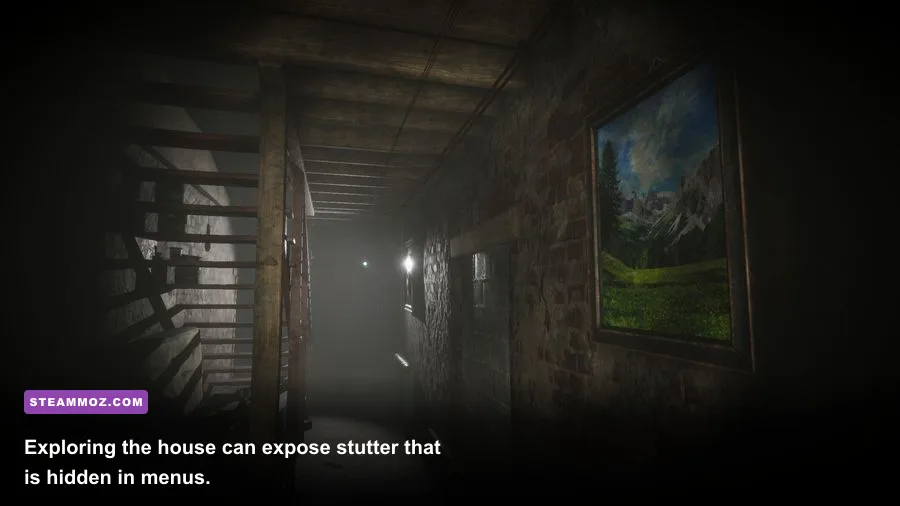
The game benefits more from consistent frame pacing than from chasing an unlocked 144 FPS target. Because most scenes are exploration and dialogue driven, a locked 60 FPS feels clean and avoids sudden spikes in fan noise. If your PC cannot hold 60, cap at 30 rather than allowing the frame rate to swing between 34 and 58.
Begin at 1920x1080, native to a typical monitor. Use fullscreen if borderless mode gives you inconsistent frame times, and turn V-Sync on when you see horizontal tearing. If the game offers a frame-rate limit, set it to 60; otherwise use NVIDIA Control Panel, AMD Software, or RTSS to apply the cap externally.
| Setting | Recommended value | FPS impact | Visual trade-off |
|---|---|---|---|
| Resolution | Native 1080p | Very high | Keep native; reduce to 1600x900 only as a last resort |
| Frame limit | 60 FPS, or 30 FPS on older PCs | Stability gain | Lower peak smoothness, better frame pacing |
| V-Sync | On if tearing appears | Low | May add a little input latency |
| Shadows | Medium | High | Less contact depth in rooms and corridors |
| Effects | Medium | Medium-high | Reduced fire, smoke, and lighting effects |
| Post-processing | Low or Medium | Medium | Cleaner image with less bloom and blur |
| Anti-aliasing | Medium or High | Medium | Lower values reveal more jagged edges |
| Textures | High with 4 GB VRAM or more | Low unless VRAM is full | Lower texture detail on walls and objects |
Lower shadows first because they can be expensive across the house's interior lighting. Next reduce effects and post-processing, especially if the frame rate dips around fire, smoke, or dramatic timeline transitions. Leave textures high when your GPU has enough VRAM; texture quality usually affects memory usage more than raw FPS. That approach preserves the environmental detail that makes the house readable without spending performance on effects you'll notice for only a few seconds.
For a GTX 970, Radeon R9 290, or similarly aged card, the practical profile is 1080p, medium shadows, medium effects, low post-processing, medium anti-aliasing, high textures, and a 60 FPS cap. A GTX 1070-class system with 16 GB RAM can generally try high shadows and effects, but frame pacing matters more than a handful of extra visual flourishes.
Fix Eternal Threads crashes through Steam and Windows
Before reinstalling anything, use Steam's file check. Right-click Eternal Threads in your library, select Properties, open Installed Files, and choose Verify integrity of game files. This replaces damaged or incomplete files while preserving your save data. It is the best first move after a failed update or a crash that suddenly appears after the game previously worked.
Remove the common conflict sources
- Disable the Steam Overlay, Discord overlay, Xbox Game Bar, GeForce Experience overlay, AMD recording tools, and MSI Afterburner overlay one at a time.
- Undo GPU overclocks and undervolts. A demanding benchmark may pass while a particular Unreal Engine scene still crashes.
- Update your NVIDIA or AMD driver using a clean installation option. If the problem began immediately after a driver update, try the previous stable driver.
- Install pending Windows updates and the current Microsoft Visual C++ Redistributable packages from Microsoft's official download page.
- Run the game from an SSD with at least 20 GB of free space. A nearly full hard drive can make room transitions and shader-related pauses worse.
If Eternal Threads closes without an error, check Reliability Monitor by searching Windows for “View reliability history.” Look for the crash time and the faulting module. A display-driver module points toward the GPU driver or an unstable clock; an application error after an overlay was loaded points toward that overlay. This is much more useful than guessing from a generic desktop crash.
For permission-related crashes, open the game's installation folder from Steam, right-click the executable, choose Properties, and test Disable fullscreen optimizations. Don't blindly enable compatibility modes, though. They can introduce scaling and input problems on modern Windows versions. If Windows Security has blocked access to the save directory, allow the game through Controlled Folder Access rather than running the entire client as administrator.
Players who use mods, ReShade, custom launchers, or injected frame-generation tools should remove them for the baseline test. Eternal Threads is a single-player narrative title, so there is little benefit in adding latency-heavy upscalers to a game that should already run well at 1080p.
Stop stutter during exploration and timeline changes
Low average FPS and stutter feel different. Eternal Threads can appear smooth while standing still, then hitch as you walk through a doorway or move between moments in the timeline. Those transitions may load new room assets, lighting states, and dialogue data. A single hitch does not necessarily mean your GPU is too weak.
Improve frame pacing step by step
- Install the game on an SSD, preferably the same drive as your Windows page file.
- Leave the game running for several minutes after changing drivers or graphics settings. Early traversal can be less consistent while caches are rebuilt.
- Use a fixed 60 FPS cap instead of an unlimited frame rate. An uncapped GPU can render menus at excessive speeds and then create larger frame-time swings in the house.
- Set Windows power mode to Best performance and close cloud-sync clients while testing.
- Lower effects and shadows if stutter is strongest around fire, smoke, or cinematic lighting changes.
Don't mistake camera blur or film-grain-like post-processing for poor performance. Lower post-processing if the image looks smeared, but measure frame time before and after. A stable 60 FPS with modest blur is preferable to a fluctuating 80-45 FPS that makes every camera turn feel uneven.
If the game stutters only once in a location and then settles, avoid repeatedly restarting that same scene during testing. You may be measuring cache-building behavior rather than sustained performance. If every doorway causes a hitch after several runs, storage speed, background antivirus scanning, or a corrupted installation becomes more likely.
| PC profile | Resolution | Graphics profile | Target |
|---|---|---|---|
| Minimum-class PC | 1080p or 900p | Medium shadows, low effects, low post-processing | 30-60 FPS |
| Recommended-class PC | 1080p | High textures, medium-high lighting settings | Stable 60 FPS |
| Modern mid-range PC | 1440p | High settings, medium effects if needed | 60 FPS cap |
When nothing works, isolate the save and hardware
If verification, driver work, and overlay removal fail, test whether the crash is tied to one timeline state or affects every new game. Back up your save first. Then temporarily move the save files to another folder and launch Eternal Threads. A new-game test separates a damaged progression file from a system-wide problem.
If a new game runs normally but your original save crashes during a particular timeline transition, restore the backup and avoid repeated rapid switching between moments while testing. Contact the developer through the official Steam discussions with the exact scene, crash timing, GPU, driver version, and whether overlays were active. The game's developer website is also worth checking for support updates.
For a system-wide crash, monitor CPU and GPU temperatures. A graphics card approaching its thermal limit may downclock, causing low FPS before it crashes. Check RAM stability if other games are failing too, and remove aggressive XMP or EXPO settings temporarily. Also confirm that your power supply can handle the GPU; sudden shutdowns are hardware or power problems, not a graphics preset problem.
As a final clean test, uninstall Eternal Threads, restart Windows, and reinstall it to an SSD. Keep cloud saves enabled only after confirming the local installation launches correctly. If you need to compare your machine against the listed baseline, use the Steamoz PC specifications guide for a useful way to distinguish a CPU, GPU, RAM, and storage bottleneck.
Keep the fix without sacrificing the game's atmosphere
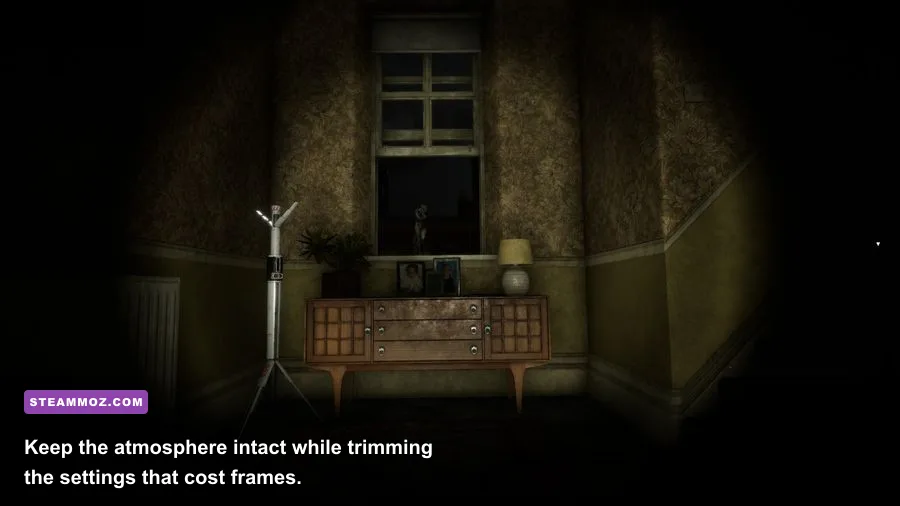
The best Eternal Threads performance setup isn't necessarily the lowest preset. Keep textures high when VRAM allows it, maintain native 1080p, and spend your cuts on shadows, effects, and post-processing. Those settings are responsible for most heavy moments around the house fire and dramatic timeline changes, while texture detail does more to preserve the game's visual identity.
Once you find a stable profile, record it. Note the resolution, frame cap, driver version, and whether overlays are enabled. If a future Steam or Windows update changes behavior, you can return to a known-good setup instead of starting from scratch. The same disciplined approach helps with other demanding PC releases; Steamoz's guide to settings that make every frame count is a useful companion for broader optimization work.
Most players should be able to enjoy Eternal Threads at a locked 60 FPS after verifying the files, running the correct GPU, disabling overlays, and applying the medium-effects profile above. If your PC only holds 30, lock it there and keep the frame time consistent. In a game built around six residents, one burning house, and a timeline you can reshape, stable pacing preserves the tension far better than a flashy but unreliable maximum preset.
For more practical troubleshooting, see Steamoz's PC requirements and smooth-performance guide, then return to Eternal Threads with your hardware and software baseline clear. Crashes are easier to solve when you change one variable at a time—and low FPS is much easier to fix when you measure the frame-time problem instead of guessing.