If Elendia Ceus keeps crashing or crawling at low FPS on your PC, start with the fixes that match its older, lightweight PC-game profile: verify the Steam installation, disable overlays, run the game with the correct Windows compatibility settings, and use a conservative 720p or 1080p profile. Don’t begin by downloading a random DLL or forcing aggressive launch commands. Those shortcuts often create a second problem.
The important distinction is whether you’re dealing with a crash or a performance problem. A crash usually points to corrupted files, missing runtime components, permissions, overlays, or a bad fullscreen mode. Low FPS and stutter are more often caused by display scaling, driver profiles, background capture software, power-saving modes, or the game rendering at an unnecessarily high resolution. Work through the fixes below in order so you know which change actually helped.
Check the PC basics before changing Elendia Ceus
First, restart Steam and reboot Windows. That sounds obvious, but it clears stuck Steam processes, shader compilation jobs, and overlay hooks that can survive after a game closes. Launch Elendia Ceus from its Steam library page instead of an old desktop shortcut, then test the title with every browser, recorder, and hardware-monitoring overlay closed.
Before troubleshooting, record three details: your Windows version, graphics card, and whether the game crashes during startup, when loading a save, or after entering gameplay. That timing matters. A startup crash suggests files or dependencies. A crash tied to one save can indicate damaged save data. A crash after several minutes can point to an overlay, overheating, or a driver timeout.
| Symptom | Most likely cause | First test | What success looks like |
|---|---|---|---|
| Closes before the title screen | Broken files, permissions, runtime issue | Verify files, then run as administrator once | The game reaches its menu consistently |
| Crashes while loading a save | Damaged save or unstable display mode | Test a new game and windowed mode | New game loads without closing |
| Runs but feels sluggish | Resolution, power mode, overlays, driver profile | Use 1280x720 or 1920x1080 and disable overlays | Frame pacing becomes stable |
| Short freezes every few seconds | Background capture, shader work, storage activity | Close recording tools and move the install to an SSD | Stutter becomes less frequent |
Also check the official Elendia Ceus Steam listing for the current operating-system notes and developer updates. If the store page lists a specific requirement, treat that as the authority rather than a third-party system-check website.

🎮 Elendia Ceus
Looking to experience this game? Grab your digital key directly on our store for $0.59.
View on Steammoz Store →Repair crashes with Steam and Windows fixes
1. Verify every installed file
In Steam, right-click Elendia Ceus, choose Properties, open Installed Files, and select Verify integrity of game files. Steam will compare the local installation with its depot and replace missing or altered files. This is the safest first repair because it doesn’t delete your saves.
Wait until Steam finishes completely, even if the progress bar appears stuck near the end. Then launch the game once before re-enabling mods, overlays, or custom compatibility tools. If Steam reports that one or more files were reacquired, restart the client and test again. Repeatedly reacquired files can indicate an antivirus quarantine, a full drive, or a permissions problem.
2. Remove administrator and compatibility conflicts
Open the game’s local files from Steam’s Installed Files menu and locate the main executable. Right-click it, choose Properties, and inspect the Compatibility tab. Don’t blindly enable every checkbox. Start with Disable fullscreen optimizations. If that fails, test Windows 7 compatibility mode as a separate experiment, then undo it if the result gets worse.
Run the executable as administrator only as a diagnostic step. Permanent administrator mode can create confusing save-folder permissions and can stop overlays from attaching properly. If administrator mode fixes the crash, the real issue is probably access to the installation or save directory. A better long-term solution is moving the game library to a normal writable Steam folder rather than leaving it inside a protected custom directory.
3. Reset display settings without deleting saves
If Elendia Ceus crashes after changing resolution or fullscreen mode, look for a configuration file in the game’s local folder or your Windows user-data directory. Back it up before editing or deleting it. Rename the configuration file rather than destroying it; this lets you restore it if necessary. The game should then rebuild default display settings on the next launch.
Test windowed mode first. If windowed mode works but fullscreen crashes, use borderless windowed mode through Windows display tools or the game’s own menu if available. Avoid forcing undocumented commands such as -dx12, -vulkan, or -high unless the developer specifically documents them. A launch command made for another engine can prevent Elendia Ceus from opening at all.
For broader Windows repair guidance, Microsoft’s official Windows Update support page is safer than downloading redistributables from unofficial DLL websites. Never replace a missing DLL with a file from a random search result.
Use this Elendia Ceus low-FPS settings profile
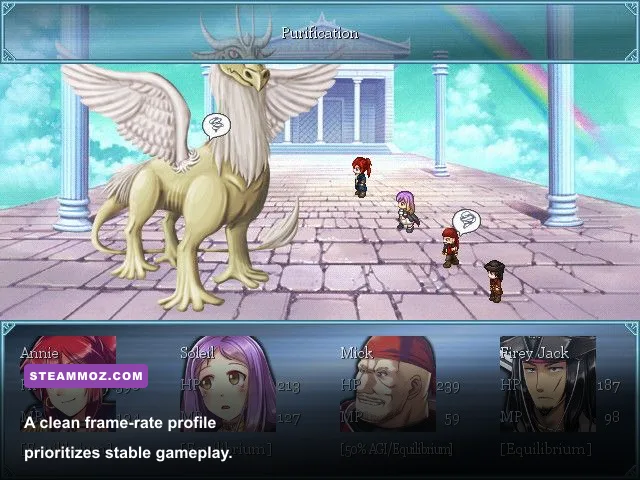
For a lightweight game, a high-end graphics card doesn’t automatically guarantee smooth performance. Older titles can behave badly at very high desktop resolutions, unusual refresh rates, or forced driver settings. Start with a controlled baseline: 1280x720 for diagnosis, then move to 1920x1080 if frame pacing remains stable. Turn off recording, set Windows to its highest performance power profile while testing, and keep the game on the display adapter you actually intend to use.
| Setting or condition | Recommended value | FPS impact | Visual or stability note |
|---|---|---|---|
| Resolution | 1280x720 for testing; 1920x1080 afterward | High | Lower resolution quickly reveals whether rendering load is the issue |
| Display mode | Windowed first, then fullscreen or borderless | Low to medium | Windowed mode is the best crash diagnostic |
| Texture quality | High unless VRAM is limited | Low | Usually preserves image quality better than lowering resolution |
| Shadows and effects | Medium or Low | Medium to high | Reduce these before sacrificing texture clarity |
| V-Sync | Off for testing; enable if tearing appears | Variable | Can add latency or lock the game to a lower refresh step |
| Frame limiter | 60 FPS if available | Improves consistency | A stable cap often feels smoother than erratic uncapped output |
| Windows scaling | 100% for diagnosis | Low to medium | Useful if menus or fullscreen scaling look broken |
Use the 60 FPS cap only if the game offers one or your graphics driver handles it reliably. Don’t chase a 144 FPS reading in a title that was designed around a 60 Hz presentation. Uneven frame delivery can feel like low FPS even when the counter looks high. If the game has no limiter, a driver-level cap of 60 FPS is a sensible test; remove it if it causes input delay or flicker.
Laptop users should open Windows Graphics settings and assign Elendia Ceus to the high-performance GPU. Plug the laptop into power, select a performance power mode, and confirm that the game isn’t running on integrated graphics. On desktop systems, make sure the monitor cable is connected to the dedicated graphics card rather than the motherboard output.
Disable overlays, drivers, and background interference
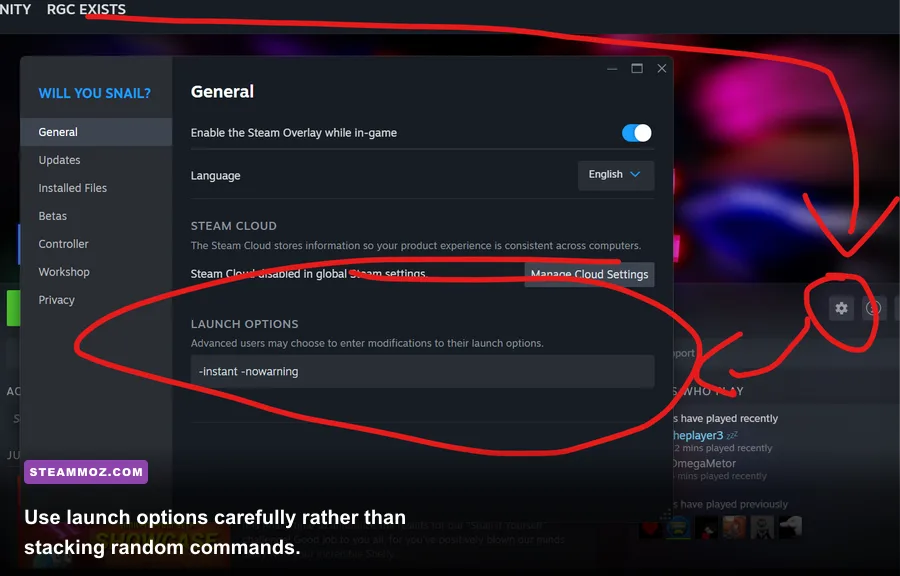
Overlays are frequent crash triggers because they inject themselves into the game’s rendering process. Disable the Steam Overlay for Elendia Ceus by opening its Properties and turning off the in-game overlay option. Also shut down Discord overlay, Xbox Game Bar capture, GeForce Experience or NVIDIA App overlay, AMD Adrenalin overlay, MSI Afterburner’s on-screen display, and third-party FPS counters. Test with all of them off, then restore them one at a time.
Update your graphics driver through the official NVIDIA driver page or AMD support page. If Elendia Ceus started crashing immediately after a driver update, use the driver installer’s clean-install option or roll back to the previous stable package. Don’t update the driver, Windows, and several utilities simultaneously if you’re trying to identify one cause.
Temporarily add the game folder to your antivirus exclusions only if verification shows files are repeatedly being removed. Re-enable protection after testing and use the game’s official executable path. Keep at least 10 percent free space on the installation drive, particularly if it’s an SSD, and close cloud-sync software while testing saves. Those services can lock a file at exactly the wrong moment.
Players who enjoy older RPGs may also want to compare their troubleshooting habits with Steamoz’s advice on classic RPG performance and the practical settings breakdown in Dragonkin: The Banished. The same rule applies here: change one variable, test, and keep notes.
Advanced fixes when the first pass fails
If the game still crashes, create a clean test environment. Turn off Steam Cloud temporarily, back up your saves, and rename the configuration folder rather than deleting it. Start a new game and play for ten minutes. If the new game works but the old save crashes, the save is likely damaged. Restore an earlier backup if one exists; don’t overwrite every save while experimenting.
Next, test a clean boot of Windows. Microsoft’s clean boot instructions explain how to disable non-Microsoft startup services temporarily. This is especially useful when Elendia Ceus crashes only after another program launches. Re-enable services in batches after the test so you can identify the offender instead of leaving Windows permanently stripped down.
For stutter, monitor temperatures and clock speeds rather than looking only at average FPS. A GPU or CPU that drops clocks under heat can produce long frame-time spikes. Keep the game’s install on an SSD, close downloads, and avoid streaming or recording during diagnosis. If performance is smooth in windowed 720p but poor in fullscreen 1080p, the problem is display mode or scaling; if both are poor, inspect power mode, GPU selection, and background load.
| Final test | Change to make | If it helps | Permanent action |
|---|---|---|---|
| Clean files | Verify installation with overlays off | File corruption or injection was involved | Keep overlays disabled for this game |
| Clean display | Reset config and test 1280x720 windowed | Resolution or fullscreen conflict was involved | Use a stable 1080p profile |
| Clean profile | Reset NVIDIA or AMD per-game settings | Driver overrides caused instability | Use application-controlled settings |
| Clean save | Launch a new game with Cloud temporarily off | One save or sync state is damaged | Restore a known-good save backup |
Finally, report a reproducible crash through the developer’s Steam Discussions or support channel. Include your GPU model, Windows build, crash location, whether windowed mode works, the result of file verification, and any error text from Event Viewer. That information is far more useful than saying only that the game “doesn’t work.” For more Steam troubleshooting habits, Steamoz’s guides to checking real PC requirements and surviving demanding RPG sessions are useful companion reads.
The winning Elendia Ceus setup is usually boring in the best possible way: verified files, no injected overlays, a current or known-stable graphics driver, windowed mode used for testing, and a sensible 60 FPS target. Once the game launches reliably, raise resolution and restore background tools one at a time. That approach takes longer than copying a mystery launch command, but it gives you a stable PC profile you can actually trust.