If Edge Of Eternity is crashing, freezing, or running below a comfortable frame rate, start with a clean file verification, a current GPU driver, and a capped 60 FPS profile. Then lower shadows, volumetric effects, anti-aliasing, and view distance before touching texture quality. Those settings usually deliver the biggest improvement while preserving the game’s detailed environments.
Edge Of Eternity is more demanding than its turn-based combat suggests. The game streams large regions of Heryon, renders dense vegetation and settlements, and can produce short shader or asset-loading pauses while you travel. A machine that handles a small interior at 60 FPS may still dip during outdoor traversal. The goal isn’t simply to chase the highest average number; it’s to eliminate the ugly frame-time spikes that make the game feel jerky.
Before changing anything, check the current official Steam page for updated requirements and patches. If you’re also tuning another demanding RPG, our guide to Dragonkin graphics settings has a useful rule of thumb: stabilize frame pacing first, then rebuild image quality one setting at a time.
Check your PC against Edge Of Eternity’s real workload

Start by identifying whether the problem is a hard crash, a GPU limit, a CPU or streaming limit, or shader compilation. The official minimum specification lists a 64-bit Windows installation, an Intel Core i5-2400 or AMD FX-6300-class processor, 8 GB of RAM, and a GeForce GTX 660 or Radeon R9 270-class graphics card. The recommended tier moves to an Intel Core i7-4770 or Ryzen 5 1600-class CPU, 16 GB of RAM, and a GTX 1070 or Radeon Vega 56-class GPU.
Those numbers are a floor, not a guarantee of locked performance. Minimum-class hardware should target 720p or 900p with a 30 FPS cap and reduced effects. Recommended hardware is better suited to 1080p at 60 FPS, although crowded outdoor areas can still dip. A modern integrated GPU, an old laptop with shared memory, or a system running the game from a nearly full mechanical drive may perform below the label on the box.
| PC component | Minimum baseline | Recommended baseline | Practical target |
|---|---|---|---|
| CPU | Core i5-2400 or FX-6300 | Core i7-4770 or Ryzen 5 1600 | Six modern cores for steadier streaming |
| Memory | 8 GB RAM | 16 GB RAM | 16 GB with browsers and overlays closed |
| GPU | GTX 660 or Radeon R9 270 | GTX 1070 or Radeon Vega 56 | 6 GB or more VRAM for high textures |
| Storage | About 60 GB free | SSD strongly preferred | Keep at least 15 percent drive space free |
| Resolution | 720p to 900p | 1080p | 1440p requires a stronger modern GPU |
Use the symptoms to find the bottleneck
If GPU usage sits at 95–100 percent while the frame rate falls, reduce resolution, render scale, shadows, and volumetric quality. If GPU usage is low but one CPU thread is busy and the game pauses while moving through Heryon, lower view distance and cap the frame rate. If the game stutters for a second when a new area or effect appears, don’t immediately blame your graphics card; that pattern often points to asset or shader streaming.
Close Chrome tabs, recording software, RGB utilities, and launchers before testing. Disable Xbox Game Bar, Discord overlay, GeForce Experience overlay, AMD recording tools, and MSI Afterburner’s on-screen display one at a time. Overlays hook into the renderer, and a crash that disappears when one is disabled is much easier to diagnose than a crash with six active hooks.

🎮 Edge Of Eternity
Looking to experience this game? Grab your digital key directly on our store for $2.99.
View on Steammoz Store →Build a stable graphics profile before chasing ultra settings

Use exclusive fullscreen if the game offers it, select your monitor’s native resolution, and begin with a 60 FPS cap. A fixed cap is particularly useful in Edge Of Eternity because it prevents the GPU from racing through quiet interiors and then collapsing during an outdoor streaming spike. On a 120 Hz or 144 Hz monitor, test 60 FPS first; move to 90 or 120 only after the frame-time graph stays clean in demanding areas.
Shadows are usually the first major cut. They affect both GPU shading and the number of objects that need high-quality shadow maps. View distance is the next important switch because Heryon’s open areas contain distant terrain, vegetation, props, and settlement details. Textures are different: lowering them mostly saves VRAM, so keep them on High if your graphics card has enough memory and you aren’t seeing texture pop-in.
| Setting | Recommended value | FPS impact | Visual trade-off |
|---|---|---|---|
| Resolution | Native 1080p | Very high if reduced | Lower values soften the entire image |
| Resolution scale | 100%; 85–90% for weak GPUs | High | Small details become less sharp |
| Shadows | Medium | High | Less contact detail around characters and terrain |
| View distance | Medium or High | High outdoors | Distant objects appear later |
| Volumetric effects | Low or Medium | Medium to high | Fog and light shafts look simpler |
| Anti-aliasing | Medium or the lowest clean option | Medium | More jagged foliage and geometry |
| Textures | High with 6 GB-plus VRAM | Low GPU impact, high VRAM use | Lower settings make surfaces blurry |
| Effects and foliage | Medium | Medium outdoors | Fewer particles and less dense vegetation |
Three useful profiles
For a minimum-class PC, use 1280×720 or 1600×900, 30 FPS, low shadows, low volumetrics, medium textures, low view distance, and medium effects. For a sensible 1080p profile, use native resolution, 60 FPS, medium shadows, medium volumetrics, high textures, medium-high view distance, and medium effects. For a stronger 1440p machine, keep textures high, but still use medium shadows and volumetrics if your frame times spike outside settlements.
Don’t lower every option blindly. A low-texture, low-shadow preset can look worse while barely improving performance if your CPU is the actual limit. Change one setting, repeat the same route, and compare the worst one-percent lows rather than only the average FPS. Our PC requirements guide explains the same testing approach for lighter games, but the principle matters even more here.
Fix crashes with a clean Steam and Windows checklist

First, exit Edge Of Eternity and restart Steam. Open the game’s Properties, choose Installed Files, and run “Verify integrity of game files.” Let the process finish completely. A damaged archive, interrupted update, or missing executable can cause a crash before the main menu or when a specific region loads. If verification reports replacement files, restart Steam before launching again.
- Update the GPU driver. Install the latest stable driver from NVIDIA or AMD. Choose a clean installation if the installer provides that option.
- Remove overclocks temporarily. Return the GPU, CPU, and RAM to stock settings. An overclock that survives a benchmark can still fail during shader compilation or rapid asset streaming.
- Run Windows Update. Install pending cumulative updates and restart. Also update motherboard chipset drivers, especially on Ryzen systems.
- Disable compatibility traps. Turn off forced compatibility mode, third-party injectors, ReShade, and aggressive antivirus ransomware protection for a controlled test. Add the game folder as an exception only if you trust the installation.
- Check disk space. Keep the game on an SSD with generous free space. A drive that is nearly full can make patching, shader caches, and temporary files behave badly.
- Test without cloud synchronization. If a crash happens while loading a save, temporarily back up the save folder and test a new game. A damaged save can be mistaken for a general launch problem.
For launch crashes, try Steam’s launch-options field with -force-d3d11 as a diagnostic test if the title accepts it on your installation. DirectX 11 can help systems that fail during another renderer’s initialization, but it isn’t a universal FPS boost. Remove the option if it changes nothing. Avoid stacking random Unity flags from old forum posts; one wrong argument can create a second problem.
For repeated crashes after a driver update, clear the GPU shader cache through Windows Disk Cleanup or your driver control panel, then launch again and give the game time to rebuild it. The first run may stutter more. That’s expected. Don’t kill the process during the first shader-heavy load unless it has genuinely stopped responding.
Stop stutter during Heryon traversal and combat
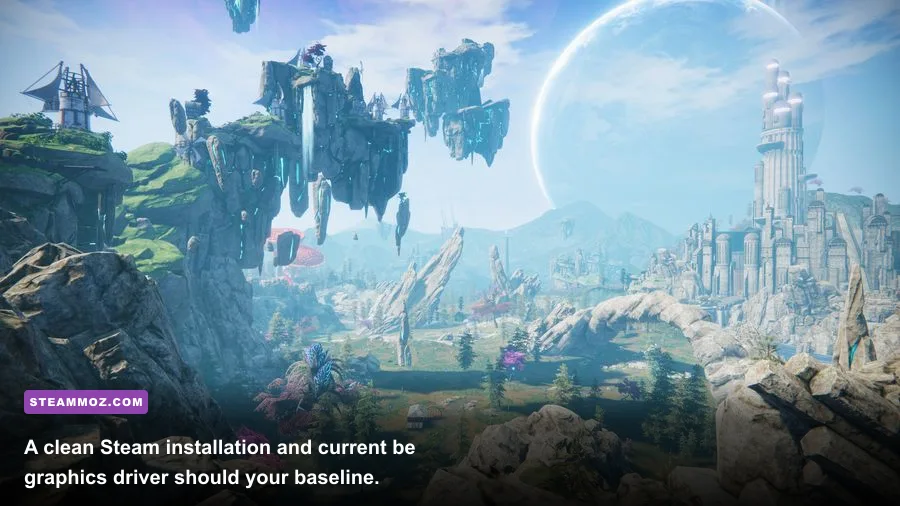
Traversal stutter is different from a constant low frame rate. A steady 38 FPS feels consistent; a game jumping from 70 to 25 FPS every few seconds feels broken. Watch GPU usage and frame time with a lightweight monitor. If the dip arrives when turning toward a new settlement, cliff, or group of enemies, the engine is likely streaming assets or compiling a shader.
Install the game on an SSD, leave the shader cache enabled, and avoid repeatedly changing drivers and graphics settings while testing. Every major change can invalidate cached data. Run through the same route for several minutes after the first launch so the game can settle. If you use a laptop, plug it in, select the high-performance GPU in Windows Graphics settings, and set the manufacturer’s performance mode.
Cap the frame rate in the game first. If its limiter feels uneven, use the NVIDIA Control Panel or AMD Software to set a 60 FPS limit for the executable. V-Sync can remove tearing, but it may add latency or turn a small dip into a larger refresh-rate step. If you have a variable-refresh display, enable FreeSync or G-SYNC and keep the cap a few frames below the panel’s maximum refresh rate.
| Symptom | Likely cause | First change | What success looks like |
|---|---|---|---|
| Low FPS everywhere | GPU or resolution bottleneck | Reduce resolution scale to 85–90% | GPU load falls and FPS rises consistently |
| Dips outdoors only | View distance, shadows, or CPU streaming | Lower view distance and shadows | Better one-percent lows in open areas |
| One-second pauses on first encounters | Shader or asset compilation | Keep shader cache enabled and replay the route | Later passes become smoother |
| Stutter after alt-tabbing | Fullscreen or overlay conflict | Disable overlays and test borderless | Alt-tab no longer causes a hitch |
| Textures flash or disappear | VRAM pressure or driver issue | Lower textures one step | Stable textures with fewer streaming errors |
Combat can expose a different issue. Particle-heavy attacks, weather, and multiple enemies may spike effects and volumetric costs even though the battle itself is turn-based. If menus respond slowly during a large encounter, lower effects before textures. If only the camera jerks while the interface remains responsive, test borderless mode and disable controller software or overlays.
Repair saves, configuration files, and stubborn installs
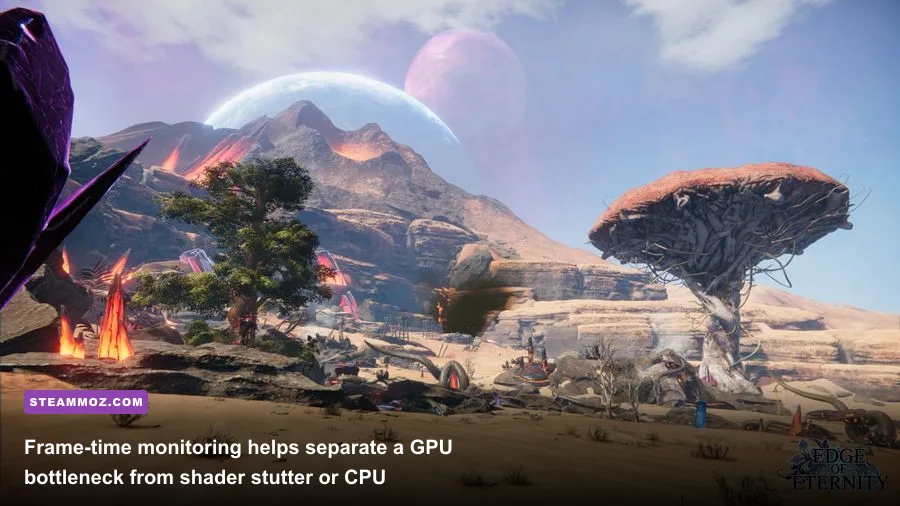
If Edge Of Eternity crashes only when loading one save, don’t overwrite that file repeatedly. Copy your saves to a separate folder first. Test an earlier autosave or a new game. A single broken save can load far enough to display the menu and then fail when the affected map, quest state, or party data is restored.
Resetting configuration data is another strong fix for crashes that began after changing resolution, fullscreen mode, or quality settings. Back up the game’s configuration and save folders before deleting or renaming them. The exact location can vary by Windows version and build, so search the game’s Steam community discussions or the developer’s support channels rather than deleting random folders. After the reset, launch at a conservative resolution and rebuild your settings slowly.
Never download replacement DLL files from unofficial “fix” sites. They can introduce malware, break other games, or hide the real issue. Use Steam verification, official driver packages, and the Midgar Studio website for developer information. If the crash remains, record your GPU model, driver version, Windows build, RAM amount, display mode, exact location, and whether it happens in a new game. That report is far more useful than “it crashes randomly.”
For broader troubleshooting habits, Steamoz’s Dungeon Siege performance discussion and Dins’s Curse beginner tips are worth bookmarking if you play older or systems-heavy RPGs. Their shared lesson is simple: preserve saves, isolate changes, and test repeatable scenarios.
A reliable order of operations
Use this sequence instead of changing ten variables at once. Verify the files, restart the PC, update the GPU driver, disable overlays, reset overclocks, and test a new save. Then use the 1080p balanced profile: 60 FPS cap, medium shadows, medium volumetrics, medium view distance, high textures if VRAM allows, and medium effects. Walk through the same outdoor route for ten minutes. If performance is stable, raise one setting at a time.
If the game still crashes, check Windows Event Viewer for the faulting module and Windows Reliability Monitor for the exact time of the failure. A display-driver timeout points toward the GPU driver, overclock, temperature, or VRAM pressure. An application fault that appears only with one save points toward game data. This distinction saves hours of reinstalling a perfectly healthy game.
When to reinstall and what to report
Reinstall only after verification, driver cleanup, overlay testing, and a save/configuration check. Uninstall through Steam, restart Windows, confirm the installation directory is gone, and reinstall to an SSD with adequate free space. If Steam’s library folder itself is misbehaving, repair the library location before downloading the game again.
After reinstalling, launch once with default settings. Don’t immediately import old configuration files or apply an aggressive overclock. Confirm that a new game reaches the first controllable section, then restore your preferred display mode and graphics profile. Finally, copy saves back one group at a time so you know exactly which file reintroduces the crash.
The best Edge Of Eternity PC fix is usually not a magical launch command. It’s a controlled setup: clean files, current drivers, no overlays, an SSD, a sensible FPS cap, and lower shadows, volumetrics, and view distance. Keep textures higher when your VRAM allows it, monitor frame time rather than average FPS, and treat outdoor traversal as the real performance test. That approach won’t make every PC identical, but it turns random crashing and muddy low FPS into a problem you can actually solve.