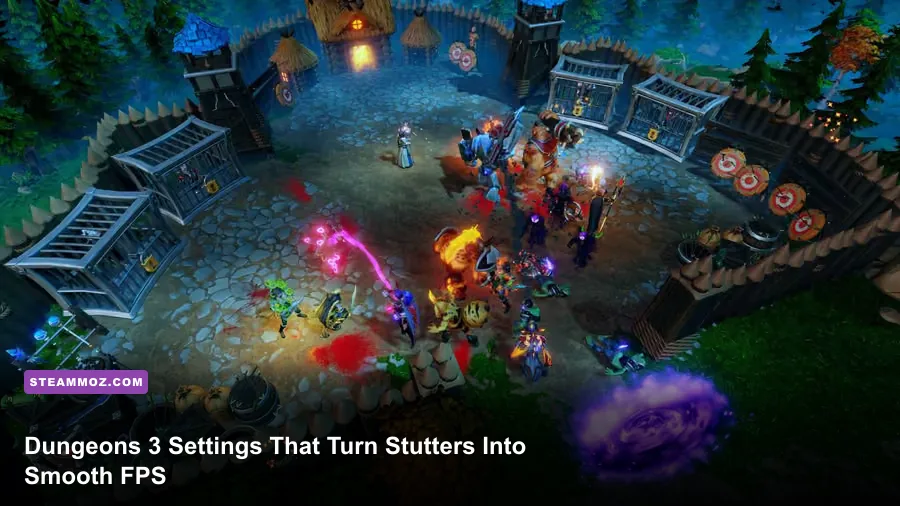
For the best Dungeons 3 graphics settings for max FPS and performance, start with 1080p, exclusive fullscreen, V-Sync off, shadows on Medium, effects on Medium, anti-aliasing on Low or Medium, and textures on High. That profile keeps the game sharp while cutting the settings most likely to hurt frame time during large invasions, crowded rooms, and late-campaign dungeon management.
Dungeons 3 is not a twitch shooter, but a bad frame-time spike still makes dragging rooms, rotating the camera, and directing a packed army feel sluggish. The important detail is that performance changes with the situation. An empty dungeon can run smoothly while a developed lair full of creatures, traps, workshops, torture chambers, and enemy heroes suddenly drops frames. This guide targets that worst-case scenario rather than the easy opening minutes.
Before changing anything, check the official Dungeons 3 Steam page for the current platform information and update history. Also keep your GPU driver current, close browsers with video tabs open, and test the same save file after every major change. Dungeons 3 is a strategy game built around long sessions, so stable frame pacing matters more than a pretty benchmark number.
Use this Dungeons 3 performance preset first
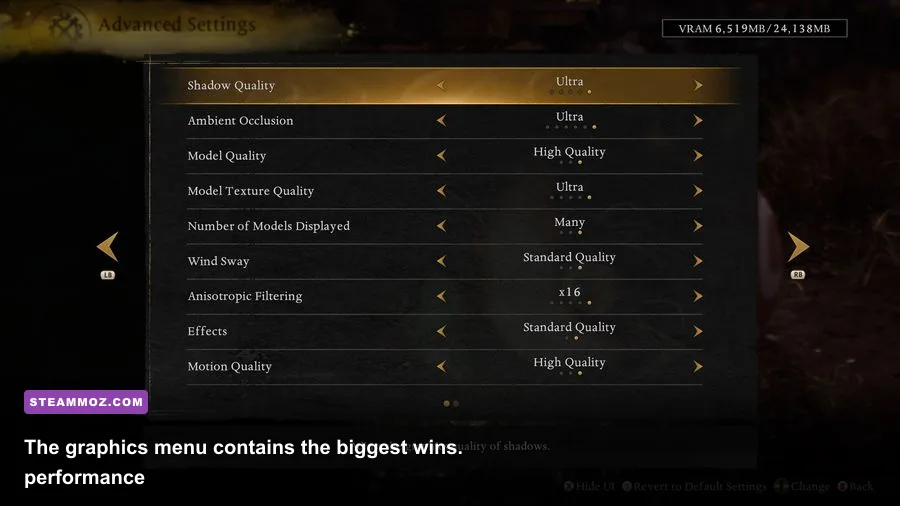
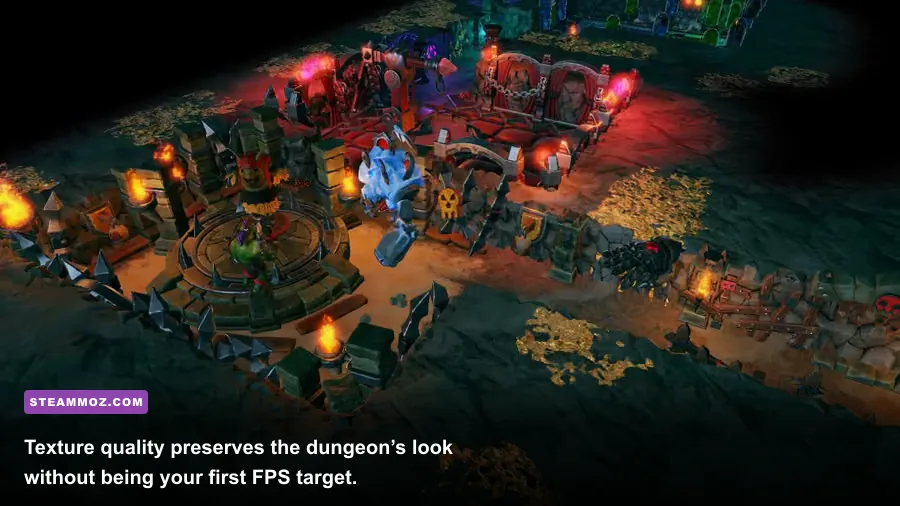
The quickest route to better performance is a balanced preset, not blindly setting every option to Low. Dungeons 3’s underground environments use a lot of repeated geometry, warm lighting, particle effects, and animated units. Dropping texture quality too far can make walls and rooms look muddy while barely helping a GPU with enough VRAM. Shadows, effects, and anti-aliasing are much more useful targets.
Set your desktop and game resolution to 1920×1080 if your monitor is 1080p. On a 1440p display, begin at native resolution and only use 1920×1080 if the GPU cannot maintain your target. Resolution affects every pixel the graphics card has to shade, while texture quality mostly affects memory use. That distinction is why lowering resolution is a last resort after tuning shadows and effects.
| Setting | Recommended Value | FPS Impact | Visual Note |
|---|---|---|---|
| Display Mode | Exclusive Fullscreen | Low to medium | Usually gives cleaner frame pacing than windowed play. |
| Resolution | Native 1080p | Very high | Keep native resolution unless the GPU is the bottleneck. |
| V-Sync | Off for testing | Low average, high latency benefit | Prevents the game from being locked to a display refresh rate. |
| Texture Quality | High | Low on capable GPUs | Preserves wall, floor, and room detail. |
| Shadow Quality | Medium | High | Reduces expensive dynamic shadow calculations. |
| Effects Quality | Medium | Medium to high | Helps during battles with spells, fire, and many units. |
| Anti-Aliasing | Low or Medium | Medium | Controls jagged edges without the cost of maximum smoothing. |
Use this profile as your baseline: 1080p, fullscreen, V-Sync off, High textures, Medium shadows, Medium effects, and Low or Medium anti-aliasing. If the game feels smooth but tears, enable V-Sync afterward. If your monitor supports variable refresh, leave in-game V-Sync off and use your display’s adaptive-sync setting, provided the game and driver behave correctly together.
There is no magic “max FPS” switch in Dungeons 3. The right goal is a consistent cap. A stable 60 FPS feels better than swinging between 100 FPS in an empty room and 35 FPS when a dozen heroes enter a trap corridor. If your system can hold 60, cap around 60 through your driver or a trusted frame limiter.

🎮 Dungeons 3
Looking to experience this game? Grab your digital key directly on our store for $5.99.
View on Steammoz Store →Which settings cost the most FPS?
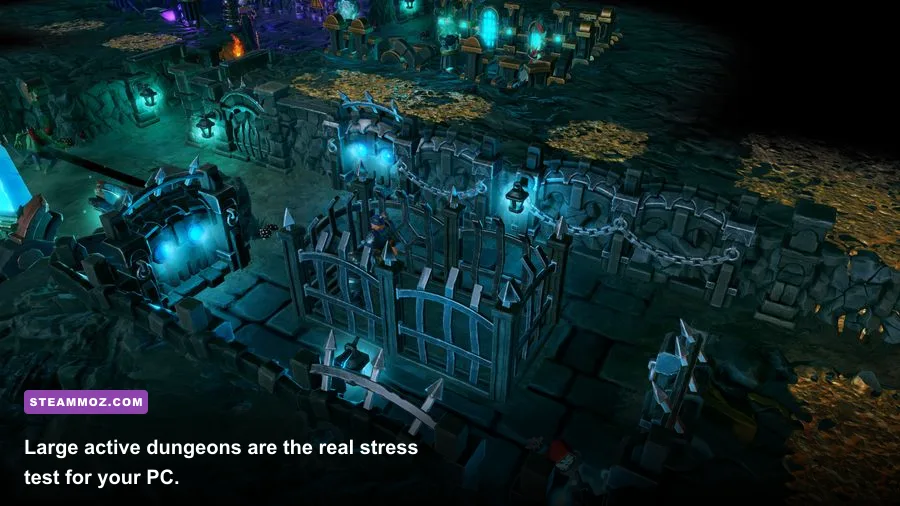
Shadows are normally the first setting to reduce. Dungeons 3’s view can contain many walls, doors, rooms, creatures, and light sources at once. Higher shadow quality increases the resolution and complexity of the shadow work performed across that scene. Medium retains enough depth to distinguish rooms and corridors, while Low is a good emergency option for older GPUs.
Effects are the second major lever. Combat effects, fire, magical attacks, environmental particles, and destruction can pile up when heroes breach the dungeon and your army responds. A high effects setting may look excellent in a quiet room but produce stutter exactly when you need the clearest view of a fight. Medium is the sweet spot; Low is worthwhile if battles cause sudden drops rather than a consistent low frame rate.
Anti-aliasing has a smaller but still visible cost. At a fixed resolution, higher anti-aliasing smooths the many diagonal edges created by walls, bridges, room borders, and unit silhouettes. Use Medium if your GPU has headroom. Low is often difficult to notice once the camera is zoomed out, and it keeps more performance available for shadows and effects.
| Performance Symptom | Likely Bottleneck | First Change | Expected Result |
|---|---|---|---|
| Low FPS everywhere | Resolution or weak GPU | Lower resolution one step | Large GPU workload reduction. |
| Drops during spell-heavy fights | Effects quality | High to Medium or Low | Fewer particle and combat-effect spikes. |
| Camera stutters over crowded rooms | Shadows or CPU scene load | Lower shadows to Medium | Less dynamic lighting work and steadier frame pacing. |
| Good FPS but blurry image | Textures or resolution | Restore High textures first | Sharper surfaces with little GPU cost if VRAM is sufficient. |
| Screen tearing | Unsynchronized output | Enable V-Sync or adaptive sync | Cleaner motion, potentially more latency. |
Texture quality deserves special treatment. High textures can be a near-free visual upgrade on a modern card with adequate VRAM, but cards with limited memory may stream assets poorly and hitch when moving across a large dungeon. If you see short freezes while panning rather than simply low FPS, test Medium textures. A smoother camera is worth more than sharper stone walls.
If the game has a general quality preset, apply it once and then manually tune the individual options. Presets often lower textures along with shadows, sacrificing image quality before you know whether memory or rendering power is the actual problem.
Fix stutter in large dungeons and invasions
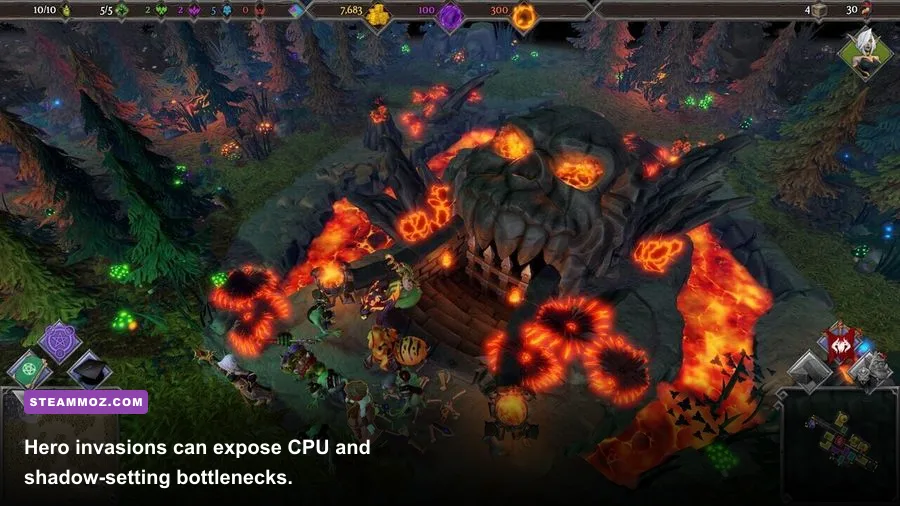
Dungeons 3’s toughest performance moments usually arrive after you have expanded well beyond the Dungeon Heart. Rooms such as the Treasury, Workshop, Torture Chamber, and Training Room add more objects and active units to the scene. A large population of creatures also means more animations, pathfinding decisions, and combat states for the CPU to process.
That CPU work explains why lowering resolution may not fix a crowded-dungeon slowdown. If GPU usage falls while the frame rate remains poor, the processor or game simulation is limiting performance. Lower shadows and effects can still help frame pacing, but you should also reduce visual clutter on screen: zoom out slightly, avoid constantly sweeping across the busiest room, and pause while issuing a long sequence of build or creature-management commands.
The game’s campaign mixes underground construction with overworld missions. Overworld maps can look more open, but they often contain fewer simultaneously active dungeon objects. Use a developed sandbox or a late campaign save as your stress test, not the first mission. This is similar to how troubleshooting advice for City of Gangsters performance issues focuses on repeatable heavy scenes instead of the opening tutorial.
Do not confuse simulation pauses with rendering stutter
When the game pauses to process a major event, a save, or a dense group of commands, the symptom may feel like graphics stutter even if the GPU is fine. Watch your GPU utilization with an overlay. High GPU usage and low FPS points toward resolution, shadows, effects, or anti-aliasing. Low GPU usage with uneven frame times points more toward CPU simulation, background tasks, or storage streaming.
Install the game on an SSD if possible, especially if your system uses a hard disk. An SSD cannot increase the raw frame rate by itself, but it can reduce asset-loading pauses when you move the camera through a large, detailed dungeon. Keep at least some free space on the drive and avoid running downloads or antivirus scans during a long campaign session.
Disable unnecessary overlays one at a time. Steam’s overlay is usually harmless, but recording software, browser overlays, RGB utilities, and hardware-monitoring tools can introduce conflicts. The goal is not to strip your PC bare; it is to identify whether a background hook is causing hitching.
For more PC troubleshooting ideas, compare the approach used in Dragonkin: The Banished settings guide. The same principle applies here: find the setting that affects the worst scene, then make one controlled change.
Best settings for low-end and mid-range PCs

Older systems can still run Dungeons 3 well if you prioritize frame consistency. Start with 1600×900 or 1280×720 only if 1080p cannot maintain an acceptable rate. Set shadows and effects to Low, anti-aliasing to Low or Off, and textures to Medium. Keep fullscreen enabled and test V-Sync both on and off because some systems feel steadier with the frame output synchronized.
For a mid-range PC, use 1080p, High textures, Medium shadows, Medium effects, and Medium anti-aliasing. This is the profile I would recommend to most players because it retains the game’s rich underground look without spending too much performance on lighting and particles. If you own a high-refresh monitor, do not chase 144 FPS at the expense of massive late-game drops; a locked 60 or 90 is a more realistic target for heavy scenes.
| PC Profile | Resolution | Core Settings | Practical Target |
|---|---|---|---|
| Entry-level laptop | 1280×720 or 1600×900 | Textures Medium, Shadows Low, Effects Low, AA Low | Stable 30–60 FPS depending on CPU and scene. |
| Older gaming PC | 1920×1080 | Textures Medium, Shadows Medium, Effects Low, AA Low | Consistent 60 FPS in normal missions. |
| Modern mid-range PC | 1920×1080 | Textures High, Shadows Medium, Effects Medium, AA Medium | Strong 60 FPS with room for late-game dips. |
| High-end PC | Native resolution | Textures High, Shadows High, Effects High, AA High | Best image quality, but still test crowded dungeons. |
On a laptop, plug in the charger and select the high-performance Windows power mode. Battery-saving profiles can downclock the CPU and GPU, creating a performance problem that no in-game setting can fully solve. Also check that Dungeons 3 is using the discrete GPU rather than integrated graphics through your operating system’s graphics settings.
Do not automatically disable every visual feature. Dungeons 3 relies on lighting to separate rooms, corridors, and hazards, so aggressively cutting shadows can make navigation harder. Medium shadows are often preferable to Low if the frame rate remains playable. You are optimizing a management game, not trying to make it look like a decade-old title.
Testing method and the final competitive-feeling profile
Use a repeatable test route. Load a save with a mature dungeon, zoom to the busiest section, pan across the Treasury and Workshop, then trigger or observe a hero invasion if the mission allows it. Move the camera through a trap room and a creature-heavy corridor. Record the average FPS and, more importantly, the lowest sustained moments. A setting that raises the empty-room average from 90 to 105 FPS means little if invasion performance stays at 42.
Change one option at a time and play for at least a few minutes. Restart the game after major texture or display changes if the result looks inconsistent. Keep notes, because it is easy to mistake a different camera angle or a quieter simulation state for a graphics improvement.
For a sharp, dependable setup, use native 1080p, exclusive fullscreen, High textures, Medium shadows, Medium effects, Low or Medium anti-aliasing, and V-Sync off with a driver-level cap if your display supports adaptive sync. If the late game still dips, lower effects first during combat-heavy scenes, then shadows. Only reduce textures when you have evidence of VRAM pressure or asset-streaming hitching.
That order protects the parts of Dungeons 3 that matter visually. You keep the readable stonework, room identity, and colorful evil army while trimming the expensive lighting and particle work that causes the biggest spikes. It is a much better compromise than selecting Low across the board.
Finally, remember that smooth camera control is only half the battle. Dungeons 3 rewards quick decisions about creature placement, dungeon expansion, traps, and hero control. If input feels delayed, V-Sync may be the culprit even when the FPS counter looks healthy. If the game tears badly, turn synchronization back on or use adaptive sync. The best profile is the one that lets you read a breach, grab the right creature, and respond without the screen hitching at the worst possible second.
For related strategy-game optimization and progression advice, Steamoz also covers Din’s Curse survival tips and PC hardware checks for demanding games. And for official news, patches, and support information, visit the Realmforge Studios website and the Dungeons 3 Steam community hub.