The best Dungeon Siege Collection graphics settings are different for each game: run Dungeon Siege and Dungeon Siege II at your monitor’s native resolution with shadows and anti-aliasing reduced first, while Dungeon Siege III can usually stay on High with shadows at Medium. The biggest performance wins come from fixing old DirectX behavior, disabling unnecessary compatibility overhead, using a stable frame cap, and avoiding extreme resolution scaling that makes the games look worse without solving their real CPU limits.
That distinction matters because the Steam Dungeon Siege Collection is not one modernized engine. It bundles the original Dungeon Siege, Legends of Aranna, Dungeon Siege II, Broken World, and Dungeon Siege III. The first two games are older DirectX-era titles with unusual resolution and rendering behavior; the third is a later 3D action RPG with a much more conventional settings menu. Treating all five entries as if they share one optimal preset is the fastest way to get blurry output, stutter, or a game that simply refuses to launch.

Use These Three Performance Profiles First
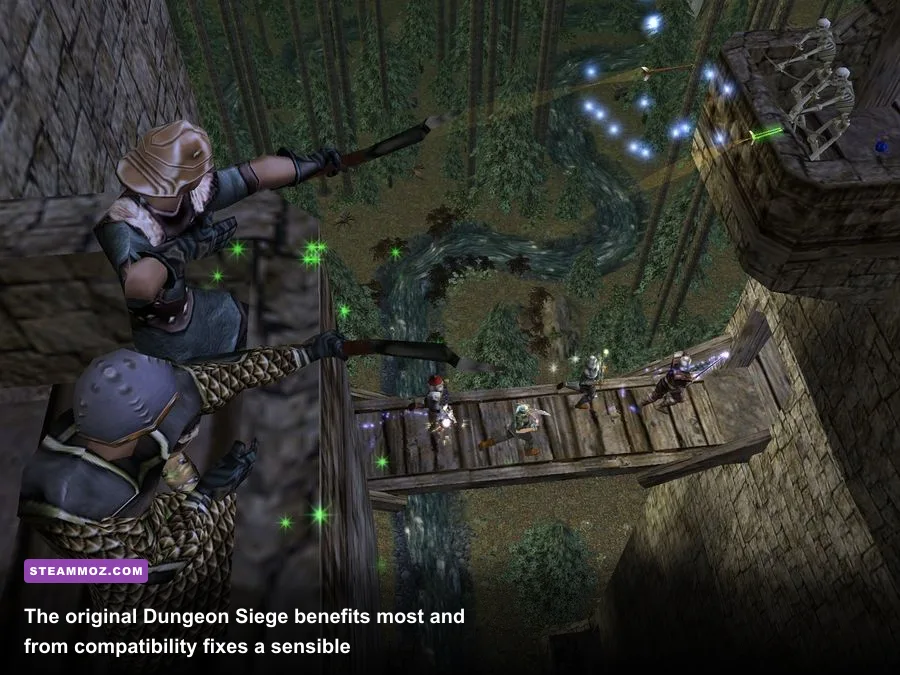
Before changing individual sliders, pick the profile that matches your hardware and target. A modern gaming PC has far more than enough GPU power for Dungeon Siege I and II, but that does not guarantee perfect frame pacing. Their engines can lean heavily on one CPU thread, particularly when several party members, summoned creatures, particle effects, and enemies are active at once.
| Profile | Dungeon Siege I and II | Dungeon Siege III | Best Use |
|---|---|---|---|
| Maximum FPS | Native resolution, Medium shadows, low or off anti-aliasing | 1080p, Medium textures, Low shadows, SSAO off | Older laptops and 60-FPS targets |
| Balanced | Native resolution, High textures, Medium shadows, 2x AA | 1080p or 1440p, High textures, Medium shadows, FXAA | Most modern desktops |
| Visual Quality | Native resolution, High textures, High shadows, 4x AA if available | 1440p, High textures, High shadows, ambient occlusion on | GPUs with consistent headroom |
| Stable Frame Pacing | Cap at 60 FPS or refresh-rate divisor | Cap at 60 FPS, enable V-Sync only if tearing is distracting | Controllers and variable-refresh displays |
For the original games, the Balanced profile is the sensible starting point. Increasing texture quality usually costs little on current GPUs, while shadows and anti-aliasing can create disproportionate overhead. Dungeon Siege III responds more predictably to resolution and shadow changes, so a 1080p Medium-shadow profile is a reliable fallback when crowded fights dip below your target.
🎮 Dungeon Siege Collection
Looking to experience this game? Grab your digital key directly on our store for $2.79.
View on Steammoz Store →Dungeon Siege and Legends of Aranna Best Settings
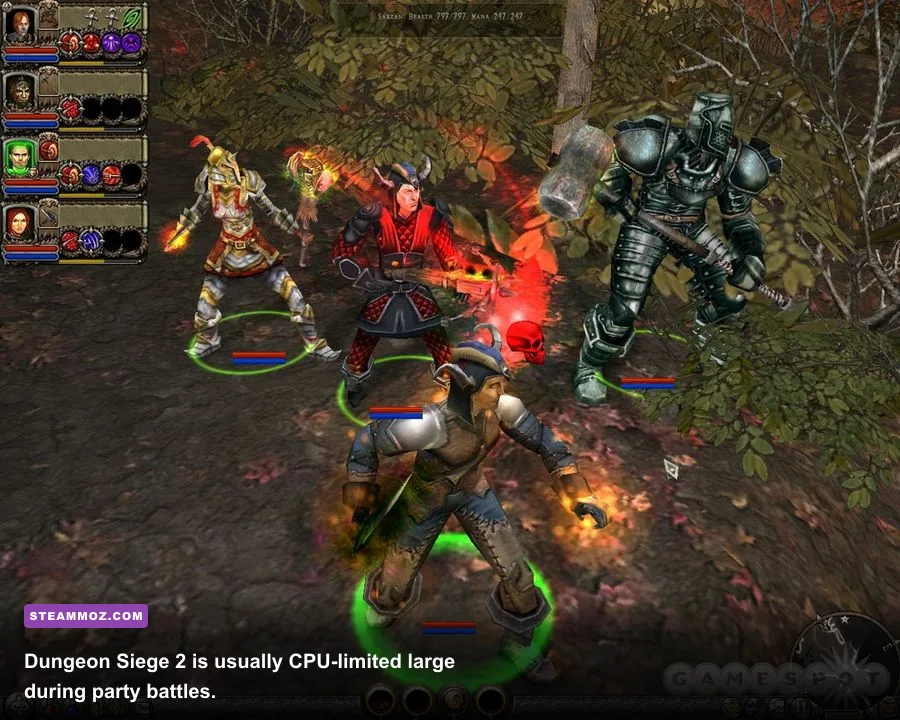
Dungeon Siege I and Legends of Aranna are visually simple by today’s standards, but they can still behave badly on modern Windows installations. Begin with the game’s own configuration utility rather than forcing every option through a driver panel. Select your native display resolution if it is offered, then test windowed mode and fullscreen separately. Some systems produce smoother frame delivery in borderless or windowed mode, while others introduce desktop-compositor latency.
Recommended original-game preset
- Resolution: Native 1080p or 1440p, provided the menu and UI remain readable.
- Texture quality: High. Texture quality is rarely the first setting to reduce on a modern GPU.
- Shadows: Medium. This is the first major cut for crowded outdoor areas.
- Anti-aliasing: Off or the lowest available level. Older post-processing paths can cost more than expected.
- Draw distance: High unless you are testing a very old integrated GPU.
- V-Sync: Off while diagnosing performance; turn it on only after confirming the game holds your display refresh target.
Do not automatically chase 144 or 240 FPS. The original engine was designed around much slower hardware and may show animation, camera, or input quirks when pushed far beyond a conventional 60-FPS cap. A locked 60 is a better target than an unstable 200 with uneven frame times. If the game feels sluggish despite a high counter, use a frame limiter in your GPU software and compare the actual consistency during a large fight.
Windows compatibility is just as important as graphics quality. Try disabling fullscreen optimizations on the game executable, use a DPI override if the launcher is scaled incorrectly, and run the configuration tool with the same permissions as the game. Avoid stacking several compatibility layers at once. A forced compatibility mode, wrapper, driver-level frame limiter, and overlay can produce more variables than the old engine can handle.
The official Dungeon Siege Steam listing is useful for checking the installed executable and community launch notes. For general Windows troubleshooting, our BioShock Infinite PC fixes cover the same broad family of fullscreen, overlay, and compatibility checks, though the exact settings do not transfer directly.
Dungeon Siege II and Broken World Tuned for Smooth Combat
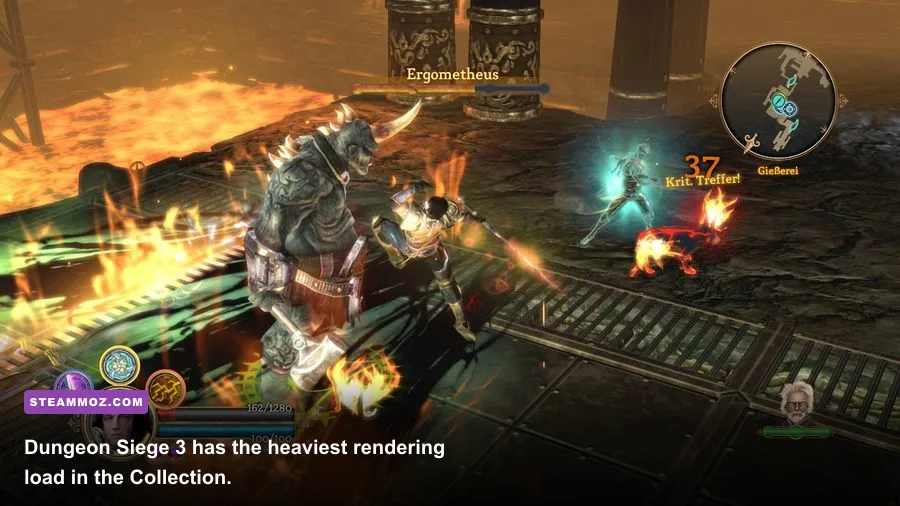
Dungeon Siege II is often the trickiest part of the Collection because its demanding moments are not always GPU-heavy. A six-person party, multiple summons, elemental effects, and enemy AI can create a CPU-side dip even when your graphics card is barely working. That is why dropping resolution from 1440p to 720p may barely change the frame rate in a crowded area.
Best DS2 settings by impact
| Setting | Recommended Value | FPS Impact | Visual Trade-Off |
|---|---|---|---|
| Resolution | Native 1080p; 1440p if stable | Medium to high on weak GPUs | Lower values make the UI and terrain noticeably soft |
| Texture detail | High | Low on modern GPUs | Lower detail makes armor and environment surfaces muddy |
| Shadow detail | Medium | High in towns and outdoor fights | Edges become simpler, but the scene still reads well |
| Anti-aliasing | 2x or Off | Medium | More shimmer on foliage and fences at lower values |
| Effects and particles | High, then Medium if fights stutter | Medium | Less spell glow and impact clutter |
| V-Sync | Off for testing; capped 60 afterward | Variable | Off can produce tearing during fast camera pans |
Keep textures high and reduce shadows before touching resolution. This preserves the look of Arhok, the Dryad lands, and the outdoor sections around Aman’lu while cutting the setting most likely to cause spikes. If the game still stutters during a large encounter, lower effects to Medium and test again with summons active. A quiet hallway is not a valid benchmark; a fight involving a Fist of Stone, several enemies, and a full party is.
Party composition also affects perceived performance. A pure melee group with several simultaneous weapon swings is lighter than a spell-heavy lineup filling the screen with area effects. That does not mean you should abandon the build you enjoy, but it does explain why one save may feel smooth while another produces sudden dips. Pause briefly after entering a new area and let asset streaming settle before judging the average frame rate.
If your copy crashes when changing resolutions, back up the configuration files before experimenting. Change one variable at a time, launch, and verify the game can return to the desktop cleanly. Our guide to PC fixes for crashes and low FPS explains the same controlled-testing approach, while the City of Gangsters troubleshooting guide has useful overlay and background-process checks.
Dungeon Siege III Settings for Maximum FPS
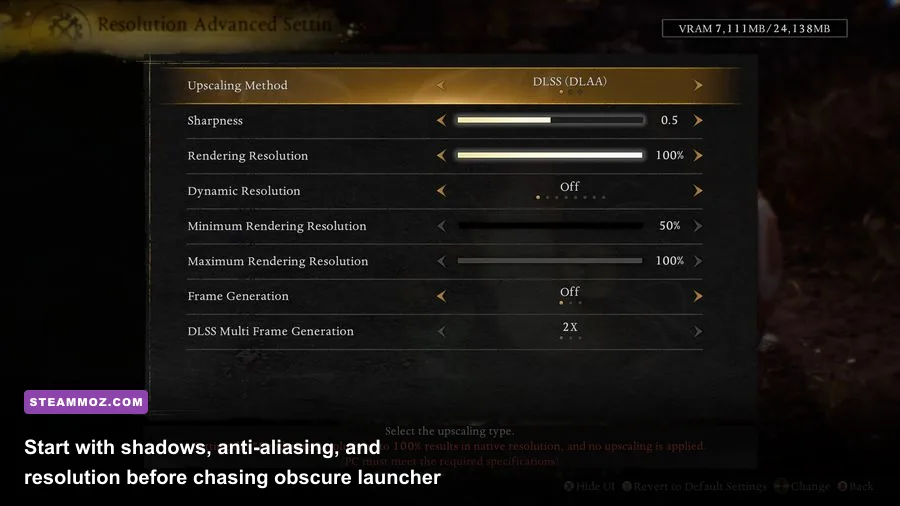
Dungeon Siege III is the only entry where modern resolution scaling can deliver an obvious GPU-side gain. Its action-focused camera, denser lighting, and more detailed environments make shadows and ambient occlusion expensive at higher resolutions. Start at 1920x1080 even on a 1440p monitor, then increase resolution only if your frame-time graph remains flat in outdoor combat.
- Textures: High. Lower them only when video memory is genuinely constrained or texture streaming causes hitching.
- Shadows: Medium. High shadows are attractive, but Medium keeps edges clean while removing a noticeable chunk of rendering work.
- Ambient occlusion: Off for maximum FPS, on for Balanced. It adds depth under characters and architecture but is not essential to readability.
- Anti-aliasing: FXAA or the lowest temporal option available. Avoid combining heavy anti-aliasing with high resolution scaling.
- Effects: High on a desktop GPU; Medium if co-op fights or explosive abilities cause drops.
- Motion blur: Off. It does not improve clarity during dodges and can make camera movement feel less responsive.
- Frame rate: Cap at 60 FPS unless testing confirms a higher target behaves correctly.
In Dungeon Siege III, a lower resolution can be worthwhile when the GPU is pinned near full utilization. If the GPU sits below roughly 80 percent while FPS falls during a chaotic encounter, the bottleneck is probably CPU, streaming, or the game’s own frame pacing rather than pixel count. Lowering shadows and effects may help; reducing resolution may not.
The Steam store page is for the classic release, while Steam’s Dungeon Siege catalog can help verify which executable you are launching. For comparison, our Bionic Dues performance settings guide shows why reducing expensive lighting effects usually beats dropping texture quality first.
Windows, Driver, and Overlay Tweaks That Actually Matter
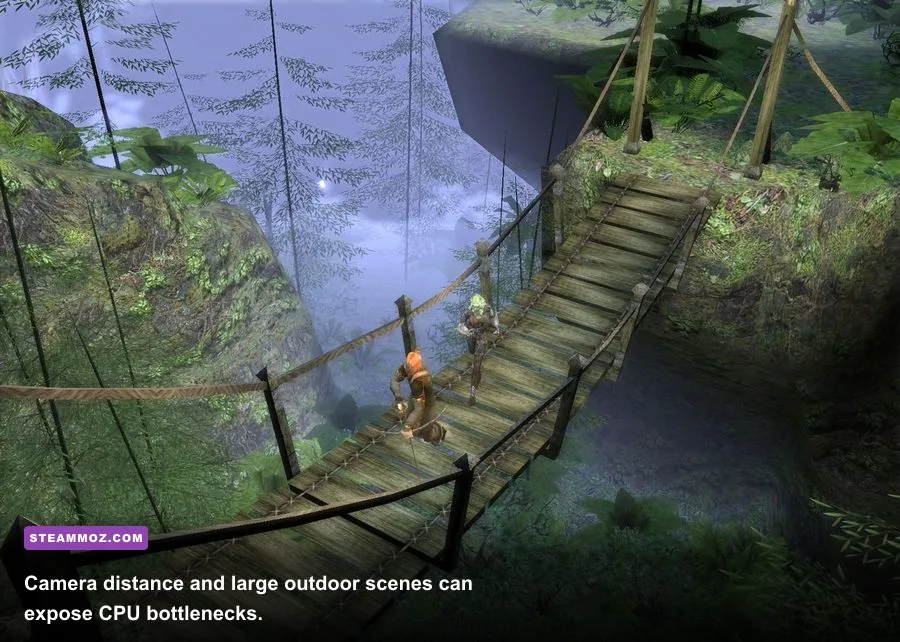
Once the in-game profile is set, remove outside interference. Disable Steam overlay, Discord overlay, GeForce or Radeon recording, and performance-monitoring overlays one at a time while testing. Older DirectX games can react badly to injected overlays, and disabling everything at once makes it impossible to identify the culprit.
- Update the GPU driver, then reboot. Do not assume an old driver is better just because the game is old.
- Use a per-game profile. Set power management to maximum performance only for the relevant executable, not globally.
- Close browser video, launchers, and RGB utilities. These rarely destroy average FPS, but they can worsen frame-time spikes on older CPUs.
- Test fullscreen and borderless independently. Keep whichever mode produces steadier frame times and reliable alt-tab behavior.
- Cap FPS externally if the game has no dependable limiter. A 60-FPS cap is a strong baseline for all three generations.
Do not use aggressive sharpening to hide a badly reduced internal resolution. It can make Dungeon Siege III’s foliage and particle edges look noisy, while the old games gain little from it. Likewise, registry tweaks copied from a random forum post should be treated as experimental, not mandatory. Back up saves and configuration files before changing launch parameters.
How to Benchmark the Collection Without Fooling Yourself
Benchmark each game in a repeatable scene. For Dungeon Siege I, use a busy outdoor area with several party members and enemies nearby. For Dungeon Siege II, test an outdoor section such as the Dryad region with your full party and active summons. For Dungeon Siege III, use a combat encounter rather than an empty corridor, because lighting, effects, and enemy animations are where the engine does its real work.
| Test | What to Record | Likely Bottleneck | Best First Change |
|---|---|---|---|
| Empty interior | Average FPS and GPU usage | Usually none or resolution | Keep quality high |
| Large outdoor view | 1% lows and camera-panning stutter | CPU, shadows, or streaming | Lower shadows to Medium |
| Full-party combat | Lowest sustained FPS during effects | CPU and particles | Reduce effects, then cap FPS |
| Alt-tab and reload | Crashes, black screen, lost settings | Fullscreen or overlay conflict | Test borderless and disable overlays |
Watch frame times, not just the headline FPS number. A game reporting 100 FPS can still feel rough if frames arrive in bursts. Conversely, a locked 60 FPS with stable delivery feels excellent for these real-time RPGs. Change one setting, repeat the same route, and keep notes. That old-fashioned method beats blindly selecting Ultra and hoping the counter tells the whole story.
The Final Max-FPS Recommendation
For most players, run Dungeon Siege and Dungeon Siege II at native 1080p, High textures, Medium shadows, and low anti-aliasing, with a 60-FPS cap. Use the same target for Dungeon Siege III at 1080p with High textures, Medium shadows, FXAA, ambient occlusion off, and motion blur disabled. If performance is still inconsistent, lower effects before textures, then test fullscreen versus borderless.
That profile keeps the Collection sharp without wasting performance on settings the older engines handle poorly. More importantly, it respects the real limitation: classic Dungeon Siege often needs better frame pacing and compatibility discipline, not more raw GPU horsepower. Keep the troubleshooting process controlled, avoid piling on wrappers and overlays, and you’ll get a smoother trip from Stonebridge to Ehb without turning the games into a blurry museum piece.
For more PC performance tuning, compare these Cossacks 3 system checks and our Architect Life crash and low-FPS fixes. They reinforce the same rule that applies here: identify whether the GPU, CPU, frame pacing, or compatibility layer is responsible before cutting visual quality.