
If Drizzlepath: Genie crashes, stutters, or struggles to hold a playable frame rate, start with a clean launch: verify the Steam files, force the dedicated GPU, disable overlays, run the game in DirectX 11, and lower shadows, foliage, effects, and resolution scale before touching Windows. Those steps solve most problems without sacrificing the game’s atmospheric look.
Tonguç Bodur’s walking simulator is not a competitive game, so you don’t need esports-level latency. You do need consistent frame pacing, though. Genie spends long stretches rendering open valleys, thick vegetation, fog, water, lighting effects, and distant terrain at once. That combination can punish older laptops even when the game’s official minimum specifications look modest.
Start with the fixes that stop crashes fastest
Before changing advanced settings, establish whether the problem is a broken installation, a graphics-driver conflict, or a bad configuration file. Drizzlepath: Genie launched in 2017, and older Unreal Engine PC releases can be sensitive to overlay hooks and stale settings. Work through these steps in order rather than changing ten things at once.
- Restart Steam and the PC. This sounds basic, but it clears a stuck Steam client process and releases GPU memory left behind by another game.
- Verify the installation. In Steam, right-click Drizzlepath: Genie, choose Properties, open Installed Files, and select Verify integrity of game files. If Steam replaces a file, restart the client before launching again.
- Update the graphics driver. Install the current stable driver for your Nvidia, AMD, or Intel GPU. If the crash began immediately after a driver update, use the manufacturer’s rollback option instead of installing random third-party packages.
- Disable overlays. Turn off Steam Overlay, Discord Overlay, Xbox Game Bar, MSI Afterburner’s overlay, and recording tools for the first test. Overlay injection is a common cause of instant crashes in older PC games.
- Run the executable as administrator only if needed. Try the game normally first. If it closes while saving settings, open the local executable’s Properties, select Compatibility, and test Run this program as administrator.
- Disconnect unusual peripherals. Remove virtual controllers, steering wheels, and aggressive macro software. A walking simulator should work with keyboard and mouse or a standard XInput controller.
Do not immediately delete every file in the installation folder. Steam can restore game data, but indiscriminate deletion may remove useful crash logs. If verification reports no problem, back up your save or configuration files before resetting anything.
The official Drizzlepath: Genie Steam page is the right place to check current platform information, community reports, and developer announcements. For broader Unreal Engine rendering context, Epic’s Unreal Engine 4 documentation is more useful than generic registry-cleaning tools.

🎮 Drizzlepath: Genie
Looking to experience this game? Grab your digital key directly on our store for $1.99.
View on Steammoz Store →Use a safe launch profile for Drizzlepath: Genie
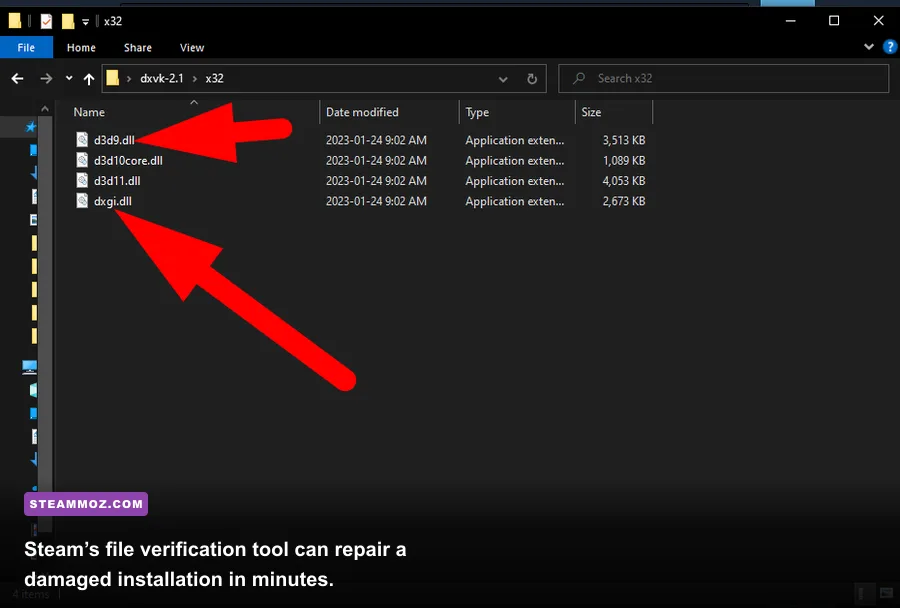
If the game crashes before the main menu, bypass the normal startup path. In Steam, open Properties, stay on the General tab, and enter one launch option at a time in the Launch Options box. Test the game after each change so you know which command helped.
| Launch option | When to use it | What to expect |
|---|---|---|
| -dx11 | Crash on startup, black screen, or unstable rendering | Forces DirectX 11 and often avoids an incompatible default renderer |
| -windowed | Fullscreen crash or immediate Alt-Tab failure | Starts in a window so you can reach the graphics menu |
| -ResX=1280 -ResY=720 | Display mode crash or unsupported monitor resolution | Boots at a conservative 720p resolution |
| -novsync | Severe hitching tied to display synchronization | Removes the game’s VSync request; cap frames through your driver afterward |
Start with -dx11 by itself. Don’t stack every command into one giant line; if the game suddenly works, you won’t know whether the renderer, window mode, or resolution fixed it. Once you reach the menu, remove the launch option and see whether normal startup is stable.
For a fullscreen crash, use -windowed -ResX=1280 -ResY=720. After entering the game, switch to borderless or fullscreen and select your monitor’s native resolution. If the title still fails, leave it windowed while you test drivers and configuration files.
Some Unreal Engine games also respond to configuration resets. Close Steam, browse to the game’s local data folders, and rename—not delete—any Drizzlepath: Genie configuration folder you find. The exact location can vary by build and Windows account, so preserve the backup. A fresh configuration removes a corrupted resolution, scalability value, or display mode that may be crashing during startup.
Best graphics settings for stable 30 or 60 FPS
Genie’s biggest performance costs come from the scenes that make it memorable: distant landscape detail, foliage, shadows, and atmospheric effects. The goal is not to make the world look flat. Lower the settings that increase scene complexity first, then reduce resolution only if the GPU is still overloaded.
| Setting | Recommended value | FPS impact | Visual trade-off |
|---|---|---|---|
| Resolution | Native 1080p, then 1600x900 | High if GPU-limited | Lower resolution softens distant rocks and foliage |
| Resolution scale | 90% for weak GPUs, 100% for modern GPUs | High | Small reduction is difficult to notice while moving |
| Shadows | Medium | High | Edges become less defined; terrain still looks good |
| Effects | Medium | Medium to high | Fog, lighting, and water lose some richness |
| Foliage or view distance | Medium | Medium | Vegetation and distant objects appear later |
| Textures | High if VRAM allows; Medium on 2GB cards | Low to medium | Lower texture quality is more visible than lowering shadows |
| Anti-aliasing | Medium or the lowest available level | Low to medium | More shimmer around grass and rock edges |
| VSync | Off for testing; On for clean 60 FPS | Variable | On prevents tearing but can add latency or stutter |
For a weak desktop or laptop, use 1280x720 or 1600x900, medium shadows, low-to-medium effects, medium foliage, and textures matched to your VRAM. For a 1080p machine with a GTX 1060, RX 580, or newer equivalent, begin at native resolution with medium shadows and high textures. Those cards are comfortably above Genie’s original minimum target, but they can still dip in the broadest outdoor views if every distance setting is pushed.
Don’t confuse low average FPS with poor frame pacing. If the counter says 55 FPS but movement feels jerky, disable VSync temporarily, close background capture tools, and watch GPU usage. A GPU pinned near 99 percent points toward resolution, shadows, or effects. GPU usage that repeatedly drops while the game hitches suggests shader compilation, a background process, thermal throttling, or a CPU-side streaming problem.
Fix low FPS on laptops and hybrid-GPU PCs
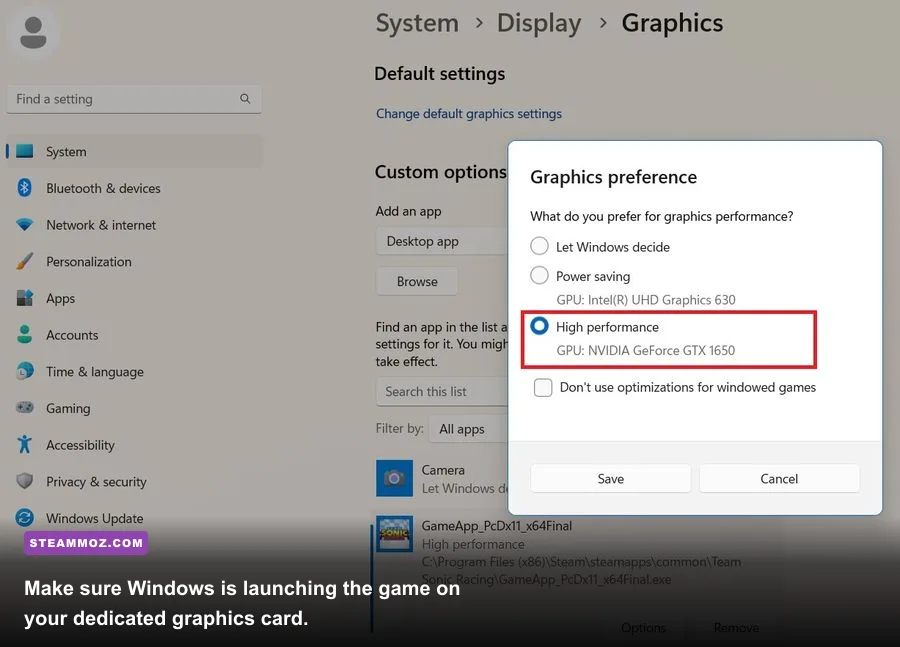
The most embarrassing Drizzlepath: Genie performance problem is often simple: Windows launches it on the integrated Intel GPU instead of the Nvidia or AMD chip. This can make a game that should run at 60 FPS feel broken before you change a single in-game option.
- Open Windows Settings and search for Graphics settings.
- Add the Drizzlepath: Genie executable with Browse. If you installed through Steam, use Manage, Browse local files to locate the correct executable.
- Open Options for that application and select High performance.
- Plug in the laptop charger, select a performance power mode, and reboot the game.
Then check the Nvidia Control Panel or AMD Software profile for the game. Prefer maximum performance only for the game profile, not globally. Global maximum-performance settings keep clocks high across Windows and can create needless heat.
Thermal throttling is easy to miss in a slow exploration game. If Genie starts smoothly and becomes worse after ten or fifteen minutes, monitor CPU and GPU temperatures with a trusted tool. Clean blocked vents, raise the back of a laptop, and avoid playing on a bed or soft surface. A locked 30 FPS cap is often better than an unstable 45-60 FPS range, especially on older mobile hardware.
If you’re troubleshooting another demanding PC release, Steamoz’s guide to Dragonkin: The Banished settings covers the same useful distinction between GPU load, CPU load, and frame pacing. The principle carries over even though Genie is a much quieter game.
Stop stutter caused by overlays, shaders, and background apps
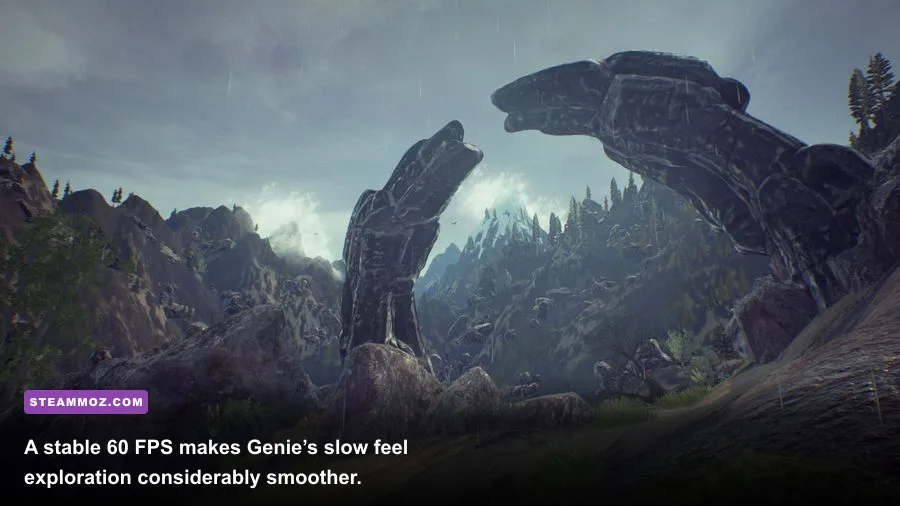
A crash is obvious. Stutter is sneakier. In Genie, hitching while turning toward a new valley can come from asset streaming or shader work rather than insufficient average power. Give the game a clean environment before lowering every setting to minimum.
Disable Steam Overlay in the game’s Properties, then turn off Discord’s overlay and Xbox Game Bar. Close browser tabs playing video, RGB control panels, hardware monitoring overlays, and recording software. Cloud-sync tools can also interrupt a small game when they scan or lock files. You don’t need to uninstall these programs; simply test with them closed.
Leave a reasonable amount of free space on the system drive. Genie’s listed storage requirement is small—around 5 GB in its Steam-era specification—but Windows still needs room for temporary files and shader caches. Keep at least 10 percent of the drive free if possible.
Use a frame limiter when the frame rate swings wildly. If your display is 60 Hz, a stable 30 FPS cap can feel cleaner than constant jumps between 38 and 60. If you have a 120 Hz or 144 Hz panel, test a 60 FPS cap first; the game’s contemplative pace gains more from consistency than from an occasional burst above 100 FPS.
Also disable third-party post-processing injectors while diagnosing the issue. ReShade and similar tools can look beautiful in foggy scenes, but they add another layer between the game and the renderer. Reintroduce them only after the unmodified game survives a complete session.
When the game still crashes after every basic fix
At this point, stop guessing and collect evidence. Note whether the crash happens before the menu, during loading, after changing resolution, or only in a particular outdoor area. That pattern matters. A startup crash usually implicates renderer initialization or configuration; a crash after extended play points more toward heat, memory pressure, or a driver timeout.
Check Windows Event Viewer under Windows Logs and Application for the crash timestamp. The faulting module can provide a useful clue: a display-driver module suggests a GPU or driver issue, while the game executable points toward game data or configuration. Event Viewer is not a diagnosis by itself, but it gives the developer something actionable.
Compare your machine against Genie’s original Steam requirements. The listed minimum target is roughly a Windows 7-era PC with a dual-core Intel processor, 4 GB of RAM, a GeForce GTX 460-class graphics card, and about 5 GB of storage. Those numbers describe launch-era compatibility, not a promise of perfect performance on modern Windows, high-DPI displays, or hybrid laptops. A current entry-level GPU should handle the game, but an integrated chip may need 720p and medium settings.
| Component | Original minimum target | Practical modern target | Pro-tuned approach |
|---|---|---|---|
| Operating system | Windows 7-era 64-bit setup | Updated Windows 10 or 11 | Install current chipset and GPU drivers |
| Memory | 4 GB RAM | 8 GB RAM | Close browsers and capture software |
| Graphics | GTX 460-class card | GTX 1060, RX 580, or newer equivalent | Use the dedicated GPU and medium shadows |
| Storage | About 5 GB available | SSD with free system-drive space | Verify files and avoid a nearly full drive |
| Display target | 720p at modest settings | 1080p at medium to high settings | Cap at 30 or 60 FPS for stable pacing |
If nothing changes, contact the developer through the Tonguç Bodur official website or the support route linked from Steam. Include your GPU model, CPU, RAM, Windows version, driver version, launch options, crash timing, and the result of file verification. A short video of the crash and the relevant Event Viewer entry is far more useful than saying only that the game does not work.
For perspective, you can also see how Steamoz approaches performance troubleshooting in Drawful 2’s real PC requirements. The hardware is different, but the same rule applies: match the fix to the bottleneck instead of blindly lowering everything.
The best final setup for a smooth Genie playthrough
Once the game launches reliably, remove temporary launch commands and settle on a sensible profile. For most players, native 1080p, medium shadows, medium effects, medium foliage, high textures, and VSync or a 60 FPS cap deliver the best balance. On older hardware, 1600x900 with a 30 FPS cap looks much better than a constantly stuttering 1080p presentation.
Keep overlays off if they were involved in the original crash. If the game remains stable for thirty minutes across several outdoor areas, re-enable one overlay at a time. That controlled approach identifies the culprit without forcing you to give up every convenience permanently.
And don’t underestimate a clean configuration reset. Drizzlepath: Genie is a small, older Unreal Engine experience, so a corrupt display setting can cause more trouble than the hardware itself. Verify the files, force the correct GPU, use -dx11 only when necessary, lower shadows and effects before textures, and cap the frame rate for consistency. With that sequence, Genie’s misty paths and mountain vistas should stop fighting your PC and get back to doing what they do best: setting the mood.