Drawful 2 crashing or crawling at low FPS on PC is usually caused by a damaged Steam file, an overlay conflict, Windows compatibility behavior, or an awkward fullscreen and display setup—not weak hardware. Start by verifying the game files, disabling Steam and GPU overlays, forcing a clean fullscreen resolution, updating your graphics driver, and testing Drawful 2 with every extra controller and background recorder disconnected. Because the game is lightweight, persistent stutter after those steps points to a software conflict rather than a performance ceiling.
That distinction matters. Drawful 2 is a 2016 Jackbox party game built around drawing prompts, fake answers, voting, and phone-based participation. It does not contain the kind of 3D rendering workload that should challenge a modern Core i3, Ryzen 3, integrated Radeon, or Intel UHD system. If the game freezes while joining a room, crashes when a drawing appears, or drops frames during a round, the fix is usually targeted troubleshooting instead of blindly lowering every graphics option.
Check the Basics Before Changing Windows
First, confirm that you're launching the correct Steam installation and that Windows isn't silently blocking part of it. Open the official Drawful 2 Steam page and compare its listed requirements with your machine. The requirements are modest, but an old laptop driver, a nearly full system drive, or a Windows account without write access can still derail the game.
1. Restart the complete chain
Close Drawful 2, Steam, your browser, Discord, and any capture software. Then restart Windows rather than simply logging out. A reboot clears a stuck graphics process and releases exclusive access to audio, controller, and overlay services. If you're using the game on a TV, turn the display off and back on after Windows starts so the resolution handshake is rebuilt.
2. Verify the installation
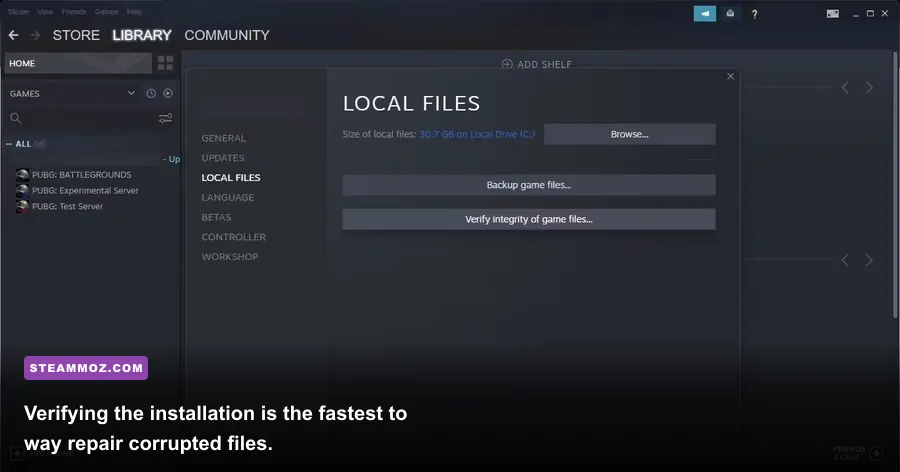
In Steam, right-click Drawful 2, choose Properties, open Installed Files, and select Verify integrity of game files. Steam will compare the local installation with its depot and reacquire missing or altered files. This is particularly useful after a forced shutdown, a drive migration, antivirus quarantine, or a workshop-style mod experiment. Don't interrupt the process, and launch the game once it finishes before adding other fixes.
3. Check free space and security software
Leave several gigabytes free on the drive containing Steam and your Windows temporary folder. Drawful 2 doesn't need a large amount of storage, but Steam updates and shader or driver caches still need room to unpack. Temporarily test with real-time antivirus protection paused, or add the Drawful 2 installation folder as an exception if your security suite reports blocked files. Re-enable protection immediately after the test.
| Check | Where to find it | What it fixes | Expected result |
|---|---|---|---|
| File verification | Steam > Properties > Installed Files | Missing or damaged files | Clean launch and fewer mid-round crashes |
| Free storage | Windows Settings > System > Storage | Failed updates and cache writes | More reliable startup |
| Security exception | Antivirus or Windows Security settings | Blocked executable or DLL access | Game reaches the main menu normally |
| Cold reboot | Windows Start menu > Restart | Stuck overlay or driver processes | Fresh graphics and audio sessions |
If verification reports files that keep failing every time you run it, stop repeating the scan. That pattern suggests a drive, permissions, cloud-sync, or antivirus problem. Move the game to another Steam library as a test, and make sure the Steam client itself is fully updated.

🎮 Drawful 2
Looking to experience this game? Grab your digital key directly on our store for $4.99.
View on Steammoz Store →Use a Stable Drawful 2 Graphics Profile
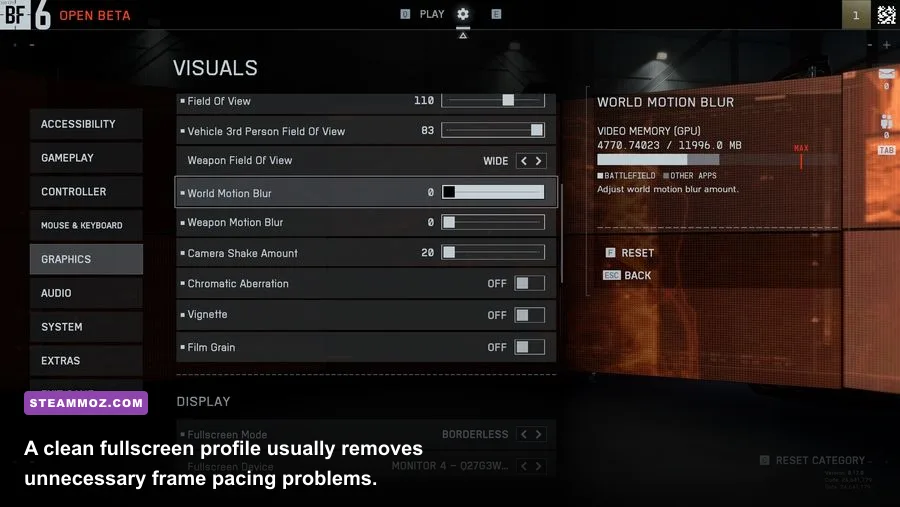
Drawful 2's visual load is tiny, so the goal isn't to chase a magical ultra-low preset. The goal is stable presentation. Set the game to your display's native resolution, use exclusive fullscreen if the build offers it, and test VSync in both positions. On some systems VSync eliminates tearing and uneven pacing; on others it introduces a noticeable hitch when the frame rate briefly misses the display refresh.
Start with a 60 Hz desktop and a 60 FPS target. If your monitor runs at 120 Hz or 144 Hz, that doesn't mean Drawful 2 needs to match it. This is a party game, and a locked 60 FPS is preferable to a wildly fluctuating counter that adds no useful responsiveness. If the game reports 30 FPS while the cursor and animations feel smooth, check whether a laptop power profile or driver frame limiter is involved before lowering resolution.
| Setting | Recommended value | FPS or stability impact | Visual note |
|---|---|---|---|
| Resolution | Native display resolution | Low impact on most PCs | Keeps text and drawings sharp |
| Display mode | Fullscreen first; borderless if needed | Fullscreen can reduce desktop interference | Borderless is easier for streaming and alt-tab |
| VSync | On for tearing; Off for testing stutter | May improve pacing or add input delay | Use the option that produces a steady presentation |
| Refresh rate | 60 Hz test profile | Removes high-refresh synchronization variables | Enough for Drawful 2's animation and menus |
| GPU driver frame limit | Disabled initially | Prevents double-limiting conflicts | Re-enable only if it solves tearing |
| HDR and scaling | Off for troubleshooting | Can prevent odd focus and fullscreen behavior | Restore after the game is stable |
Why low FPS can be misleading
Some counters read the desktop compositor, a video preview, or a menu transition rather than the game's actual drawing workload. A low number during a static prompt isn't automatically a problem. The symptoms that matter are visible hitching, delayed input, audio falling out of sync, or a freeze when the game switches from the lobby to a drawing round.
For a laptop, connect the charger and select Best performance under Windows power settings. In NVIDIA Control Panel or AMD Software, assign the dedicated GPU to Drawful 2 if your machine has hybrid graphics. Integrated graphics are normally enough, but a driver may incorrectly launch the game on a power-saving adapter or apply a low-power clock state.
Stop Overlay, Capture, and Input Conflicts
Third-party hooks are the most overlooked reason Drawful 2 crashes on an otherwise capable PC. Steam Overlay, Discord overlay, Xbox Game Bar, NVIDIA ShadowPlay, AMD recording, MSI Afterburner with RivaTuner Statistics Server, OBS game capture, RGB utilities, and controller remappers can all inject into the same process. Drawful 2 doesn't need any of them to run.
Run one clean test
Disable Steam Overlay from Drawful 2's Steam properties. Turn off Discord's game overlay, Xbox Game Bar background recording, and GPU instant replay. Exit MSI Afterburner and RivaTuner completely, not just their visible windows. Launch the game, play a full local round, and test the transition between prompt, drawing, voting, and results. If the crash vanishes, restore services one at a time until you identify the offender.
OBS deserves special attention. Use Display Capture or Window Capture instead of Game Capture for the first test. Game Capture is excellent for many games, but a lightweight 2D title can behave badly when an injector expects a conventional 3D render path. If you need a stream, capture the desktop and crop the game window rather than sacrificing a stable party session.
Keep controllers simple
Drawful 2 normally uses phones or browsers for players, while the host controls the PC. Disconnect unused Bluetooth gamepads, steering wheels, virtual controllers, and USB hubs. Steam Input can also create duplicate devices when a physical controller and a remapper are both active. Test with only your keyboard and mouse attached, then reconnect the equipment your group actually needs.
For phone participation, use the same local network where possible. A network issue should not lower rendering FPS, but a failed join, browser reconnect loop, or host-side overlay notification can look like a game freeze. Disable VPNs temporarily and avoid forcing the game through a guest Wi-Fi network that isolates connected devices.
Fix Windows Compatibility and Driver Problems
If Drawful 2 crashes on launch, goes black after the logo, or closes when you change display mode, compatibility and permissions are worth testing. Right-click the game executable from the Steam installation folder, open Properties, and inspect the Compatibility tab. Don't enable every checkbox at once; that makes it impossible to know what helped.
Recommended compatibility sequence
- Run the game normally after verifying files.
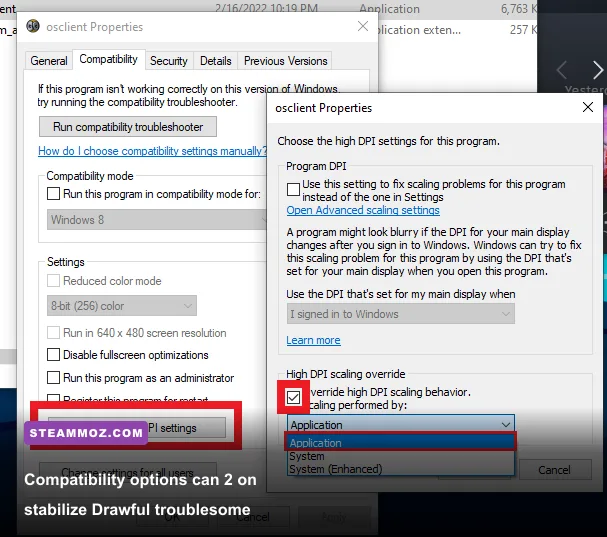
- Try Disable fullscreen optimizations if fullscreen causes a black screen or instant crash.
- Use High DPI settings and set scaling override to Application if the window is blurry, oversized, or loses focus.
- Test Windows 8 compatibility mode only if the first two options fail.
- Use Run this program as administrator as a short diagnostic, not a permanent first choice.
Administrator mode can reveal a permissions issue, but it may create new problems with Steam Cloud, controller access, or overlay integration if Steam and the game run at different privilege levels. If administrator mode fixes the crash, reinstall or relocate the game to a library folder with normal user permissions instead of relying on elevation forever.
Update the right driver
Install the latest stable driver for your Intel, NVIDIA, or AMD graphics hardware from the manufacturer's official site. A clean installation is useful after a major Windows update or a driver crash, but don't use a beta driver simply because it is newer. Also update motherboard chipset and audio drivers if the crash happens during video or sound transitions.
Windows system files can be checked with Microsoft's System File Checker guidance. For graphics APIs and Windows components, use official Windows Update support rather than downloading DLL files from random websites. A missing DLL download site is not a repair strategy; it's a malware lottery.
Diagnose the Crash Instead of Guessing

When the basic fixes fail, reproduce the problem and record exactly where it happens. Does Drawful 2 crash before the title screen, when a phone joins, after a drawing is submitted, or only during online play? Different triggers point to different causes. A launch crash suggests files, drivers, permissions, or overlays. A round-transition crash points more strongly toward display mode, video playback, or injected capture software.
Use Windows Event Viewer
Press the Windows key, search for Event Viewer, open Windows Logs, then choose Application. Find the red error at the time of the crash and note the faulting application name and module. A graphics driver module supports a driver or overlay investigation; a Windows runtime module supports system-file repair; an unrelated audio, antivirus, or monitoring module points outside Drawful 2 itself.
Don't treat the faulting module as absolute proof. Windows often reports the component that noticed the failure rather than the component that caused it. Still, the timestamp and module are much more useful than a vague report that the game simply stopped working.
Try a clean boot
Microsoft's clean boot instructions can isolate background software. Disable non-Microsoft services and startup applications, reboot, and test Drawful 2. If it works, re-enable groups of services rather than everything individually. Common culprits include hardware monitoring, aggressive antivirus suites, Nahimic-style audio enhancements, RGB control panels, and old virtual-display software.
Before reinstalling, back up any local configuration or screenshots you care about. Then uninstall Drawful 2 through Steam, restart Windows, and install it into a different library folder. A fresh install is justified when verification repeatedly redownloads files, the executable disappears, or the old library was copied from another machine.
| Symptom | Most likely cause | First test | Escalation |
|---|---|---|---|
| Crash before menu | Overlay, driver, permissions, damaged install | Verify files and disable overlays | Clean boot and driver reinstall |
| Black screen after launch | Fullscreen or DPI conflict | Disable fullscreen optimizations | Delete display configuration and retest windowed |
| Stutter during drawings | Capture software or frame limiter | Close OBS, RivaTuner, and replay tools | Use a 60 Hz VSync profile |
| Crash when players join | Network, browser, overlay, or input conflict | Use local network and disconnect extra devices | Test clean boot with VPN disabled |
| Audio and video hitch together | Driver or enhancement conflict | Disable audio enhancements | Update graphics, chipset, and audio drivers |
The Reliable PC Setup for Party Night
Once Drawful 2 is stable, avoid changing five things before every session. Use a straightforward host profile: native resolution, fullscreen or borderless mode that has already passed a full round, a 60 Hz test refresh, and no performance overlay. Keep Steam updated, but don't start a major driver or Windows update ten minutes before friends arrive. Party games fail at the worst possible moment when the host treats them like a live benchmark.
For streaming or a living-room setup, launch Steam and Drawful 2 before connecting the TV if HDMI handshakes have caused crashes. Confirm the correct audio output, disable HDR during troubleshooting, and keep the browser join page on a separate device. If your PC is connected to a 4K television, test 1920x1080 first; the game can render at native 4K, but lowering desktop scaling removes an unnecessary variable and usually makes menus easier to read from the couch.
Jackbox's official support center is the right next stop for account, room-code, and platform-specific issues. Steam's official support portal is more useful for library, download, and installation problems. Keep your report specific: include Windows version, GPU model, whether overlays were disabled, the exact crash point, and whether file verification found anything.
For more PC troubleshooting habits, Steamoz's guide to fixing crashes and low FPS in City of Gangsters covers the same diagnostic mindset, while our Back 4 Blood PC performance breakdown explains how to separate hardware limits from software problems. Even though Drawful 2 is dramatically lighter, the process is identical: reproduce, isolate, change one variable, and retest.
The short version is reassuring. Drawful 2 should not require a new graphics card, a special launch command, or aggressive visual compromises. Verify the files, strip away overlays, run a sensible 60 FPS profile, update the graphics driver, and test compatibility options one at a time. If the game still crashes after a clean boot and fresh installation, the evidence now points to Windows, a driver, or a specific background utility—and you'll have the logs and reproduction steps needed to fix that final culprit instead of guessing.