For the best balance of image quality and maximum FPS in Dragon’s Dogma: Dark Arisen, use your monitor’s native resolution, set Texture Quality and Model Quality to High, keep Shadows at Medium, disable Motion Blur and Depth of Field, turn off SSAO if your GPU is modest, and cap the game at a stable 60fps. This profile preserves the sharpest detail while cutting the settings that create the biggest frame-time spikes in cities, forests, and Bitterblack Isle.
Capcom’s PC port is old enough to run beautifully on modern hardware, but that doesn’t mean every option deserves to be pushed to maximum. The game uses the MT Framework engine, and its heaviest moments come from shadow rendering, ambient occlusion, dense vegetation, and scenes packed with pawns, particle effects, and large monsters. A locked 60fps feels dramatically better than an erratic 100fps that dives whenever a Griffin lands in a crowd.

🎮 Get Dragon's Dogma: Dark Arisen
Ready to dive in? Grab your copy today for just $4.79.
Check OfferThe best max-FPS graphics profile

Start with the preset below, then adjust only one setting at a time. It works especially well on mainstream cards such as the GTX 1060, GTX 1660, RX 580, RTX 2060, and their modern equivalents. Stronger GPUs can raise shadows and SSAO, but the visual return is smaller than the performance cost.
| Setting | Recommended Value | FPS Impact | Visual Note |
|---|---|---|---|
| Resolution | Native monitor resolution | Very high | Lower only when GPU usage stays near 100%. |
| Texture Quality | High | Low to medium | High keeps armor, stone, and monster skins crisp. |
| Model Quality | High | Medium | Improves pawn, NPC, and creature geometry. |
| Shadow Quality | Medium | High | Medium avoids costly forest and city frame drops. |
| Grass Quality | Medium | Medium to high | High density is attractive but expensive outdoors. |
| SSAO | Off or Low | Medium | Removes contact shading around rocks and buildings. |
| Depth of Field | Off | Low to medium | Sharper gameplay and less blur during combat. |
| Motion Blur | Off | Low | Cleaner camera movement and target tracking. |
| V-Sync | On for a 60Hz display | Variable | Prevents tearing; use an external cap with VRR. |
Texture Quality is the safe setting to maximize. It mostly consumes video memory rather than hammering the GPU every frame. If you have 4GB or more of VRAM, High textures should be your baseline. Dropping them to Medium can help older cards avoid stutter, but it makes the game’s muddy stone walls and armor surfaces look noticeably worse.
Model Quality is more complicated. High geometry costs less than maximum shadows in most scenes, yet it affects silhouettes across the entire game. Keep it High unless you are on integrated graphics. The difference is easy to spot on Cyclopes, Chimeras, and your own character during close-range climbing.

🎮 DARK
Looking to experience this game? Grab your digital key directly on our store for $2.99.
View on Steammoz Store →Which settings actually cost the most FPS?
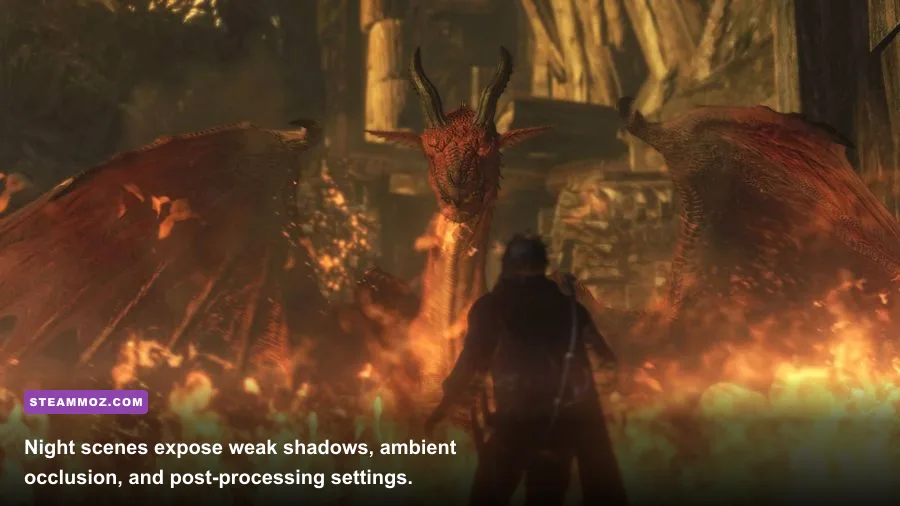
Shadow Quality is usually the first setting to lower. Gransys combines directional sunlight, torchlight, foliage, and busy settlements, so High shadows can produce uneven frame pacing even when your average FPS looks healthy. Medium retains convincing silhouettes and ground shading while reducing the number of shadow calculations.
Grass Quality is the other major outdoor culprit. The fields around Gran Soren and the road to the Encampment can fill the screen with vegetation. High grass looks richer in screenshots, but Medium is the smarter competitive setting because it keeps camera turns and sprinting smoother. It also makes enemy telegraphs easier to read; dense grass can hide wolves, bandits, and red glows at night.
| Setting Tier | Best For | Expected Trade-Off | My Verdict |
|---|---|---|---|
| Shadow Quality High | RTX 3060 and above | Heavy drops in cities and forests | Use only with generous GPU headroom. |
| Shadow Quality Medium | Most dedicated GPUs | Small loss in shadow softness | Best overall choice. |
| Shadow Quality Low | Older GPUs and laptops | Flat-looking lighting | Useful when targeting 60fps. |
| SSAO High | High-end hardware | Dark contact shading can look exaggerated | Pretty, but poor value. |
| SSAO Off | Maximum FPS | Less depth around objects | Best emergency performance switch. |
| Depth of Field On | Cinematic screenshots | Blurred edges during action | Disable for gameplay. |
SSAO adds subtle darkness where surfaces meet, such as beneath staircases or around rocks. It can make Gran Soren feel more grounded, but it is not essential and often adds less than players expect. Turn it off first on a budget GPU. Depth of Field is similarly optional: it gives cutscenes and distant scenery a softer look, while disabling it keeps targets, climbing points, and item pickups clearer.
Motion Blur should stay off for practically everyone. It does not improve frame rate in a meaningful way, and its smear becomes distracting when you whip the camera toward a flying Harpy or track the weak point on a Dragon’s chest. If you want a cinematic screenshot, enable it temporarily; for combat, leave it disabled.
Resolution, V-Sync, and frame-rate caps
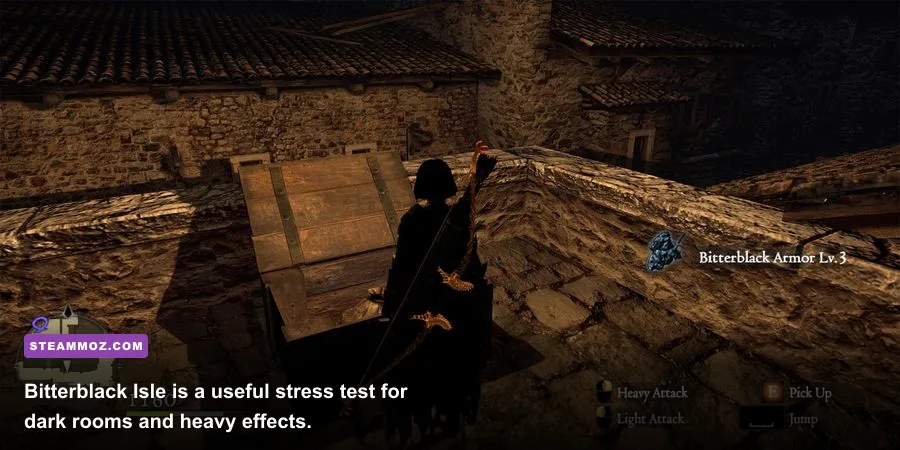
Resolution is the largest performance lever because it changes every pixel the GPU must shade. At 1080p, the recommended profile should be easy for most dedicated graphics cards. At 1440p, lower SSAO and shadows before sacrificing resolution. At 4K, High textures remain worthwhile, but Medium shadows and a 60fps cap are realistic targets unless your GPU has substantial headroom.
Dragon’s Dogma: Dark Arisen was designed around a console-era 30fps target, but PC players generally get a much better experience at a stable 60fps. Higher refresh rates can work, especially on powerful systems, though the improvement is less transformative than eliminating stutter. The important point is consistency: a 60fps cap with even frame pacing feels better than a fluctuating 90–144fps counter.
On a 60Hz display, enable V-Sync in the game if tearing bothers you. With G-SYNC or FreeSync, a cleaner approach is to enable VRR, turn in-game V-Sync off if it introduces latency, and cap the frame rate at 58–59fps through your GPU driver. Test both options because older PC ports can behave differently depending on the driver and display.
Use the official Steam listing to verify the current system requirements. If GPU usage sits at 95–100%, lower resolution, SSAO, shadows, or grass. If GPU usage is low while FPS drops in Gran Soren, the limitation may be CPU-side scene complexity rather than a graphics setting. Closing overlays and background recording can help more than dropping textures.
Best settings for low-end PCs and Steam Deck
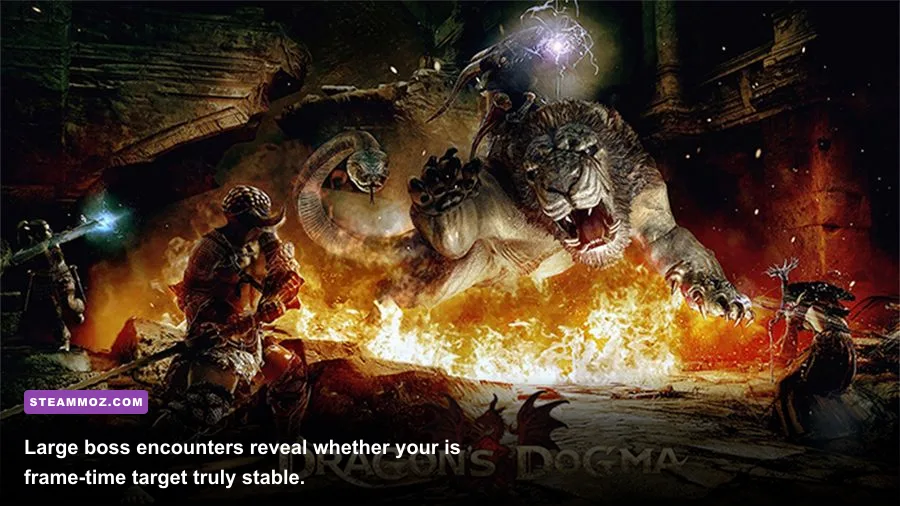
Older laptops and integrated graphics should target 720p or 900p, Model Quality Medium, Texture Quality Medium, Shadows Low, Grass Low, SSAO Off, Depth of Field Off, and Motion Blur Off. This combination protects frame pacing without making every character look like a blurry silhouette. If performance still collapses outdoors, lower resolution before turning textures to Low.
On Steam Deck, 1280×800 is the natural starting point. Use a 40fps cap for a strong balance between responsiveness and battery life, or 30fps when traveling through Gran Soren and fighting large groups. Keep textures at High if memory behavior is stable, but set shadows and grass to Low or Medium. The Deck’s screen makes the difference between High and Medium SSAO far less important than clean frame pacing.
| Hardware Target | Resolution | Core Profile | Frame Target |
|---|---|---|---|
| Integrated graphics | 1280×720 | Textures Medium, models Medium, shadows Low, SSAO Off | 30–45fps |
| GTX 760 / RX 560 class | 1920×1080 | Textures High, models Medium, shadows Low, grass Medium | 45–60fps |
| GTX 1060 / RX 580 class | 1920×1080 | Textures High, models High, shadows Medium, SSAO Off | Locked 60fps |
| RTX 3060 / RX 6700 class | 2560×1440 | Textures High, models High, shadows Medium or High | 60–120fps |
| Steam Deck | 1280×800 | Textures High, shadows Low, grass Medium, effects off | 30 or 40fps |
Don’t chase benchmark numbers in the opening area alone. The Encampment, Witchwood, Gran Soren’s marketplace, and Bitterblack Isle are better tests because they combine NPCs, particles, foliage, and complicated lighting. Walk the same route after each change and watch frame-time consistency, not merely the peak counter.
Stutter fixes, driver settings, and final tuning
Install the game on an SSD if possible, update your graphics driver, and give the first launch a moment to settle after changing settings. Disable unnecessary Steam, Discord, Radeon, or GeForce overlays while testing. These steps won’t magically double performance, but they remove variables when you’re diagnosing intermittent hitching.
In your GPU control panel, use a performance-focused power mode for the game profile and set an external frame cap only after testing the in-game limiter. Avoid forcing aggressive sharpening or driver-level anti-aliasing on top of the port; those filters can introduce shimmering around foliage and thin weapon trails. If the image looks soft at 1080p, a mild driver sharpening filter is safer than lowering textures or raising expensive shadow settings.
For a deeper comparison of PC tuning habits, Steamoz’s Dragonkin performance settings guide is useful reading, while this PC specs breakdown explains how to separate CPU and GPU limits. RPG players may also appreciate Steamoz’s Dungeon Siege performance discussion for another older RPG port.
Finally, remember that settings won’t fix every hitch caused by the port, background apps, or a poorly paced frame cap. The winning profile is simple: native resolution, High textures and models, Medium shadows, Medium grass, SSAO off, cinematic blur disabled, and a stable 60fps cap. That setup keeps the brutal detail of Dragons, Cyclopes, and Bitterblack Isle intact while making every dodge, climb, and charged spell feel immediate.
For official updates and platform information, check Capcom’s Dragon’s Dogma website and the Capcom Games portal. Once the frame rate is stable, stop tweaking and get back to Gransys—the real test is whether you can read a Wight’s spell cast before it turns the whole battlefield into a storm.